


Layers
Working with layers and files in Novaboard. Use this page when you want to separate lineart, colors, and effects, or keep multiple sprites in the same project.
Layers Panel
The layers panel ( Shift+F3 to toggle) shows all layers for the current frame. A properties strip at the top of the panel holds the blend mode, opacity, and the per-selection toggles; a search box under it filters the list by layer name; the buttons along the bottom add layers, groups, adjustment layers, and clip layers, and delete the selection.
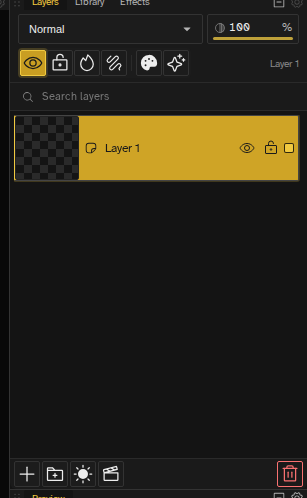
- Click a layer — Select it for editing
- Drag layers — Reorder the layer stack
- Double-click name — Rename the layer
- Press F2 — Quick rename the selected layer
In Simple mode the panel drops the blend-mode dropdown, the layer-effects button, and the adjustment-layer and clip-layer buttons in the footer.
Layer Controls
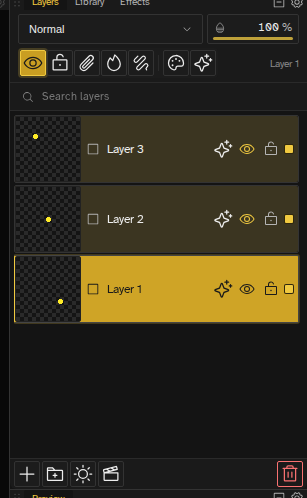
Each layer has the following controls:
- Visibility toggle — Show/hide the layer (eye icon)
- Lock toggle — Prevent editing (lock icon)
- Opacity — Adjust layer transparency
- Effects — Add shadow, glow, outline, and more (a sparkle icon appears on the row once the layer has effects)
- Contour Mode — Show only the outline of each cel's content
- Tag & Color — Attach a label and a color for organization. Rows are always tinted: a layer with no color of its own washes in the theme's default tint, and picking a color replaces it, in the layers panel and in the timeline rows alike. Contour Mode is the one place the color leaves the panel, since the outline is drawn in the layer's color (black when the layer has none).
- X/Y offset — Position layer content freely, including outside image bounds
Eye and Lock Gestures
The eye (visibility) and lock icons both support the same three gestures, in the layers panel and in the timeline layer rows:
- Click — Toggle that layer on its own (show/hide, or lock/unlock)
- Shift + click (or Alt + click) — Solo the layer. Shift-clicking the eye toggles the visibility of every other layer: if any other layer is visible they all hide, otherwise they all show. Shift-clicking the lock does the same for locking. The layer you click stays as it was, and the whole change is a single undo step.
- Press and drag across rows — Sweep the same toggle over several layers at once. Press on one eye or lock icon, then drag up or down over the other rows to flip each layer you pass. The whole sweep is one undo step.
Layer Operations
Available from the layers panel, the layer context menu, or the Layer menu:
- New layer — Add a new empty layer above current
- Duplicate layer — Copy the current layer
- Delete layer — Remove the layer
- Merge down — Combine with the layer below, which keeps its identity
- Merge up — Combine with the layer above, which keeps its identity
- Flatten Image — Merge every layer into one (hidden layers are discarded)
- Stamp Visible — Flatten all visible layers into a new layer right above the selected one, keeping the originals
- Merge multiple — Select multiple layers with Ctrl+click or Shift+click, then right-click and choose "Merge Selected"
- Group layers — Select two or more layers and click the folder button in the panel footer to wrap them in a new group
- Copy / Paste layer — Right-click a layer to copy it, then paste it above the active layer in this or any other open file
Multi-Layer Selection
Select multiple layers at once for batch operations:
- Ctrl + click — Add or remove individual layers from selection
- Shift + click — Select a range of layers
- Merge Selected — Combine all selected layers into the bottom-most one
Files
Files are independent canvases within the same project (for example, one file per character or tileset). Each file has its own:
- Canvas size
- Layer stack
- Animation timeline
Use files to work on multiple sprites or assets in parallel.
File Operations
- New file — Create a new file with custom dimensions
- Duplicate file — Copy entire file with all layers and frames
- Delete file — Remove the file
- Focus File — Open the file in the editor
Right-click a card in the file grid for Focus File, Rename, Duplicate File, and Delete File. Right-click empty space for New File and New Group.
File Reordering
Reorder files in the grid:
- Drag and drop — Reorder files within and across groups
- Drop indicators — Visual lines show where the file will land
- Group zones — Drop targets split into before, into, and after zones for groups
File Templates
When creating a new file, choose from template presets to quickly set the right dimensions:
- Blank — Standard pixel art sizes (16x16, 32x32, 64x64, etc.)
- Social — YouTube, Twitter/X, Instagram, TikTok, Twitch, and more with format variants
- Consoles — Game Boy, GBA, NES, SNES, N64, DS, Genesis, PlayStation, and more
- Stores — Apple App Store, Google Play, Steam, itch.io, Epic Games, GOG
- Starters — Ready-made files to open and draw over
The New File dialog also shows visual previews with dimensions and aspect ratios, plus a name field, an aspect-ratio lock, and a palette picker. Recently used templates appear in a Recent tab, and you can set a default template in preferences.
Clipping Masks
Clip a layer's content to the shape of the layer below it. This is useful for adding shading, textures, or details that stay within the boundaries of another layer.
- Toggle clipping — Click the clip button in the panel header (it applies to every selected layer, or to the selected group) or press Alt+G
- Visual indicator — Clipped layers show a clipping indicator in the layer panel
- Non-destructive — Original layer content is preserved
- Works with groups — Clip multiple layers within a group
Draft Layers
Mark layers as drafts to keep them visible while working but exclude them from exports. Perfect for sketches, guidelines, or work-in-progress content that isn't ready for the final output.
- Mark as draft — Select the layer and click the draft toggle in the layers panel header
- Visual indicator — Draft layers show a draft status icon in the layer panel (reference layers always count as drafts and keep their reference icon)
- Excluded from export — Draft layers are automatically hidden during export
- Persists with file — Draft status is saved with your project
Tracing Layers
Import images as tracing layers for tracing or comparison. Reference layers preserve their original resolution and can be transformed without pixelation.
- Import reference — File → Import Reference opens the image in the floating Reference Viewer panel. File → Import Tracing Layer brings it in as an on-canvas tracing layer instead, as does holding Shift while clicking Import Reference
- High resolution — Reference images keep their original quality up to 4096x4096 (larger images are scaled down on import)
- Transform freely — Scale, rotate, and skew without affecting pixel quality
- Adjust opacity — Lower opacity to trace over the reference
- Excluded from export — Reference layers don't appear in final output
Clip Layers
Embed other files as layers within your canvas. Clip layers reference another file and display its composited content, including animations.
- File embedding — Reference any file in your workspace as a clip layer
- Full transforms — Move, scale, rotate, and skew clip layers with on-canvas handles (transforms are stored per-cel so you can animate position, scale, rotation, and skew across keyframes)
- Animation sync — Clip layers play their referenced file's animation in sync with the parent timeline
- Nested clips — Clip layers can contain other clip layers, up to 4 levels deep
- Excluded from pixel editing — Clip layers are composited references, not directly paintable
See Clip Layers for details.
Decal Layers
Decal layers are not enabled yet. This is how they will work when they ship.
A decal layer warps the composite of a referenced source file onto the decal layer's own alpha shape. Paint the decal layer as a blockout or mask, then the source file's pixels are stretched to fit that shape via anchor-based warping.
- Convert any layer — Right-click a layer and choose "Convert to Decal"
- Anchor-based warping — Draggable anchors control how the source texture maps onto the decal layer's shape
- Configurable anchors — Adjust anchor count from the status bar for finer control
- Visual indicator — Decal layers show a sticker/warp icon in the layer row
- Full render support — Decals resolve in canvas, preview, export, and thumbnails
See Decal Layers for details.
Keyframes and Frame Inheritance
In animations, each layer stores content as a sparse set of keyframes. A keyframe is a cel with explicit content at a specific frame. Frames between keyframes don't store their own data — they automatically inherit the content of the nearest preceding keyframe.
This means a static background only needs a single keyframe on frame 0 to be visible across the entire animation. Drawing on an inherited frame edits its source keyframe, so the change shows on every frame of that keyframe's span. Keyframes are never created as a side effect: to make a frame diverge, insert a keyframe there first (for example with Insert Keyframe in the timeline), then draw.
See Animation for timeline, playback, and tweening.