


Layer Effects
Layer effects are non-destructive visual effects applied to individual layers or layer groups. Effects are GPU-accelerated via WebGL shaders, rendered in real-time, and automatically included in all exports.
The Effects Panel
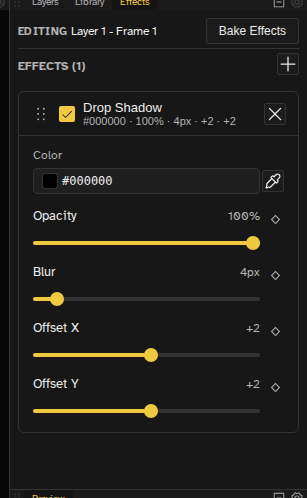
Layer effects live in a dockable Effects panel rather than a blocking modal. You can dock it beside your work or pop it out into its own window, and keep drawing on the canvas while you tweak effects. Slider changes preview live on the canvas as you drag, including across keyframe tweens.
There are several ways to open the Effects panel:
- Select a layer and click the sparkle icon in the Layers panel header (a sparkle also appears on a layer's own row once it has effects)
- Pick Layer > Layer Effects… from the menu bar
- Turn the panel on from the Window menu
- Select multiple layers to edit a stack that applies to all of them
The panel always edits a target — shown at the top of the panel — which follows your layer selection, naming the layer, the number of layers, or the group it is editing. A group target holds until you open a layer's effects again. Multiple effect cards can be open at once, and the open set is saved per file so it comes back the way you left it.

Simple mode hides the sparkle buttons in the Layers panel, so switch to the full interface if you want effects on hand.
Every color parameter has an eyedropper next to its swatch: click it, then click a pixel on the canvas to sample that color straight into the field.
Available Effects
Effects are organized into six categories in the add-effect menu: Style, Color, Palette, Screen, Distort, and Lens.
Style
| Effect | Description | Parameters |
|---|---|---|
| Drop Shadow | Adds a shadow behind the layer content | Color, Blur (0-50px), Offset X/Y (-50 to +50) |
| Glow | Creates a luminous halo around the layer | Color, Blur radius (0-50px) |
| Outline | Pixel-perfect outline around sprite edges | Color, Size (1-10px), Inline (inside instead of outside), Direction picker (presets: Full 8-dir, Cross 4-dir, Vertical, Horizontal) |
| Edge Detect | Outlines the edges within a layer | Threshold (0-100%), Color, Invert (when on, non-edge pixels turn white instead of transparent) |
| Smoother | Morphological anti-aliasing: softens jagged diagonals without blurring the whole layer | Smoothness (0-100%), Threshold (0-100%) |
| Motion Echo | Onion-skin-style ghost trail. The previous frames source echoes the layer's content at earlier timeline frames; static repeats the current content along the per-step offset | Source (previous frames / static), Copies (1-12), Offset X/Y (-50 to +50px per step), Fade Start/End (0-100%), Tint color, Tint Strength (0-100%) |
Color
| Effect | Description | Parameters |
|---|---|---|
| Color Correction | Adjust layer colors in HSL without modifying pixels | Hue (-180° to +180°), Saturation, Lightness (-100 to +100) |
| OKLCH Correction | Perceptually uniform color correction in the OKLCH color space | Hue (-180° to +180°), Chroma (-0.40 to +0.40), Lightness (-100 to +100) |
| Brightness/Contrast | Adjust brightness and contrast | Brightness (-100 to +100), Contrast (-100 to +100) |
| Levels | Advanced tone adjustment | Input Black/White (0-255), Gamma (0.1-10), Output Black/White (0-255) |
| Curves | A real curve editor: click the plot to add a point, drag to shape the tone curve, double-click a point to remove it | RGB, Red, Green, and Blue channel tabs, each with its own curve |
| Invert | Full color inversion | — |
| Grayscale | Desaturate the layer, partially or completely | Amount (0-100, default 100) |
| Modulate | Tint the layer with a color | Color, Alpha (0-100) |
| Gradient Map | Map luminance to a custom gradient | Array of gradient stops (color, alpha, position) |
Palette
| Effect | Description | Parameters |
|---|---|---|
| Posterize | Reduce color depth by quantizing each channel into a fixed number of levels | Levels (2-32) |
| Bit Crusher | Per-channel bit depth reduction. Useful for retro palettes like Amiga RGB444 (4/4/4), RGB565 (5/6/5), or NES RGB332 (3/3/2) | Red bits, Green bits, Blue bits (1-8 each) |
| Threshold | Flatten the layer into two colors based on luminance | Cutoff (0-255), Low color, High color |
| Dither | Ordered Bayer/noise dithering combined with posterize | Pattern (2x2 / 4x4 / 8x8 Bayer, Noise), Amount (0-100%), Levels (2-32) |
| Palette Swap | Remap specific colors to new ones (first match wins) | From/To color pairs, Tolerance (0-10 per-channel distance), Unmatched behavior (passthrough / transparent) |
Screen
| Effect | Description | Parameters |
|---|---|---|
| CRT Scanline | Retro CRT monitor effect | Line width (1-10px), Gap (1-10px), Intensity (0-100%), Vertical toggle, Blur (0-5px), Vignette (0-100%), Bend (0-100%) |
| Noise / Grain | Add film-style noise | Amount (0-100%), Monochrome toggle, Seed (0-1, animatable for flickery grain) |
| Chromatic Aberration | Split the red and blue channels for a retro lens look | Amount (0-50px), Angle (0-360°), Mode (split / radial) |
| Pixelate | Block-snap pixels to the origin of each block | Block size (2-64px) |
Distort
| Effect | Description | Parameters |
|---|---|---|
| Bend | Barrel/pincushion distortion | Amount (0-100) |
| Wave | Displace the layer along a wave | Amplitude (0-50px), Wavelength (4-200px), Angle (0-360°), Phase (0-360°, loopable), Waveform (sine / triangle / square / sawtooth / noise), Pinning (none / start / end / both) |
| Distortion | A displacement effect sharing Wave's parameters, for warping and rippling a layer | Same as Wave (defaults to the noise waveform) |
| Parallax | Shift the layer with wrap-around — great for scrolling backgrounds | Offset X/Y (pixels, wraps around; uncapped) |
Lens
| Effect | Description | Parameters |
|---|---|---|
| Bloom | Bright-pass plus blur composited additively for a soft glow on highlights | Threshold (0-255 luminance cutoff), Intensity (0-100%), Blur (0-50px) |
| Blur | Gaussian blur effect | Radius (0-20px) |
| Vignette | Edge darkening effect | Amount (0-100) |
Adding Effects
- Open the Effects panel
- Click the + button in the effects list
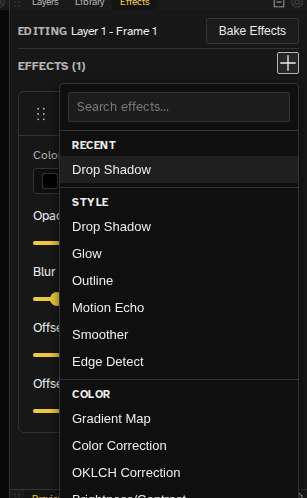
- Pick an effect from the categorized, searchable add-effect menu
- Adjust the effect parameters in its card — changes preview live on the canvas
The add-effect menu is built for picking from the longer effect list quickly:
- Categorized — effects are grouped under Style, Color, Palette, Screen, Distort, and Lens
- Search box — type to filter effects by name across every category
- Recents — your most recently used effects appear at the top of the menu
- Keyboard navigation — use the arrow keys to move the highlight, Enter to add the highlighted effect, and Escape to close the menu
Multiple Effects
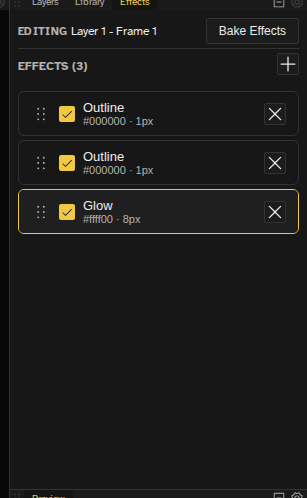
You can stack multiple effects on a single layer. Effects are applied in order from top to bottom in the effects list.
- Drag the handle on a card to reorder effects and change the order they apply in
- Toggle the checkbox to enable/disable individual effects
- Click a card header to expand or collapse its settings
- Click the X button to remove an effect
Collapsed cards show a parameter summary of their key values (for example, #000000 · 4px · +2 · +2 for a shadow), so you can tell two effects of the same type
apart without expanding them.

Copying Effects Around
Right-click any effect card for Copy, Paste, Duplicate, and Delete. The same four run from the keyboard while the panel has focus: Ctrl+C, Ctrl+V, Ctrl+D, and Ctrl+X to cut. Copy with nothing selected takes the whole stack. Pasting onto a selected effect of the same type overwrites it in place; anything else appends a copy at the end.
Animated Effects
An effect belongs to the layer, so editing one applies everywhere the effect already renders. Retune an Outline on frame 9 of an eighteen frame walk cycle and frames 1, 5 and 15 change with it, in one undo step. You never have to repeat the same colour pick on every keyframe.
- Adding an effect puts it on the whole layer, so every frame gets it at once
- Editing on a held frame is the same edit as editing on its keyframe, the same way drawing is, and never creates a stray keyframe
- Copy/paste a cel brings its transforms and effect parameters along
A cel can still carry its own value for a parameter, which is what tweening interpolates between and what a copied cel brings with it. Editing that parameter in the panel clears those per cel values so the layer reads as one thing again; parameters you did not touch keep theirs.
Keyframing one parameter
Every numeric parameter has a keyframe diamond beside it. Press it on a keyframe and that parameter stops following the layer: the keyframe under the playhead takes the value the panel is showing, and only that keyframe. Press it again and the diamond empties, every stored value goes, and the layer governs the whole timeline once more.
- Between two keyed keyframes the value moves in a straight line, one step per frame
- Outside them the parameter holds as it always did, so keying the middle of a cycle leaves its ends alone
- On a held frame the diamond is greyed out: a keyframe is never created as a side effect, so add one first
- Editing a keyed parameter writes the keyframe under the playhead and no other, while every parameter without a diamond still edits the whole layer
Group Effects
Effects can also be applied to layer groups. When applied to a group, the effect is rendered on the combined output of all layers within that group.
This is useful for:
- Adding a single shadow to a multi-layer character
- Applying an outline around grouped elements
- Color-correcting multiple layers at once
A group's stack opens from the sparkle icon on the group's row in the Layers panel, the same icon a layer row shows, and the panel's target row then names the group instead of a layer. Selecting layers afterwards leaves that target alone, so you can keep clicking around the stack while you tune the group's effects.
Effects Indicator
Layers with effects show a sparkle icon among the controls at the end of their row in the Layers panel. Click it to open the Effects panel for that layer. The icon only appears once a layer has effects (adjustment layers always show it), so the first effect on a plain layer goes through the sparkle button in the panel header or the Layer menu.
Bake Effects
Layer effects can be permanently applied to your layer's pixel data. This converts the non-destructive effects into actual pixels:
- Open the Effects panel for the layer
- Click the Bake Effects button. It applies straight away, no confirm step
After baking:
- The effects become part of the layer's pixel data
- All effects are removed from the layer
- You can now directly edit the pixels that were previously rendered as effects
Undo/Redo
All effect changes support undo/redo. Press Ctrl+Z to undo or Ctrl+Shift+Zor Ctrl+Y to redo effect modifications.
Export
Layer effects are automatically baked into all exports. This includes:
- Single frame exports (PNG, JPEG, WebP, BMP)
- Animation exports (GIF, APNG, WebM)
- Sprite sheets
- Timelapse recordings
- ICO and CUR cursor files
Effects are rendered at full quality in the exported files, exactly as they appear in the editor.