


Decal Layers
Upcoming feature: decal layers are not yet enabled in the current build. This page
documents the workflow as it will ship; the Convert to Decal option does not appear in the layer menu
yet.
A decal layer uses its own pixels as a blockout/mask and warps the composite of a referenced source file onto that shape. Paint the decal layer to define the silhouette, pick a source file for the texture, then tune anchors to control how the texture stretches.
How Decal Layers Work
Resolving a decal at a given frame follows this pipeline:
- Read the decal layer's own cel — this is the alpha shape / blockout.
- Composite the referenced source file to produce the texture image.
- Resolve source and target anchors (using stored perimeter positions for frame consistency).
- Warp the source texture onto the decal layer's shape via centroid triangulation.
| Feature | Description |
|---|---|
| Shape / mask | The decal layer's own cel — every frame can have its own silhouette |
| Texture source | The composite of the sourceNovaFileId file (another file in the workspace) |
| Mapping method | Perimeter extraction and centroid triangulation |
| Pipeline | Scale2x upscale, triangulate, majority downsample for crisp results |
| Default anchor count | 4. A minimum of 3 anchors is required; below that the source fits to the shape's bounding box |
| Render support | Canvas, preview panel, export, and thumbnails |
| Undo/redo | All decal operations are tracked in command history |
Creating a Decal Layer
Any normal layer can become a decal:
- Paint the decal layer so its pixels form the shape you want the texture to fill. This is the blockout / mask.
- Right-click the layer in the Layers panel.
- Choose Convert to Decal from the top-level context menu (not under Edit).
- Pick a source file — the file whose composite will be warped onto your shape.
Visual indicator: Decal layers show a sticker/warp icon in the layer row
(from
DecalIcon), not a letter badge.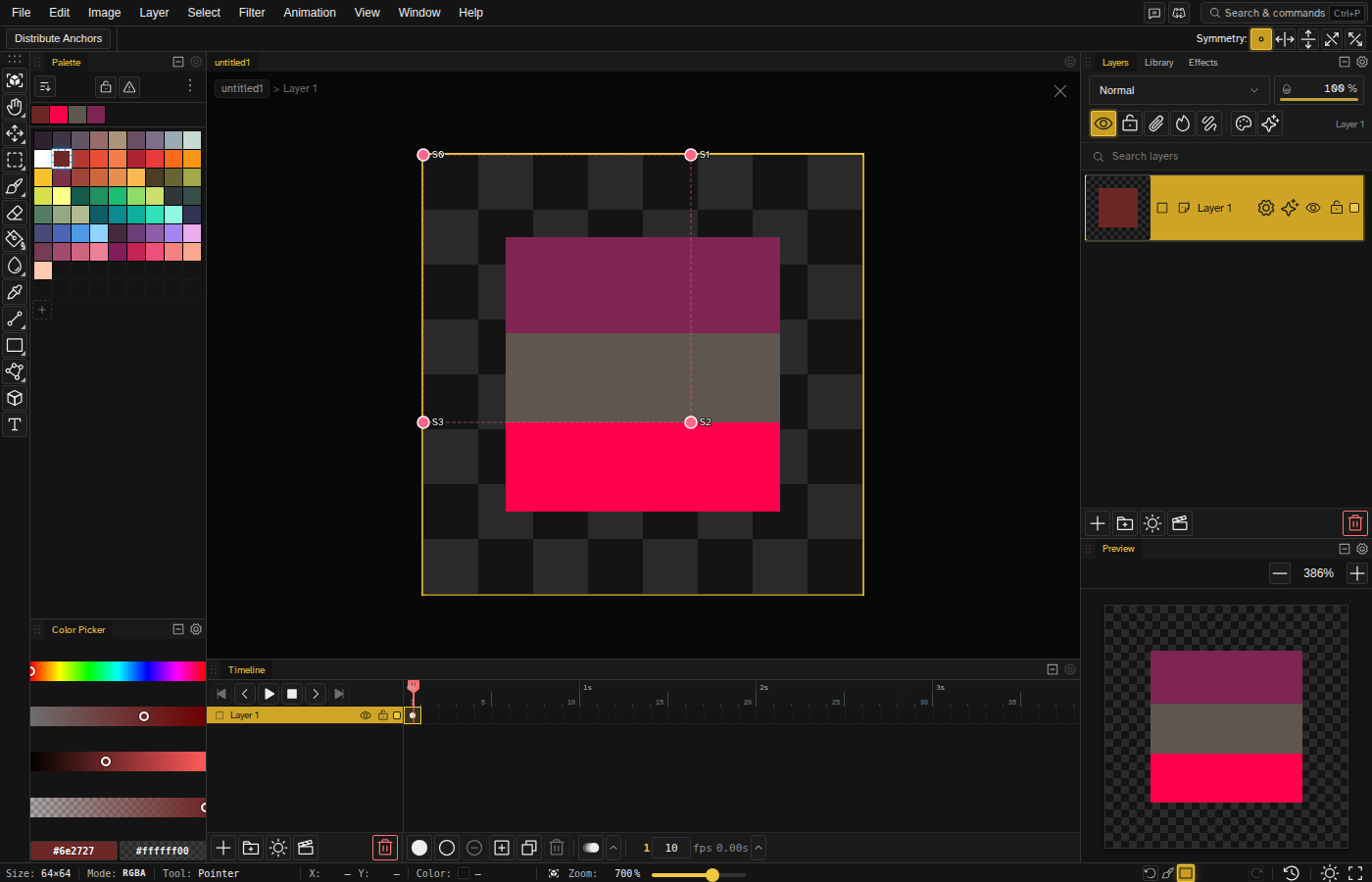
Anchors
Anchors are matched point pairs: source anchors mark locations on the source file's composite, and target anchors mark corresponding locations on the decal layer's own shape. Adjust them to control how the texture stretches into the shape.
- Pointer tool (A) — Drag target anchors directly on the decal layer's shape. Source anchors are edited inside the Decal Source Editor dialog.
- Drag anchors — Reposition anchors to adjust the warp mapping
- Snap to perimeter — Anchors snap to the decal layer's own perimeter when dragged
- Anchor count — Adjust the number of anchors from the status bar; more anchors give finer control. Default is 4, minimum for anchor-based warp is 3
- Per-cel overrides — Target anchors can be stored per cel so each keyframe can carry its own warp overrides while source anchors stay shared
Context Menu Actions
Right-click a decal layer for additional options:
- Edit Source Anchors — Opens the Decal Source Editor dialog to tweak source anchor positions on the source file's composite
- Change Source File — Pick a different file as the decal's texture source
- Apply Anchors to All Frames — Copy the current target anchor positions to every frame's per-cel override
- Remove Decal — Convert back to a normal layer
Tips
- Paint the decal layer as a flat silhouette. The shape defines where the texture appears; the texture itself comes from the source file.
- Increase the anchor count for complex shapes with many curves; fewer anchors work well for simple silhouettes.
- Edit the source file and the decal updates live — reuse one texture across many decal shapes.
- Combine with clipping masks for additional control over which areas receive the decal.
- Decal layers are fully composited during export, just like normal layers.