


Clipping Masks
Clipping masks constrain a layer's visible area to the non-transparent pixels of the layer below. This lets you paint freely while keeping content within specific boundaries.
Creating a Clipping Mask
To clip a layer to the one below it:
- Select the layer you want to clip
- Press Alt+G , or
- Pick Layer > Create Clipping Mask, or
- Right-click the layer and select "Create Clipping Mask"
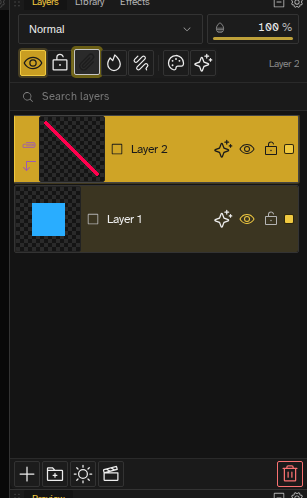
How Clipping Masks Work
When a layer is clipped, its content only appears where the layer below has non-transparent pixels. The "base" layer acts as a mask that defines the visible area.
| Layer | Role |
|---|---|
| Clipped layer | Content is constrained to the shape below |
| Base layer | Defines the visible area (acts as mask) |
You can clip multiple layers to the same base layer—they'll all be constrained to its shape.
Adjustment layers can be clipped too. An adjustment layer normally grades everything below it, all the way to the bottom of the stack, but clipping it limits the grade to just the layer (or group) it's clipped to. See Limit an Adjustment to a Layer or Group for details.
Common Uses
- Shading within shapes — Add highlights and shadows that stay within character outlines
- Texture overlays — Apply textures that conform to object shapes
- Color variations — Paint color changes without affecting the base shape
- Non-destructive editing — Experiment freely knowing you won't paint outside boundaries
Clipping with Groups
Clipping masks work with layer groups too. When you clip a layer inside a group, it clips to the layer directly below it within that group.
This enables organized workflows like:
- Character group with base + clipped shading layers
- Object group with base + clipped texture layers
- Multiple independent clipping stacks in one project
Removing a Clipping Mask
To unclip a layer:
- Select the clipped layer
- Press Alt+G again, or
- Pick Layer > Release Clipping Mask, or
- Right-click and select "Release Clipping Mask"
The layer's content is preserved—it just becomes fully visible again.
Tips
- Clipping is non-destructive—the original layer content is always preserved.
- You can freely edit both the clipped layer and the base layer.
- Expanding the base layer's content expands the visible area of clipped layers.
- Combine with blend modes for advanced effects.