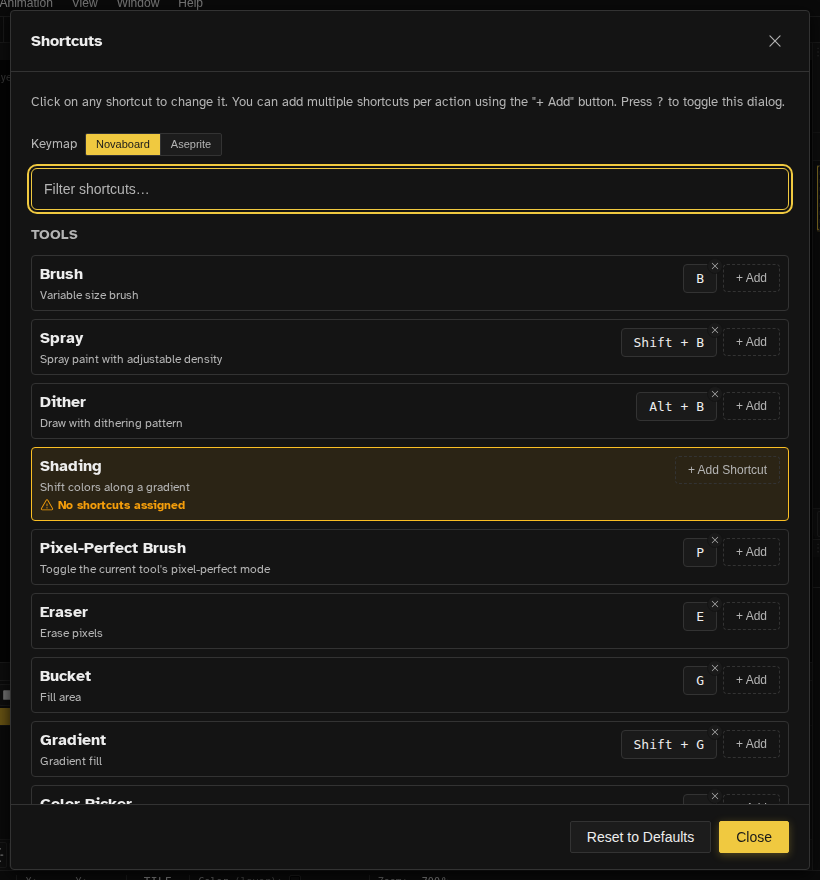
Complete reference of keyboard shortcuts. You do not need to learn all of these at once. Start
with a few that feel useful, and come back here as you get more comfortable. Open in-app with Shift+?
Tools
Action
Shortcut
Brush
B
Spray
Shift+B
Dither
Alt+B
Scatter
Shift+Alt+B
Pixel-Perfect Mode (toggle)
P
Eraser
E
Bucket Fill
G
Gradient
Shift+G
Color Picker
I
Magic Wand
W
Lasso
Q
Polygon Select (command palette)
—
Line
L
Rectangle
U
Circle
Shift+Cor Shift+U
Select
Sor M
Transform
T
Zoom
Z
Pan
Spaceor Middle Click
Rotate View
R
Text
Shift+T
Shading (command palette)
—
Blur
Shift+J
Jumble
J
Dodge/Burn
O
Slice
Shift+K
Tool Modifiers
Action
Shortcut
Adjust Size (drag)
D
Increase Brush Size
=or ]
Decrease Brush Size
-or [
Temp Color Picker
Alt
Bucket Contiguous (tap/hold)
Shift
Edit
Action
Shortcut
Undo
Ctrl+Z
Redo
Ctrl+Shift+Zor Ctrl+Y
Cut
Ctrl+X
Copy
Ctrl+C
Paste
Ctrl+V
Clear
Delor Backspace
Select All
Ctrl+A
Fill Selection
Shift+F
Stroke Selection
Shift+S
Flip Horizontal
Shift+H
Flip Vertical
Shift+V
Rotate 90° CW
Ctrl+R
Rotate 90° CCW
Ctrl+Shift+R
Canvas Size
C
Generate Outline
Shift+O
Adjust Hue (hold + drag)
Alt+H
Adjust Saturation (hold + drag)
Alt+S
Adjust Lightness (hold + drag)
Alt+L
Custom Brush from Selection
Ctrl+B
Selection
Action
Shortcut
Deselect
Escor Ctrl+D
Reselect
Ctrl+Shift+D
Commit Move
Enter
Inverse Selection
Ctrl+Shift+I
Iso Left (command palette)
—
Iso Right (command palette)
—
Shear... (command palette)
—
Move Up 1px (with selection)
↑
Move Down 1px (with selection)
↓
Move Left 1px (with selection)
←
Move Right 1px (with selection)
→
Move Up 10px
Shift+↑
Move Down 10px
Shift+↓
Move Left 10px
Shift+←
Move Right 10px
Shift+→
View
Action
Shortcut
Toggle Grid
Ctrl+'
Toggle Pixel Grid
Ctrl+"
Toggle Snap to Grid
~
Toggle Isometric Grid
Shift+I
Flip View Horizontal
H
Flip View Vertical
V
Toggle Grayscale View
Ctrl+Shift+U
Fit to Screen
Ctrl+0
Full Size Preview
1
Zoom In
Ctrl+=or Scroll Up
Zoom Out
Ctrl+-or Scroll Down
Zoom 100%
2
Zoom 200%
3
Zoom 400%
4
Zoom 800%
5
Zoom 1600%
6
Zoom 3200%
7
Zoom 6400%
8
Zen Mode
`
Toggle Navbar
Shift+F1
Toggle Toolbar
Shift+F2
Toggle Layers
Shift+F3
Toggle Preview
Shift+F4
Toggle Palette
Shift+F5
Toggle Timeline
Shift+F6
Toggle Status Bar
Shift+F7
Toggle Slices Panel
Shift+F9
Toggle Tags Panel
Shift+F10
Toggle Guides
Ctrl+;
Canvas
Action
Shortcut
Primary Action (draw)
Left Click
Secondary Action (draw)
Right Click
Swap Colors
X
Show Shortcuts
Shift+?
Wheel Menu
For Mouse Backor Mouse Forward
Quick Open (Files)
Ctrl+P
Command Palette
Ctrl+Shift+P
Animation
Action
Shortcut
Previous Frame
,or ←
Next Frame
.or →
Go to First Frame
Shift+<or Home
Go to Last Frame
Shift+>or End
Previous Keyframe (active layer)
PageUpor Ctrl+←
Next Keyframe (active layer)
PageDownor Ctrl+→
New Frame
Ctrl+Enteror Alt+Nor Alt+5
Insert Keyframe
Shift+Enteror Alt+6
Insert Blank Keyframe
Alt+Enteror Alt+7
Play/Pause
Enter
Play/Pause Preview
Shift+Space
Select All Frames (frame menu / command prompt)
—
Extend Cel Selection Left (no pixel selection)
Shift+←
Extend Cel Selection Right (no pixel selection)
Shift+→
Move Frames / Cels Left
Alt+←
Move Frames / Cels Right
Alt+→
Copy Cels (timeline focused)
Ctrl+C
Cut Cels (timeline focused)
Ctrl+X
Paste Cels (timeline focused)
Ctrl+V
Layers
Action
Shortcut
New Layer
Shift+N
Add Layer
Ctrl+Shift+Enter
Duplicate Layer
Ctrl+J
Delete Layer
Alt+Del
Select Layer Above (no selection)
↑
Select Layer Below (no selection)
↓
Select Layer Above with Keyframe
Ctrl+↑
Select Layer Below with Keyframe
Ctrl+↓
Select First Layer
Ctrl+Home
Select Last Layer
Ctrl+End
Extend Layer Selection Up (no pixel selection)
Shift+↑
Extend Layer Selection Down (no pixel selection)
Shift+↓
Extend Layer Selection Up to Keyframe
Ctrl+Shift+↑
Extend Layer Selection Down to Keyframe
Ctrl+Shift+↓
Move Layer Up
Alt+↑
Move Layer Down
Alt+↓
Rename Layer
F2
Toggle Clipping Mask
Alt+G
Palette
Action
Shortcut
Next Palette Color
0
Previous Palette Color
9
Next Secondary Color
)
Previous Secondary Color
(
File
Action
Shortcut
New File
Ctrl+Alt+N
Open…
Ctrl+O
Save (desktop only)
Ctrl+S
Save As (project file)
Ctrl+Shift+S
Export As (last used)
Ctrl+Shift+Alt+Sor Ctrl+Shift+Alt+E
Repeat Last Export
Ctrl+Alt+E
Tap or Hold
Full Size Preview ( 1 ), the zoom presets ( 2 to 7 ), the two view flips and the grayscale view all read a tap
differently from a hold. Tap and the change sticks. Hold the key and it is a peek: the moment
you let go you are back exactly where you were, same zoom, same pan. Handy for checking true
size mid-stroke without losing your place.
Positional Key Matching
Shortcuts match the physical key position on your keyboard rather than the character it
produces. The key in the row where B sits always triggers the Brush, no matter
which layout you type with, so AZERTY, QWERTZ, Dvorak, and other non-US layouts all dispatch the
same shortcuts as QWERTY. Modifier combos such as Shift+N for New Layer fire
from the expected physical key on any layout.
Touch Gestures
On touch devices you can trigger common actions with multi-finger taps and edge flicks:
Action
Gesture
Undo
Two-finger tap
Redo
Three-finger tap
Zen mode
Four-finger tap
Previous / next frame
Horizontal flick from the left / right screen edge
Customizing Shortcuts
Press Shift+? in the app to open the keyboard shortcuts editor. You can
customize any shortcut, add multiple bindings, or reset to defaults.