


Transform
Transform operations for selections, layers, and files. Use this page when you want to move, flip, or rotate parts of your sprite without repainting everything by hand.
Transform Tool (classic)
Select the classic Transform tool ( T ) to move, scale, rotate, or shear content. The only operation it does not support is perspective — for that, use the Unified Transform tool below.
- Drag — Move the selection
- Drag corners — Scale the selection
- Drag outside a corner — Rotate (L-shaped corner zones extend 40 screen-pixels along each adjacent edge)
- Drag outside a mid-edge — Shear along that edge
- Arrow keys — Move by 1 pixel
- Shift + Arrow keys — Move by 10 pixels (large move)
- Enter — Commit the transform
- Escape — Also commits (see below); it is not a cancel key here
There is no Confirm or Cancel button for an ordinary move, scale, rotate or shear: Enter, Escape, switching tools, switching files, and clicking away from the selection all commit the transform in place. Ctrl + Z is how you step back to an earlier state, exactly like undoing anything else. Two situations are the exception and still use a real cancel: placing a freshly imported image, and positioning a 9-slice clip. Escape drops those outright, since nothing has been placed yet. The same rule runs through the app: Escape keeps a change to art that already exists, and throws away something you are still creating, like a text box or an unfinished polygon.
Typing Exact Values
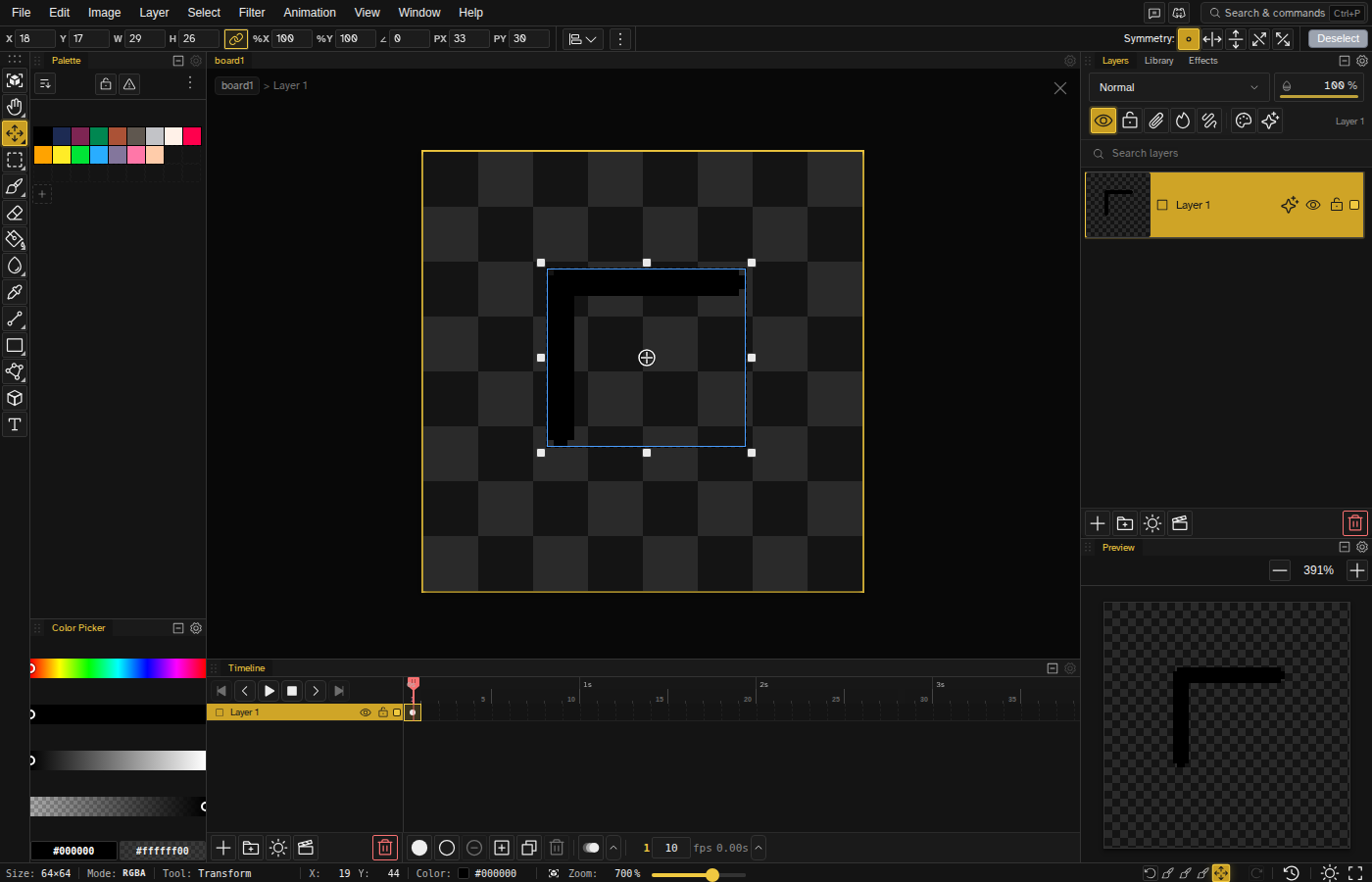
With the classic Transform tool active, the options row above the canvas carries six number fields. They are a live readout as well as an input: drag a handle and they follow it, so you always know how big the thing you are moving is.
| Field | What it sets |
|---|---|
| X, Y | Where the box sits on the canvas, in pixels, measured from the top-left corner of the file. Type 12 and 40 to put it at 12,40. |
| W, H | Size of the box in pixels, before rotation. |
| %X, %Y | The same size as a percentage of the original. |
| ∠ | Rotation in degrees. |
| PX, PY | Where the pivot sits, in the same canvas pixels as X and Y. |
The link button between H and %X locks the aspect ratio. With it on, typing one side scales the other by the same factor. Turn it off to stretch a single axis.
Every field takes arithmetic, so you can type 45/3 for 15 degrees or 16*2 for 32 pixels. Press Enter or click away to apply. You can also
drag sideways across a field, or point at it and use the wheel, to scrub the value.
X and Y follow the same box the selection outline draws, so once you rotate something they report the corner of the upright box drawn around it, which is what you can see and measure. W and H are the other way round: they stay the size before rotation, because that is the size you are choosing when you scale a sprite, and it would be useless if it grew every time you turned the thing.
Sizing grows the box out from its centre, so a bigger W pushes the left edge left. X and Y report where the box ended up, which means they change after you resize. That is the point of an absolute coordinate.
One field edit counts as one step, so Ctrl + Z takes back the value you just typed and leaves the rest of the transform alone, exactly like undoing a single handle drag. Press Enter or Confirm when the numbers read what you want.
PX and PY are the pivot, the point a scale or a rotation turns about. They are the same pivot as the little glyph on the canvas, so dragging it moves the numbers and typing a number moves it. Across several cels they read ΔPX and ΔPY, the pivot's distance from the centre of the box, because that is what the cels share. Moving the pivot is never an undo step of its own: it aims the next thing you do rather than changing the picture, so put it where you want it and then scale or rotate.
Transforming Several Cels at Once
With Paint across selection on, one transform moves every cel your selection covers. Those cels are in different places, so there is no single position to show: X and Y become ΔX and ΔY, the distance the transform has moved everything since you started it, and the angle becomes Δ∠ the same way. W and H go away with the single box they described. Percentages stay, because a percentage was always relative.
A delta still replaces rather than adds up. Type 6, then 6 again, and it is still 6, not 12.
A typed rotation or scale is applied to each cel about itself. Type 90 and every sprite turns a quarter turn where it stands, instead of the whole group swinging around one point and flinging the far ones across the canvas. Dragging a handle is still the other thing: the handles frame the whole group, so a drag turns the group. If you want the group behaviour, drag; if you want each of them, type.
One exception: a lasso or wand selection carries a shape, and one shape cannot describe cels that have turned apart from each other. With a selection like that the typed value falls back to turning the group, exactly as a drag would.
A keyframe and the held frames after it are one cel, not several, so selecting a run of them keeps the ordinary position fields. If you have cels selected while Paint across selection is off, a warning appears next to the fields: a typed value would move the active cel and leave the rest behind.
Seeing the Cels You Are Not Looking At
Whenever more than one cel is in scope, the ones on other frames are drawn on the canvas as coloured ghosts: red for the ones before the frame you are on, blue for the ones after. They show up as soon as Paint across selection is on, before you touch any tool, and while a transform is running they move with it, so you can see what a typed value did to all of them and not just to the frame in front of you.
This is not onion skin and it has no settings of its own. There is nothing to turn on: it appears because more than one cel is in scope, and it goes when the scope goes back to one. Cels on the frame you are looking at are already on screen, so they are drawn normally rather than ghosted.
Clip Layers
Clip layers get the same fields. A clip is not a floating selection, it is drawn from the layer's own position, scale and rotation, so the numbers write those properties directly and each typed value is one undo step, exactly like one drag of a handle. X and Y are the corner of the box you can see on screen, so they keep working once the clip is rotated.
On a 9-slice clip, W and H change the target size instead of the scale, which is what keeps the corners crisp at any size, and they stop at the smallest size that still fits all four corners. The percent fields always mean scale on both kinds of clip.
Reference layers are the exception: they carry their own transform with its own rules, so the number fields are greyed out while a reference layer is the active layer.
Unified Transform Tool
The Unified Transform Tool provides all transform operations in a single tool with distinct visual handles — including shear and perspective, which the classic Transform tool does not support. The Unified Transform tool has no default keyboard shortcut; select it from the tool panel.
Simple mode hides this tool. Switch to Advanced mode to see it in the tool panel; the classic Transform tool is available in both modes.
| Operation | How to Use |
|---|---|
| Move | Drag inside the selection |
| Scale (free-form) | Drag corner square handles (hold Shift to lock aspect) |
| Scale (single axis) | Drag edge square handles |
| Rotate | Drag outside the selection bounds |
| Shear | Drag diamond handles on edges |
| Perspective | Drag small diamonds at the corner points (over the corner scale handles) |
| Move pivot | Drag the center crosshair |
Modifiers
- Shift + scale — Lock aspect ratio
- Shift + rotate — Snap to isometric and cardinal angles
- Shift + pivot — Snap pivot to corners, edges, or center
- Ctrl + scale — Scale from the geometric center of the selection (not from the user-draggable pivot icon)
- Ctrl + drag inside the selection (Transform tool) — Move a copy and leave the original in place
Only perspective is Unified Transform only — the classic Transform tool covers move, scale, rotate, and shear, but has no perspective handles.
The same commit rules as the classic tool apply here: there is no Confirm or Cancel button, and Enter, Escape, switching tools or files, and clicking away all commit the transform. Undo is the way back.
Handles automatically hide when the selection is small to avoid clutter. Thresholds (in screen pixels, based on the shortest edge of the bounding box):
- Edge scale handles — hidden below 60 screen-px
- Perspective handles — hidden below 80 screen-px
- Shear handles — hidden below 100 screen-px
- Corner scale handles — always visible
Rotation and scale use the CleanEdge algorithm (GPU) by default, falling back to CPU RotSprite and nearest-neighbor when WebGL is unavailable — the algorithm is switchable in the Transform tool's options row. Perspective uses a RotSprite-style 8x upscale; skew rasterizes directly with nearest-neighbor.
Pivot Point
The crosshair at the center of the bounding box is the pivot — the anchor that rotation is computed around. Drag the crosshair to reposition the pivot (hold Shift to snap to corners, edges, or center). Double-click the pivot to reset it back to the bounding-box center, or double-click anywhere else inside the bounds to drop the pivot there, snapped to the pixel grid. Hold Ctrl while scaling to scale outward from the selection center rather than from the opposite handle.
Transforming a Text Layer
Moving a text layer keeps it editable: the move is folded back into the text's position, so the next edit re-renders where you left it. Anything else rasterizes it. Rotate, scale, skew or perspective produce pixels no text description can reproduce, so the description is dropped and what stays is the picture. The same happens when only part of the layer's content travelled, since the text would then be in two places at once.
Once the last frame carrying text is rasterized the layer becomes a normal layer, exactly as if you had run Rasterize Text. Frames whose keyframes still describe their own text keep it and stay editable there. Undo restores the layer's text, so it is worth committing the wording before you start reshaping.
Quick Access
When using any of the five selection tools (Rectangle Select, Ellipse Select, Lasso, Polygon Select, Magic Wand), hold Control to temporarily switch to the classic Transform tool for quick adjustments. The temporary override always targets the classic Transform tool, not the Unified Transform tool.
Flip Operations
Flip the selection, layer, or file:
| Action | Shortcut |
|---|---|
| Flip Horizontal | Shift+H |
| Flip Vertical | Shift+V |
Flip operates on:
- Selection content (if selection exists)
- Active layer (if no selection)
- Entire canvas (if there is no selection and no active layer)
The Edit menu → Transform submenu holds the same commands; its label shows the current target (Selection, Layer, or Canvas) and the whole submenu applies to that target. To flip the whole canvas whatever the current target is, use Image → Flip Canvas.
Rotate Operations
Rotate the selection, layer, or file:
| Action | Shortcut |
|---|---|
| Rotate 90° Clockwise | Ctrl+R |
| Rotate 90° Counter-Clockwise | Ctrl+Shift+R |
Rotate operates on the same target as flip (selection / layer / canvas). The Edit menu → Transform submenu applies to whichever target is current, and Image → Rotate Canvas always turns the whole canvas.
Shear (selection only)
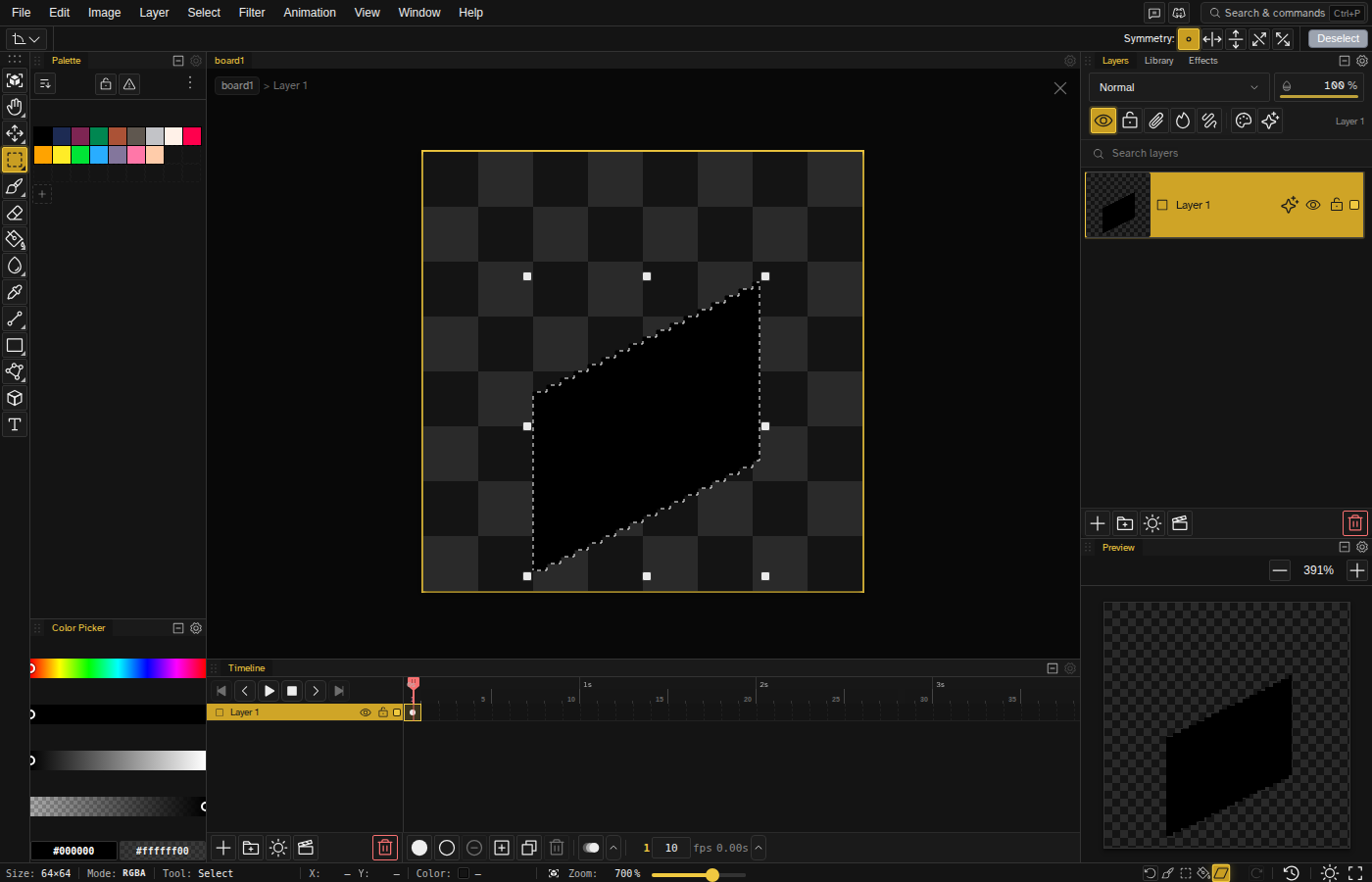
Staircase shears live under Edit menu → Transform → Shear when a selection is active. The two isometric presets shift 2-pixel-wide vertical strips so the result staircases at roughly 26.57° (atan(1/2)), which is the standard isometric angle.
- Iso Left — Shear so the left side drops
- Iso Right — Shear so the right side drops
- Custom… — A dialog with a live preview. Pick one of four directions (the two iso shears, or a lean that shifts rows sideways like italic text), then set how many pixels each strip moves and how thick the strips are. The dialog shows the result size and warns when part of it would run past the canvas.
Selection Operations
| Action | Shortcut |
|---|---|
| Select All | Ctrl+A |
| Deselect | Escor Ctrl+D |
| Reselect | Ctrl+Shift+D |
| Commit Move | Enter |
| Inverse Selection | Ctrl+Shift+I |
| Crop to Selection | Image menu |
| Move Up 1px | ↑ |
| Move Down 1px | ↓ |
| Move Left 1px | ← |
| Move Right 1px | → |
Edit Operations
| Action | Shortcut |
|---|---|
| Cut | Ctrl+X |
| Copy | Ctrl+C |
| Paste | Ctrl+V |
| Delete | Delor Backspace |
Resize Canvas
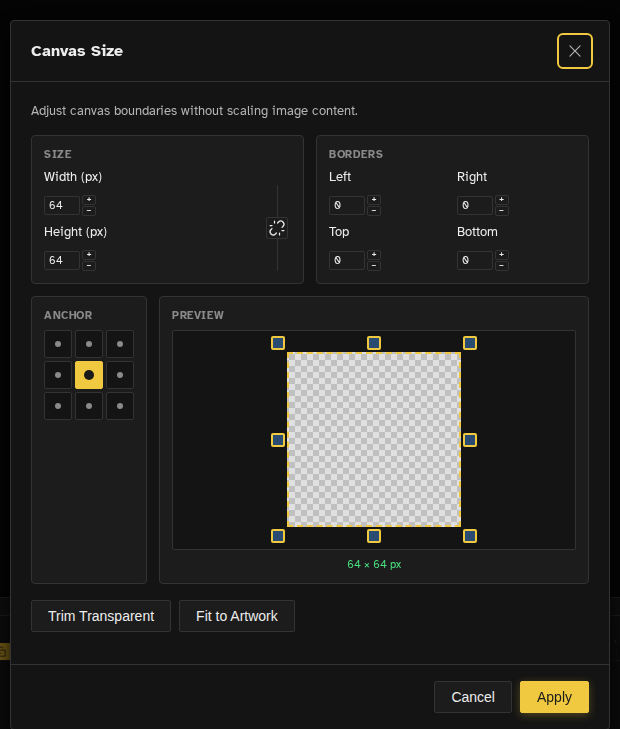
Change the canvas dimensions without scaling pixel content. Open the Canvas Size dialog from Image → Canvas Size or run Canvas Size from the command palette. Pick
an anchor to control where existing content lands after the resize, or set per-side border amounts
to grow specific edges.
Alignment & Distribution
Align and distribute content precisely within the canvas:
- Align options — Align left, center, right, top, middle, or bottom
- Distribution — Distribute items evenly horizontally or vertically
- Reference — The panel aligns layers relative to the canvas or to the current selection; the command palette align/distribute commands always use the canvas
- Position — With a single layer selected the panel also takes exact X and Y values, in pixels or as a percentage
Distribution needs at least two selected layers; with fewer, the buttons stay disabled.
Access via the Align & Distribute dropdown in the Transform tool's options bar, or run the align commands from the command palette.