


Interface & Workspace
Novaboard's interface is designed for efficient pixel art workflows. This guide covers panels, the command palette, themes, and customization options.
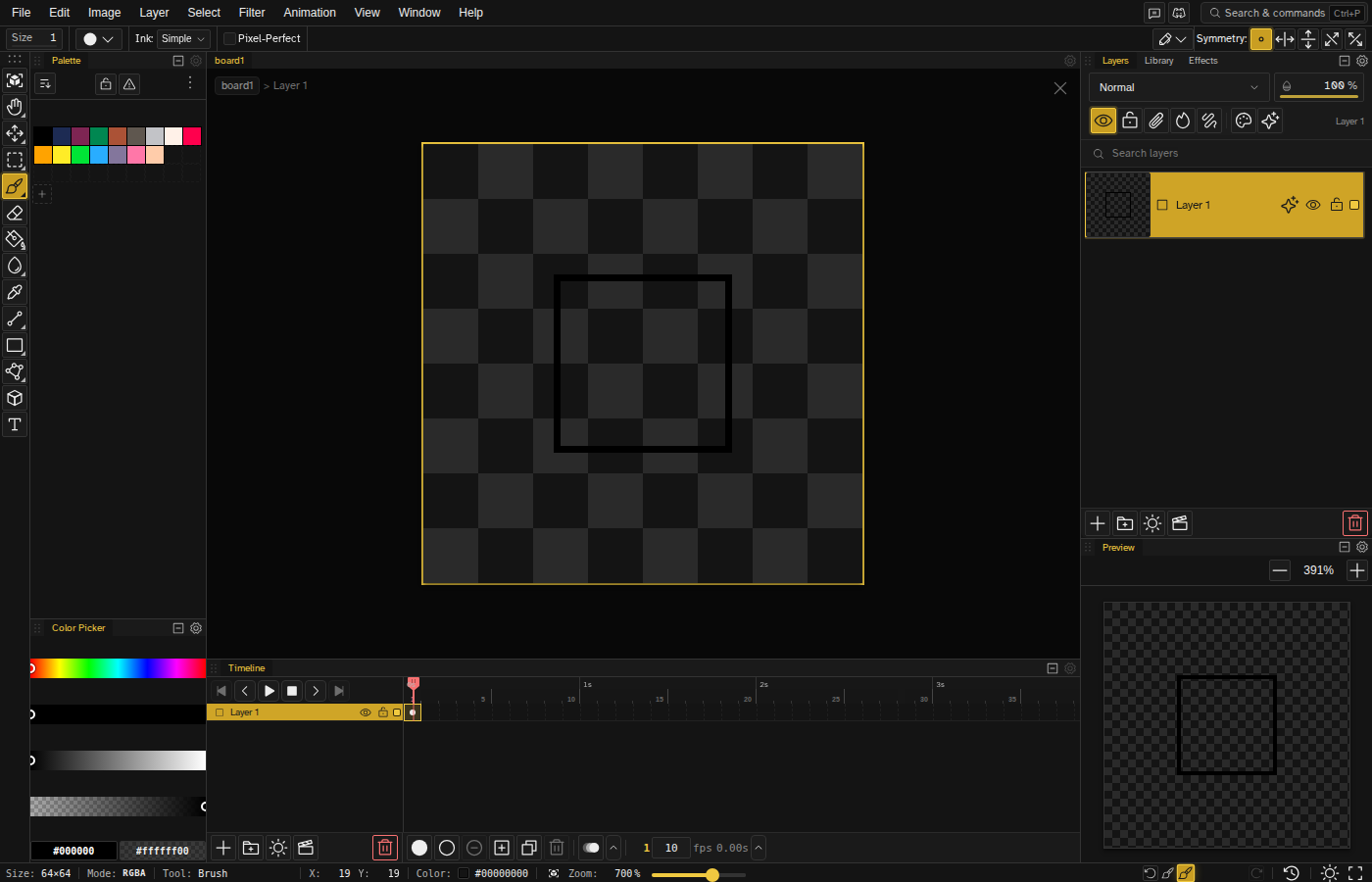
Command Palette
The command palette provides quick access to all commands without using menus. Open it with:
| Shortcut | Mode | Description |
|---|---|---|
| Ctrl+P | Quick Open | Search and switch between open files |
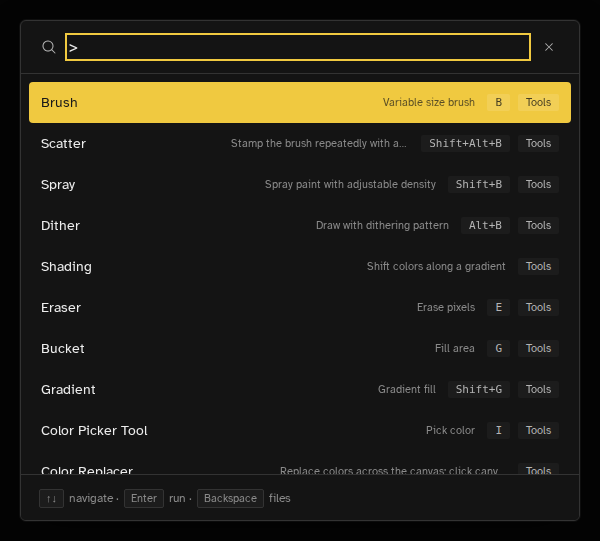
| Ctrl+Shift+P | Commands | Search and execute any command |
You can also open it without remembering a shortcut:
- Search & commands pill - The pill at the end of the menu row, labelled "Search & commands" with its shortcut, opens Quick Open. The file grid has the same button in its header
- View → Command Palette - The View menu has a Command Palette item that opens the palette in commands mode
Features
- Fuzzy search - Type partial words to find commands
- Recent commands - Recently used commands appear first
- Instructions - Drawing instructions accept parameters (e.g.,
line 0 0 10 10), with Tab completing the syntax - Cross-workspace file search - Quick Open finds files across every workspace, not just the active one
- Frame jump syntax - Type
filename Nto open a specific frame of another file - Keyboard navigation - Ctrl + J / K or Ctrl + P move through results, Escape closes, and Up / Down on an empty query browse previous searches
- Back to files - The ✕ button clears the query, and Backspace on an empty query in commands mode returns to Quick Open
Go To Navigation
Quick Open results mix four types of navigation targets in a single list:
- Files - Switch to any file across any workspace
- Go to Frame - Type a frame number to jump directly to it
- Go to Layer - Navigate to a layer by name
- Go to Tag - Jump to an animation tag's first frame
Type without the > prefix to search across all navigation targets.
> in Quick Open mode to switch to command mode.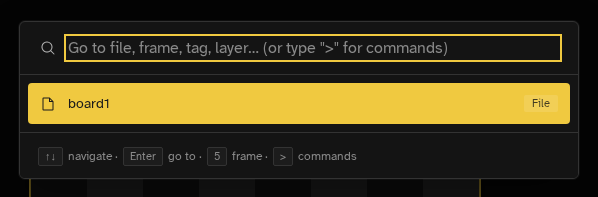
Drawing Instructions
The command palette also accepts a small instruction language for scripted edits, each with
argument completion via Tab: move x y, pixel x y, line x1 y1 x2 y2, draw x y (line from the cursor), rect / rectFill x y w h, roundedRect / roundedRectFill x y w h r, circle / circleFill x y r, ellipse / ellipseFill x y w h, fill x y, setColor #rrggbb and setBrushSize n.
Docking System
Novaboard uses a fully customizable docking system. Panels can be dragged, dropped, floated, and arranged into any layout you need.
- Drag-and-drop panels — Drag any panel by its tab to reposition it within the dock layout
- Floating panels — Detach panels to float freely over the canvas
- Multi-panel floating containers — Floating and popout containers hold a full dock subtree, so multiple panels can be tabbed, split, and resized inside one window
- Popout windows — Right-click a panel tab and choose Pop Out to New Window to move it into a separate browser window. Use a second monitor or keep reference panels visible while working. Send to Window and Send Back to Main Dock move tabs between windows
- Drag tabs between windows — Drag a panel tab straight into a popout (or back), with a live drop preview. Dropping a panel outside the window opens it in its own floating window at the drop position. Popout windows use their tab bar as the header; drag it to move the window
- Session restore — On reload, a toast offers to restore previous-session popouts; dismissing returns each panel to its last saved position in the main dock
- Dock zones — Visual drop zones appear when dragging panels for precise placement
- Workspace presets — Save and load custom panel arrangements, including popouts
- Resizable docks — Drag dock edges to resize; panels can be made very compact. Floating windows resize from any edge or corner
- Panel header buttons — Every panel group's tab bar ends in a cog and a minimize button. The cog opens that panel's settings (only the Preview and Color Picker panels have any; it is greyed out otherwise), and minimize folds the group down to a strip of icons. Double-clicking a tab does the same fold; clicking an icon in the strip opens the panel as a flyout you can resize
- Zen Mode — Hide all panels at once for distraction-free editing (Window menu)
- Reset Layout — View → Reset Layout puts every panel back where it started. Layouts are saved per screen-width bucket, so a laptop and an external monitor keep their own arrangements
Editor Tabs & Split View
The editor is a panel like any other, and every open file is a tab in its tab bar. Opening a file that is already open switches to its tab instead of opening it twice. Right-click a tab for Split View, Pop Out to New Window (desktop), and Close; View → Split View does the same for the active tab.
- Side by side — Drag a tab to the edge of the editor area to open a second group, up to four on desktop and two on iPad
- Two views of one file — Split View opens the same file again, marked (2) in the tab. Each view keeps its own zoom, pan, view rotation and tile mode
- Back to the grid — File → Back to Workspace closes the active tab and returns to the file grid
Panels
Toggle panels to customize your workspace. Each panel can be shown or hidden:
| Panel | Shortcut | Purpose |
|---|---|---|
| Navbar | Shift+F1 | Top menu bar |
| Toolbar | Shift+F2 | The tool buttons |
| Layers | Shift+F3 | Layer management |
| Preview | Shift+F4 | Animation preview, fitted to the panel |
| Palette | Shift+F5 | Color palette and swatches |
| Timeline | Shift+F6 | Animation frames and timing |
| Status Bar | Shift+F7 | Bottom status bar with zoom and position |
| Color Picker | Standalone dockable color picker panel | |
| Slices | Shift+F9 | Manage export slice regions |
| Tags | Shift+F10 | Manage animation tags and ranges |
| Library | Browse files, slices, and bundled system clips to place as clip layers | |
| Effects | Edit non-destructive layer effects on the selected layer or group | |
| Zen Mode | ` | Hide all panels at once for distraction-free editing |
In addition to the dockable panels above, Novaboard also has ephemeral dialogs that float over the canvas but are not tracked in panel visibility: Outline, Brightness/Contrast, Posterize, OKLCH, HSL, Curves, Anti-Aliasing, Auto-Shade, Replace Color, and Reference. These open when invoked from menus or filters and close when dismissed.
Panel Settings
Two panels put something behind the cog in their tab bar. Preview keeps its view mode, background, tile layout and voxel options there. Color Picker keeps which of the four picker modes are offered, the color space the wheel is mapped in, the harmony overlay, the discrete hue wheel and its step count, the wheel's starting angle, the normal map's Y direction, and whether the value and alpha sliders sit beside the picker or under it. It is the same set as the Color Picker section of User Preferences, driven by the same settings, so a change in one place shows up in the other. Colors covers what each mode does.
Panel Sizes
Drag panel edges to resize. Sizes are remembered between sessions. The timeline, preview, and palette panels have adjustable heights.
Menu Bar
While a file is open, the menu bar runs File, Edit, Image, Layer, Select, Filter, Animation, View, Window and Help, with the tool options row underneath it. The file grid has its own shorter File, Edit and Help menus. Menus lists what is in each one, including the Display chrome modes, Reset Layout, Full Screen, and the workspace import and export items.
Preview Panel
The preview panel fits your artwork to the panel and lets you zoom in from there, so you can check how your sprite will look in-game.
Features
- Independent zoom - 0.25x to 20x, separate from main canvas
- Fit to panel - Click the zoom percentage to fit, double-click it to type a value
- Pan support - Drag to pan around zoomed images
- Animation playback - A play/stop button, the frame counter and the elapsed time. Playback follows the timeline's mode (once, loop or ping-pong)
- Settings - The panel's own options (view mode, background, tile layout and the voxel settings) live behind the cog in its tab bar
Status Bar
The status bar runs along the bottom of the editor and shows live information about the active file.
From the left: canvas size, a badge with the file's color mode (RGBA, Indexed or Grayscale), the active tool, the X/Y pixel coordinates under the cursor, the frame counter (once the file has more than one frame; click it to step forward, right-click to step back), the color under the cursor, and the zoom.
- Editable zoom - The zoom readout is a number field. Type a value and press Enter or click away to commit it; press Escape to cancel and keep the previous zoom
- History - The right side carries undo and redo around a counter reading "v 14 / 32": where you are in this file's history, and how many versions it holds. Click it to open the History panel, where every version is a row you can click to go back to it
- Theme and full screen - The last two buttons swap the light/dark slot and toggle full screen
Theme
Novaboard keeps two themes at once: one for light, one for dark. Pick which theme fills each one in Edit → User Preferences under Appearance, then switch between them with the sun/moon button, which sits in the status bar while editing and in the navbar of the file grid.
- System - Follows your OS dark/light mode setting
- Dark - Always shows your dark theme
- Light - Always shows your light theme
Light and Dark ship as the stock themes, plus Dracula, which you can put in either slot. Any theme can fill any slot, so if you prefer two dark themes the sun/moon button just swaps between them.
UI Mode
Novaboard ships with two built-in UI modes that you can switch between at any time. The first time you open the app, a landing overlay greets you; its call to action opens the New File dialog on the Starters tab so a ready-made project is one click away.
- Simple - A compact mode that hides the timeline panel along with the advanced tools and features (effects tools, text, gradient, blend modes, layer effects, onion skin, tile mode, guides and the advanced export formats). Good for quick sketches and first-time users.
- Advanced - The full dock layout with every panel, tool, and feature available.
Switch modes at any time via Window → Layouts → Simple Mode / Advanced Mode, or from the Layouts section of the floating View button that appears when both the navbar and the status bar are hidden. The choice is saved across sessions.
Feature Flags
Two experimental features sit behind toggles in Edit → User Preferences under Experimental Features:
- Brush Dynamics - Pressure sensitivity, velocity mapping, and stroke stabilization for the brush tool. On by default
- Stylus tilt & rotation - Map stylus tilt, azimuth, and twist to brush size and rotation. Off by default
Flags persist per browser. Features behind a flag are still under active iteration, so expect rough edges.
Keyboard Shortcuts
Novaboard has over 220 keyboard shortcuts that can be customized to match your workflow.
Viewing Shortcuts
Press Shift+? to open the keyboard shortcut editor, or visit the Shortcuts page.
Customizing Shortcuts
The same editor is where you rebind things. Open it from Edit → Keyboard Shortcuts, Help → Keyboard Shortcuts, the Keyboard Shortcuts section of User Preferences, or the command palette. There you can:
- Add multiple key bindings per action
- Remove existing bindings
- See conflicts between shortcuts
- Reset to defaults
- Search filter - Find shortcuts by name or description; the search field auto-focuses when the editor opens
- Mouse button support - Bind middle and right mouse buttons to actions
- Scroll-wheel binding - Bind scroll-wheel up/down (with optional modifiers) to any action
- Conflict resolution dialog - When a new binding clashes with an existing one, a dialog lets you reassign or clear the conflicting shortcut inline
- Multi-stroke chords - Record a sequence such as Ctrl+K Ctrl+S. Once the first stroke is down, a hint at the bottom of the screen shows the chord waiting to be finished
- Keymap preset - A Novaboard / Aseprite switch at the top of the editor. Tool letters already match Aseprite, so the Aseprite preset only remaps the zoom row (1-6 for 100%-3200%, matching Aseprite's own layout) and hands Full Size Preview's 1 key over to it
Pan and Rotate Keys
Canvas navigation uses ordinary tool shortcuts, rebindable like any other:
- Pan - Hold Spaceor Middle Click and drag to pan the canvas
- Rotate - Hold R and drag to rotate the view
Shortcut Categories
The editor groups shortcuts into nine categories: Tools (tool selection), File, Edit, View (zoom and panel toggles), Selection, Layer, Palette, Animation and Canvas.
Workspaces
Organize your projects into separate workspaces. Each workspace has its own collection of files and independent camera/canvas state.
- Create workspaces - Click the "+" button in the workspace selector
- Switch workspaces - Select from the workspace selector dropdown
- Rename - Click the pencil icon next to a workspace name
- Delete - Click the trash icon on a workspace row and confirm in the dialog. Deleting a workspace cascades to all its files and their whole history. You cannot delete the active workspace or the last remaining one
- Independent state - Each workspace preserves its own camera (pan, zoom, and flip). Dock layout, popout windows, and panel visibility are global and shared across every workspace
The workspace selector sits in the header of the file grid, the screen you land on when no file is open. Existing files are automatically migrated to a default workspace.
Deleting Files
Right-click a file in the grid and choose Delete File. Deletion cascades to every version, every branch and the file's history record in one transaction, so there are no orphaned records left behind.
Wheel Menu
A radial quick-access menu for your most-used commands. Open it by pressing For Mouse Backor Mouse Forward or clicking the mouse back/forward buttons.
- Up to 10 slots - Assign any command to each slot
- Center modes - Choose between a custom command button, recent colors, or mini palette
- Keyboard navigation - Arrow keys to cycle, Enter to activate
Customize it in the Wheel Menu Editor (Edit → Wheel Menu…): assign a command to each slot, add or remove slots, pick the center mode, or reset to defaults.
Grid & Checkerboard
The pixel grid and transparency checkerboard can be customized:
- Grid - Shows at zoom levels above a threshold (default 4x)
- Checkerboard - Background pattern showing transparency
Both live in the View menu: the grid options (including the isometric grid and snapping) sit in the Grid submenu with Grid Settings…, and the checkerboard has its own settings item. See Grid Settings for detailed options.
Number Input Tips
Number inputs throughout Novaboard support several convenient features:
Math Expressions
Type math expressions directly into any number field and press Enter to evaluate: 32*2 → 64, 100/4+10 → 35, (16+8)*2 → 48. Addition, subtraction,
multiplication, division and parentheses are supported.
Scroll and Drag to Adjust
Hover any number input and scroll to step the value, or click and drag left/right to scrub it. Hold Shift for larger steps. A whole scrub records a single undo entry, so dragging a value like layer opacity can be undone in one step rather than one per pixel of movement.
Editable Sliders
Sliders throughout Novaboard are editable by default: type a value directly into the field next to any slider instead of dragging it. The same drag-to-scrub and hover-scroll behavior applies to the slider's number field.
User Preferences
Access user preferences via Edit → User Preferences to customize your workspace:
A search box at the top of the dialog filters settings as you type. Non-matching settings and sections hide in place; the matching toggles, dropdowns, and sliders stay where they are so you can use them directly. Searching a section title reveals every setting under it.
The dialog is organised into sections you can jump between from the list on the left:
- Language - Choose from 14 supported languages
- Appearance - Follow the system or pin light/dark, and choose which theme fills each slot
- Default New File Settings - Canvas width and height, palette, template, FPS, and whether onion skin starts on
- Grid & Checkerboard - Defaults for both, with the option to override whatever each file carries
- Editor Behavior - Live preview, smart fill on cut/delete, layer navigation, pixel grid defaults, and inverting the Ctrl+scroll brush sizing direction (Aseprite-style, off by default). Show All Frame Numbers is here too: the timeline ruler numbers every fifth frame out of the box, and turning it on numbers all of them
- Stylus - Draw with finger, pen long-press for the wheel menu, and a pen offset calibration
- Color Picker - Which picker modes appear, slider layouts, color space, harmony, and the wheel's behaviour
- Cursor - Crosshair type and colors, brush and fill previews, selection line style, and the stroke-selection thickness (1–10) and directions
- Experimental Features - The two flags below
- Keyboard Shortcuts - Opens the shortcut editor
- Reset everything - Puts every preference back to its default
Settings are saved and persist across sessions.
Auto-Save & Reliability
Novaboard automatically saves your work to browser storage (IndexedDB). This provides protection against accidental browser closure but has limitations:
- Data is browser-specific (not synced across devices)
- Clearing browser data removes saved work
- Storage limits vary by browser
What Novaboard Does to Protect Your Work
- Persistent storage request — After your first successful save, Novaboard asks the browser for persistent storage so your files are not evicted when disk space gets tight. Your browser may show a one-time permission prompt
- Save failure toasts — If a save fails (quota exceeded, database locked, or corruption), you get a toast with retry and export actions instead of silently losing the write
- Error boundary — If a panel or the canvas throws an unexpected error, you see an in-place error view with a recover action instead of a blank editor
- Update prompt — When a new Novaboard version is available, you get a prompt before it takes over the tab, so in-memory changes are not disrupted silently
- Cross-app paste — Images copied from other apps (Photoshop, Aseprite, etc.) paste straight into the canvas