


Colors
Managing colors and palettes in Novaboard. Use this page when you want to pick colors, build a palette for a sprite or tileset, or reuse colors across multiple pieces.
Color Selection
Novaboard uses a primary and secondary color system:
- Primary color — Used for left-click drawing
- Secondary color — Used for right-click drawing
| Action | Shortcut |
|---|---|
| Swap primary/secondary | X |
| Pick color from canvas | I or hold Alt |
Color Picker Panel vs Dialog
Novaboard has two color-picking surfaces. The Color Picker Panel is a docked inline picker you can keep open alongside the canvas. It has four modes, Shades, Spectrum, Wheel and Normal Map, and you choose which ones show up from the cog in the panel header or from Settings → Color Picker, which edits the same settings. The Color Picker Dialog is a modal with the full set of controls listed below.
The same cog holds the rest of the panel's settings:
- Picker Modes - Tick which of the four modes get a tab. Normal Map is off by default, and the last remaining mode cannot be unticked
- Color Space - RGB, HSV, RYB or OKLCH. RGB is the default and only the sliders offer it; the hue spaces map every 2D picker, not just the wheel: RYB gives the painter's wheel where blue sits opposite orange, OKLCH keeps lightness even all the way around the hue circle
- Discrete - Quantize the pickers to a fixed number of hue steps, 6 to 36, 12 by default. Handy when you want to keep picking from the same small set of hues
- Harmony - Overlay harmony markers on the active picker. Eight settings: None, Complementary, Analogous, Split Complementary, Triadic, Tetradic, Square, and Monochromatic, which walks lightness instead of hue
- Wheel Initial Degree - Rotate where hue 0 sits on the wheel, 0 to 360 degrees
- Normal Map Orientation - On means Y+ up, the OpenGL convention. Turn it off for the DirectX convention, where green points down
- Value Slider Layout and Alpha Slider Layout - Lay each slider out as a row under the picker or as a column beside it
Color Picker Dialog
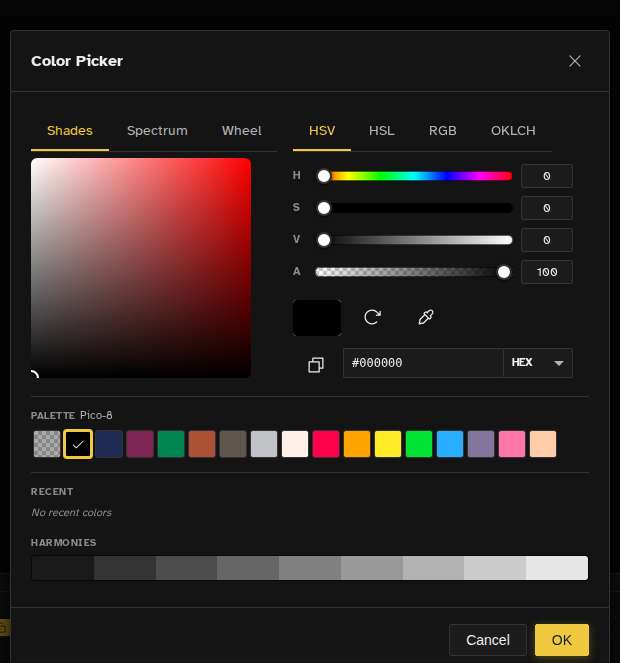
Click the primary or secondary color button in the Color Picker panel to open the dialog. Double-clicking a palette swatch opens the same dialog to edit that swatch. It offers:
- Three canvas modes — Shades, Spectrum, and Wheel; grayscale files show Shades only, and indexed files show a palette grid instead of the canvas
- Four input tabs — HSV, HSL, RGB, and OKLCH sliders
- Five text formats — hex, rgb, hsl, hsv, and oklch strings
- Alpha slider — 0–255 transparency control
- Eyedropper — pick any color from the screen using the browser EyeDropper API (Chromium-based browsers)
- Copy to clipboard — copy the current color string in the selected format
- Previous/current split preview — compare the edited color with the original, with a revert button beside it
- Harmonies — live Complementary, two Triadic, and two Analogous swatches computed from the current color
- Tints & Shades — a 9-step lightness ramp generated from the current color
- Palette — the document palette, groups and all; click a swatch to load it (the one matching the current color is ringed), double-click to accept it, and press the + at the end of the row to add the current color to the palette
- Recent colors — a recent-colors grid inside the dialog itself
Palette Panel
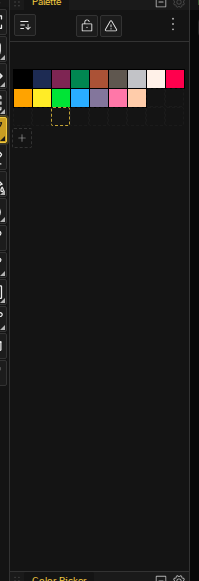
The palette panel ( Shift+F5 to toggle) shows your current color palette. A common setup is to keep separate rows for lineart, base colors, and shadows/highlights.
- Click a swatch — Set as primary color
- Right-click a swatch — Set as secondary color. Right-click the secondary color again to open its menu
- Double-click a swatch — Open the color picker dialog on that color so you can edit it
- Ctrl+click or Shift+click — Build a multi-selection (you can also rubber-band one by dragging on empty space in the panel). Right-clicking a multi-selection opens a menu with Delete, Move to group, Merge into one color, Replace selected, and Gradient between the endpoints
Managing Palettes
Palettes can be created, loaded, and saved:
- Add color — Click the + button to open the color picker dialog, seeded with the primary color. Press and hold the same button instead and it opens the screen eyedropper: the color you click anywhere on screen is added to the palette directly, no dialog. The + button on a group header adds into that group. The eyedropper needs a browser with the EyeDropper API (Chromium-based), and it is not offered on the built-in system palette
- Remove color — Select one or more swatches, right-click, and choose Delete. Dragging a swatch out of the panel removes it too
- Drag to reorder — Drag swatches to rearrange the palette
- Import palette — Load from eight formats: ACO (Adobe Color Swatch), ASE (Adobe Swatch Exchange), ACT (Adobe Color Table), PAL (JASC-PAL, Paint Shop Pro), GPL (GIMP Palette), HEX (Lospec hex, one RRGGBB per line), JSON (Novaboard native), and PNG (palette encoded as an image)
- Export palette — Save in any of the same eight formats: ACO, ASE, ACT, PAL, GPL, HEX, JSON, or PNG
- Drop a palette file — Drag a
.gplfile onto the palette panel (or the canvas) to import it directly, no dialog needed - Paste hex codes — Copy a list of hex colors, one per line, from Lospec or anywhere else, then paste ( Ctrl+V ) into the palette panel to add them all
Swatch Display
The palette panel menu also controls how swatches themselves are drawn:
- Swatch size: Small, Medium, or Large. You set it once and it applies to every palette, including the recent colors row. Tablets start on Large for easier touch targets
- Swatch borders: turn the 1px line between swatches on or off, for every palette
Palette Lock
Lock your palette to constrain drawing and color picking to its current colors. When locked, tools snap to the nearest palette color and new colors cannot be introduced. This works on RGBA files too, not just indexed mode.
- Lock toggle — Click the lock button in the palette toolbar
- Use cases — Enforcing a limited-palette challenge without switching to indexed mode, or protecting a finalized palette from accidental edits
Palette Sort
Sort the active palette from the palette toolbar sort menu. Three orderings are available:
- By Hue — Group and order colors by hue angle
- By Saturation — Order from grayest to most saturated
- By Lightness — Order from darkest to brightest
Palette Audit
Click the Audit colors button in the palette toolbar to scan the current file for colors that are not in the active palette. For each missing color the audit modal lets you either add it to the palette or replace it with the nearest palette color, and an Apply All button remaps the whole active layer onto the palette at once. Apply All opens a before/after preview first, so you can look at the result before committing it.
Palette Cleanup
The palette panel menu collects the tidy-up verbs for a palette that has grown messy:
- Clean Up… — A modal that counts duplicates, unused colors, and near-identical colors. Tick the ones you want, use the Similarity slider to decide how close two colors have to be before they merge, and the modal shows the resulting before → after color count
- Remove Duplicate Colors — Drop exact duplicates in one click
- Remove Unused Colors — Drop every color the file does not actually use
- Snap Palette to Profile — Quantize every color onto the file's bit-depth profile and repaint the pixels that used it. Offered on RGBA files with a profile active. The profiles themselves live under Image → Color Depth, see Color Depth
- Columns — Pin the swatch grid to a fixed number of columns, or 0 to let it fit the panel
- Compact layout — Squeeze a hand-arranged palette back into a tight grid
- Show transparent color — Show or hide the pinned transparent slot
Replace Colors
Image → Replace Colors… opens a dock panel that swaps colors across the file. It works on any color mode: on RGBA files you pick colors by value, while on indexed files you pick palette slots and every pixel of the from-slot is rewritten to the to-slot:
- Multiple from → to pairs — add as many replacement rows as you need and apply them all in one pass
- Scope dropdown — limit the replacement to the Selection, Active layer, Current frame, or All frames
- Tolerance slider (RGBA files) — match near-identical colors within a configurable tolerance instead of exact values; indexed files use palette-slot pickers instead
- Sample from canvas — each row has an eyedropper button that fills its From color by clicking on the canvas
- Live affected-pixel count — the panel reports how many pixels the swap will change as you edit rows
- Canvas preview — a Preview toggle shows the result live on the canvas before you commit
- One undoable apply — Apply commits the swap as a single history step; closing without applying restores the original pixels
Choosing Replace selected… on a palette multi-selection opens the same panel with those colors already in the From rows.
Built-in Palette Presets
The palette browse modal ships with popular presets you can load without downloading anything:
- Pico-8
- Sweetie 16
- Resurrect 64
- 1bit Monitor Glow
- Kirokaze Gameboy
- Ammo-8
- 2bit Demichrome
- CC-29
- Endesga 64
The same modal has a Craft Palettes section with 12 real-world bead and thread ranges: Perler, Hama, Artkal A, C, R, S and ZD, PhotoPearls, Cosmo, DMC, Anchor, and Madeira. Their swatches carry the manufacturer's color names, which is handy if you plan to build the sprite out of beads or stitch it.
The modal's toolbar controls how the lists are shown and what goes into your library:
- Sort - Name (A-Z), Name (Z-A), Colors (Low-High), or Colors (High-Low), applied to the presets, the craft palettes and your own palettes at once
- Import to Library - Load a palette file straight into your library without applying it to the current file. If a palette of that name is already in the library, the import is skipped rather than duplicated
- Save to Library - In the palette panel menu, not the modal. Copies the current file's palette, groups and shading ramps into the library, and asks before it overwrites a library palette of the same name
On an indexed file, a craft palette with more colors than the indexed limit is greyed out: it cannot be adopted without dropping colors, so the card is disabled instead.
Lospec Palette Search
Search and import palettes directly from Lospec inside the palette browse modal, without leaving Novaboard:
- In-modal search — Type 3 or more characters into the search field in the palette browse modal. A Lospec section appears alongside your local palettes, fetching through the Novaboard API proxy with debounce and abort-on-requery
- One-click load — Clicking Load on a Lospec card imports the palette into your library and applies it to the current file in a single step
- Attribution preserved — Palettes carry their source URL and author through the library round-trip, shown on the Current Palette and Your Palettes cards
- Duplicate guard — Loading a Lospec palette whose source URL already exists in your library just activates the existing entry, so your local customizations survive re-clicks
Recent Colors
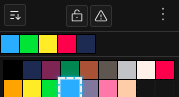
The palette panel shows recently used colors at the top for quick access. This bar updates automatically as you pick and use colors:
- Click a recent color to set it as primary
- Right-click to set as secondary
- Recent colors persist across sessions
Color Ramp Generator
Create smooth color gradients for your palette using the Color Ramp Generator. Access it from the palette panel menu's Generate Ramp… entry, or run Generate Color Ramp... from the command palette:
- Multi-stop ramps — Add multiple color stops to create complex gradients
- Three interpolation modes:
- OKLCH — Perceptual color space, best for most gradients
- HSV — Hue/Saturation/Value interpolation
- RGB — Linear RGB blending
- Drag to reorder — Reposition color stops by dragging
- Configurable count — Choose how many colors the ramp generates
- Add to palette — Insert generated colors directly into your palette

Extract Palette from Image
Extract all unique colors from your current file and add them to your palette:
- Choose Extract from File in the palette panel's options menu
- A dialog reports how many unique colors were found and asks whether to Merge with Current or Create New Palette
- Useful for creating a palette from imported artwork
Palette Color Groups
Organize your palette colors into logical groups for better workflow:
- Create groups — Group related colors (e.g., "Skin Tones", "Foliage", "Metals")
- Collapsible sections — Collapse groups to save space and reduce clutter
- Drag to reorder — Rearrange groups and move colors between them
- Rename groups — Give meaningful names to your color collections
- Persists with file — Groups are saved and restored with your project
Each group header has its own + button that adds a color straight into that group, and a multi-selection can be moved with Move to group from its right-click menu. You can also drag colors onto a group header.
Shading Ramps
Shading ramps are ordered runs of palette colors, lightest first, that the Shading tool walks through: left-click moves a pixel toward the light end, right-click toward the dark end. Build one by Ctrl+clicking swatches while the Shading tool is active, or by dragging a marquee across them in the palette panel.
Ramps live on the palette itself, so they are saved with the file and travel with the palette when you store it in your library. Each file remembers which ramp is active; if none is, your picks go into an ad-hoc ramp that stays out of the ramp list.
Color Operations
Available from Image → Adjust Colors, which names its target in the menu: Selection, Layer, or Canvas. No selection is required. With an active layer the adjustment lands on whatever the layers panel and timeline have selected, one cel or many, clipped to the marquee when one is active. With no active layer it covers every layer at the current frame:
- Adjust brightness/contrast — Modify color values
- Hue/Saturation/Lightness — Shift colors in HSL space
- OKLCH Correction — Perceptually-uniform alternative to HSL, with hue, chroma, and lightness shift sliders
- Curves — A single midpoint slider that reshapes the tone curve, applied to all RGB channels together
- Posterize — Reduce color levels for retro effects
- Invert Colors — Create negative of selected pixels
- Grayscale — Convert to grayscale
Color-Mode Dialog Workflow
Switching a file's color mode (see Color Modes) opens a dedicated dialog that runs a mini color-reduction workflow rather than a blind conversion:
- Color analysis — Scans the file and reports palette coverage and any missing colors
- Missing-color auto-add — One-click button to add missing colors to the palette before committing the conversion
- Dithering options — Pick a dithering algorithm: None, Floyd-Steinberg, Atkinson, or Ordered. The two error-diffusion methods add a strength slider
- Comparison slider — Before/after preview with a draggable split for evaluating dithering and palette fit
- Preview zoom — Zoom the preview to inspect pixel-level changes
- Grayscale settings — Converting to grayscale swaps the palette controls for a conversion method (Luma, HSV, or HSL) and a shade count from 2 up to 256