


Shading Tool
No default shortcut
The Shading tool lets you quickly shade and highlight pixel art by shifting colors along a defined gradient. Select colors from your palette to form a gradient, then paint to shift pixels darker or lighter.

Basic Usage
Select the Shading tool from the toolbar. It has no default shortcut, but you can assign one in the keymap editor. Before using the tool, you need to define a color ramp:
- Build a ramp — In the palette, select multiple colors that form your shading ramp. Colors keep the order you add them; use the Sort button to order the ramp light → dark
- Left-click to dodge — Shifts pixels one step toward the start of the ramp (lighter)
- Right-click to burn — Shifts pixels one step toward the end of the ramp (darker)
Building a Ramp from the Palette
Ramp-editing palette gestures are gated to the Shading tool, so they never conflict with other tools:
- Ctrl + click a palette swatch — Toggle that color in the current ramp
- Ctrl + drag across the palette — Draw a marquee; every intersected swatch is committed to the ramp on pointer-up
- Colors are added in the order you pick them; drag a swatch in the ramp dropdown to move it, or use the X on a swatch to drop it
- Three buttons sit under the ramp: Sort reorders it lightest-first, Reverse flips it end to end, and Clear empties it
You can also use the Color Ramp generator to produce perceptually-spaced colors first, then sweep them into the ramp with a marquee.
Saved Ramps
Named ramps live on the palette itself, so they travel with the file and across any palette library copies. The ramp selector in the shading tool dropdown lets you:
- Switch ramps — Pick any saved ramp to make it active
- Save as — Promote the current ad-hoc ramp to a named ramp that persists with the palette
- Rename — Update a saved ramp's name
- Delete — Remove a saved ramp from the palette
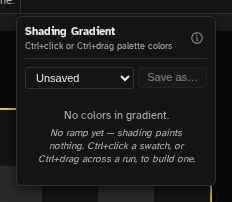
Deleting a color from the palette automatically scrubs it from every ramp, and cloning a palette into the library deep-copies its ramps so the original keeps its own.
The shading tool dropdown also has an info button that opens a shortcut popover summarizing the LMB/RMB/Ctrl+click/Ctrl+drag gestures.
How It Works
When you paint with the Shading tool:
- Matching colors — Pixels that match a color in your ramp are shifted one step in the direction you clicked
- Non-matching colors — Pixels that don't match any ramp color are left unchanged
- Edge colors — Colors at the ends of the ramp stay the same when trying to shift beyond them (so repeated dodging won't overshoot the lightest color, and repeated burning won't overshoot the darkest)
Use Cases
The Shading tool excels at:
- Quick shading — Add shadows to flat artwork without color picking
- Highlighting — Add highlights to existing shaded areas
- Color ramping — Create smooth gradients on existing art
- Retouching — Adjust lighting on finished sprites
- Skin tones — Shade character skin with consistent color progression
Brush Settings
The Shading tool shares brush settings with other painting tools:
- -or [ — Decrease brush size
- =or ] — Increase brush size
- D + drag — Visual size adjustment
The Shading tool supports the same 10 brush shapes as the Brush and Eraser: circle, square, diamond, star, slash, backslash, x, cross, horizontal line, and vertical line.
Ramp Sorting
Ramp order is up to you: colors stay in the order you added them, and you can drag them around. The Sort button in the ramp dropdown reorders the ramp by perceived brightness (standard luma), lightest color first, darkest last, and Reverse flips whatever order you have. The shading tool relies on the ramp order to decide which color is "one step lighter" or "one step darker" when you left-click or right-click.
Tips
- Create palette ramps of 3-5 colors for best results—too many colors can make shading too gradual.
- Use the Color Ramp generator to create perfectly spaced gradient palettes.
- The tool is inspired by Aseprite's shading ink—if you're familiar with that workflow, this will feel natural.
- For metallic or special surfaces, create separate gradient palettes for each material type.
- Combine with Symmetry mode to shade both sides of symmetrical sprites at once.