


Isometric Draw
No default shortcut
The Isometric Draw tool lets you create 3D-looking pixel art volumes with precise control over each axis. It is built on a unified styled-volume renderer that draws nine volume types (boxes, pyramids, ramps, stairs, cylinders, cones, prisms, spheres, and domes) in isometric perspective, across all 24 cube orientations.

Basic Usage
Select the Isometric Draw tool from the toolbar or the command palette. It has no default shortcut, but you can assign one in the keymap editor. It is an advanced tool, so it is hidden in Simple mode. The tool uses a two-phase workflow:
- Create — Click and drag to create a proportional shape
- Adjust — Use the on-canvas handles to resize individual axes
- Commit — Press Enter to confirm or Escape to cancel
Right-clicking while a volume is up opens a small menu with Reset Rotation, Apply and Cancel.
Available Volumes
Switch between volumes using the shape selector in the tool options row. Nine volume types are available:
Box (Cube)
The default volume. Create cubes and rectangular boxes with independent control over width, depth, and height.
Pyramid
A four-sided pyramid. The base matches the X and Y axes while height extends along the Z axis.
Ramp
An inclined surface useful for slopes and architectural elements. Ramps support a corner toggle (see below) so they can join as straight pieces, inner (valley) corners, or outer (hip) corners. The ramp follows the volume's orientation.
Stairs
A stepped ascent built from box columns, so every tread inherits the box's pixel styling. Like ramps, stairs support the inner / straight / outer corner toggle for turning a staircase.
Cylinder
A round volume with elliptical caps, useful for pillars, barrels, and rounded objects. The curve is a true pixel ellipse inscribed in the volume's bounding box, so it never bulges past it.
Cone
A round base tapering to a single apex — good for trees, hats, and roof caps. Like the cylinder, its base ellipse is inscribed in the bounding box.
Prism (Roof)
A triangular prism: two triangular ends joined by rectangular faces, with a ridge running along one axis. Useful for wedges, roofs, and angled blocks.
Sphere (Ellipsoid)
A smooth ellipsoid inscribed in the bounding box, with classic pixel-art sphere shading — a lit core, a mid ring, and a shadow limb. Stretch the axes for an egg or ellipsoid.
Dome
A half-ellipsoid: a flat elliptical base bulging out to the opposite face. Useful for turret tops, hills, and rounded caps.
Corner Toggle (Ramps & Stairs)
Ramps and stairs add a corner control in the tool options row so a piece can turn a corner cleanly. Other volumes ignore this setting.
- Straight — A normal, non-turning piece
- Inner — An inner (valley) corner, where two slopes meet in a concave turn
- Outer — An outer (hip) corner, where two slopes meet in a convex turn
Interactive Handles
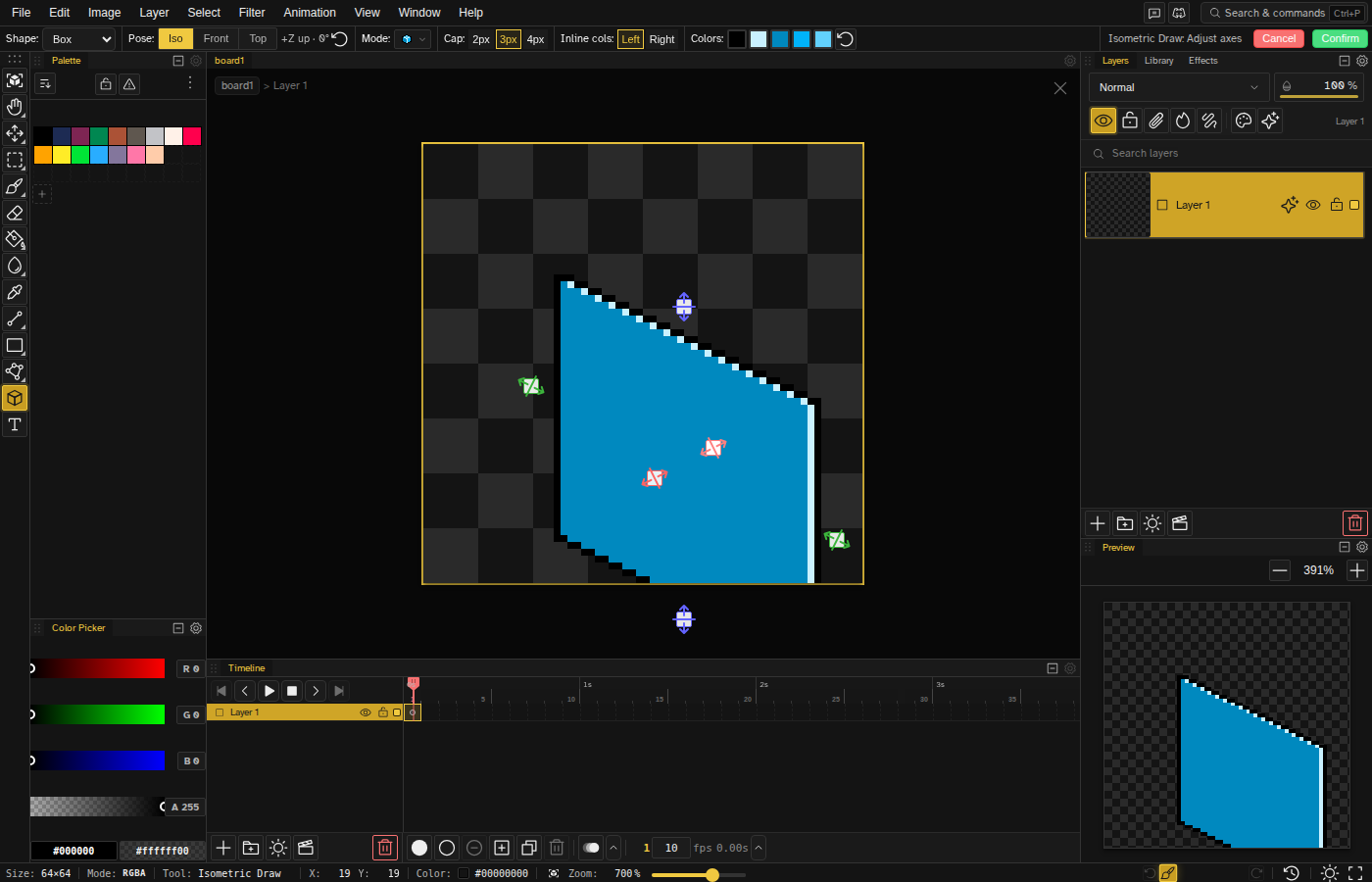
After creating a shape, interactive handles appear on each face. Click and drag these handles to resize individual axes:
- X Axis — Drag left/right face handles to adjust width
- Y Axis — Drag front/back face handles to adjust depth
- Z Axis — Drag top/bottom face handles to adjust height
- Hold Shift while dragging a face handle to keep the volume proportional
- Move — Drag the body of the volume to reposition it before committing
Rotation
Isometric volumes support all 24 distinct cube orientations. Rotation lives on the canvas, not in the tool options row: while a volume is in the adjust phase, each resize handle carries a ring zone around it, one per axis. Drag a ring and the volume turns.
- Every 90° of circular drag turns the volume 90° around that axis
- All 24 orientations are reachable by repeating the turns
- The orientation is remembered, so the next volume you draw starts the way you left this one. Right-click ▸ Reset Rotation puts it back to unrotated
- Rotation follows the volume's true ground axes, so directional volumes (ramps, stairs, prisms, cones, domes) point the way you expect in every orientation
Face Colors
Each isometric shape can have distinct colors for different parts:
- Outline — The outer edges of the shape
- Inline — The internal edges
- Z face — The top, usually the lightest shade for lighting from above
- X face — The left side, a medium shade
- Y face — The right side, usually the darkest shade for shadow
Click the color swatches in the tool options row to pick each one. The reset button at the end of the row puts all five back to their defaults.
Pose
The pose control in the tool options row sets which of the 24 possible cube orientations the volume starts in. Three presets are available: Iso (the default isometric angle), Front (looking straight at one face), and Top (looking down from above). A readout shows the current orientation by the name of its top face and how many 90° turns have been applied. Click the reset button to return to the Iso pose.
The pose you set sticks across volumes, so the next shape you draw starts in the same orientation. Change it by clicking a different preset or by rotating the shape's handles while it is live.
Render Modes
Instead of a simple fill/outline toggle, the isometric tool exposes a render-mode dropdown in the tool options row with a live thumbnail of each mode. Every volume supports all seven modes:
- Outside fill + lines — Solid outer faces with edge lines (the default)
- Outside fill — Solid outer faces, no edge lines
- Inside fill + lines — Renders the inside of the volume (back walls and floor) with edge lines, for rooms, open crates, and stage-style scenes
- Inside fill — The inside faces, no edge lines
- Outside lines — Just the outer edge lines
- Inside lines — Just the inner edge lines
- All lines — Every edge line, inner and outer
The mode you pick sticks across volumes and across sessions.
Cap Size & Inline Columns
The cap size sets how the volume's silhouette steps and which axis sizes the X/Y handles snap to:
- 2px — Even axis sizes (2, 6, 10, …)
- 3px — Odd axis sizes (1, 3, 5, …), the default
- 4px — Multiples of four (4, 8, 12, …)
The Z (height) axis is unconstrained and grows one pixel at a time. Independent left and right column toggles control whether an inline vertical edge is drawn down the box's near corners.
Tips
- Use the Isometric Grid (press Shift+I ) to align shapes perfectly.
- Create a consistent lighting direction by using the same color arrangement across all shapes.
- For complex scenes, work on separate layers and use layer groups for organization.
- To slant flat artwork into the isometric plane, use the Iso Left and Iso Right shears under Edit → Transform → Shear. They shear the current selection (or its contents) into either isometric direction; both are also available from the command palette, and Custom… in the same submenu lets you pick your own step.
- Combine with the Sprite Stack preview to visualize your isometric art as 3D.