


Symmetry Drawing
Symmetry mode mirrors your strokes in real-time, making it easy to create balanced characters, icons, and patterns.
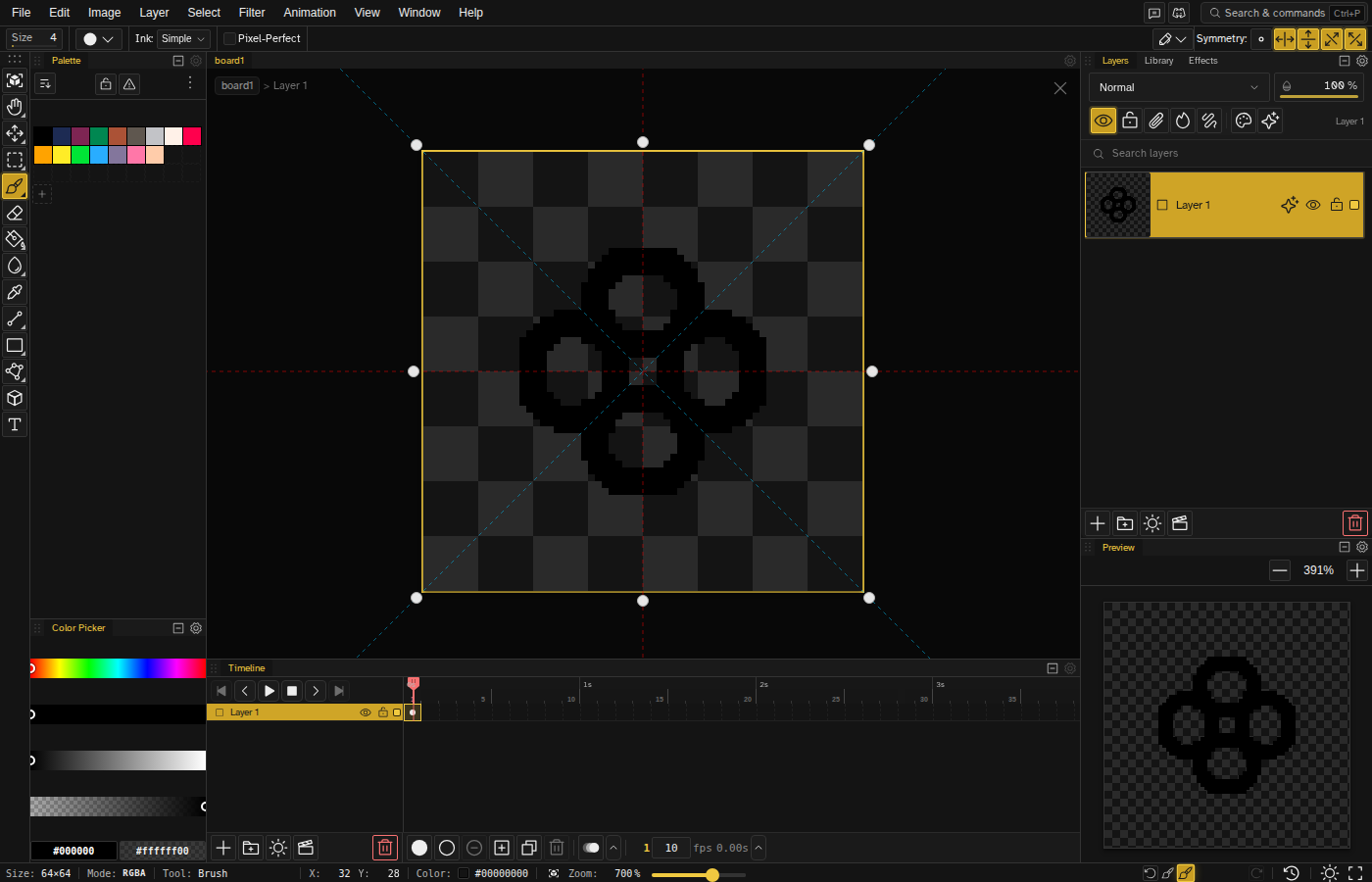
Enabling Symmetry
Enable symmetry with the symmetry buttons in the tool options row. They are there for every tool except Isometric Draw and Text, which have their own option rows. Each axis is an independent toggle, and any combination can be active at once:
- Vertical axis — Mirror across a vertical center line (left-right mirror)
- Horizontal axis — Mirror across a horizontal center line (top-bottom mirror)
- Diagonal (top-left to bottom-right) — Mirror across the diagonal running from the top-left corner to the bottom-right
- Diagonal (bottom-left to top-right) — Mirror across the diagonal running from the bottom-left corner to the top-right
Enable both the vertical and horizontal axes to mirror in all four quadrants. The first button in the group clears all axes at once.
Symmetry Axis
The symmetry axis determines where the mirror line is placed:
- By default, the axis is centered on the canvas
- Draggable handles — Reposition the symmetry axis by dragging the on-canvas handles directly
- For odd-width sprites, center the axis on a pixel; for even-width, center between pixels
Which Tools Support Symmetry
Symmetry works with most drawing tools:
- Brush (including Pixel-Perfect), Spray, Scatter, Dither, Eraser, and Shading
- Line, Rectangle, Circle, Triangle, Hexagon, Star, Polygon, Contour, and Curve
- Bucket Fill
- Blur, Jumble, and Dodge/Burn
The Gradient tool does not use symmetry, and selection tools select exactly where you draw.
Use Cases
- Character sprites — Draw facing-forward characters symmetrically
- Icons and UI elements — Create balanced symmetrical icons
- Patterns and tiles — Enable both straight axes for seamless pattern creation
- Mandalas — Create complex radial patterns
Tips
- Toggle symmetry on/off as needed—it's often useful only for the initial sketch or outline.
- For asymmetrical details (like a scar or accessory), disable symmetry temporarily.
- Combine symmetry with grid snapping for precise, aligned results.
- Enable both the vertical and horizontal axes to quickly test tile patterns that need to repeat in all directions.