


Brush Tool
Shortcut: B
The Brush is Novaboard's primary drawing tool. It supports variable sizes and multiple shapes, which it shares with the Spray, Scatter and Dither tools.
Basic Usage
Select the Brush tool by pressing B or clicking the brush icon in the toolbar. Click and drag on the canvas to draw pixels in the current color.
Adjusting Size
- -or [ — Decrease brush size
- =or ] — Increase brush size
- D + drag — Visual size adjustment (drag left/right)
- Ctrl + scroll wheel — Quick size adjustment. The scroll direction can be flipped (Aseprite-style) under Edit → User Preferences → Editor Behavior
Brush Shapes
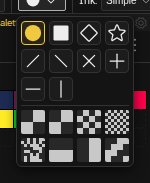
The brush supports 10 shapes, selectable from the tool options:
- Circle — Round brush tip, best for organic shapes
- Square — Rectangular brush tip, good for geometric patterns
- Diamond — Rhombus tip, useful for faceted styles
- Star — Five-pointed star tip for decorative stamps
- Slash — Diagonal line (/) for calligraphic strokes
- Backslash — Diagonal line (\) opposite the slash
- X — Crossed diagonals for scatter marks
- Cross — Plus-shaped tip
- Horizontal Line — 1px-tall horizontal stroke
- Vertical Line — 1px-wide vertical stroke
Ink Modes
The Ink dropdown in the tool options row sets the rule a stroke applies where its new pixel meets the one already there. It applies to the Brush, Spray, Scatter and Dither, and to the Bucket, Gradient, Line, Curve and shape tools:
- Simple — Normal painting. The stroke overwrites whatever it touches. This is the default.
- Lock Alpha — Paint only where pixels already exist, changing their color but not their transparency. Nothing is added outside the existing silhouette, and nothing is erased inside it.
- Shading — Instead of painting, shift the pixels you touch one step along the active shading ramp. Left-click shifts toward the start of the ramp, right-click toward the end. A pixel moves once per stroke, colors that are not on the ramp are left alone, and the two ends of the ramp stop.
The choice is remembered per tool. There is no default shortcut for cycling ink modes, but Cycle Ink Mode can be bound in the keymap editor.
Spray, Scatter and Dither Tools
Spray, Scatter and Dither are separate tools in the brush group of the tool selector, not modes of the Brush. They share the same shape picker and brush options but are selected independently, and each remembers its own size and shape.
Spray ( Shift+B )
Scatters pixels randomly within the brush radius, creating an airbrushed effect. Tool options include:
- Density (5-100%) — How many pixels are placed per emission
- Speed — How often the tool emits while the pointer is held
- Hardness — Even fill across the disc at 100%, softening toward a centre-weighted puff at 0%
- Dots — Pixel (per-pixel scatter) or Brush (each particle stamps the active brush shape at a Radius)
- Pressure — Ties density to pen pressure (pen input only)
- Presets — Light, Medium, Heavy and Airbrush set every option at once, from the dropdown at the start of the row
Spray keeps painting while you hold the pointer still, so density builds up over time. Useful for textures, noise, and organic mist effects.
Scatter ( Shift+Alt+B )
Paints brush stamps along your stroke, each pushed off the path by a random amount. Unlike Spray it only paints while you move. Tool options include:
- X and Y (0-64 px) — How far each stamp can land from the path on each axis
- Count (1-16) — Stamps placed at each step along the stroke
- Variation (0-100%) — Randomly places fewer stamps on some steps for a clumpier look
Works with custom brushes. With an animated custom brush, every stamp uses the next frame, so one stroke mixes all of them. Good for foliage, gravel, debris and rain.
Dither ( Alt+B )
Paints using a dither pattern that mixes the foreground and background colors. Tool options include:
- Pattern — Eight dithering patterns: checkerboard, 2x2, 4x4, 8x8, noise, horizontal, vertical, and diagonal
- Ratio (0-100%) — Balance between the two colors in the pattern
Essential for pixel-art techniques like faking gradients, anti-aliasing, and blending across limited palettes.
Brush Dynamics
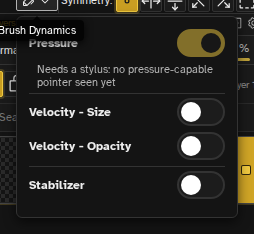
The Brush Dynamics panel maps input signals to stroke output. Each axis can be toggled independently:
- Pressure → Size — Harder press draws thicker strokes. Tick it and three sliders appear: Min and Max (0–100, defaults 0 and 100) set the size at no pressure and at full pressure, and Curve (0.1–4.0, default 1.0) bends everything in between. Below 1.0 the stroke reaches full size early, above 1.0 it holds back until you press hard.
- Pressure → Opacity — Harder press draws more opaque strokes, with its own Min, Max and Curve sliders on the same ranges.
- Velocity → Size — On/off toggle. Faster strokes draw thicker; the speed mapping itself is fixed.
- Velocity → Opacity — On/off toggle. The same speed mapping applied to opacity instead of size.
- Stabilizer — Pulls the brush tip behind the pointer on a lag string. The Distance slider (1–50 px, default 10) controls how far the tip lags; higher values produce smoother curves at the cost of responsiveness.
Stylus & Pen Pressure
Novaboard supports pressure-sensitive stylus input on any pointer that reports pressure (Wacom, Apple Pencil, Surface Pen, etc.). Pressure is mapped to the brush dynamics by default, so harder presses draw heavier strokes without any configuration.
Additional stylus axes are available behind a feature flag in User Preferences → Experimental → Stylus tilt & rotation:
- Tilt → Size — Tilting the pen changes brush size. It gets Min and Max sliders (0–100) like the pressure axes, but no curve
- Azimuth → Rotation — The compass direction of the pen rotates the brush stamp
- Twist → Rotation — Barrel rotation (pens that support it) rotates the brush stamp
Each axis can be remapped from the Brush Dynamics panel. Non-pen pointers (mouse, touch) report neutral values, so behavior is unchanged when the flag is off.
Drawing on Several Cels
A stroke goes wherever your selection points. With nothing selected it lands on the active layer, as usual. Pick several cels in the timeline, or several layers in the Layers panel, and the next stroke lands on all of them as one undo step. Shapes, lines, the gradient and the bucket fill follow the same rule.
A small badge appears on the canvas before you commit and names the reach, for example "3 frames" or "2 layers × 4 frames", so a wide edit is never a surprise. Locked layers and text layers stay out of it, and a held frame edits the keyframe it is holding rather than growing a new one.
Symmetry Drawing
The brush respects the current symmetry settings. When symmetry is enabled, your strokes are automatically mirrored across any combination of four axes:
- Vertical axis — Left-right mirror across a vertical center line
- Horizontal axis — Top-bottom mirror across a horizontal center line
- Two diagonal axes — Mirror across either canvas diagonal
See Symmetry Drawing for details.
Drawing Straight Lines
Hold Shift and click to draw a straight line from your last brush position to the click point. This works in all brush modes and is useful for:
- Connecting points with straight segments
- Drawing long lines without using the Line tool
- Creating geometric patterns
Pixel-Perfect Mode
Enable Pixel-Perfect in the tool options for precision 1-pixel line work. It applies a pixel-perfect algorithm that automatically removes "L-shaped" pixel clusters that occur when drawing diagonal lines, eliminating unwanted stair-stepping and giving your lines a cleaner, more intentional look.
Press P to turn Pixel-Perfect on and off for the tool you are using. From a tool that has no Pixel-Perfect option it picks the Brush with it already on.
Without Pixel-Perfect
Diagonal lines have jagged stair-step patterns with extra corner pixels.
With Pixel-Perfect
Diagonal lines are clean with no redundant pixels, creating smoother visual flow.
The algorithm works in real-time as you draw, analyzing your stroke and removing pixels that would create L-shaped junctions. Hold Shift and click to draw a straight pixel-perfect line from your last position. It also works with the Eraser, respects symmetry, and wraps correctly in tile mode.
Pixel-Perfect is most useful for:
- Outlines and line art
- Fine details and single-pixel work
- Clean diagonal lines
- Character sprites at small sizes (16x16, 32x32)
The setting is remembered per tool, so the Brush and Eraser can each have it on or off independently. Custom brushes always opt out of Pixel-Perfect, since it only applies to the built-in shapes at 1px.
Tips
- For precise single-pixel work, turn on Pixel-Perfect in the tool options—it eliminates stair-stepping on diagonal lines.
- Hold Alt to temporarily switch to the Color Picker and sample a color, then release to continue painting.
- The brush size is displayed in the status bar and as a cursor preview on canvas.
- Use Custom Brushes to stamp complex patterns instead of drawing pixel by pixel.