
This version is a busy one: a file grid that sorts and filters, selections that follow the symmetry axes, a batch of mouse preferences, and a lot of work under the hood so files stay small and fast.
- The file grid sorts by name, date or dimensions, filters by name, and can show your files as a table
- Selections and transforms follow the symmetry axes
- The mouse wheel can scroll the view, the right button can erase or pick a color, and cursors can draw bigger
- The History panel menu can compact, trim or clear a long history
- We optimized file storage, and big canvases draw faster
- Hidden layers can no longer be painted on by accident
- A general round of bug fixes and improvements
As always, all feedback is welcome!
marcel0ll
Full changelog
What’s new:
File Grid · Symmetry · Mouse and Keyboard · Color Picker · Layers · Timeline and Palette · History · Lighter Files · Faster on Big Canvases · Import and Export · Smaller Touches · Bug Fixes
File Grid
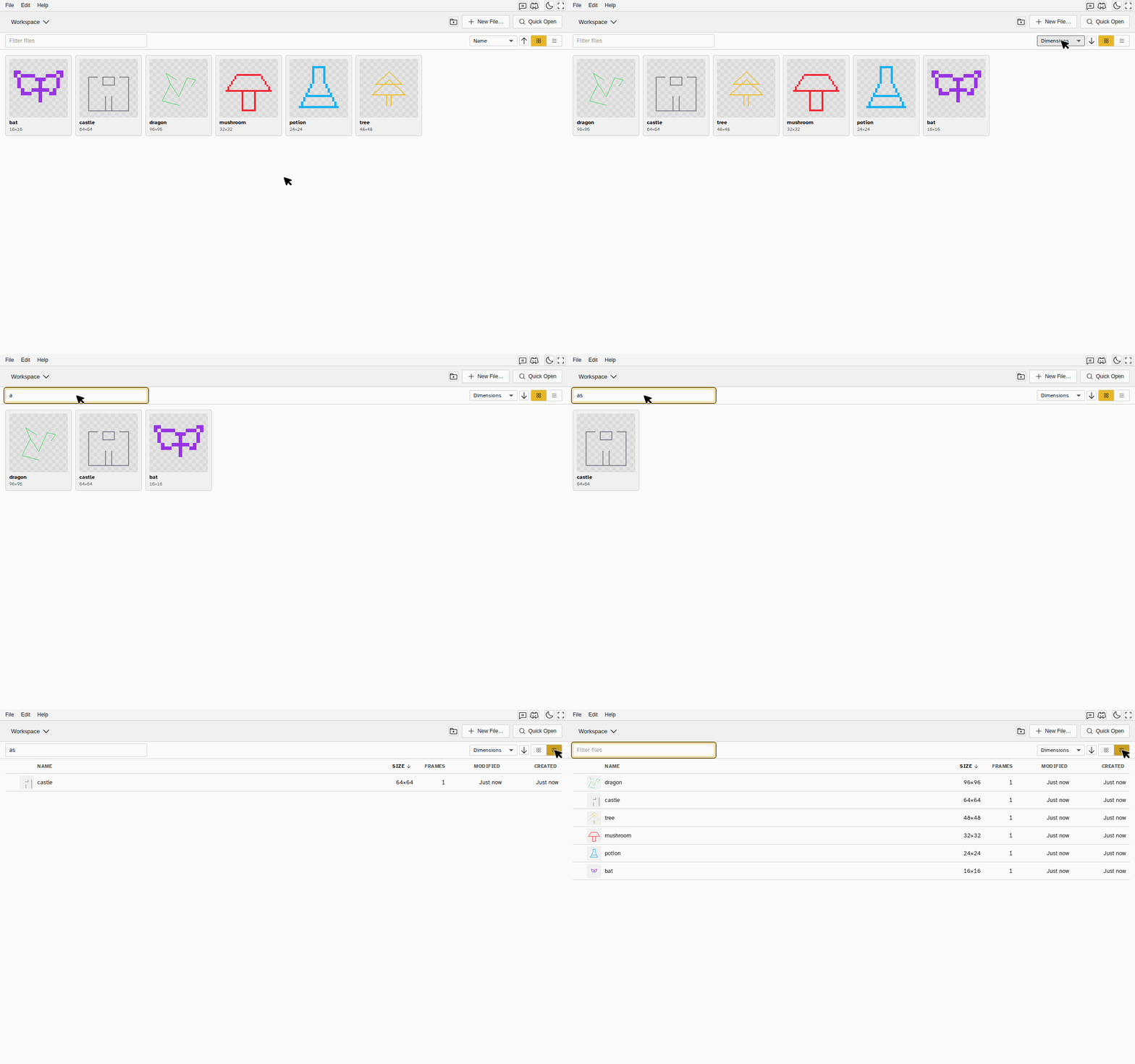
- Sort your files by name, date modified, date created or dimensions, in either direction. Groups sort by the same key.
- Filter by name. Type in the field above the grid and only the matching files stay.
- Grid or table. The table lists each file’s name, size, frame count and dates in rows, handy when a workspace holds hundreds of files. The sort and the layout are remembered per workspace.
- A file keeps its creation date, saved inside the .nova file. An imported image takes the date of the file it came from.
- Workspaces open faster. The grid reads only what it shows, and a file loads when you open it, so a workspace opens about three times faster and with half the memory.
Symmetry
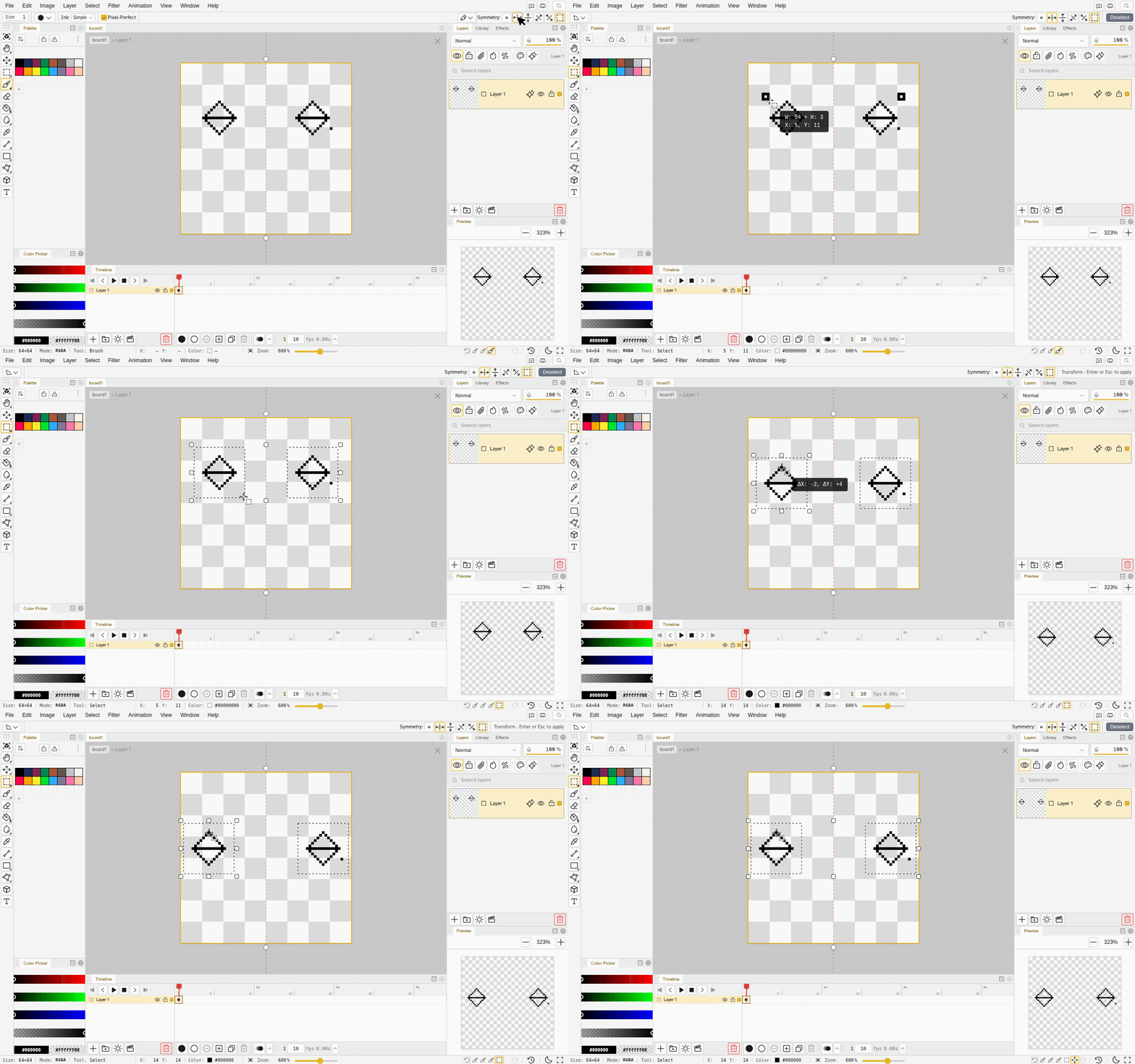
- Selections follow the mirror. With symmetry on, a marquee, lasso or ellipse on one side selects its mirror too. It is on by default, and the Mirror selections and transforms toggle in the Symmetry panel turns it off.
- Transforms follow the mirror. Move, rotate or scale one piece and every mirrored piece gets the reflected transform. Where the pieces overlap, the one you grabbed wins.
- The Magic Wand fills from every mirrored point, so it picks the matching region on each side even when the two sides are not exact copies.
Mouse and Keyboard
- The mouse wheel can scroll. In Preferences, set the Mouse Wheel to scroll the view, with Ctrl+wheel to zoom and Ctrl+Shift+wheel for the tool size.
- Zoom on the middle of the view. A wheel zoom can keep the middle of the view still instead of the pixel under the pointer.
- The right button can do more. Paint with the secondary color as before, or set it to erase, pick a color while held, or pan the view. Pen side buttons usually send a right click, so this works for styluses too.
- Bigger cursors. Tool cursors can draw at 150% or 200%, handy on high resolution screens.
- Every canvas modifier is a shortcut. Holding Shift, Ctrl or Alt during a drag is listed in Keyboard Shortcuts and can be rebound, including the Ctrl switch to the Transform tool.
- Shift+Alt intersects on every selection tool, and so does Shift with a right-button drag.
- Typing a letter in a number field no longer fires a shortcut, so a stray key in the fps or size field doesn’t switch tools.
Color Picker
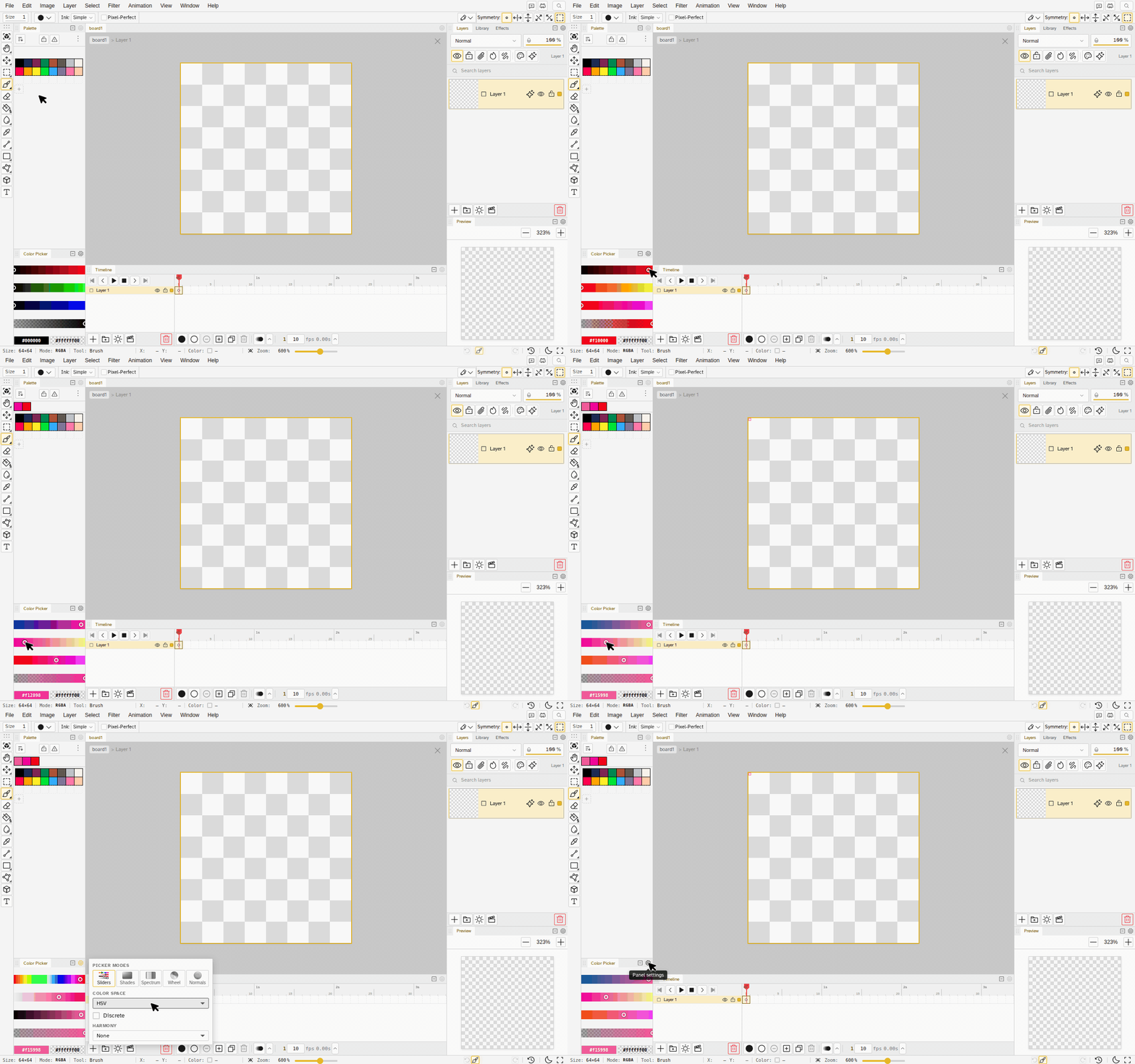
- The Sliders mode has an RGB color space, and it is the default. The rows are red, green, blue and alpha, each moving one channel alone. Pick HSV or OKLCH in the picker’s settings.
- The picker works from the keyboard. Sliders, the square, the wheel and the normals disc take arrow keys.
- A right-click pick edits the secondary color and the panel goes back to the primary afterwards.
Layers
- Hidden layers stay as they are. A layer you hid, or one inside a hidden folder, refuses every paint tool and pixel edit with a message saying why. When an edit spans several layers, it tells you once which ones it skipped.
- Locked layers say so too. The bucket shows a message, and the cursor shows a no-entry badge where a tool would be refused. A locked layer can’t be deleted or have its effects edited.
- Deleting the last layer gives you a fresh blank one in the same undo step, so a file never ends up with no layers.
- Duplicate copies every selected layer at once and selects the copies.
- Alt+click a layer row to select that layer’s pixels without switching layers.
- Merging asks first when a blending layer paints over transparency, or when an adjustment layer sits between the layers you merge, so the result is never a surprise.
- Escape cancels a drag in the Layers panel, the timeline, the palette and the effects sliders.
- Dragging across the eye or lock icons is one undo step, and a reload brings the layer list back where you left it.
- Moving a clipped layer away from its base releases the clip, with a message.
Timeline and Palette
- Frame numbers can start at 0, the way most game tools count, and playback can rewind to where it started when you stop.
- Drop a cel on a keyframe to swap them. The drop preview marks a frame that is already taken.
- Click a cel and Ctrl+C / Ctrl+V act on cels. Frame commands confirm a pending transform first.
- The footer’s Duplicate and Delete Frame act on the selected frames, and dragging inside a selected run moves the whole run.
- Focusing a tag sets the loop and the playhead to it.
- A locked frame refuses every edit that would change it.
- Paste past the last frame fills the gap with held frames and lands the copy where you clicked.
- Drag swatches out of the palette to remove the whole selection, with a cue before you let go. A multi-selection dropped into a group joins it whole, and a locked palette refuses Delete and drags.
History
- A History menu for long histories. The menu on the History panel can Compact (merge runs of strokes into fewer steps), Trim (drop the oldest steps), Clear, or Drop other branches. Each shows how much it frees before you confirm, and named versions are kept.
- A heads-up when a history gets large. When a file’s history takes a lot of space, or your device runs low, a prompt offers those options. You can say Later or turn it off for that file.
- Very long histories stay usable. A file asks you to make its history smaller at 3,500 steps and requires it at 5,000, where undo would start to slow the editor down.
- A slider drag or a move is one undo step. Dragging a layer’s opacity, an effect, an adjustment or an outline shows the change live and records it once, when you let go. Moving a cel, a reference, a decal anchor or a tag works the same way.
- A full disk no longer loses a stroke, and undo and redo keep working while storage is full.
- A reload after an undo shows the undone state, so the undone stroke no longer comes back.
- Fewer history repair notices, after transforms, merges, imports and canvas resizes.
Lighter Files
- A file’s size follows what you drew. A cel takes only the pixels you put in it. A sprite with 211 frames and 22 layers that took 496 MB and was refused now takes under 2 MB, and typical sprites shrink between 100 and 300 times.
- Files that were refused as too big open now, like a 16×16 GIF with 2000 frames.
- A file with a long history saves in a moment. A thousand undo steps save in under half a second instead of four, and open faster too.
- Files you already have shrink on their own, a little at a time while the app is idle.
Faster on Big Canvases
- Big brushes are faster. On a 4096×4096 canvas a size-64 stroke is five times faster, and the eraser too.
- Bucket fill and the Magic Wand are quicker, and their hover preview keeps up with the mouse.
- A layer with effects no longer slows your stroke. Only the part you touched is redrawn, so drawing on a layer with an outline or glow costs the same as on a plain one.
- Iso Draw, Blur and Dodge/Burn keep up on a 2048×2048 canvas.
- Undo, Invert and Fill take a fraction of the time, and exporting a large PNG no longer freezes the page.
Import and Export
- Image Size keeps what sits past the canvas. Pixels a layer holds outside the visible canvas are scaled with the rest instead of dropped, and Select All now covers them too. Nearest-neighbour scaling keeps semi-transparent colors exact.
- A layer can hold art up to one and a half times the largest canvas size, so a big image imported as a layer keeps its full size.
- Copy and export give the exact colors in every browser, including Brave and Firefox with their privacy protections on.
- Exported GIFs keep colors that are one step apart instead of merging them.
- File names keep their letters in any script, so 走る or ü are no longer turned into underscores.
- Timelapses end on a short “made with novaboard.app” card, which you can turn off.
- The export dialog opens on PNG for a file you have never exported.
Smaller Touches
- The Preview shows a pending transform, a floating paste and text you are typing, thin lines stay visible when it is shrunk, and it zooms out far enough to fit a big canvas.
- Play after a run that ended starts again from the first frame.
- Clicking the active tool again says which option it flipped, and its tooltip tells you before you click.
- The effects eyedropper picks the color you see on screen.
- A filled hexagon or star covers its own outline.
- Effects look the same after Bake, and a faint glow stays faint on indexed files.
Bug Fixes
- Canvas Size right after a transform applies the transform first.
- Moving the first frame away keeps the picture the following frames were holding.
- An adjustment inside a clipping group adjusts only that group.
- Merge Into One Color keeps the most used swatch.
- On the desktop app, a crash right after saving can no longer roll the file back.
- Many smaller fixes to undo, the timeline, layers, the palette and effects.