


Custom Brushes
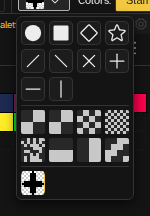
Custom brushes let you use any image as a stamp, allowing you to quickly repeat patterns, textures, or complex shapes.
Creating a Custom Brush
To create a custom brush:
- Draw the pattern you want to use as a brush on any file
- Select the area containing your pattern
- Press Ctrl+B or right-click and choose "Use as Custom Brush"
This creates a new brush file from your selection and automatically switches to the Brush tool with your custom brush selected.
Using Custom Brushes
Once a custom brush is set:
- Click to stamp the pattern once
- Drag to stamp the pattern along your stroke
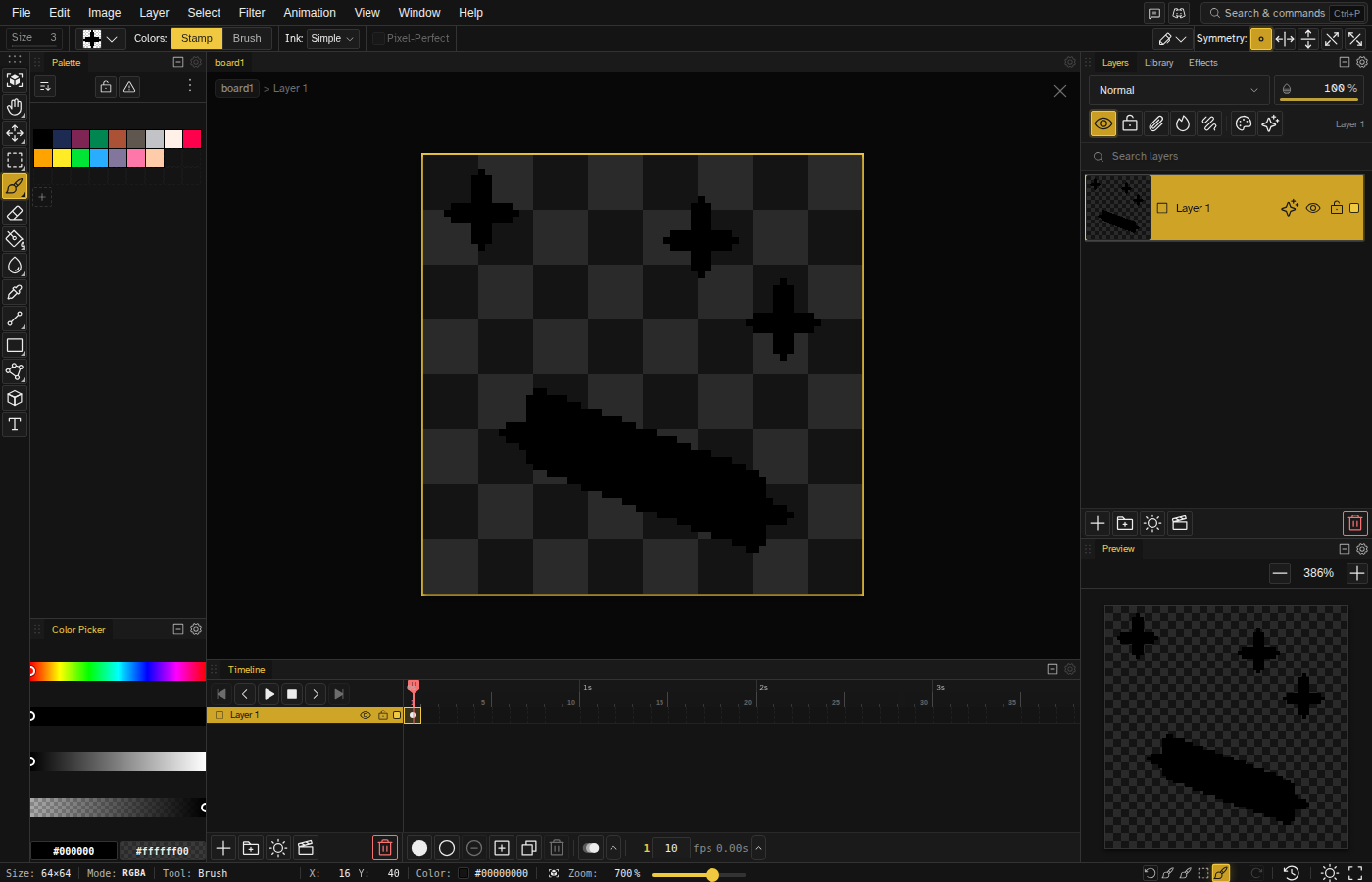
- The brush respects the current color mode settings
- Pixel-Perfect is greyed out while a custom brush is active, since it only applies to the built-in shapes at 1px
The Eraser has its own custom-brush slot: pick a captured brush from the eraser dropdown to erase with that stamp.
Color Modes
Custom brushes support different color modes:
- Stamp (Original Colors) — Stamps the brush with its original colors
- Brush (Foreground Color) — Replaces non-transparent pixels with the current foreground color
Clearing the Custom Brush
To return to the normal brush:
- Select a geometric brush shape from the tool options row
- Or delete the brush file from the file list
Tips
- Custom brushes are great for repetitive elements like foliage, grass, or decorative patterns.
- Create a small tile pattern and use it as a brush to quickly fill large areas.
- The brush respects symmetry settings for even faster pattern creation.
- Custom brushes from other files can be imported by selecting content on that file.