


Selection
Selections let you isolate parts of your artwork for editing, moving, or transforming. This section covers all selection tools and operations.
Selection Tools
Select (Marquee)
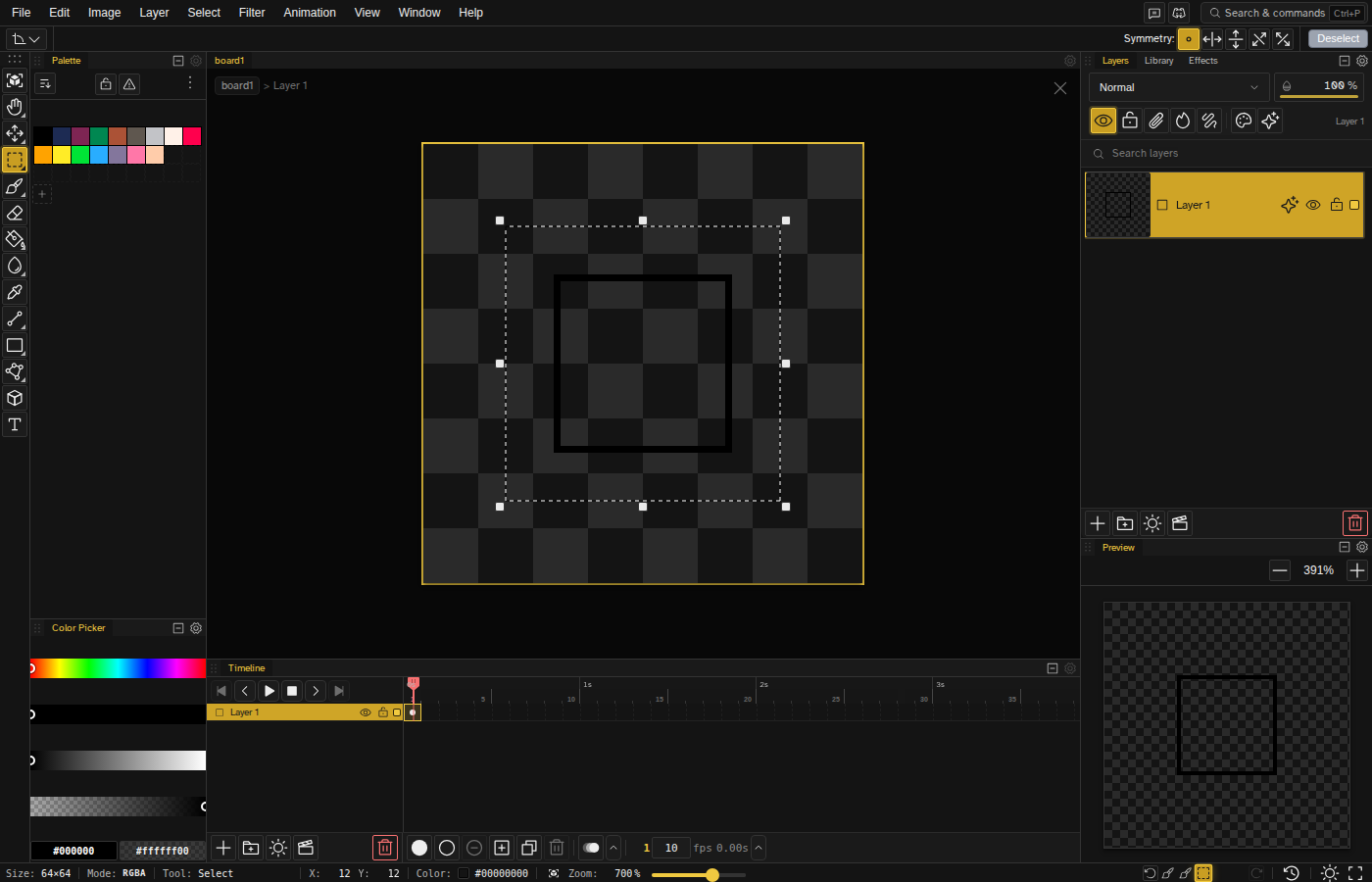
Rectangular selection. Shortcut: Sor M
Ellipse
Circular and elliptical selection.
Lasso
Freehand selection. Shortcut: Q
Polygon
Multi-click polygon selection.
Magic Wand
Select by color. Shortcut: W

Basic Selection Operations
| Ctrl+A | Select all |
| Escor Ctrl+D | Deselect |
| Ctrl+Shift+I | Invert selection |
| Delor Backspace | Clear selection contents |
| Ctrl+C | Copy selection |
| Ctrl+X | Cut selection |
| Ctrl+V | Paste |
Select all follows whichever panel you are working in: on the canvas it selects every pixel, in the timeline it selects every cel, and in the Layers panel it selects every layer.
Modifying Selections
Hold a modifier while selecting to combine with the current selection:
- Shift — Add to the current selection
- Altor Right Click — Subtract from the current selection
- Shift+Altor Shift+Right Click — Keep only the overlap with the current selection
These work with all selection tools, and you can rebind them in the keyboard shortcuts editor.
Grid Cell Selection
Double-click with any selection tool to select the grid cell under the cursor. Drag after double-clicking to select multiple whole grid cells. The add, subtract and intersect modifiers work here too. This needs a rectangular grid with a spacing set; the isometric grid does not support cell selection.
See Grid Settings for configuration and details.
Moving Selections
After making a selection:
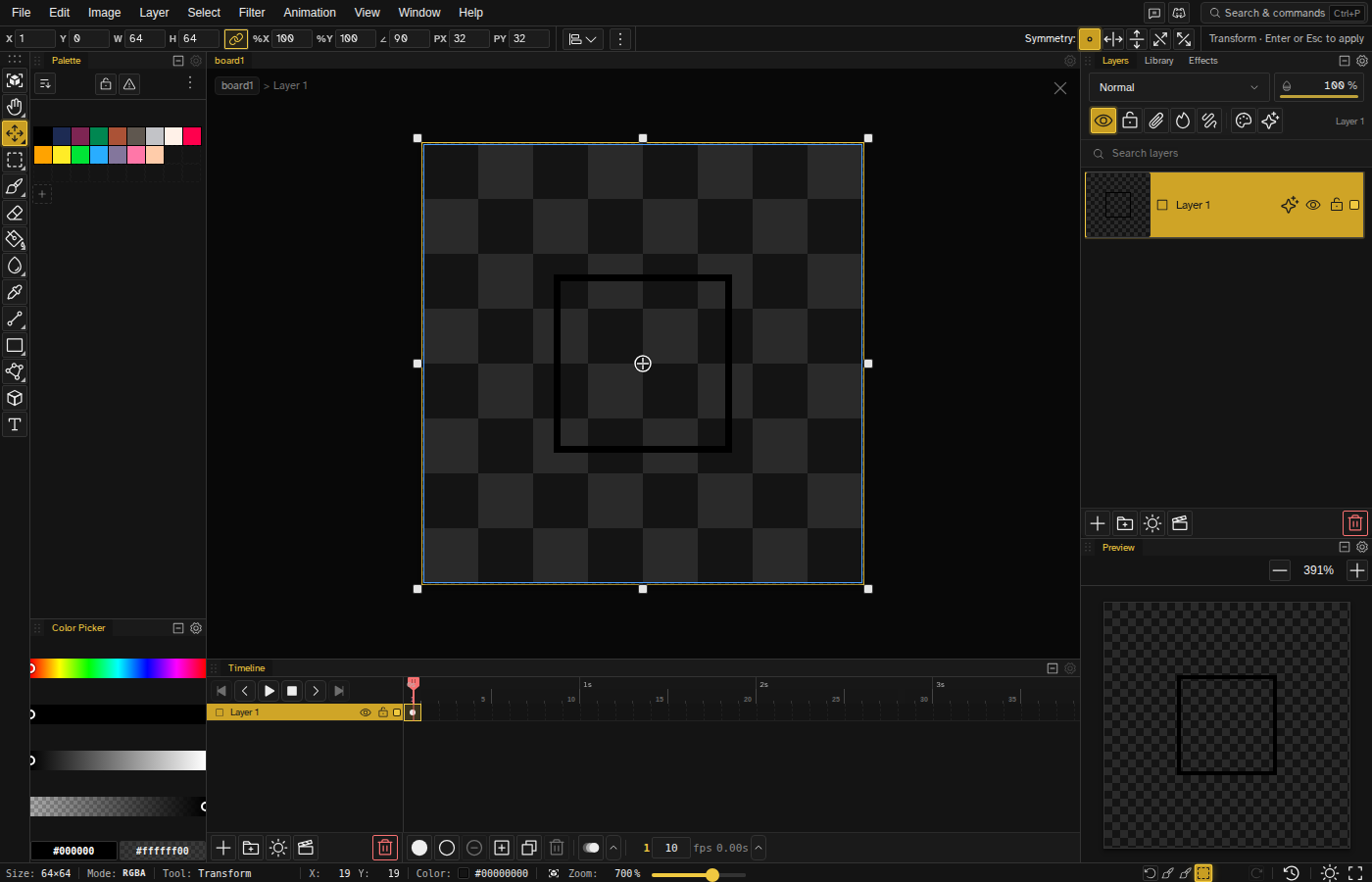
- Press T to enter Transform mode
- Drag to move the selection contents
- Use arrow keys for 1-pixel movements
- Hold Shift with arrow keys for 10-pixel movements
- Press Enter to commit the move
- Press Escor Ctrl+D to cancel
Selection Operations
The Select menu holds the operations that change the selection itself:
- Grow/Shrink Selection — Enlarge or contract the selection by pixels (one dialog)
- Invert Selection — Select everything outside the current selection
- Select Opaque Pixels / Select Transparent Pixels — Select the filled or the empty pixels of the active layer
- Send to New Layer — Move the selected pixels onto a new layer
- Quick Mask — Paint the selection instead of dragging it (a checkmark shows while the mode is on)
What you do to the pixels inside the selection lives in the Edit menu:
- Fill Selection — Fill with foreground color ( Shift+F )
- Stroke Selection — Outline the selection boundary ( Shift+S )
- Free Transform — Move, scale, rotate, or shear the selected pixels
Crop to Selection sits in the Image menu, with the rest of the whole-canvas operations.
See Selection Operations for details.
Editing Several Cels at Once
Picking more than one cel in the timeline widens what the next edit touches: a stroke, a shape, a fill, a gradient or a color adjustment lands on every selected cel as a single undo step. A small badge in the corner of the canvas counts the cels an action is about to reach before you commit it.
When the cels you picked collapse onto fewer keyframes, the badge says so instead of the plain count, for example "3 keyframes · 8 frames". Held frames share the keyframe that governs them, so eight picked frames can be three writes.