


Selection Operations
After creating a selection, you can modify it using various operations. The Select menu holds everything that changes the selection itself. Operations that change the pixels inside it (Fill Selection, Stroke Selection, Free Transform) are in the Edit menu, and Crop to Selection is in the Image menu with the other whole-canvas commands.
Grow / Shrink
A single Grow/Shrink Selection dialog in the Select menu enlarges or contracts the selection by a specified number of pixels in all directions. Useful for:
- Creating a border around a selection
- Selecting a slightly larger area than an object, or just its interior
- Creating inset effects or avoiding edge pixels
Invert
Selects everything that isn't currently selected, and deselects what was selected.
Shortcut: Ctrl+Shift+I
Useful for:
- Selecting a background by first selecting the subject, then inverting
- Protecting specific areas while editing everything else
Select All
Selects the entire canvas.
Shortcut: Ctrl+A
Deselect
Removes the current selection.
Shortcut: Escor Ctrl+D
Reselect
Restore the previous selection after deselecting.
Shortcut: Ctrl+Shift+D
Useful for:
- Recovering a selection after accidentally deselecting
- Reapplying the same selection for repeated operations
Fill Selection
Fill the current selection area with the foreground color. In the Edit menu.
Shortcut: Shift+F
When no selection is active, fills the entire cel.
Stroke Selection
Draw an outline around the selection boundary using the foreground color. In the Edit menu.
Shortcut: Shift+S
- Stroke thickness — Configurable from 1 to 10 pixels in user preferences
- Stroke direction — Cardinal (N/S/E/W), All Directions, or Horizontal Only, also in user preferences
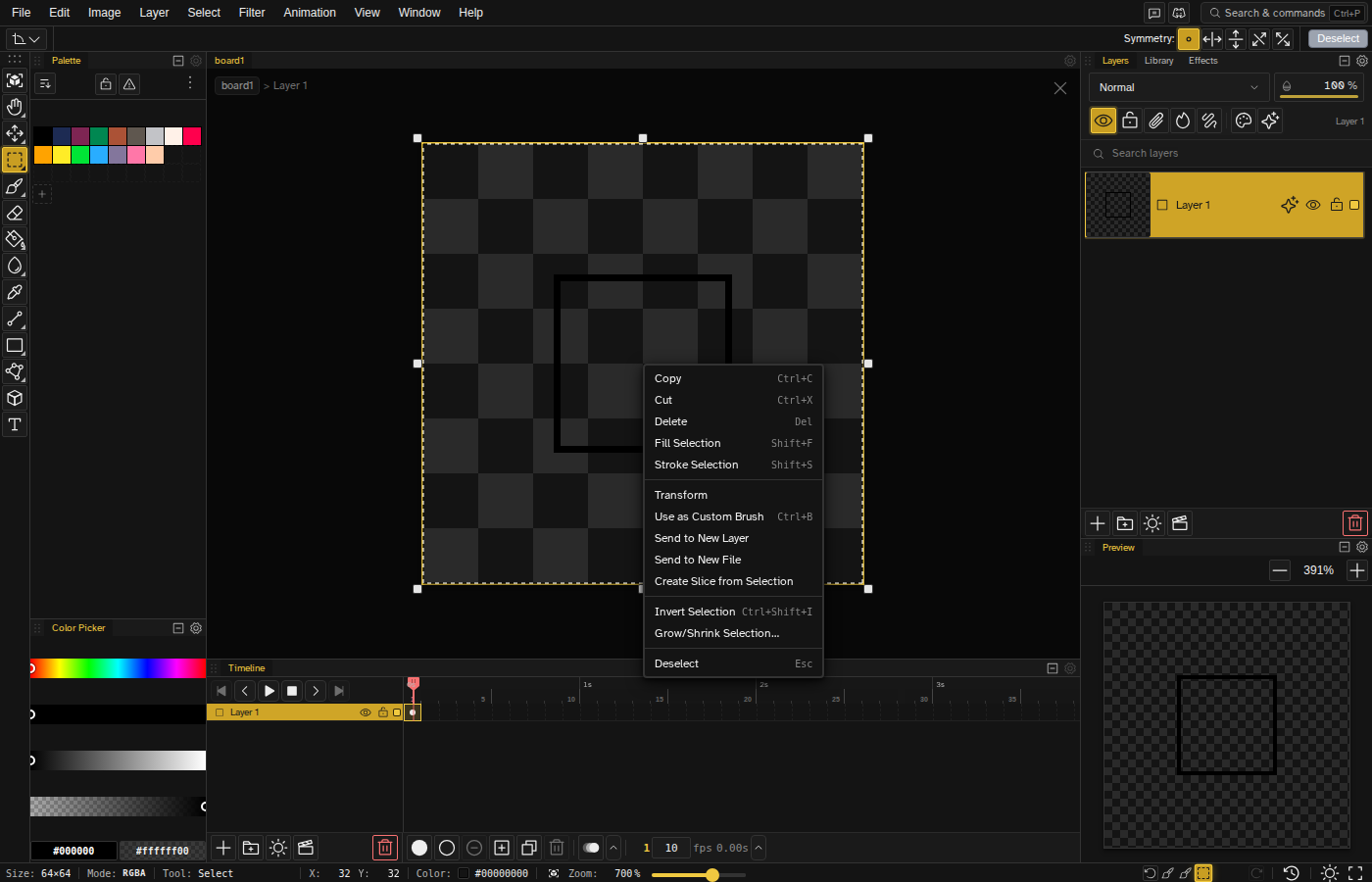
When no selection is active, it strokes the cel's border instead. Also accessible from the selection right-click context menu.
Copy Merged
Copy the flattened composite of the current frame onto the system clipboard, instead of the active layer's own pixels. With a selection active it clips to the selection's shape, mask and all; with none, it copies the whole frame. In the Edit menu.
Shortcut: —
Select Opaque Pixels
Select every non-transparent pixel on the active layer. Available from the Select menu.
Select Transparent Pixels
Select every fully transparent pixel on the active layer. Available from the Select menu.
Select Tile Shape
Replace the selection with the tile shape the Preview panel is set to, square or hexagonal, over the area the preview is showing. Handy when you are drawing a tile and want the selection to follow its outline. Available from the Select menu, and from the Preview panel itself.
Use Selection as Brush
Turn the selected pixels into a custom brush and switch to the Brush tool with it loaded. Available from the Edit menu and from the selection right-click menu as Use as Custom Brush.
Shortcut: Ctrl+B
Send Selection to New Layer
Move the selected pixels out of the current layer and onto a brand new layer above it. Available from the Select menu.
Send Selection to New File
Right-click an active selection and choose Send to New File to spin up a fresh file containing just that region. The original file stays untouched, and the new file opens with the copied pixels as its content, ready to keep drawing on. No slice is created — the separate Create Slice from Selection item in the same context menu adds a slice on the current file instead.
Crop to Selection
Resize the canvas to match the current selection bounds. Access via the Image menu.
- All layers are repositioned correctly
- Full undo/redo support
- Selection is cleared after cropping
Moving the Selection
With a selection tool active and a selection on the canvas, you can drag inside the selection to move it. The drag behavior depends on whether you hold Ctrl :
- Drag inside the selection — lifts and moves the selected content (the pixels underneath), with an inspection overlay showing what is being moved.
- Ctrl + drag — moves only the selection marquee, leaving the pixels in place.
Nudging the Selection Marquee
With a selection tool active, the arrow keys nudge the selection boundary without moving the pixels underneath. With the Transform tool, or once a transform is already running, the same keys move the content instead.
- Arrow keys move the marquee by 1 pixel
- Hold Shift with the arrow keys ( Shift+↑ , Shift+↓ , Shift+← , Shift+→ ) to move by 10 pixels
Quick Mask
Quick Mask lets you paint a selection instead of dragging one. Turn it on from the Select menu (a checkmark shows while it is on). The current selection seeds the mask, and the active tool switches to Contour so you can outline an area right away.
- The Brush, Eraser and Contour tools paint the mask, shown as a translucent red overlay, and leave your layer pixels alone.
- Enter , the Confirm button in the tool options row, or turning the mode off again converts what you painted into the selection.
- Esc or the Cancel button discards the mask and leaves the selection as it was.
- Picking a tool that cannot paint the mask confirms it, the same way the multi-click shapes behave. A MASK badge in the status bar shows while the mode is on, and clicking it exits.
Working with Selections
Selections affect most operations:
- Drawing tools — Only draw within the selection
- Fill operations — Only fill the selected area
- Effects — Apply only to selected pixels
- Copy/Cut — Only affects selected content