


Import & Export
Novaboard opens and writes the file formats of the common pixel art editors (Aseprite, Photoshop, Pixelorama, Piskel, GraphicsGale and others), plain and animated images, palettes, video and game engine sprite sheets. This page lists the formats, how files come in, and how saving and exporting differ.
Supported Formats
Image Import
| Format | Extension | Features |
|---|---|---|
| PNG | .png | Static images with transparency |
| JPEG | .jpg, .jpeg | Static images, no transparency |
| WebP | .webp | Static images with transparency |
| BMP | .bmp | Uncompressed bitmap images |
| SVG | .svg | Vector images, rasterized on import |
| APNG | .png, .apng | Animated PNG, extracts frames (playback uses the file's FPS) |
| GIF | .gif | Animated images, extracts frames |
| Aseprite | .ase, .aseprite | Full layers, animation, tags, palette. .ase is also the Adobe Swatch Exchange
palette extension: a drop on the Palette panel reads it as a palette, anywhere else as an
Aseprite file. |
| Photoshop | .psd | Layers, groups, blend modes, opacity, clipping masks |
| OpenRaster | .ora | Layers, groups, blend modes |
| Windows Icon | .ico | Each size as separate layer |
| Windows Cursor | .cur | Icon with hotspot data |
| Graphics Gale | .gal | Layers, animation, palettes (GaleX200 and Gale106) |
| TIFF | .tiff, .tif | Multi-page TIFFs imported as animation frames |
| Netpbm | .pbm, .pgm, .ppm, .pnm, .pam | ASCII and binary formats, 8/16-bit support |
| QOI | .qoi | Fast lossless format (Quite OK Image) |
| Piskel | .piskel | Layers and animation frames from Piskel editor |
| Pixilart | .pixil | Frames and layers from Pixilart (export supported too; import via drag and drop) |
| PCX | .pcx | PC Paintbrush legacy format (import via drag and drop) |
| AVIF | .avif | Modern AV1 image format |
| JPEG XL | .jxl | Decoded in-app, so it opens even in browsers without JPEG XL support |
| TGA | .tga | Targa format with alpha channel (import via drag and drop) |
| Pixelorama | .pxo | Full layers, groups, blend modes, keyframes, animation tags (export supported too) |
| Pixquare (import only) | .px | Layers, blend modes, animation frames, auto palette extraction |
| Pyxel Edit (import only) | .pyxel | Layers, opacity, blend modes, palettes |
| Pixaki (import only) | .pixaki | Layers, animation frames, HSB palette |
| Novaboard | .nova | Full project with history preservation |
| Novaboard Workspace | .novaspace | Full multi-file workspace with all files, palettes, and project state (import via File → Import Workspace from the file grid, or drag and drop) |
| Animated Cursor | .ani | Windows animated cursor frames with hotspot data |
| MagicaVoxel | .vox | Voxel model import with a slice-axis choice (X, Y, or Z; defaults to Y) |
Image Export
| Format | Extension | Features |
|---|---|---|
| PNG | .png | Single frame with scale options |
| JPEG | .jpg, .jpeg | Lossy compression with quality control |
| WebP | .webp | Modern format with quality control, smaller file sizes |
| AVIF | .avif | Modern AV1 format with high compression efficiency |
| JPEG XL | .jxl | Quality control; encoded in-app, so it works in any browser |
| BMP | .bmp | Uncompressed bitmap format |
| APNG | .apng | Animated PNG with full alpha transparency |
| GIF | .gif | Animated export with loop and timing options |
| Sprite Sheet | .png, .jpg, .webp, .bmp | All frames in a strip or a grid |
| Aseprite | .aseprite | Full project preservation |
| Photoshop | .psd | Multiple export modes |
| OpenRaster | .ora | Per-frame export |
| Windows Icon | .ico | Multi-size icon package |
| Windows Cursor | .cur | With configurable hotspot |
| Graphics Gale | .gal | Full project with layers and animation |
| Piskel | .piskel | Full project compatible with Piskel editor |
| Pixelorama | .pxo | Full project for round-tripping with other Pixelorama users |
| Pixilart | .pixil | Frames and layers for sharing into the Pixilart ecosystem |
| TGA | .tga | Targa format with alpha channel support |
| PCX | .pcx | PC Paintbrush format |
| SVG | .svg | Vector format, each pixel as rect element |
| Netpbm | .pbm, .pgm, .ppm, .pnm, .pam | ASCII/binary, dithering options for PBM |
| QOI | .qoi | Fast lossless format with scale options |
| Novaboard | .nova | Full project; "Include edit history" is on by default and preserves undo/redo history |
| Novaboard Workspace | .novaspace | Every file in the workspace with its folders, written by Save Workspace… in the file grid's File menu (see Saving) |
| Animated Cursor | .ani | Windows animated cursor built from the timeline frames |
| MagicaVoxel | .vox | One voxel per opaque pixel, one slice per layer; current frame or all frames |
| Sprite Stack | .gif, .png | The layers stacked and turned: a GIF, a sprite sheet, a PNG sequence or a new file, or one PNG per layer |
| Crafts PDF | Printable pattern with DMC thread colors | |
| Crafts PNG | .png | Pattern image with grid and symbols |
| MP4 Video | .mp4 | H.264 video with quality and background options |
| WebM Video | .webm | VP9/VP8 video with background options |
| Godot 4 SpriteFrames | .zip (.tres + .png) | Game engine resource with spritesheet |
| JSON Atlas | .zip (.png + .json) | Aseprite-compatible atlas for Phaser, PixiJS, and more |
| GameMaker Strip | .png | Strip image that GameMaker auto-splits on import |
Palette Formats
| Format | Extension | Description |
|---|---|---|
| GIMP Palette | .gpl | Text-based RGB format |
| JASC Palette | .pal | Paint Shop Pro format |
| Adobe Swatches | .aco | Photoshop color swatches |
| Adobe Swatch Exchange | .ase | Palette format. Shares the .ase extension with Aseprite files; Novaboard disambiguates
by context (Palette panel vs file import). |
| Lospec HEX | .hex | One hex color per line, the Lospec palette format |
| Adobe Color Table | .act | Photoshop indexed-color table (up to 256 colors) |
| JSON | .json | Array of hex colors |
| Krita Palette (export only) | .kpl | Krita's palette format |
| PNG Strip | .png | Extract colors from image |
Importing Files
Methods
- File → Open… ( Ctrl+O ) - Pick any importable file, not just
.nova. Each pick opens as a new file - File → Import Layer - Bring one or more images into the current file as
layers. With several images at once you choose layers or frames. A
.novafile picked here joins the workspace and comes in as an external object that shows it - File → Import Spritesheet… - Cut a sprite sheet into frames, layers or slices of the current file (see Spritesheet Splitter). The file grid's File menu has the same item, which makes a new file from the sheet
- File → Import Reference - Open a reference image in a floating viewer panel; Shift-click imports it as an on-canvas tracing layer instead
- File → Import Tracing Layer - The same tracing layer without the Shift-click (non-destructive, independent scale and rotate)
- Drag and Drop - Drop files onto the canvas or onto the file grid. An image dropped on the canvas lands under the pointer, floating so you can move it into place
- Clipboard Paste - Paste ( Ctrl+V ) an image copied from another app or a screenshot. It lands in the middle of the view, floating so you can move it before you confirm. Pixels copied inside Novaboard paste back where they came from
Where the imported image lands
Novaboard doesn't show a chooser dialog for normal imports. The routing is automatic:
- If a pixel-art file is focused, the imported image becomes a new layer on that file.
- Otherwise (no focused file, or a non-pixel-art file focused) a new file is created.
- Project formats (.nova, .aseprite, .psd, .ora, .pxo and friends) always open as their own file, focused or not.
- Dropping multiple files with matching dimensions triggers animation-sequence detection instead (see below).
A few more rules apply to every import:
- A layer made from an image is named after the image file.
- An image larger than the canvas keeps all of its pixels, up to one and a half times the largest canvas size, and opens a transform so you can place it.
- Bringing full-color pixels into an indexed file asks first how to fit them to the palette. Cancel stops the import.
- An indexed PNG, GIF or Aseprite file opens as an indexed file on its own palette, at the palette size it was saved with.
- An image that looks like a palette (a one-pixel color strip or a row of color blocks) offers to become the file's palette or to join your palette library.
Opening Novaboard Files
When you open a .nova or .novaspace file, Novaboard checks the file's
format version. A file saved by a newer build is refused outright, with a toast asking you to update,
rather than opened with parts missing.
Importing Multiple Files as Animation
Drag and drop several image files and Novaboard looks for a numbered sequence (walk_001.png, walk_002.png and so on). Files are ordered by sequence number rather than alphabetically, and filenames with more than one number are handled by spotting which number varies. Only files that share the same dimensions become frames; the rest are imported one by one.
Font Import
Import custom fonts into the Font Manager dialog (Text tool → Font Manager). BDF bitmap fonts are parsed natively, keeping the original bitmap grid; TTF, OTF and WOFF vector fonts load alongside the built-in list.
Graphics Gale Import
Both container versions are supported: GaleX200 (GraphicsGale 2.x and later) and Gale106 (legacy 1.x). Layer structure, frame timing, animation data and the embedded palette all come across, with transparency handled.
Spritesheet Splitter
Split existing spritesheets into individual frames, layers, or slices. All three outputs live inside a single unified Split Image dialog.
- Grid mode - Set columns and rows or a cell size, with the grid detected from the image (Detect). Works even on tightly packed tilesheets where neighbouring tiles touch. Advanced options add an offset, a gap between cells, and a Grid area that limits the cut to a region of the image
- Auto-detect mode - Uses connected component analysis to find individual sprites by pixel boundaries, then subdivides oversized blobs along the detected tile grid so packed sheets and isolated sprites both work. Configure alpha threshold, connectivity mode, and merge distance for fine-tuning
- Import as frames - Each cell becomes an animation frame
- Import as layers - Each cell becomes a separate layer
- Add as new frame - With Layers picked on a file that already has layers, the cells are written as a new frame after the current one, cell 1 on the lowest of the top layers. Empty cells are kept, so every layer gets its own keyframe. The setting is remembered, so a sprite stack animation stored as one strip per frame goes in one strip at a time
- Several files at once - Pick more than one file and the same grid cuts all of them, in name order. As layers, each file becomes a frame on the same layers, so a folder of sprite stack strips turns into one animated stack. As frames, the cells of every file follow each other on the timeline. All files have to be the same size
- Import as slices - Each cell becomes a named slice on the current file. The slices panel auto-slice button opens this dialog preconfigured for slices + auto-detect
- Preview before import - See grid overlay or detected regions before committing
- Cell selection - Click individual cells in the preview to include or exclude them from the split
- Ignore empty - Auto-deselects empty cells (enabled by default). With several files, or when splitting an animated file, a cell is only skipped if it is empty everywhere
- Trim to content - Option to trim imported sprites to their content bounds
Access via File → Import Spritesheet…, or Image → Split Image… to split the file you have open. Splitting an animated file into layers cuts every frame the same way: cell 1 of each frame lands on the same layer, keyframes stay on their frames, and layers with nothing drawn on them are left as they are.
Transparency and the Base Color
An indexed file marks at most one palette entry as its base color: the entry empty pixels use. Imports keep the transparent entry a file already has, at the same position, and never shift the palette. Exports write the base back in each format's own way.
| Format | Import | Export |
|---|---|---|
| Aseprite | The header's transparent index becomes the base. Palette order and each entry's alpha are kept. A background layer opens as a normal layer; where it paints the transparent index, those pixels move to an opaque entry of the same color (added at the end of the palette if there is room) so they stay visible. | The base position is the transparent index (0 when nothing is marked). The palette is written in its order, and every layer is a normal layer. |
| Indexed PNG | The first fully transparent tRNS entry becomes the base; other tRNS alphas stay on their entries. No tRNS means no base. A bKGD background color becomes the base layer color. | tRNS writes alpha 0 for the base and every other entry's own alpha; with no base there is no tRNS. The base layer color goes out as bKGD. With an Output background of the base's own color, empty pixels keep the base entry, written opaque, so the palette stays the same. |
| GIF | A frame's transparent index becomes the base. A full 256-color table opens as it is. If a frame also paints the transparent index as a color, those pixels move to an opaque copy at the end of the palette; when the palette is full they stay on the base and show see-through, and a message tells you. The background index colors the base layer of a full-color import. | The base position is the transparent index; with no base, none is written. |
| GraphicsGale | The transparent color becomes the base. | Layers carry their own alpha; no transparent color is named. |
| Adobe Color Table (.act) | The 772-byte variant's transparency index becomes the base; a 768-byte file has no base. | Always 772 bytes: the base position, or 0xFFFF when nothing is marked. |
| Palette files (.gpl, .pal, .hex, .json, .kpl) | No base is carried. Loading one onto a file keeps that file's base at its position. | The base entry is written in its place like any other entry. |
Exporting
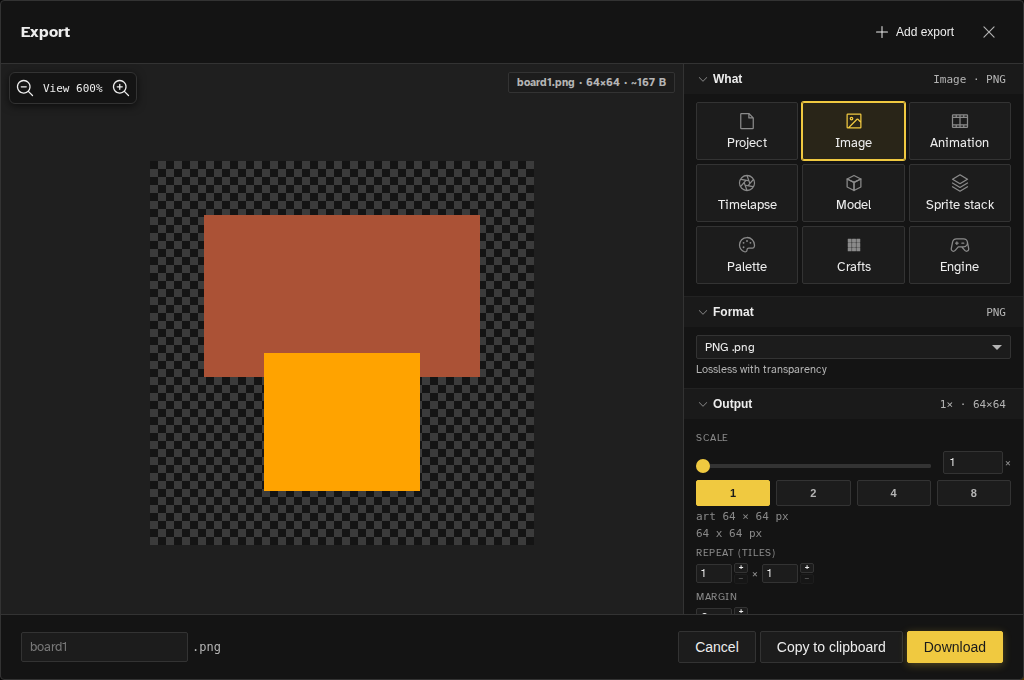
File → Export… ( Ctrl+Shift+Alt+Sor Ctrl+Shift+Alt+E ) opens the export dialog: a live preview beside a stack of rows, led by a grid of nine cards for what you are exporting (Project, Image, Animation, Timelapse, Model, Sprite stack, Palette, Crafts and Engine). The rows underneath cover scale and canvas size, the area, which frames and layers go in, whether it lands in one file or many, and the options the chosen format adds. You can queue several exports at once, and File → Repeat Last Export ( Ctrl+Alt+E ) re-runs the file's saved exports without opening anything.
The Export Dialog walks every row and every per-format option, including the GIF, MP4, WebM, APNG, sprite sheet, Netpbm, palette, timelapse and model settings.
Crafts Export
Export your pixel art as printable patterns for cross-stitch, fuse beads, and other crafts:
- PDF export: Generate printable patterns with grid, symbols, and color key
- PNG export: Export patterns as images with grid and symbols
- Color system: The picker is split into threads (DMC, Anchor, Madeira, Cosmo), beads (Hama, Perler, PhotoPearls, Artkal), and blocks (Artkal ZD) so it stays manageable as palettes are added. Every palette is matched with perceptual CIELAB distance against RGB values sampled from the manufacturer's own shade card, with no cross-brand conversion tables.
- Artkal beads: Pick from the Artkal A (5 mm), C (mini 2.6 mm), and S (soft) bead series, plus the Artkal ZD building-blocks line. The chosen color codes carry into the PDF export.
- Pattern symbols: Each color mapped to a distinct symbol for easy reference
Page size, cell size, legend, tint, grid, trimming and padding are set in the export dialog's Pattern row, listed under The Export Dialog.
Color data & methodology
The RGB values come from the closest-to-original digital shade-card and product images on each manufacturer's own website:
- DMC: dmc.com · dmc.csv (489 colors)
- Anchor: anchorcrafts.com · anchor.csv (460 colors)
- Madeira: garne.madeira.de · madeira.csv (369 colors)
- Cosmo: lecien.co.jp · cosmo.csv (500 colors)
- Hama (fuse beads): hamabeads.com · hama.csv (65 colors)
- Perler (fuse beads): perler.com · perler.csv (86 colors)
- PhotoPearls (fuse beads, formerly Nabbi): photopearls.com · photopearls.csv (42 colors)
For each brand we OCR the codes printed next to the swatches and sample the median RGB from
inside each swatch region. The resulting datasets (dmc.csv, anchor.csv, madeira.csv, cosmo.csv, hama.csv, perler.csv, photopearls.csv) are published
under CC BY 4.0 and are free to reuse with attribution to Novaboard.app. We do not redistribute the source images;
they remain the property of each manufacturer.
PSD Export Modes
When exporting to Photoshop format, choose an Export Mode. Every mode writes layer groups as folders, keeps group blend modes and clipping masks editable, and bakes layer effects and adjustment layers into the pixels.
Current Frame
Exports the current frame with all layers preserved as PSD layers.
Frames as Groups
Each animation frame becomes a layer group containing that frame's layers.
Layer Spritesheets
Each layer becomes a horizontal sprite sheet of all its frames.
Icon/Cursor Export
ICO Export
Windows icon files can contain multiple sizes. Novaboard supports:
- 16x16, 24x24, 32x32, 48x48, 64x64, 128x128, 256x256
- Default size is 32x32; pick any combination from the list to bundle multiple sizes
- Multiple sizes in one .ico file
CUR Export
Cursor files include a hotspot (the click point):
- Hotspot X/Y - Whole-pixel position on the canvas, rescaled per icon size
- Sizes: 16x16, 24x24, 32x32, 48x48, 64x64
Game Engine Export
Export animations in game engine-native formats from the Engine card:
Godot 4 SpriteFrames
- .tres resource: Exports a Godot 4 SpriteFrames resource file with a bundled spritesheet PNG, packaged as a ZIP. The texture path is relative, so the pair works from any folder inside your project
- Tag-based animations: Animation tags map to named SpriteFrames animations, with reverse and ping-pong playback baked into the frame order. Untagged frames become the "default" animation
- Slices: Slice bounds and pivots are included as resource metadata
JSON Atlas (Phaser, PixiJS, and more)
- Spritesheet + JSON: Exports a spritesheet PNG with an Aseprite-compatible JSON atlas (hash format), packaged as a ZIP
- Wide compatibility: Includes frame tags with playback directions for Phaser's Aseprite loader and a TexturePacker-style animations block for PixiJS, so one file works in both. Slices with pivots are exported under meta.slices
GameMaker Strip
- Strip PNG: A horizontal strip named like player_strip12.png. The _stripN suffix makes GameMaker split it into frames automatically on import
- Per-tag strips: Optionally export one strip file per animation tag
Engine Export Options
- Trim transparent borders: Crops all frames to their shared content bounding box; engines restore the original frame size from the recorded offsets
- Padding: Adds space between sheet cells (Godot and JSON atlas)
- Extrude edges: With padding above 0, each cell's border pixels are repeated into the gap so neighbours never bleed through when the engine samples the sheet. On by default
- Scale, frames and effects: The Output scale, the Frames row and export effects all apply; the Engine row lists the animations or strip files you will get
Pick the Engine card in the export dialog, then a format.
Slice Tool
Slices define named rectangular regions on your canvas for targeted export. Each slice has a name, bounds, and an optional pivot point.
- Create slices: Use the Slice tool ( Shift+K ) to draw slice regions on the canvas
- Per-slice pivots: Set a pivot point on each slice for sprite origin in game engines
- Auto-slice: Automatically detect content bounding boxes with a visual preview
- Export integration: The export dialog's Area row can point at a single slice, or split the export into one file per slice
ZIP Export
Multiple exports can be bundled into a single ZIP download:
- Export All: With more than one export in the list, Export all writes them
into a single
<name>_all.zip - Export selected: Ctrl/Cmd-click or Shift-click rows in the list to pick a few of them; the per-export button then writes just those, zipped together when they land more than one file
- Export Workspace… (file grid File menu): lists every file in the workspace with its saved export, each with an Edit export button that opens the export dialog for that file. Export writes them all into one ZIP: each file gets its own subfolder inside a folder for each group it sits in on the grid. A file that has never been exported goes out as a PNG
Saving
Saving writes a .nova file: the whole project, ready to reopen in Novaboard. Exporting
writes something for another program. The two keep separate settings: the options you pick when
saving are stored with the file and never change the exports in the export dialog, and the reverse.
On the web
Your work saves itself to browser storage as you draw. Pressing Ctrl+S only shows a reminder of that. Browser storage can be lost if you clear site data or switch devices, so keep a copy on disk:
- File → Save to Disk… ( Ctrl+Shift+S ) opens a small dialog with
the file name and the
.novaoptions (Include edit history, Include replay anchors, plus Include reference images, Bundle referenced files and Embed imported fonts when the file has any). Save asks where to put the file in browsers that offer a save dialog, and downloads it in the others. The copy on disk is a snapshot: the file in the app keeps saving to browser storage as before.
In the desktop app
- File → Save ( Ctrl+S ) writes the file to its
.novaon disk, and asks where the first time - File → Save As… ( Ctrl+Shift+S ) opens the same small dialog and then a save dialog, and the file follows the new path from then on
Whole workspace
- Save Workspace… (file grid File menu; Save Workspace As… in the desktop app) writes every file, with its folders, into one
.novaspacefile. Include edit history is on by default - Import Workspace loads a
.novaspaceinto the current workspace when it is empty, or asks whether to merge it in or make a new workspace. Groups with the same name are merged, and you land on the file grid - Export Workspace… exports every file instead (see ZIP Export)
Online Viewers and Converters
Each file format also has a standalone page that opens a file in the browser without the editor, for example the Aseprite viewer, PSD viewer, Piskel viewer and Pixelorama viewer. Their Open in Novaboard button takes the file into the editor. For ready-made export sizes and engine formats, see Social media exports and Game engines.