


Clip Layers
Clip layers let you embed other files as layers within your canvas. This enables modular compositions where characters, backgrounds, and effects can be maintained as separate files and combined in a parent file.
How Clip Layers Work
| Content | Composited output of the referenced file |
| Transforms | Position, scale, rotation, and skew via on-canvas handles |
| Animation | Syncs with parent timeline, supports tag and frame range looping |
| Nesting | Up to 4 levels of nested clip layers |
| Export | Fully composited in all export formats |
| Pixel editing | Not directly paintable — edit the referenced file instead |
Adding a Clip Layer
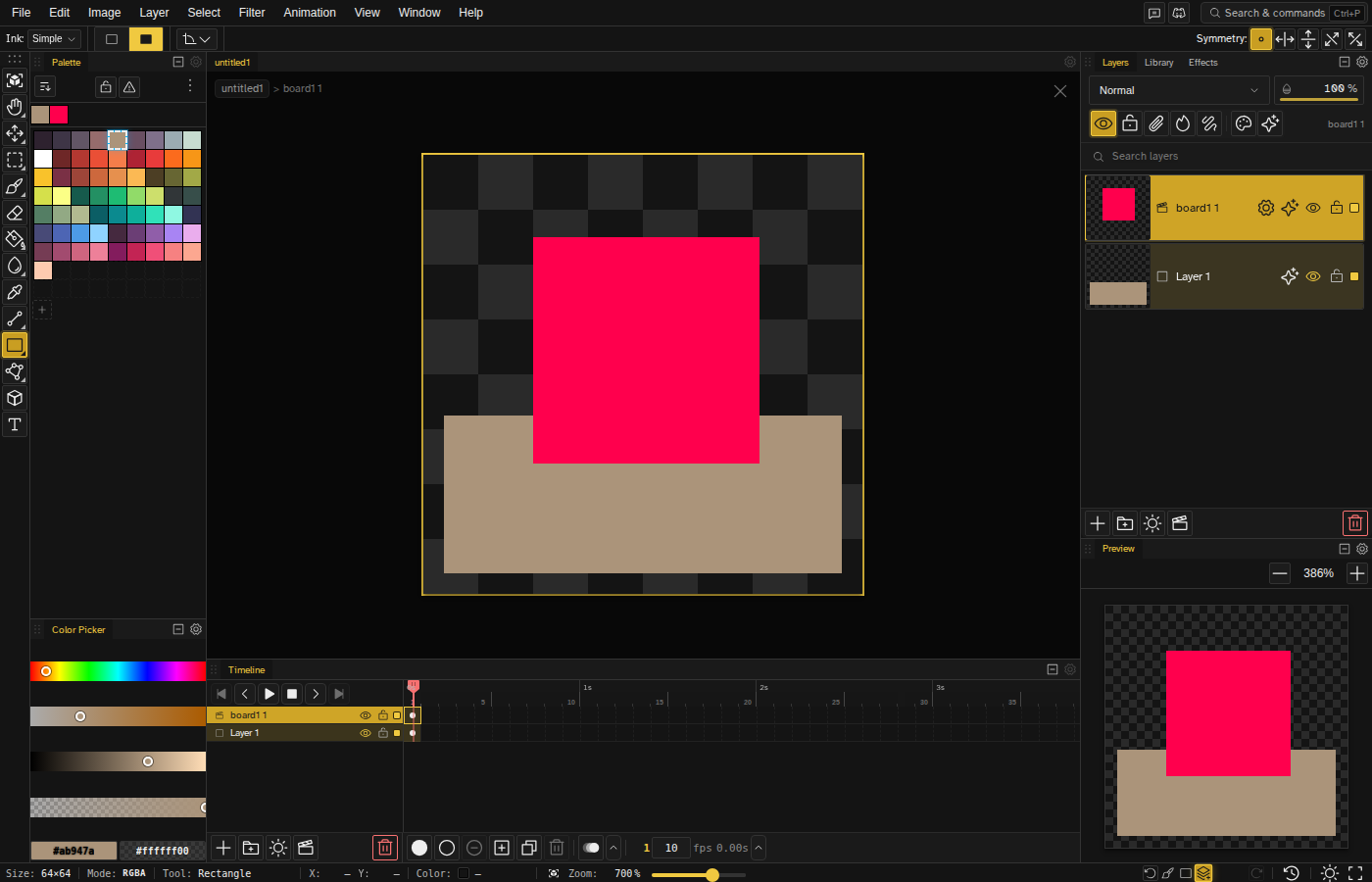
Click the clapperboard button in the Layers panel footer, then pick the file you want to reference. The referenced file's content appears as a layer in your canvas. The Library panel is the other way in: it browses every file and slice you can place. The footer button is hidden in Simple mode.
Library Panel
The Library panel is a dockable panel for browsing and placing clip sources. Open it from the panel menu or workspace layout.
- Thumbnail grid — Visual grid of thumbnails for quick browsing
- Search and filter chips — A search input plus three multi-select filter chips: Files, Slices, and System
- Folder breadcrumbs — Items are organized into folders (for example, a file with slices gets its own folder), with a breadcrumb trail at the top to navigate in and out
- Clip/Brush toggle — A click-action toggle in the header sets whether clicking a thumbnail places it as a clip layer or uses it as a brush
- Files — Any file in your workspace can be dropped onto the canvas as a clip layer
- Slices — Pick a specific slice from any file as the clip source. The slice shows as a slice-only thumbnail, with a full-resolution preview that follows the cursor before placement
- System clips — Novaboard ships with a bundled library of ready-to-use clips (loaded on demand from a manifest). System clips live in memory only and never write into your saved workspace
- Click to place — With the click action set to Clip, click a thumbnail to activate the clip tool, then click the canvas to drop it as a new clip layer centered on the cursor
- Multi-place mode — Hold Shift to place multiple instances without leaving the tool
- Cursor preview — A preview of the clip source follows the cursor before placement
Transforming Clip Layers
Clip layers support full on-canvas transform controls:
- Move — Click and drag the clip layer to reposition it
- Scale — Drag corner handles to resize, hold Shift for uniform scaling
- Rotate — Drag rotation handles, hold Shift for 15-degree snapping
- Skew — Drag edge handles to apply shear transforms
Transform values are stored per-cel — specifically x, y, scaleX, scaleY, rotation, skewX, and skewY. Each keyframe can carry its own values, so you can animate a clip layer's
position, scale, rotation, and skew across the timeline.
Clip Layer Properties
The gear button on a clip layer's row opens its properties dialog: the source file, whether it plays, the starting frame, the loop tag, a frame range, and the resampling method used when the layer is scaled or rotated.
- CleanEdge — Rebuilds smooth edges. This is the default.
- Nearest — Keeps every pixel crisp and predictable.
- RotSprite — The CPU classic.
Placing 9-Slice Clips
A slice that has a 9-slice center placed on it drops differently: instead of stamping at its native size, pointer-down anchors a corner and dragging pulls out the destination rectangle, with a live 9-slice preview. Releasing settles the rectangle and shows confirm and cancel buttons (Enter and Escape also work); the clip layer is only created once you confirm. A plain click with no drag settles at the slice's native size.
Animation Sync
Clip layers play their referenced file's animation in sync with the parent file's timeline. You can configure which frames play:
- Starting frame — Offset the animation start relative to the parent
- Tag looping — Loop only a specific animation tag from the referenced file
- Frame range — Loop a custom range of frames
- Play/pause — Toggle whether the clip layer animates or holds a frame
Tag looping and frame-range looping are mutually exclusive — pick one or the other, not both.
File Navigation
When working with clip layers, a breadcrumb bar appears in the top navbar showing the file hierarchy. Click any breadcrumb to jump back to that level. This makes it easy to navigate into a referenced file to edit it, then return to the parent file.
Click the clip layer's type icon in the Layers panel to open the file it references (double-clicking the row's name renames it, like any other layer). The parent goes on the navigation stack, so the breadcrumb bar gains a level and Escape steps back out (press it twice: the first tap arms the exit and shows a hint). Edits you make in the source show up in every file that clips it.
Circular Reference Protection
Novaboard automatically detects and prevents circular references. You cannot add File A as a clip layer in File B if File B is already referenced (directly or indirectly) by File A. Deleting a file that is referenced by clip layers in other files shows a warning.
A file may clip itself: a slice cut from a sheet is normally used on that same sheet, so the Library lists the file you are editing. The clip is left out of its own source, so what you place is the rest of the file. The one case with no answer is a clip sitting on top of the region it samples — that one draws empty and says so once. Move it off its source.
Clip Layers vs Tracing Layers
| Clip Layer | Tracing Layer | |
|---|---|---|
| Source | Another file in the workspace | An imported image file |
| Content | Live composited file output | Static image at original resolution |
| Animation | Syncs with parent timeline | Static (no animation) |
| In export | Included | Excluded |
| Transforms | Move, scale, rotate, skew | Move, scale, rotate, skew |
Tips
- Use clip layers to build complex scenes from reusable character and background files.
- Edits to a referenced file are immediately reflected in all clip layers that use it.
- Combine with tweening to smoothly animate clip layer positions between keyframes.
- Clip layers are identified by a clapperboard icon in the layers panel.