


Tracing Layers
Reference layers let you import images for tracing or reference without affecting your pixel art canvas. They maintain their original resolution and can be freely transformed.
Importing a Reference
To add a reference image as a layer:
- Pick File > Import Tracing Layer. (File > Import Reference opens the image in the floating Reference Viewer panel instead, unless you hold Shift while clicking it.)
- Select an image file (PNG, JPG, etc.)
- The reference appears as a new layer
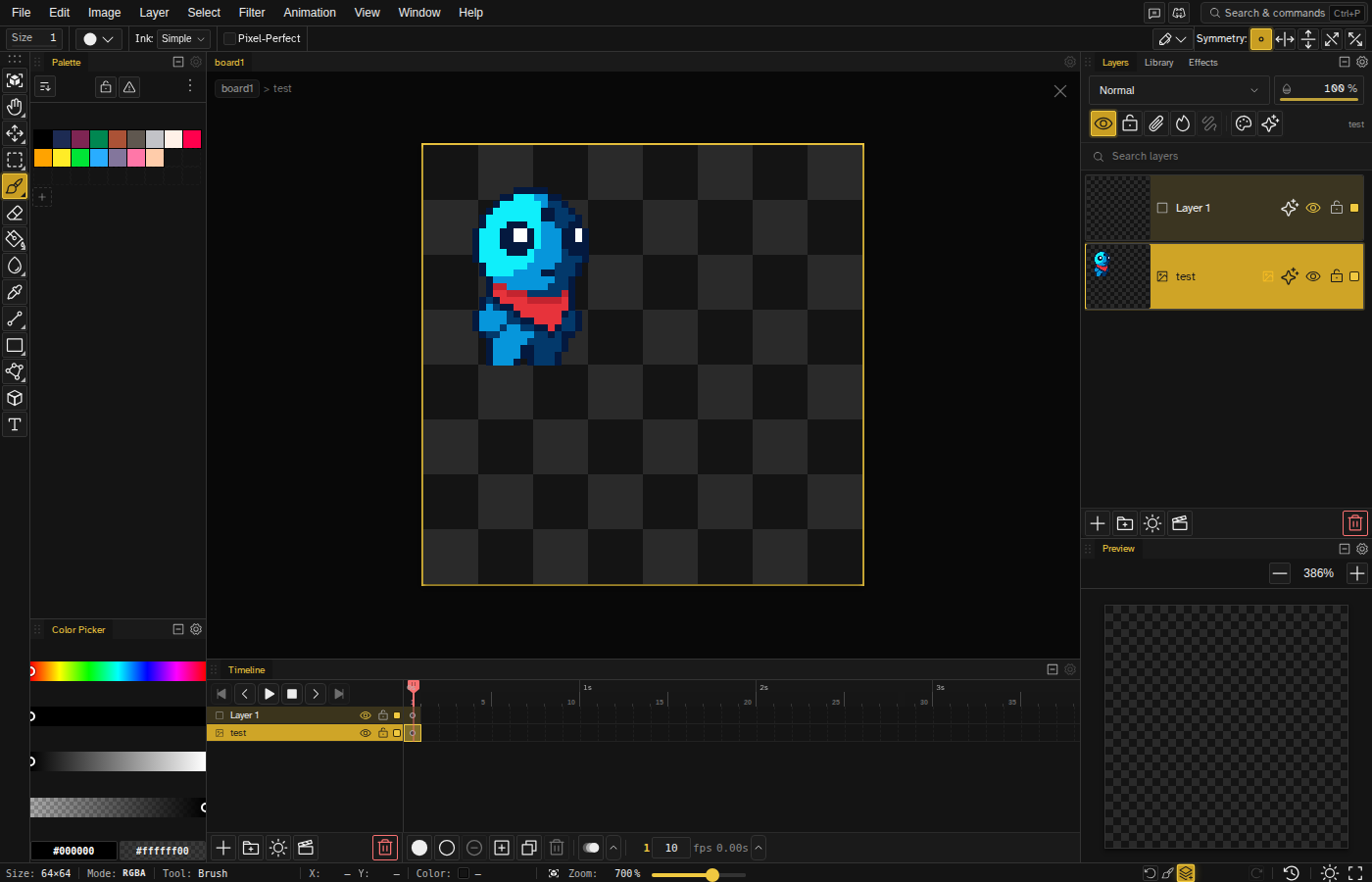
Moving Between the Viewer Panel and the Canvas
A reference can live in two places: the Reference Viewer panel (a dockable panel with its own zoom, pan, and eyedropper) or on the canvas as a tracing layer. You can move it between the two at any time:
- Panel to canvas: click the Move to canvas as reference layer button in the viewer panel's header (also available by right-clicking the image). The panel closes and the image appears as a tracing layer, scaled to fit the canvas.
- Canvas to panel: right-click the tracing layer in the Layers panel and choose Move to Reference Viewer panel. The layer is removed and the image opens in a viewer panel. Any scale, rotation, or skew applied to the layer is discarded.
Both actions move the image rather than copying it, so you always have a single source of truth for each reference.
What the Viewer Panel Gives You
The panel header carries the reference's name, then its controls: the move-to-canvas button above, an Eyedropper that stays armed until you click a pixel (the color it picks becomes your primary color), zoom out and zoom in, the zoom percentage, which fits the image to the panel when clicked, and a close button. Drag inside the image with the left or middle button to pan, and use the wheel to zoom toward the pointer.
Right-clicking the image opens the rest:
- Move to canvas as reference layer — Same as the header button
- Fit to panel — Scale the image to the panel, the same as clicking the percentage
- Reset zoom (100%) — Back to 1:1, centered
- Rename — Edit the name in the header
- Remove reference — Drop the image from the file
How Tracing Layers Work
| Feature | Description |
|---|---|
| High resolution | Images retain their quality (up to 4096x4096), not snapped to pixel grid |
| Free transform | Scale, rotate, and skew smoothly without pixelation |
| Adjustable opacity | Lower opacity to trace underneath |
| Excluded from export | Reference layers don't appear in final output |
Transforming References
Reference layers support smooth transformations:
- Scale — Independent X and Y scale factors to match proportions
- Rotate — Adjust angle without quality loss
- Skew — Apply horizontal or vertical shear without pixelation
- Position — Move freely across the canvas
On import, the reference is scaled down to fit within canvas bounds if larger — Novaboard never upscales a reference past its original size.
Unlike regular layers, reference transformations don't snap to pixels, giving you precise control over placement.
Adjusting Opacity
Lower the opacity of a tracing layer to see your pixel art beneath it while tracing. Common opacity levels:
- 100% — Full visibility for detailed study
- 50-70% — Good for tracing while seeing your work
- 20-30% — Subtle guide that doesn't distract
Adjust opacity using the layer opacity slider in the Layers panel.
Common Uses
- Tracing photos — Convert photographs to pixel art
- Style reference — Keep inspiration visible while working
- Proportion guides — Ensure accurate anatomy or perspective
- Color sampling — Reference for color palette selection
- Client mockups — Show how pixel art fits in context
Reference vs Regular Layers
| Feature | Tracing Layer | Regular Layer |
|---|---|---|
| Resolution | Original (high-res) | Canvas resolution |
| Transforms | Smooth scale, rotate, and skew | Pixel-snapped |
| Drawing | Cannot draw on | Fully editable |
| Export | Excluded | Included (if visible) |
Tips
- Place tracing layers at the bottom of your layer stack for easy tracing.
- Use multiple tracing layers for different aspects (colors, proportions, details).
- Combine with draft layers for a complete sketching workflow.
- Reference layers are saved with your project file.