


Getting Started
Welcome to Novaboard! This guide will walk you through creating your first pixel art in just a few minutes. No prior experience required.
Your First Sprite
The first time you open Novaboard, the welcome screen's call to action opens the New File dialog on its Starters tab, so a ready-made project is one click away. On a phone there is no dialog: the same button takes you straight to the file grid.
The dialog has presets on the left under Blank, Recent, Social, Consoles, Stores and Starters tabs, and on the right the settings your file is actually created with: a name (prefilled "untitled1" and selected, so typing replaces it), width and height with a swap button and a lock that holds the aspect ratio while you type, a preview of the shape you are about to get, and a card showing the starting palette. Picking a preset fills the size and the palette in for you. See File Templates for the presets themselves.
After that you land on the file grid, where every file is a thumbnail and the header holds New File and Quick Open. Let's create a simple 16x16 character sprite:
- Select the Brush tool — Press B or click the brush icon in the left toolbar.
- Choose a color — Click any color in the palette panel on the left, or click the current color swatch to open the color picker.
- Start drawing — Click and drag on the canvas to draw pixels. Use the scroll wheel to zoom in for detail work.
- Fix mistakes — Press E for the eraser, or Ctrl+Z to undo.
- Save your work — Novaboard auto-saves locally in your browser. Use File → Export… to save to disk; after that, Ctrl+Alt+E repeats the same export.
Essential Controls
These are the controls you'll use most often:
| Action | Control |
|---|---|
| Draw | Left-click + drag |
| Erase | E then left-click |
| Pick color from canvas | Hold Alt + click |
| Zoom in/out | Scroll wheel |
| Pan canvas | Hold Spaceor Middle Click + drag |
| Undo | Ctrl+Z |
| Redo | Ctrl+Shift+Zor Ctrl+Y |
Understanding the Interface
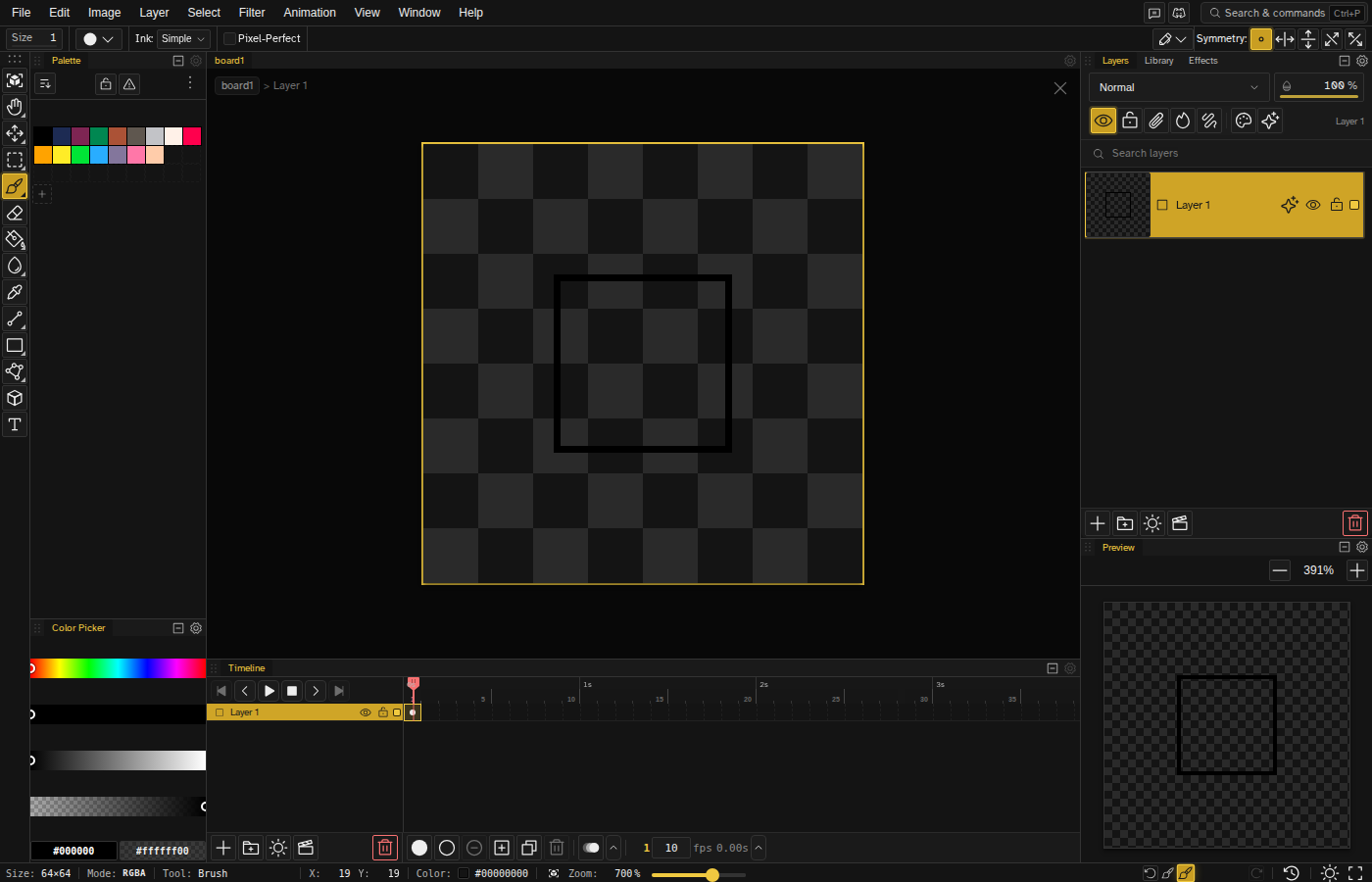
Novaboard's interface is divided into key areas:
Left: Tool Panel
All your drawing tools live here. Hover over any tool to see its keyboard shortcut. The most common tools are:
- B Brush — Draw pixels
- E Eraser — Remove pixels
- G Bucket — Fill areas
- Sor M Select — Select regions
Center: Canvas
Your artwork. The checkered pattern represents transparency. Zoom with scroll wheel, pan by holding Space or dragging with the middle mouse button.
Panels
The Layers panel docks on the right by default with the Preview panel below it, and the palette sits on the left under the toolbar, sharing its column with the color picker. Toggle them with Shift+F3 , Shift+F4 , and Shift+F5 , or press ` for Zen Mode, which hides them all.
Bottom: Timeline
For animations. Add frames, adjust timing, and preview your animation here.
Working with Colors
Novaboard gives you several ways to choose colors:
- Palette — Click any color in the palette panel. Novaboard includes several built-in palettes like Pico-8 and Sweetie 16.
- Color picker — Click the current color swatch to open the full color picker with HSL/RGB controls.
- Eyedropper — Hold Alt and click any pixel on canvas to sample its color.
- Swap colors — Press X to swap between primary and secondary colors.
Creating Animation
To animate your sprite:
- Draw your first frame on the canvas.
- Press Ctrl+Enteror Alt+Nor Alt+5 to add a frame. It holds the previous keyframe, so it looks the same until you draw on it.
- Modify the new frame to create movement.
- Press Enter or click Play to preview your animation.
- Use ,or ← and .or → to navigate between frames.
Enable Onion Skinning from the timeline footer to see ghost images of adjacent frames, making it easier to create smooth motion. Simple mode hides it.
Saving and Exporting
Novaboard supports multiple file formats:
- Novaboard (.nova) — The native format. Keeps layers, frames and file settings, and can carry the edit history too if you tick that option.
- PNG — Best for sharing static images. Preserves transparency.
- GIF — For animated sprites. Supports animation playback.
- Aseprite (.aseprite) — Preserves all layers and frames. Great for backup or sharing with other artists.
- Sprite Sheet — Exports all frames in a single image, perfect for game engines.
File → Export… opens the export dialog: pick what you are exporting for, then the format and its options. Once a file has been exported, Ctrl+Alt+E repeats it with the same settings. Simple mode offers PNG, GIF and the other common formats; the .nova and Aseprite formats need Advanced mode.
Tips for Beginners
- Start small — 16x16 or 32x32 sprites are easier to work with as a beginner.
- Use a limited palette — Fewer colors often look better in pixel art. Try the Pico-8 (16 colors) or Sweetie 16 palettes.
- Zoom in — Work at 400-800% zoom for precision, then zoom out to check how it looks at actual size.
- Use references — Study other pixel art to learn techniques.
- Practice with simple shapes — Master circles, lines, and basic forms before complex characters.
Next Steps
Now that you know the basics, explore these topics: