


Animation
Creating and managing animations in Novaboard. Use this page when you want to turn a still sprite into a moving one using multiple frames.
Timeline Panel
The timeline panel ( Shift+F6 to toggle) uses an Animate-style layout with compact cel squares, tag names displayed directly on the frame headers, and right-click context menus for quick layer actions.
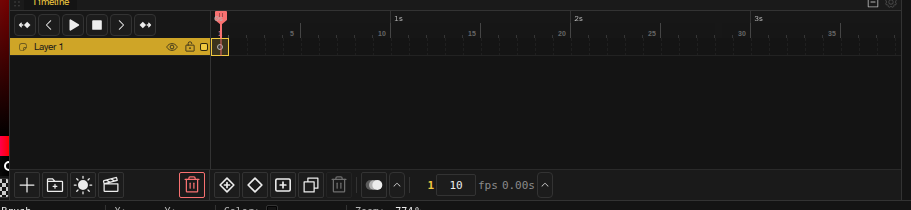
- Rows — Represent layers
- Columns — Represent frames
- Cel squares — Compact frame cells for better overview
- Tag names — Animation tags color their frame-header cells, with the name shown on the range
- Layer context menu — Right-clicking a layer name gives the same menu the Layers panel gives: move up and down, a Merge submenu (Merge Down, or Merge Selected with more than one row selected, Merge Up, Stamp Visible), hide or lock the other layers, a Select submenu, Clear, a Transform submenu, a Toggle submenu (clipping mask, contour, draft), then Rename, Copy and Paste Layer, Duplicate and Delete, plus the entries a text, clip, reference or decal layer adds. It reads the rows selected here, so a merge follows what the timeline shows as selected. Right-clicking a group name gives the group menu: move, Merge (Down, Up, Flatten Group), Toggle (clipping mask, contour), Rename, Duplicate Group, Ungroup and Delete Group and Contents. See Layer Operations.
- Selecting and moving layer rows — Click a layer name to select that layer. Press on a row that is not selected and drag up or down to select every row you sweep over. To move layers, press on a row that is already selected and drag: the whole selection moves and drops where you let go, between rows or into a group. Shift+click selects a range and Ctrl+click adds or removes one row.
- Eye and lock icons — Each layer row has visibility and lock toggles. Click to toggle one layer, Shift+click (or Alt+click) to solo (toggle every other layer), or press and drag across rows to sweep several at once. These match the layers panel; see Layers for details.
- Group rows — A group owns no cels, so its row draws as one continuous band across the timeline instead of a strip of cells, matching its label in the layer column. Frame colors still read through it, and its eye and lock take the same click, solo and sweep gestures as a layer's.
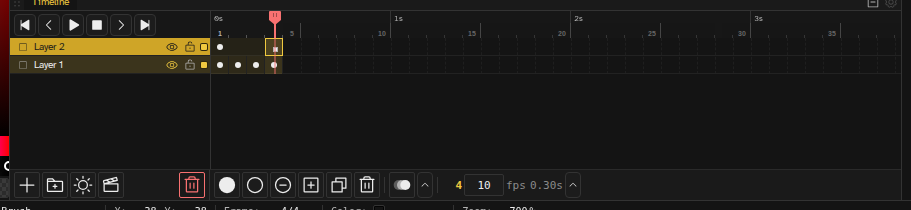
The layout follows Flash: the transport sits in the top-left corner cell, above the layer names, and everything else lives in a footer strip under the grid.
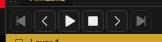
- Corner transport — Previous keyframe, previous frame, play/pause, stop, next frame, next keyframe. Press and hold the previous or next frame button to jump straight to the first or last frame.
- Footer, under the layer names — The same buttons as the layers panel footer: new layer, group, adjustment layer, clip layer, and delete the active layer.
- Footer, under the frames — Insert Keyframe (highlighted until the current cel is a keyframe), Insert Blank Keyframe, New Frame, Duplicate Frame, Delete Frame, then the onion skin toggle with its settings arrow, then the current frame number, the FPS box, the elapsed time and the playback settings arrow. Both arrows open their panel upward.
Timeline Gestures
Most timeline editing happens with the pointer rather than through the menus. Everything below is a gesture in the grid itself.
Moving and Duplicating Cels
- Drag a selected cel — Press a cel that is already selected and drag to move the whole selection, across frames, across layers, or both. Pressing an unselected cel starts a marquee instead, so click it once first.
- Alt+drag — Copies instead of moving. This one works straight from an unselected cel: the press selects it, the drag duplicates it.
- Drop past the last frame — The timeline grows to reach the drop. The frames it appends carry no keyframes of their own, so every other layer simply holds what it was already showing.
- Auto-scroll — Hold the pointer against the edge of the timeline mid-drag and the grid scrolls after it, sideways and vertically, so a long move needs no release halfway.
- Backing out — Escape drops a drag in progress, and so does releasing outside the grid. A drag that lands is a single undo step, and the cels stay selected where they arrived.
The Runway
Frame numbers keep counting past the end of the file. Those columns are the runway: ruler only, with no cels in them yet, sketched in by dashed separators and the row lines carrying on past the last frame. Hovering a slot out there shows the cel it would become. Right-clicking offers just the actions that would bring the column into existence, and each one extends the timeline with held frames before it does anything else, as a single undoable step:
- Insert Keyframe and Insert Blank Keyframe — On the active layer, at the frame you clicked
- Insert Frame — Grow the timeline out to that frame and go there
- Paste — Shown once you have copied a frame
A cel dragged onto the runway extends it the same way, and so does the cel menu's own Insert Keyframe pair on a runway slot.
Dragging the End of a Hold
A keyframe holds until the next keyframe, so the length of a hold is really the position of the keyframe after it. Grab the tick at the right edge of a held span and drag sideways to move that keyframe: a ghost rides the column it would land on while you hold the button, and the release commits it. It can never land on another keyframe, on a locked frame, past the end of the timeline, or on frame 1, so the gesture never creates or destroys a keyframe. Tweened spans end in an arrowhead rather than a tick and have no handle, and neither do locked layers.
Moving a Frame
Hold Alt and drag a frame header sideways to move that frame to another spot in the timeline. The column you would drop on highlights while you drag, and the release commits the move. Alt is deliberate: a plain drag across the headers selects the range instead, and moving a frame rearranges the whole animation, so it should not be something a stray sweep can do.
A move is a move: every keyframe travels with its column, and the frames it held keep holding from whatever keyframe now precedes them. A held frame you move keeps its picture: where it lands, its picture becomes a keyframe if it would otherwise show a different one, and the frames around it keep theirs the same way. Nothing is written over: a keyframe in the way swaps places with what you move. The first frame always keeps a keyframe, so moving its keyframe away leaves a blank one behind, and moving a keyframe back onto that blank replaces it. Tags and the playback range follow their frames too, and one undo puts everything back.
The same rule drives Alt+← and Alt+→ : with nothing selected they move the active cel under the playhead, with cels selected they move those cels along their rows (a keyframe in the way swaps with the run), and with whole frames selected they move the frames as a block.
Selecting and Scrubbing
- Click a frame header — Moves the playhead there. Clicking a header other than the current frame is navigation: it selects that frame's cel on the active layer and nothing else. Clicking the header of the frame you are already on selects the whole column, every layer at that frame, and clicking it once more gives the column back.
- Press and drag across the frame headers — Selects every cel in that run of frames, previewing the range as you go, and leaves the playhead on the frame you released over.
- Drag the playhead — Scrubs. Push it into the left or right edge of the viewport and the timeline scrolls under it, faster the deeper you push, so you can scrub past the visible frames without letting go.
Empty Cel Slots
A cell with no cel of its own draws a faint dashed outline when you hover it, marking it as somewhere a keyframe can go. Right-clicking one keeps Insert Keyframe and Insert Blank Keyframe pinned at the top of the menu, whether or not an earlier keyframe governs that frame.
Working with Frames
| Action | Shortcut |
|---|---|
| Previous frame | ,or ← |
| Next frame | .or → |
| Go to first frame | Shift+<or Home |
| Go to last frame | Shift+>or End |
| Previous keyframe (active layer, else first frame) | PageUpor Ctrl+← |
| Next keyframe (active layer, else last frame) | PageDownor Ctrl+→ |
| Extend cel selection left / right (no pixel selection; grows from where it started) | Shift+← / Shift+→ |
| Move the current frame, the selected frames, or the selected cels one column | Alt+← / Alt+→ |
| New frame | Ctrl+Enteror Alt+Nor Alt+5 |
| Insert Keyframe | Shift+Enteror Alt+6 |
| Insert Blank Keyframe | Alt+Enteror Alt+7 |
| Play/Pause (file) | Enter |
| Play/Stop (preview panel only) | Shift+Space |
| Delete (clear cel content → delete blank keyframes → remove empty frames) | Delor Backspace |
| Delete whole selected frames | Shift+Delete |
Previous/next frame also bind to ArrowLeft and ArrowRight as alternates. First/last frame also bind to Home and End. Previous/next keyframe also bind to Ctrl+ArrowLeft and Ctrl+ArrowRight.
Delete escalation: Plain Delor Backspace in the timeline does the most conservative thing that still has an effect: it clears the selected cels' content first, deletes the keyframes once they are all blank, and only then removes fully-selected empty frames. Shift+Delete skips the ladder and deletes the selected frames outright.
Multi-frame selection: Ctrl+click a frame header to add or remove it from the selection. Shift+click selects a range. Shift+Delete removes all selected frames in one undoable batch.
Multi-cel selection: Shift-click to range-select cels and Ctrl-click to toggle individual cels. Copy, cut, paste, clear, and delete work across the whole selection as a single undoable batch. You can also draw a marquee across cels to select them. While the timeline has focus, Ctrl+C , Ctrl+X and Ctrl+V act on cels rather than on the canvas. Select All Frames, in the frame context menu or the command prompt, selects every cel in the file; it has no default key, so Ctrl+A always means "select the whole canvas".
Header-to-cel range select: A column selection from a frame header anchors at the top layer, so a following Shift+click on a cel selects the whole rectangular range from that header down to the clicked cel.
What a multi-cel selection means for drawing: By default it does not change where your brush goes. Drawing, erasing, filling, shapes, gradients, effects, clearing the canvas and transforming pixels all stay on the active layer's cel however many cels are selected. Turn on Paint across selection, in the Select menu or by clicking the scope badge in the corner of the canvas, and they write every cel in the selection instead. With it on, the selected cels that are not on the frame you are looking at are also drawn over the canvas as coloured ghosts, so you can see what an edit is about to do to all of them. Cel operations never depend on it: clear cels, copy, cut, paste, frame insert and delete, tags and merge always act on the whole selection.
Selection and drag outlines: A frame-header selection and the cels beneath it merge into one continuous outline rather than separate boxes. While you drag cels — or hover a drop target — the timeline draws a single outline around the affected region instead of a dashed box around every individual cel.
Held Frames
A layer only owns a cel where it has a keyframe. The frames after it are held: they show the keyframe's picture without holding a copy of it. Every edit you make while a held frame is current, drawing, filling, text, effects, clip properties, goes back into the keyframe that frame is showing, so what you see change on the canvas is the thing you edited. Keyframes are only ever created or removed when you ask for one (Insert Keyframe, Insert Blank Keyframe, Clear Keyframe, Delete), never as a side effect of drawing.
Frame Context Menu
Right-click a frame header for frame-level operations:
- Insert Keyframe — Place a keyframe at the clicked frame on the active layer, carrying the prior keyframe's content. Only that layer is touched and no frames shift (Flash F6 behavior); the keyboard shortcut works the same on the current frame, advancing one frame first when it is already a keyframe
- Insert Blank Keyframe — Same targeting, but the keyframe starts empty
- Insert Frame — Insert a frame after the clicked frame
- Select All Frames — Select every cel on every layer. No default key; run it from this menu or the command prompt
- Copy / Cut / Paste Frame — Cut is hidden when only one frame remains
- Duplicate Frame (—) — Copy the clicked frame, or every frame in a multi-frame selection, and insert the copy right after the run, holds included
- Delete Frame — Remove the clicked frame, or every frame in a multi-frame selection. Hidden when only one frame remains, since a file always keeps at least one frame.
- Reverse Selected Frames — Mirrors what each frame in the range shows: the content swaps end to end while frame count, keyframe positions and tags stay put. Only shown when multiple frames are selected
- Lock / Unlock Frame
- Frame Color… — Give the frame (or the selected range) an organization color
- Tag Frame… — Opens the Animation Tags panel
- Focus custom frame range / Unfocus — Scope playback to the selected frames
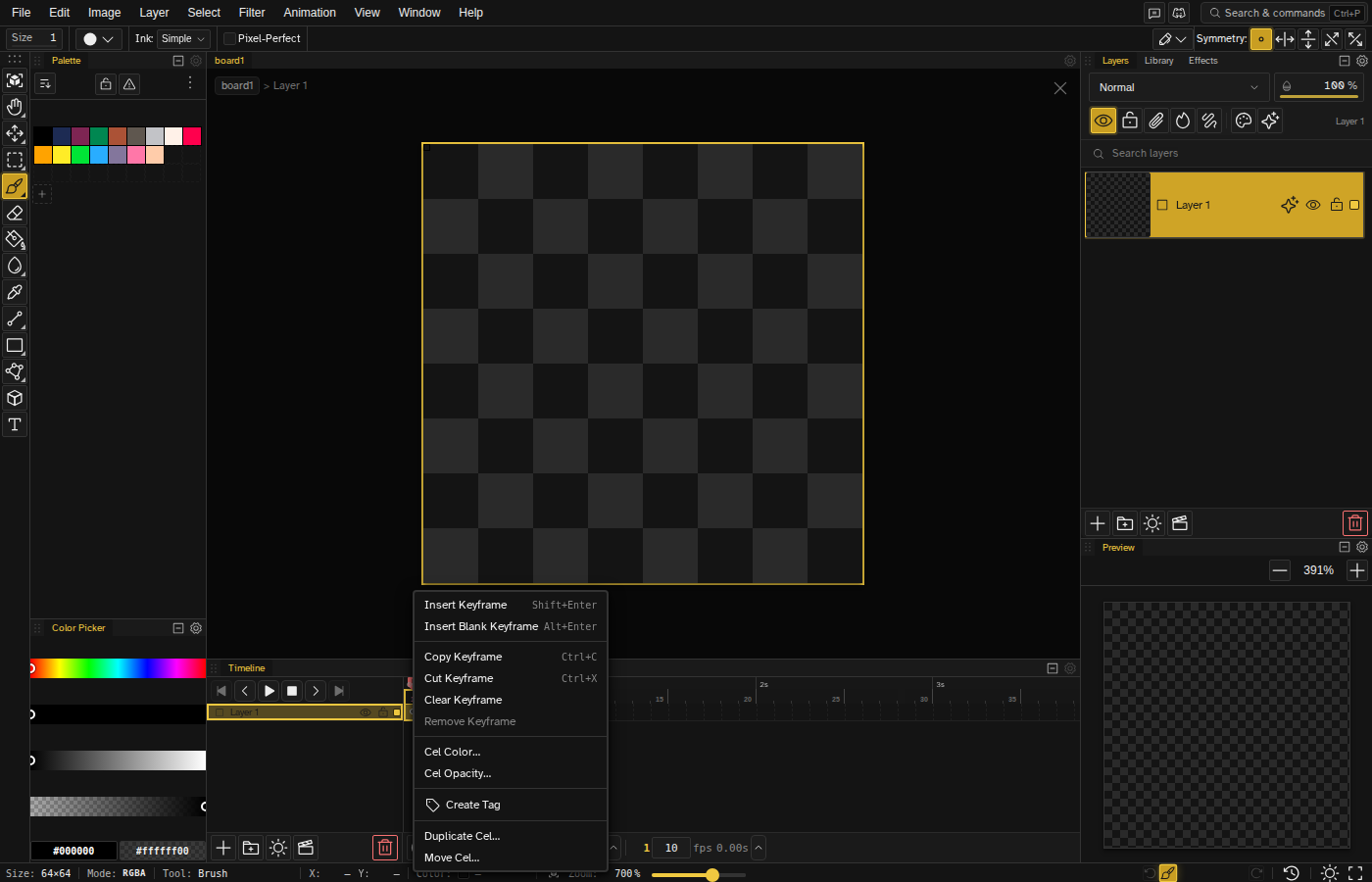
Cel Context Menu
Right-click a keyframe cel to access:
- Insert Keyframe / Insert Blank Keyframe
- Shift Cel Left / Shift Cel Right — Move the keyframe to the adjacent frame
- Enable / Disable Tween. Once a tween is on, the menu also carries Easing… (opens the easing picker), Loop Tween and Copy Tween Settings; Paste Tween Settings shows up once you have copied some. See Tweening.
- Copy / Cut Keyframe, Paste Cel, Duplicate Cel, Move Cel, Clear Keyframe
- Cel Color… and Cel Opacity… — An organization color for the cel, and an opacity that multiplies the layer's own and tweens toward the next keyframe
- Create Tag — Create a tag spanning the selected frames
With several cels selected the menu switches to the batch versions: Copy, Cut, Clear and Delete all name the number of cels they will touch, and Paste Tween Settings stamps the copied tween onto every keyframe in the selection.
Right-Click on a Non-Keyframe Cel
Right-clicking a timeline cel that is not itself a keyframe exposes the keyframe actions (shift, tween, copy, cut, duplicate, move, clear) for the prior keyframe that governs that frame — you do not have to navigate back to the keyframe cel to edit it. Insert Keyframe and Insert Blank Keyframe stay pinned at the top of the menu. Paste still targets the cel you clicked.
Frame Timing
The timeline has a single FPS setting for the whole file: type into the FPS box in the timeline footer to change it. FPS accepts values from 1 to 120. Default is 10 FPS (100ms per frame). There is no per-frame duration by design. While the animation plays, a second number appears next to it with a tilde, the rate playback is actually managing on your machine.
Animation Defaults
You can set global animation defaults that apply to every new file. Open the Default New File Settings section of the preferences dialog to configure:
- Default FPS — The frames-per-second every new file starts at (1–60).
- Onion Skin by Default — Whether onion skinning is enabled on newly created files.
These only affect files created afterward; existing files keep their own settings. Each preferences section has its own Restore defaults action, and a global Reset everything resets all preferences back to their out-of-the-box values.
Onion Skinning
Onion skinning shows ghost images of adjacent frames to help with animation continuity.
- Previous / next frames — Shown as faded, untinted ghosts by default
- Opacity — Adjustable for each direction
- Tint — An optional strength slider that color-codes direction (red before, blue after by default)
Toggle onion skinning from the onion skin button in the timeline footer, or Onion Skin in the Animation menu. This is especially useful for walk cycles or idle loops where you want smooth motion. Simple mode hides the footer button.
Playback Controls
The timeline includes playback controls:
- Play/Pause — Start or stop animation preview
- Stop — Stop and return to frame 1
- Repeat mode — A three-way Once / Loop / Ping-Pong selector. Once plays through the range and stops on the last frame; Loop restarts from the beginning; Ping-Pong alternates direction at each end and keeps bouncing until you stop it. Simple mode hides Ping-Pong, leaving Once and Loop.
- Playback speed — Preset pills 0.25x / 0.5x / 1x / 2x / 4x.
Play and Stop are in the timeline's corner transport. Repeat mode and playback speed live in the playback settings menu: click the arrow at the right end of the footer readout, next to the elapsed time.
Custom Playback Range
Select a range of frames and choose Focus custom frame range from the frame context menu to scope playback to just those frames. The custom range takes precedence over a focused tag — unfocus the range from the same menu to return to full-timeline (or focused-tag) playback.
Preview Panel
The preview panel ( Shift+F4 ) shows your animation playing without UI distractions, useful for checking timing and motion. It auto-fits the file to the panel and has its own zoom controls — click the zoom percentage to toggle between fit and 100%, or double-click it to type an exact value. To export your finished animation as a GIF or spritesheet, see the Import & Export page.
Live Draw Animation
Live draw activates automatically while you draw during playback, there is no toggle. As long as the animation is playing, the stroke you are holding keeps painting into whichever frame is on screen at that instant, so one pass across the canvas can lay particle effects, motion trails or animation guides down over a run of frames. Each frame's paint goes into the keyframe governing it, following the held-frame rule above, and the whole stroke commits as a single undo step. The preview panel shows a live-draw indicator while this is happening.
Quick Cel Inspection
Hold Ctrl on the canvas to inspect the active cel without changing your selection. Novaboard draws an axis-aligned bounding box around the cel's painted content and shows the distances from that box to each canvas edge, which makes it easy to measure composition and spacing at a glance. Release Ctrl to dismiss the overlay.
You can also drag from inside that box while Ctrl is down to move the whole cel's content, which is the quickest way to nudge a pose into place without picking up a selection tool. It is off while either transform tool is active. If a cel has drifted off the canvas entirely, run Center Cel to Canvas (command palette) to bring it back.
Frame Lock
Lock individual frames to prevent accidental edits. This is useful when you've finished a frame and want to protect it while working on others.
- Lock/unlock — Double-click the frame cell in the timeline header, or use Lock/Unlock Frame in the frame context menu
- Visual indicator — Locked frames show a lock icon in the header (the icon itself is display-only)
- Drawing blocked — Drawing operations are prevented on locked frames
- Persists with file — Lock state is saved with your project