


Onion Skinning
Onion skinning displays semi-transparent overlays of adjacent frames, helping you create smooth animations by seeing where your sprite was and where it's going.
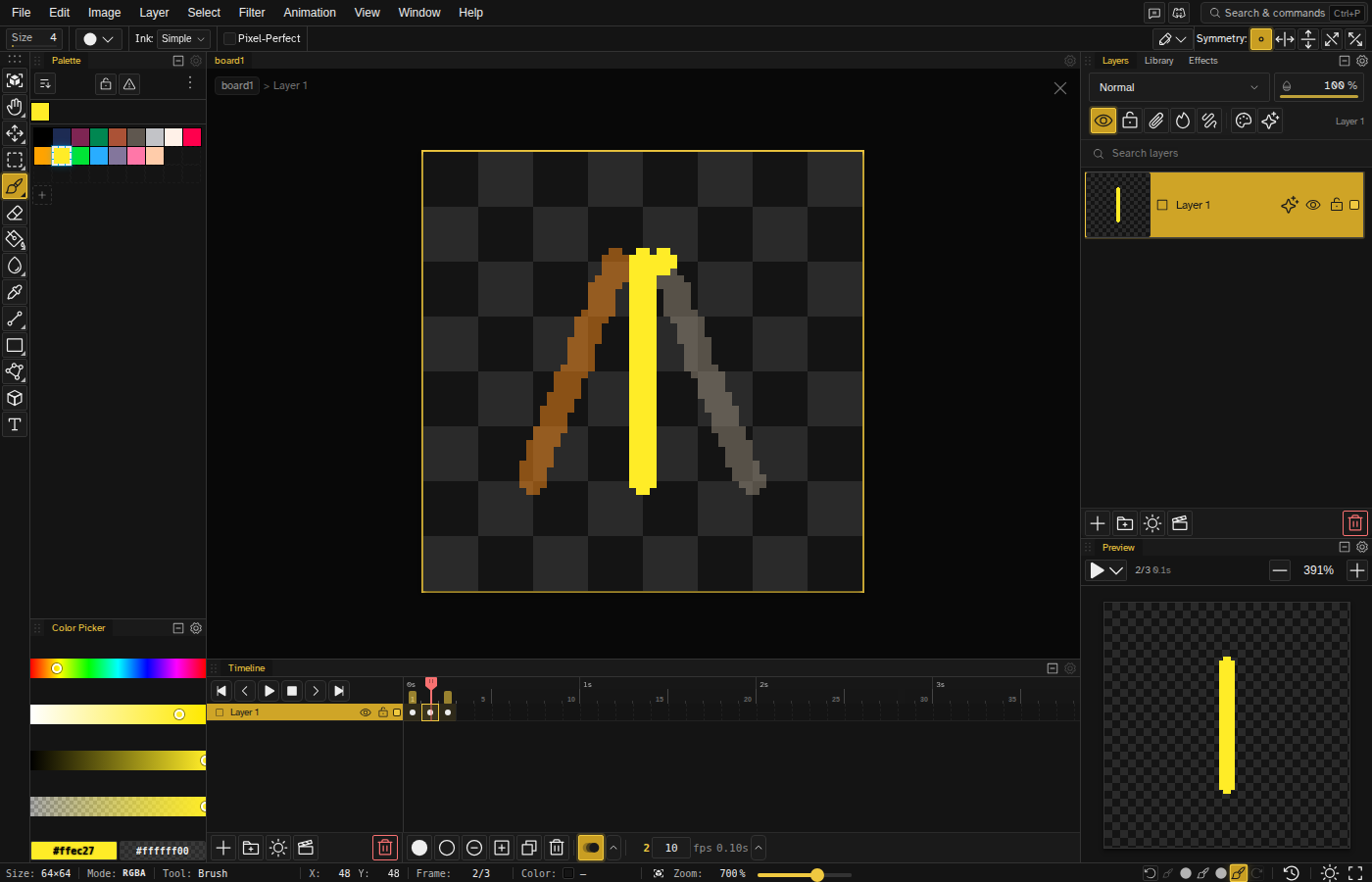
Enabling Onion Skinning
Toggle onion skinning from:
- Timeline footer - Click the onion icon in the strip under the frames, to the right of the frame buttons
- Animation Menu - Select "Onion Skin"
- Command palette - Run "Toggle Onion Skin". It ships without a key of its own, so bind one in the keymap editor if you use it a lot
Configuration
Click the arrow next to the onion skinning toggle for the detailed settings. The panel opens upward, since the button sits at the bottom of the timeline.
| Setting | Range | Description |
|---|---|---|
| Tint | 0-100% | Strength of the direction color tint (0% = untinted ghosts) |
| Before (frames) | 0-10 | Number of frames before current to show |
| Before (opacity) | 0-100% | Transparency of previous frame ghosts |
| After (frames) | 0-10 | Number of frames after current to show |
| After (opacity) | 0-100% | Transparency of next frame ghosts |
Color Tinting
Ghost frames are untinted by default. The Tint slider at the top of the onion skin dropdown controls how strongly a direction color is mixed into the ghosts: at 0% (the default) the overlays render without any color shift and the color swatches are disabled; raise the strength to color-code the direction of motion. Both colors are fully configurable.
- Before color - Tint for previous frames (default red)
- After color - Tint for next frames (default blue)
Click the color swatch next to the "Before" or "After" column label in the onion skin dropdown to open the color picker and choose a custom tint color.
Best Practices
Walk Cycles
For walk cycles, show 1-2 previous frames at 30-50% opacity. This helps maintain consistent leg positions and smooth transitions between contact and passing poses.
Idle Animations
For subtle idle motions (breathing, blinking), lower opacity (20-30%) works well to avoid distraction while still providing reference.
Action Animations
For fast actions (attacks, jumps), increase the frame count to 3-4 to see the full arc of motion. Higher opacity helps track fast-moving elements.
Typical Settings
Light Reference
- Previous: 1 frame, 25%
- Next: 0 frames
Good for checking the previous pose without distraction
Standard Animation
- Previous: 2 frames, 40%
- Next: 1 frame, 30%
Balanced view for most animation work
Motion Arc
- Previous: 4 frames, 50%
- Next: 2 frames, 40%
See the full trajectory for fast actions