


Frame Tags
Frame tags let you label ranges of frames to organize complex animations. Perfect for sprite sheets with multiple animations like idle, walk, attack, and death sequences.
Creating Tags
There are two ways to create a tag:
From the timeline
Select one or more frames, right-click the selection, and choose Create Tag. The tag is created immediately, spanning the selected frames. Tag Frame… in the frame header's context menu does the same for the frame you clicked (or the frames you have selected), then opens the Animation Tags panel with the new tag's name ready to type.
From the Animation Tags panel
- Open the Animation Tags panel — either from the panel visibility controls, or via Tag Frame… in the frame header's context menu
- Click the + button in the panel header. The tag is created straight away on the playhead's frame, or over the frames you have selected, with a placeholder name and the next color in the palette, and its card opens ready to edit
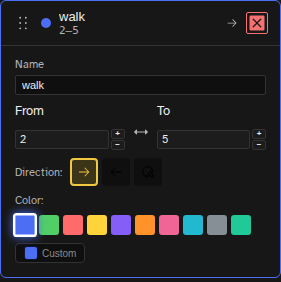
- Edit the name, from/to frame numbers, direction, and color in the open card
Every field saves as you change it, there is no confirm step.
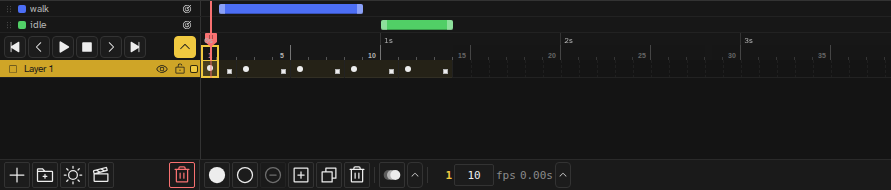
Tags sit above the frame ruler. By default each one is a thin colored stripe over its frames; hover a stripe to read its name. The arrow button at the end of the transport row swaps the stripes for tag rows: one named row per tag, where you can move, resize and reorder them. Five rows fit, more than that scroll. The choice is remembered for each file.
Tag Properties
| Property | Description |
|---|---|
| Name | Label for the tag (e.g., "walk", "idle", "attack") |
| From / To | Start and end frame numbers (inclusive) |
| Color | The tag's color in the timeline: ten preset swatches, or any color you like from the Custom picker |
| Direction | Playback direction: Forward, Reverse, or Ping-Pong |
Animation Directions
- Forward - Plays frames in order (1, 2, 3, 1, 2, 3...)
- Reverse - Plays frames backwards (3, 2, 1, 3, 2, 1...)
- Ping-Pong - Bounces back and forth (1, 2, 3, 2, 1, 2, 3...)
Editing Tags
Resize a Tag
Open the tag rows, then drag the handle at either end of a tag's bar to expand or shrink its frame range. Drag the bar itself to move the whole tag.
Reorder Tags
Drag the grip at the left of a tag row up or down. The order is yours: the Animation Tags panel lists tags in the same order, and a tag higher in the list draws its stripe above the ones it overlaps.
Moving a Tagged Frame
Alt+drag a frame header (or use the move-frame shortcuts) to relocate a frame that carries a tag edge, and the tag stretches or slides with it, over a neighboring tag if it has to.
Edit Tag Properties
Click the tag's row in the Animation Tags panel to expand its inline accordion. From there you can edit the name, from/to frame numbers, direction, and color. There is no separate editor modal.
Delete a Tag
Click the X button on the tag's row in the Animation Tags panel. This removes the tag but keeps all frames intact. There is no right-click menu on tags.
Focused Playback
Double-click one of a tag's edge handles to focus playback on that tag's frame range, or click the direction-icon Focus button on the tag's row in the Animation Tags panel (it doubles as Unfocus once that tag is focused). When focused:
- Play button only plays frames within the tag
- The tag's frames are visually highlighted
- Tag direction (forward/reverse/ping-pong) is respected
Export Compatibility
Tags are preserved when exporting to Aseprite (.aseprite) format. This means:
- Tag names, ranges, and colors transfer correctly
- Direction settings are maintained
- Aseprite users can continue working with your organized animation
When exporting sprite sheets, tags can help define which frames to include or generate separate sheets per animation.
Exporting a single tag
The standalone Frame Export and Animated GIF Export tools include a tag picker — pick a tag
like walk or jump and the export will only include those frames, instead
of the whole timeline. The sprite sheet exporter lays frames out as a horizontal or vertical strip,
and when splitting by tag you can choose whether the per-tag strips stack into rows or columns.
Organization Tips
Naming Convention
Use consistent names like "idle", "walk_right", "attack_heavy". Game engines often use tag names to reference animations.
Color Coding
Use colors to categorize: green for movement, red for attacks, blue for idle states. This makes complex sprite sheets easier to navigate.
Ping-Pong for Loops
Use ping-pong direction for breathing or bobbing animations to avoid the jarring jump from last frame back to first.