


Tweening
Tweening automatically interpolates position, scale, rotation, skew, opacity and effect parameters between keyframes, creating smooth transitions without manually editing every frame.
How It Works
When tweening is enabled on a keyframe, Novaboard interpolates the cel's transform properties from that keyframe to the next one. Frames between the two keyframes display interpolated values rather than holding the first keyframe's position.
- Position — X and Y coordinates are smoothly interpolated
- Scale — Scale X and Y values transition between keyframes
- Rotation — Rotation angle is interpolated in degrees
- Skew — Skew X and Y values are interpolated
- Cel opacity — The per-cel opacity fades between the two keyframe values
- Effect parameters — Any effect on the layer interpolates its numbers too
Enabling Tweening
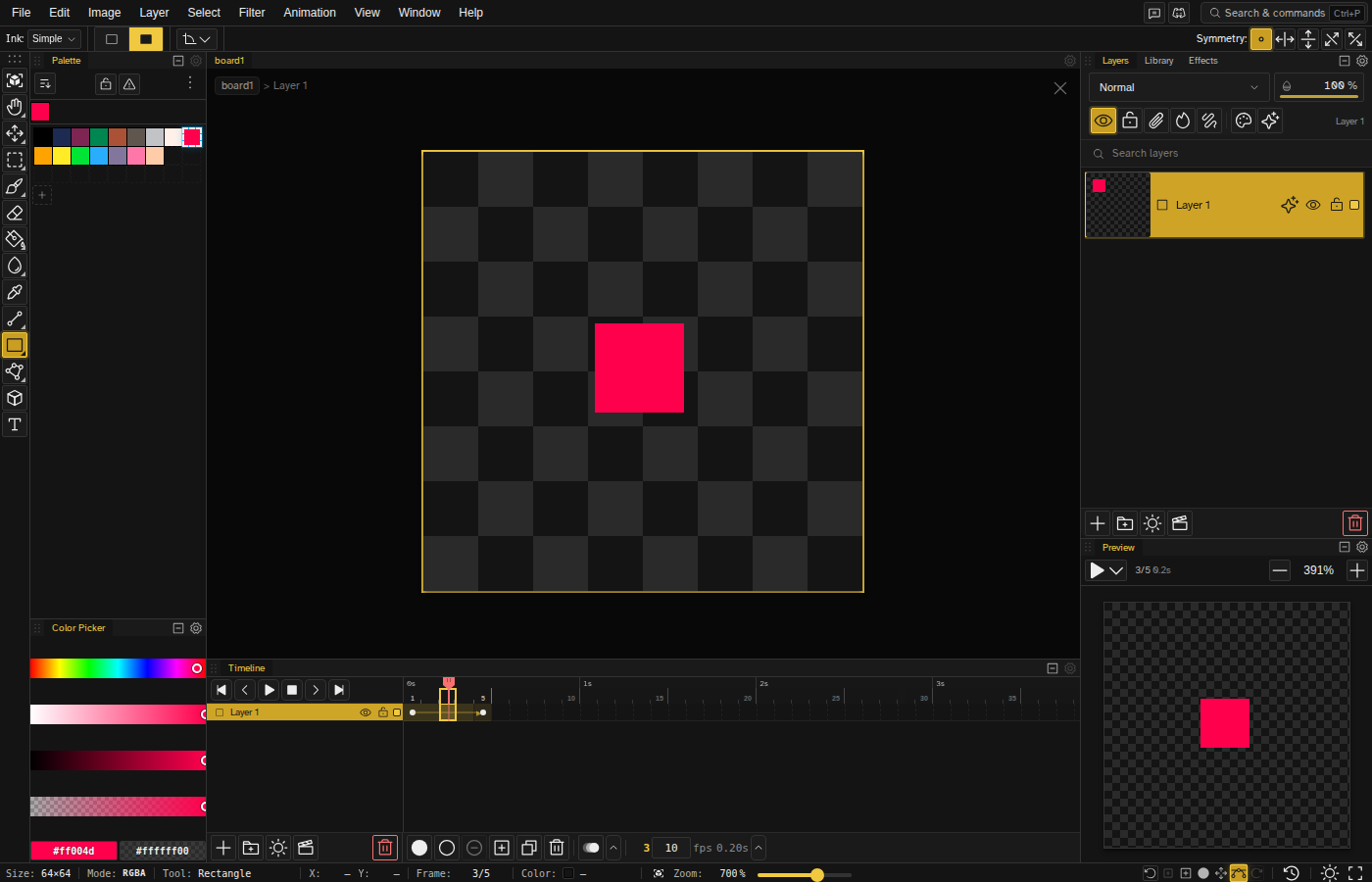
To enable tweening on a keyframe:
- Right-click on a keyframe cel in the timeline
- Select Enable Tween from the context menu
- The keyframe must have a subsequent keyframe to tween toward
To disable, right-click the same keyframe and select Disable Tween.
Inserting a Keyframe Mid-Tween
When you insert a keyframe in the middle of an active tween, Novaboard freezes the interpolated values that were visible at that frame and writes them into the new keyframe. The new keyframe picks up exactly where the in-between left off, so the motion stays continuous instead of snapping. Whether you trigger it from the keyboard shortcut or the right-click menu, Insert Keyframe targets the same cel.
Easing Curves
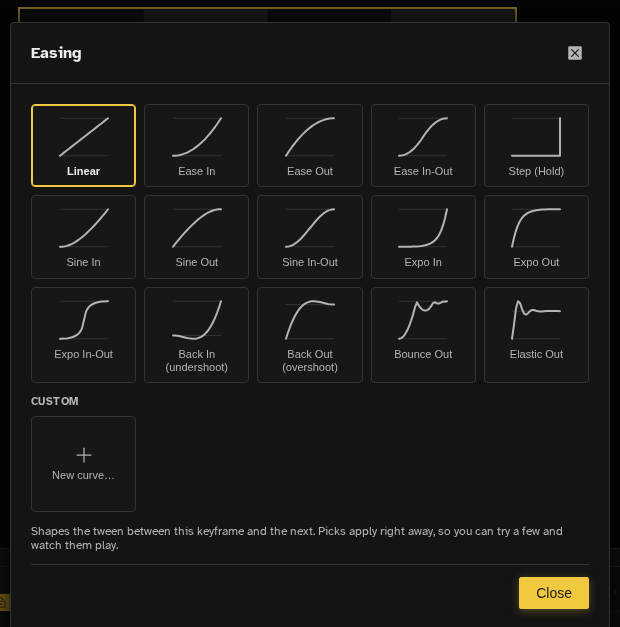
Choose how the interpolation accelerates and decelerates between keyframes. Right-click a tweened keyframe and select Easing… to open the picker: a grid of curve thumbnails showing the exact shape each option plays. Clicking one applies it right away and leaves the picker open, so you can try a few against playback before settling. Every click is its own undo step.
The grid starts with the five basic easings:
| Easing | Behavior |
|---|---|
| Linear | Constant speed from start to end |
| Ease In | Starts slow, accelerates toward the end |
| Ease Out | Starts fast, decelerates toward the end |
| Ease In-Out | Slow start and end, fast in the middle |
| Step (Hold) | Holds the start keyframe value until the next keyframe |
After those come the shaped curves, in families:
- Sine and Expo — the same accelerate/decelerate idea as ease in and out, gentler for sine and much sharper for expo. Each comes in in, out, and in-out.
- Back — winds up before it leaves (back in) or sails past the target and pulls back (back out). The classic anticipation and follow-through pair.
- Bounce — lands and bounces a few times before it settles.
- Elastic — overshoots hard, then wobbles into place.
Back, bounce, and elastic deliberately travel outside the two keyframe values on their way through. Position, scale, rotation, and skew follow them out there, which is the whole point. Opacity and effect parameters do not: those hold at their endpoints instead of going past.
Drawing Your Own Curve
If none of the presets is the shape you want, the New curve… tile at the bottom of the picker opens the curve editor. It plots the ease as a line across the tween span: left to right is progress, bottom to top is how far along the motion is, and a dot underneath animates the shape on a loop so you can feel it rather than read it.
- Drag an anchor to move it. The two ends stay pinned to the start and end of the span.
- Click anywhere on the plot to add an anchor. It lands on the line without changing the shape, so you can add one and then move it.
- Double-click an anchor to switch it between a smooth corner (with bezier handles) and a hard one. Drag the small square handles to shape the curve; hold Ctrl to break the tangent and move one side on its own.
- Alt-click or right-click an anchor to delete it.
Name the curve and hit Save to library to keep it. Saved curves get their own tiles in the picker's Custom section, with buttons to edit or delete them, and they stay put across sessions. Apply stamps the curve onto the keyframe.
The library is a copy-on-apply starting point, not a live link: a curve is written into the keyframe itself, so deleting the saved entry later leaves every tween that used it exactly as it was, and a saved file carries its own curves with it.
Loop Tweens
A tween normally lands exactly on the end keyframe's values, which is wrong for anything that goes round: keyframe a rotation at 0° and 360° and the last frame is a duplicate of the first, so the loop stutters every time it wraps. Loop Tween on the start keyframe's right-click menu fixes that. It stretches the span by one virtual frame, so the end keyframe plays one step short of its stored value and the wrap back to the start is just another step.
The arrowhead on the span turns into a loop glyph when it is on. The stored values do not change, so the closing keyframe still reads 360° in the editor: where that matters, the effects panel puts a small loop icon next to the parameter with the value that actually plays. The setting rides along with the tween through easing changes, copy and paste, and saving.
Reusing Tween Settings
Once a keyframe's tween is shaped the way you want, right-click it and choose Copy Tween Settings. Paste Tween Settings then appears on other keyframes and applies the whole configuration: enabled state, easing, custom curve and the loop flag. Paste onto a multi-cel selection to stamp it across every keyframe in one undo step; a held frame in the selection resolves back to the keyframe governing it, and locked layers are left alone. The clipboard is shared across open files, so a curve you tuned in one file can be pasted straight into another.
Cel Opacity
Each cel carries its own opacity, which multiplies the layer's. Right-click a keyframe and choose Cel Opacity… for a 0-100% slider, or select several cels first to set them all at once. With tweening enabled the opacity interpolates toward the next keyframe like any other property, which is how you fade a layer in or out without touching the layer's own opacity or animating an effect.
Timeline Visualization
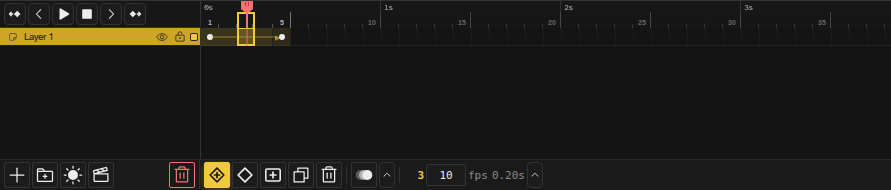
Tweened spans are visually distinct in the timeline. An arrow line connects the start keyframe to the end keyframe, indicating that interpolation is active across those frames (a loop glyph instead of an arrowhead when the span is a loop tween). The span cells also have a tinted background to distinguish them from regular held frames.
Clip Layer Tweening
Tweening works with clip layers as well. When a clip layer's keyframe has tweening enabled, the clip layer's position and transforms are interpolated, creating smooth motion for embedded file references.
Per-Keyframe Effects
A cel can carry its own value for an effect parameter, and with tweening enabled those values interpolate between keyframes. Adjustment layers are the classic case, but it works on every layer type: brightness, contrast, hue shift and the rest can change smoothly across the timeline, giving you animated colour corrections and visual effects.
- One rule for editing — the effects panel edits the LAYER, so a change there reaches every keyframe. Per cel values come from a copied cel, a keyframe that inherited them, or a file authored elsewhere
- Smooth interpolation — Effect values are interpolated between keyframes using the selected easing curve
- Keyframe carry — New keyframes inherit the effect parameters from the previous keyframe
- Copy / paste a cel — Copying a cel and pasting it carries both its transforms and its effect parameters, so you can reuse a tuned keyframe elsewhere on the timeline
- Timeline visualization — Adjustment layer cels are visible in the timeline with keyframe indicators
Editing a parameter in the effects panel is always a layer-wide change, so it is not how you author two different values. Per cel values reach a file through a copied cel, a keyframe that inherited them, or an import; tweening then interpolates them. A per-parameter switch for keyframing an effect straight from the panel is planned.
Export
Tweened frames render correctly in all export formats including GIF, APNG, WebM, MP4, and sprite sheets. The interpolated positions and transforms are computed during export for each frame.
Tips
- Use tweening for UI animations, sliding sprites, or smooth camera-like movements.
- Combine tweening with clip layers to animate embedded files moving across the canvas.
- Step easing is useful when you want to hold a position and jump to the next keyframe without any interpolation.
- All tween changes support full undo/redo.