


Layer Operations
Complete reference for layer operations including adding, deleting, duplicating, merging, and managing layer properties.
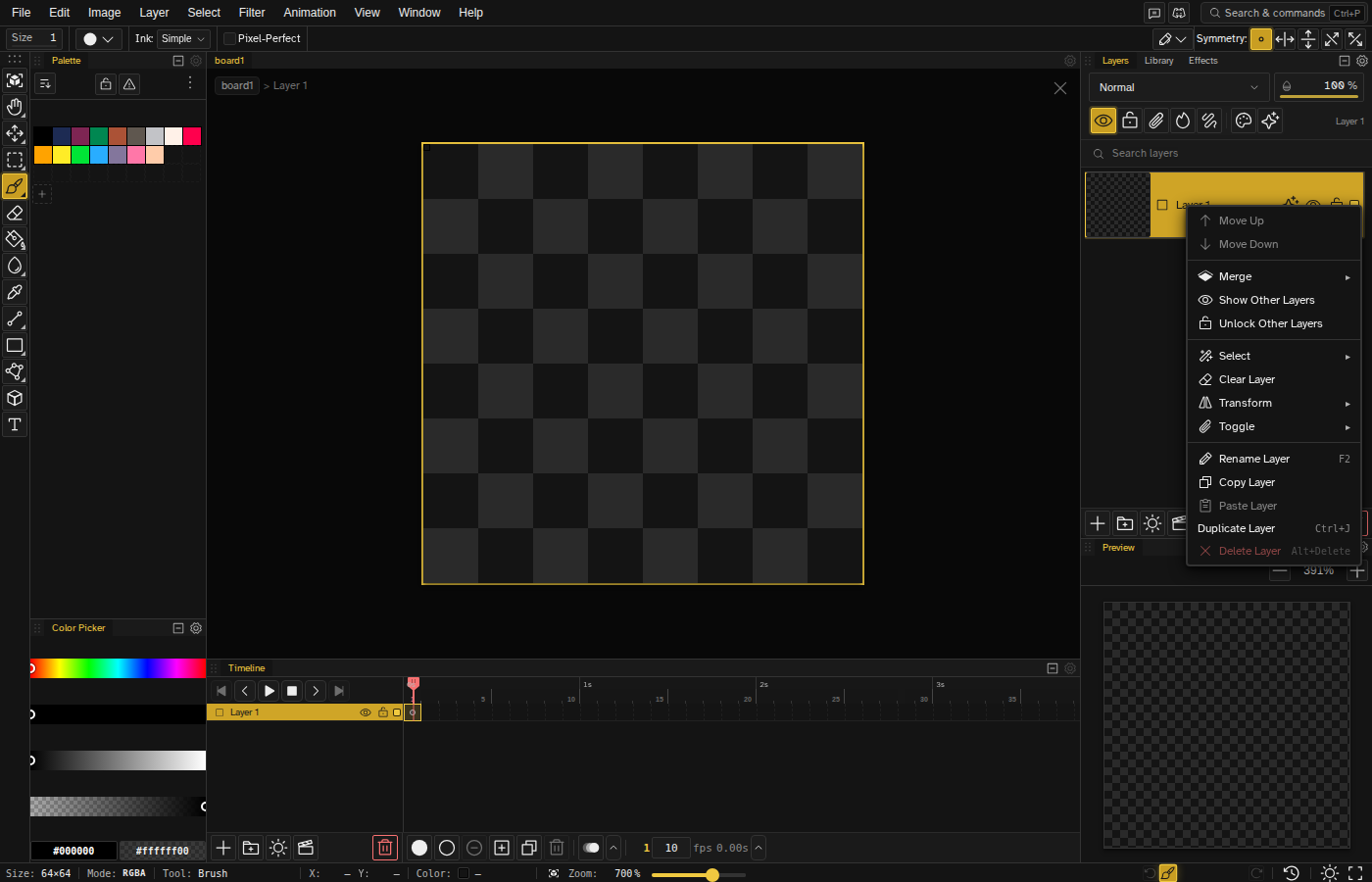
Basic Operations
| Operation | How to Access | Description |
|---|---|---|
| Add Layer | + button in the panel footer / Layer menu / Ctrl+Shift+Enter | Creates new transparent layer above current |
| Delete Layer | Trash button in the panel footer / Right-click menu / Alt+Del | Removes selected layer (cannot delete last layer) |
| Duplicate Layer | Right-click menu / Layer menu / Ctrl+J | Creates exact copy including all frame cels |
| Rename Layer | Double-click name, or F2 | Edit the layer name |
| Add Adjustment Layer | Sun icon in the Layers panel footer, or Layer > Add Adjustment Layer | Creates an adjustment layer that applies effects to every layer below |
| Add Clip Layer | Clapperboard icon in the Layers panel footer | Embed another file as a clip layer (file picker appears) |
Merge Operations
Merge Down and Merge Up
Merge Down combines the selected layer with the layer directly below it; Merge Up combines it with the layer directly above. The pixels come out the same either way. What differs is which layer survives: the one you merge into keeps its name and colour, and the other layer bakes into it and is removed.
- Only the merged layers are combined, on their own over transparency, with their blend modes, opacity, effects and clipping applied. The result is a Normal layer at 100% opacity
- Layers underneath are not blended in, so a Multiply layer merged onto a layer with gaps keeps its own colour over those gaps
- A clipped layer merges through its base only when the base is part of the merge. Layers clipped to the merged layers that you did not select stay as they are and clip to the result
- All frames are merged
- Undoable with Ctrl+Z
Merging Groups
Merge Down or Merge Up on a group moves its layers into the neighbouring row instead of baking them: merging group A down into group B leaves group B holding A's layers above B's own, in the same order. If the group being folded away has its own opacity, blend mode, effects, clipping or contour, it becomes a subgroup inside the survivor so the picture does not change. Merging a group into a plain layer makes that layer a member of the group, and merging a layer into a neighbouring group does the same. Use Flatten Group when you want the group baked to one layer.
Flatten Image
Merges every layer into a single layer matching the on-screen composite. Hidden layers are removed in the process, not preserved. No default shortcut: run it from the Layer menu or the command palette ( Ctrl+Shift+P ).
Stamp Visible
Flattens all visible layers into a new layer directly above the selected one, inside its group, leaving the original layers untouched. If clipped layers sit on the selected row, the stamp lands above the whole clip chain. No default shortcut: run it from the layer context menu, the Layer menu, or the command palette.
Merge Selected
With two or more layers selected, the context menu's first merge entry becomes Merge Selected, which combines them into the lowest one the same way. If the selection has gaps in it, a confirm dialog names the layer everything will land on before anything is merged.
Rasterize Clip
Right-click a clip layer and choose Rasterize Clip to turn it into an ordinary pixel layer. Every frame of the timeline is baked into its own cel, so a clip that was animating keeps its animation, and the link to the source file is dropped: the layer stops following that file's edits and you can paint on it directly. The entry only appears on clip layers, and one undo brings the clip layer back.
Layer Properties
| Property | Range | Description |
|---|---|---|
| Visibility | On/Off | Show or hide layer in canvas and exports |
| Opacity | 0-100% | Layer transparency level |
| Lock | On/Off | Prevent any edits to the layer |
| Draft | On/Off | Exclude layer from exports (see Draft Layers) |
| Contour Mode | On/Off | Display only outlines of layer content |
| Tag & Color | Text + color swatch | Visual organization (the color is also the outline color in Contour Mode) |
| X/Y offset | Integers | Position layer content, including outside image bounds |
| Blend Mode | 19 modes | How layer blends with layers below (default: Normal) |
Reordering Layers
Drag and Drop
Click and drag a layer to reorder it in the stack. Drop between layers or into groups. When multiple layers are selected, dragging moves all selected layers together while preserving their relative order. Invalid drops (such as interleaving reference and regular layers) show a warning toast.
In the timeline, a drag moves layers only when it starts on a selected row. A drag that starts on a row outside the selection selects the rows it sweeps over instead, so click a layer first (or sweep-select a few) and then drag the selection to move it.
Row Context Menu Extras
- Hide / Show Other Layers and Lock / Unlock Other Layers - solo the row; the same thing as Shift+clicking its eye or lock icon
- Select ▸ Opaque / Transparent pixels - select the row's painted or empty pixels
- Clear Layer - erase the row's current frame, or only the pixel selection when one is live (the entry reads Clear Selection then)
- Transform ▸ - the Layer menu's flips and rotations, on the row
- Toggle ▸ - Clipping Mask, Contour and Draft as checkable entries (the panel header has the same toggles as buttons)
- Copy Layer and Paste Layer - an in-app clipboard for whole layers (all frames). Paste lands above the active layer of whichever file is focused, so it is the way to move a layer between open files. Pasting several copied layers is one undo step.
- Convert to Layer - on a reference layer, bakes the guide at its current placement into a paintable layer
Move Up/Down
No default shortcut. Use the layer context menu or the Layer menu:
- Move Up - Swap layer with the one above
- Move Down - Swap layer with the one below
- Move Up/Down (Out of Group) - When a layer is at the top or bottom of a group, Move Up / Move Down pops it out of the group into the parent level instead of swapping
Multi-Layer Selection
Select multiple layers to apply operations in batch:
- Ctrl + Click - Add/remove individual layers from selection
- Shift + Click - Select range of layers
Batch Operations
With multiple layers selected, you can:
- Toggle visibility for all
- Toggle lock for all
- Change blend mode for all
- Delete all selected with Delor Backspace in the Layers panel (single undoable action)
- Move/reorder as a group
What a Multi-Selection Means for Drawing
The panel selection is also the write scope, and a badge in the corner of the canvas says how many cels the next edit will touch. A brush stroke, a fill, a clear or a transform stays on the active layer by default, even with several layers selected. Click the badge, or use Paint across selection in the Select menu, and those operations land on every selected layer as one undoable step. The badge is lit while that is on. The setting lasts for the session and is not saved with the file.
The panel always has the last word on which layers that is. Selecting cels in the timeline can put several layers in scope on its own, and the panel tints those rows so you can see it, with the active layer still marked more strongly than the rest. Clicking any row takes the scope back and collapses it onto that one layer. Selecting an area on the canvas, with the marquee, lasso, wand or Ctrl+A , never changes which layers are in scope.
The Layer Menu
Everything above is also on the Layer menu in the menu bar, which acts on the active layer: Add Layer, Create Group, Add Adjustment Layer, Duplicate Layer, Delete Layer, Rename Layer, Move Up, Move Down, Merge Down, Merge Selected, Stamp Visible, Flatten Image, Create/Release Clipping Mask, and Layer Effects (which opens the Effects panel).
Merge Down and Delete Layer act on the whole selection when several layers are selected and the active layer is one of them.
Layer Tags & Colors
Assign tags and colors to layers for visual organization. Select the layer and click the palette button in the layers panel header to open a single combined picker. Once a layer has a tag, you can click its tag chip in the layer row to reopen the picker.
- Colors - A wash behind the row, in the layers panel and in the timeline layer rows. Rows are tinted whether or not you pick a color: without one the row takes the theme's default tint, so picking a color replaces that tint rather than adding one.
- Tags - Text labels for categorization
Neither changes the image, with one exception: with Contour Mode on, the outline is drawn in the layer's color, and in black when the layer has none. That color does reach exports.
Keyboard Shortcuts
| Shortcut | Action |
|---|---|
| Shift+N | New layer |
| Ctrl+J | Duplicate the active layer |
| Alt+Del | Delete the active layer |
| Ctrl+Shift+Enter | Add a layer (second binding for the same action) |
| Alt+G | Create or release a clipping mask on the active layer |
| ↑ | Select the layer above |
| ↓ | Select the layer below |
| Ctrl+↑ | Select the nearest layer above with a keyframe here, or the first layer |
| Ctrl+↓ | Select the nearest layer below with a keyframe here, or the last layer |
| Shift+↑ / Shift+↓ | Grow or shrink the layer selection one row from where it started (without a pixel selection; with one, the arrows nudge the selected pixels) |
| Ctrl+Shift+↑ / Ctrl+Shift+↓ | Extend the layer selection to the nearest row with a keyframe at this frame |
| Alt+↑ / Alt+↓ | Move the active layer or group one slot up or down |
| Ctrl+Home | Select the top layer |
| Ctrl+End | Select the bottom layer |
| F2 | Rename the active layer |
| Delor Backspace | Clear command: clears the selection, cels, or layer content, and deletes them when already empty |
Shortcuts Scoped to the Panel
A few keys mean something different while the layers panel has focus, so click a layer row first:
- Ctrl+A selects every layer instead of the whole canvas. Everywhere else it selects the whole canvas and leaves the layer scope alone.
- Merge Down runs Merge Selected instead when more than one layer is selected.
- Delete Layer does nothing on a file with a single layer, and Flatten Image does nothing when there is only one layer to flatten.