


Blend Modes
Blend modes control how a layer's pixels combine with layers below it. Use blend modes for lighting effects, shadows, color adjustments, and creative compositing.
Setting Blend Mode
Change a layer's blend mode:
- Select the layer in the Layers panel
- Open the blend mode dropdown at the top of the panel (shows "Normal" by default)
- Choose your desired blend mode
The default blend mode is Normal on every new layer.
Blend modes are hidden in Simple mode: the dropdown only appears in the full interface.
Selecting a group instead of a layer points the same dropdown at the group, which has its own blend mode. Groups start on Pass Through, an extra entry at the top of their list: it isn't a blend operator at all, just the group declining to isolate, so its members keep blending with whatever is below the group.
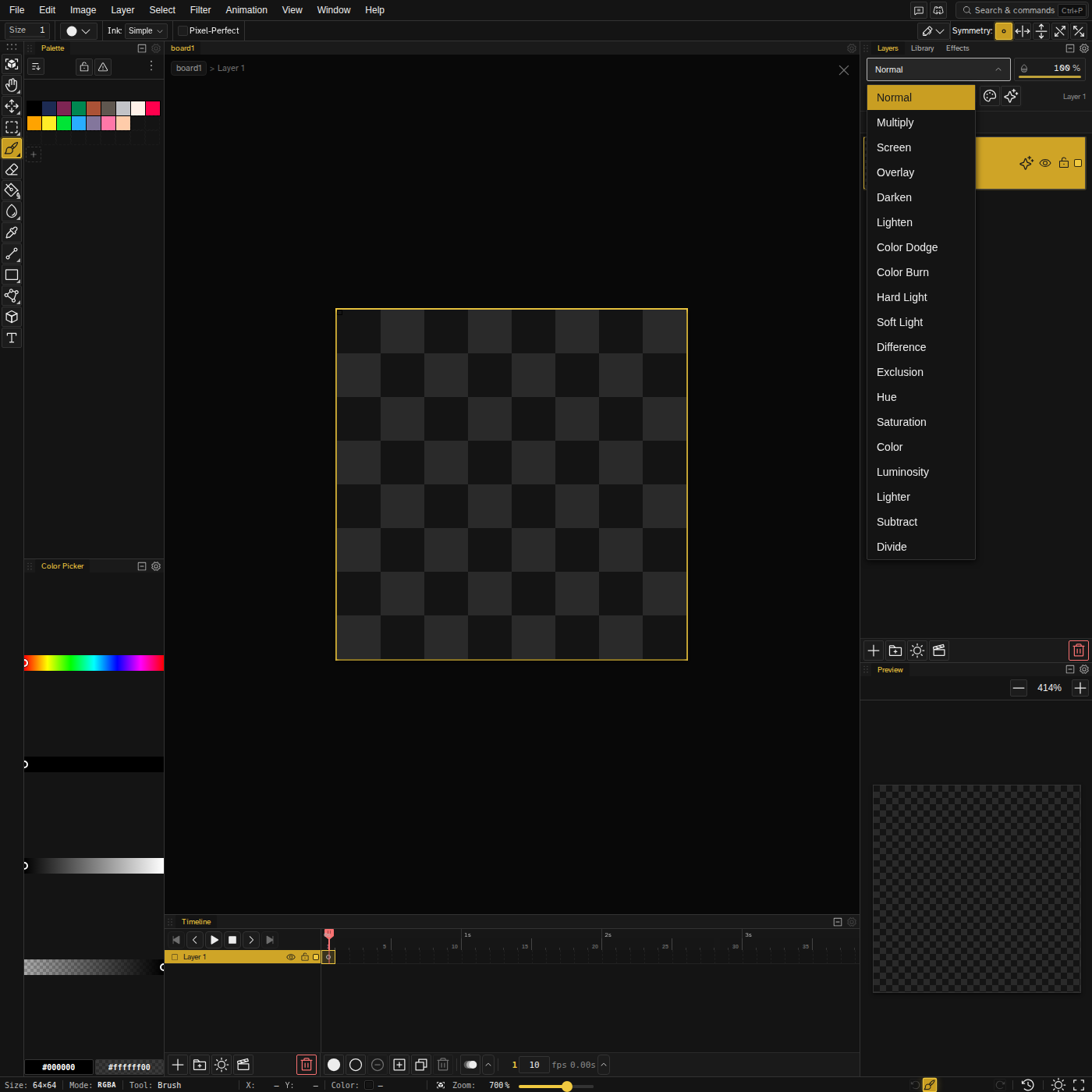
Available Blend Modes
Basic
| Mode | Description |
|---|---|
| Normal | Default mode. Upper layer covers lower layers based on opacity. |
| Lighter | Adds pixel values, creating a brightening effect. |
Darken Group
| Mode | Description |
|---|---|
| Darken | Keeps the darker of the two layers at each pixel. |
| Multiply | Multiplies colors, always darkening. Great for shadows. |
| Color Burn | Darkens base color to reflect the blend color by increasing contrast. |
Lighten Group
| Mode | Description |
|---|---|
| Lighten | Keeps the lighter of the two layers at each pixel. |
| Screen | Multiplies inverses, always lightening. Great for highlights. |
| Color Dodge | Brightens base color to reflect blend color by decreasing contrast. |
Contrast Group
| Mode | Description |
|---|---|
| Overlay | Combines Multiply and Screen. Darkens darks, lightens lights. |
| Hard Light | Like Overlay but based on blend layer. More intense contrast. |
| Soft Light | Gentler version of Hard Light. Subtle contrast adjustment. |
Inversion Group
| Mode | Description |
|---|---|
| Difference | Subtracts colors. Same colors = black, opposite = white. |
| Exclusion | Similar to Difference but lower contrast. |
| Subtract | Subtracts the layer from the base, darkening it. Never goes below black. |
| Divide | Divides the base by the layer, brightening it. Same colors = white. |
Component Group
| Mode | Description |
|---|---|
| Hue | Uses hue of blend layer with saturation and luminosity of base. |
| Saturation | Uses saturation of blend layer with hue and luminosity of base. |
| Color | Uses hue and saturation of blend layer with luminosity of base. |
| Luminosity | Uses luminosity of blend layer with hue and saturation of base. |
Common Uses
Shadows (Multiply)
Create a layer above your sprite, fill shadow areas with a dark color, set to Multiply. The shadow darkens underlying colors naturally.
Highlights (Screen)
Paint bright areas on a Screen layer to add highlights that blend smoothly with base colors.
Color Overlay (Color)
Use Color mode to tint sprites without affecting their shading. Great for palette swaps or environmental lighting.
Contrast Boost (Overlay)
Fill a layer with 50% gray and set to Overlay. Paint with lighter grays to brighten and darker grays to darken areas.
Tips
- Combine with opacity - Lower the layer opacity to reduce blend effect intensity
- Experiment freely - Blend modes are non-destructive and can be changed anytime
- Watch for banding - Some modes can create banding in gradients; adjust colors if needed
- Export compatibility - Blend modes are flattened when exporting to formats that don't support them (PNG, GIF)