


Layer Groups
Layer groups (folders) help organize complex projects by grouping related layers together. Collapse, show/hide, or lock entire groups at once.
Creating Groups
Create a new group:
- Click the folder icon in the Layers panel footer (or pick Layer > New Empty Group) to add an empty group, or
- Select two or more layers and click the same folder icon: it becomes Group Layers and wraps the selection in a new group in one step
Groups are created with auto-numbered names (group1, group2, etc.). Double-click the name to rename.
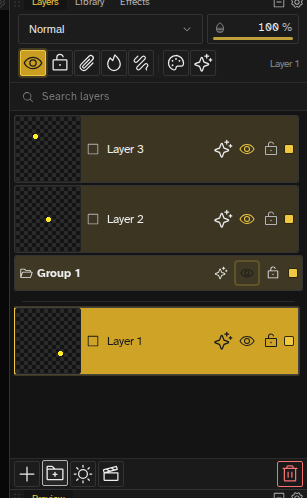
Adding Layers to Groups
Move layers into a group:
- Drag and drop - Drag a layer onto a group to add it
- Drag out - Drag a layer out of a group to remove it from the group
Group Controls
| Control | Description |
|---|---|
| Collapse/Expand | Click the folder icon on the group row to show or hide the layers inside |
| Select the group | Click the group row. Group commands (effects, clipping, the right-click menu) act on it, and the blend and opacity controls at the top of the panel now drive the group itself |
| Select the layers inside | Ctrl+click (Cmd+click on macOS) the group row selects every layer it contains, so the blend and opacity controls apply to all of them at once instead |
| Opacity | The slider sets the opacity of the group as a whole. The layers inside are combined first and the result is faded once, so two overlapping shapes in a 50% group read as one 50% shape rather than a darker patch where they cross |
| Blend mode | Pass Through is the default and is not a blend mode: the group stays open, so a Multiply layer inside it still multiplies with the layers below the group. Pick any other mode and the group is combined into one picture first, and that picture blends with what is underneath |
| Visibility | Toggle shows/hides all layers in the group |
| Lock | Toggle locks all layers in the group |
| Contour Mode | Toggle contour display for all layers in group |
| Clipping Mask | Select the group and click the clip button in the panel header to clip the entire group to the item below |
| Group Effects | Groups carry their own layer effects stack, applied to the group's combined output after each layer's own effects. Once a group has effects, a sparkle icon on its row opens them in the Effects panel |
| Collapsed state | Saved with the file so collapse/expand persists across sessions |
| Nesting | Groups can have a parent group for nested hierarchies |
Opacity and a blend mode other than Pass Through both make the group isolate: it is drawn as one flat picture before it meets the layers below. That is the same thing Photoshop, Krita and GIMP do, and it is why the overlap inside a half-transparent group does not double up.
Cascading Properties
When you toggle visibility or lock on a group, it affects all layers and nested groups within. Individual layer settings are preserved when you toggle back.
Deleting Groups
Right-click a group and pick one of two delete variants:
- Delete Group — Removes the group folder but keeps the layers inside. The layers move up to the parent level (or root if no parent).
- Delete Group and Contents — Destroys the group and every layer inside it. Both items are flagged as danger actions in the menu.
Organization Strategies
By Element
Group layers by what they represent:
- Character
- Background
- Effects
- UI Elements
By Layer Type
Group by layer purpose:
- Lineart
- Base Colors
- Shading
- Highlights
By Animation Part
Group animated elements:
- Static Background
- Body
- Head
- Arms
Working with Collapsed Groups
When a group is collapsed, you can still select it and apply bulk operations. The layers inside remain accessible via the timeline or by expanding the group.
- Collapsed groups take less visual space in the Layers panel
- You can still draw on layers inside collapsed groups if they're selected
- Timeline continues to show all frames regardless of group collapse state