


Text Layers
Text layers let you add editable text to your pixel art. Choose between crisp pixel fonts for retro aesthetics or vector fonts for smooth scalable text. Text remains editable until you rasterize it.
Creating a Text Layer
There are several ways to add text:
- Select the Text tool from the toolbar and click on the canvas
- Press Shift+T to pick up the Text tool from the keyboard
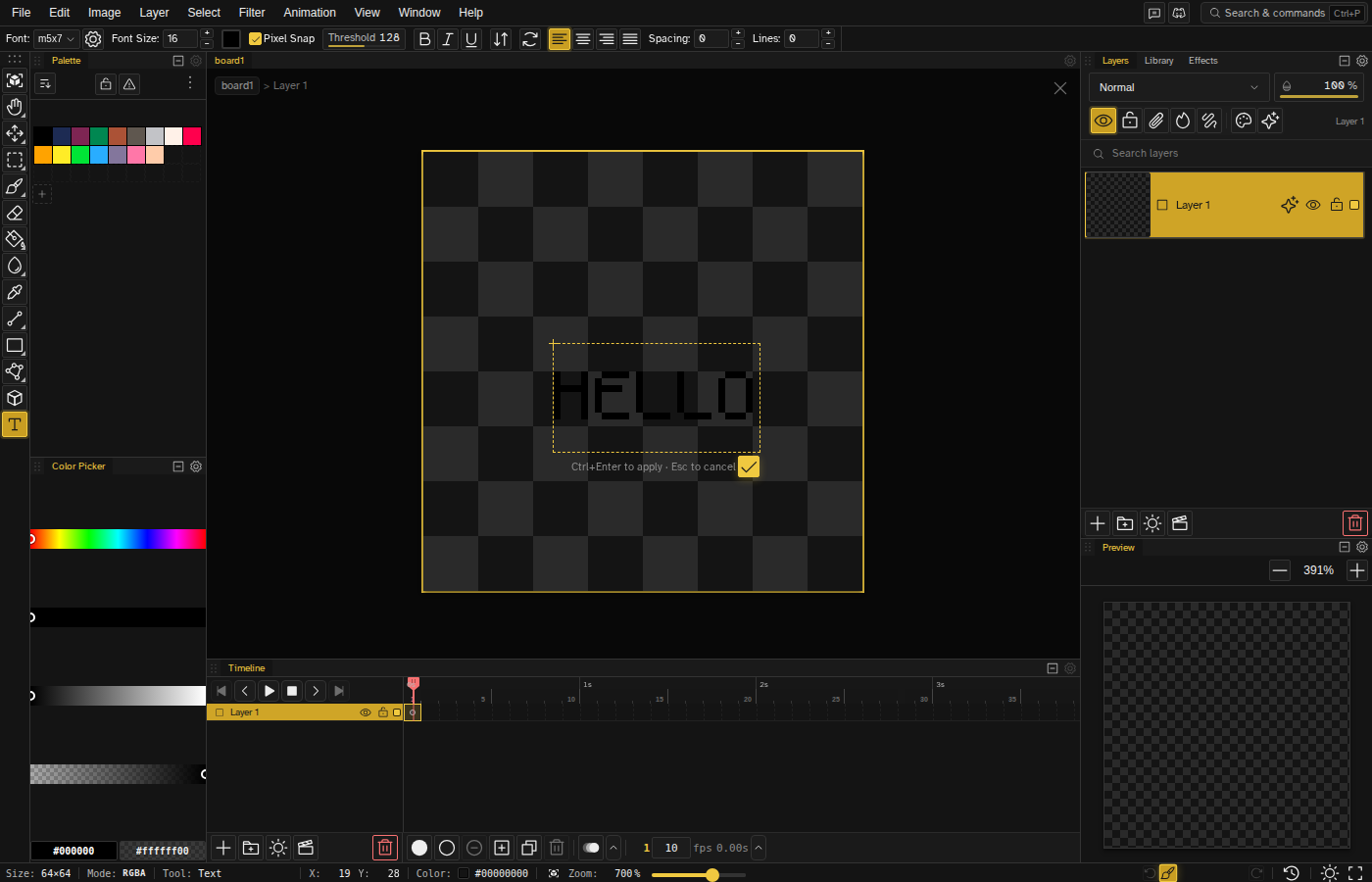
A new text layer appears in the Layers panel. Type your text in the text input field that appears in the tool options.
As you move the cursor before placing, a preview shows where the text will land. Click to drop point text, or drag to define a bounding box for wrapped text.
The Text tool is hidden in Simple mode. Switch to the full interface to use it.
Font Types
Novaboard supports two font types, each suited for different workflows:
| Feature | Pixel Fonts | Vector Fonts |
|---|---|---|
| Scale | 1x - 8x integer multiplier | 6px - 128px font size |
| Rendering | Sharp aliased pixels by default, with an optional anti-alias toggle | Smooth with optional pixel snap |
| Best for | Retro game text, UI elements | Titles, logos, larger text |
| Custom fonts | Spleen 5x8 is bundled; import your own .bdf files via the Font Manager for more | 15 bundled CC0 fonts, plus import your own .ttf/.otf/.woff files |
Bundled Fonts
Novaboard ships with 15 bundled vector fonts (all CC0 / public domain) and
one bundled pixel font, Spleen 5x8, so you can add text without importing
anything. Import your own .bdf files through the Font Manager for more pixel-grid
fonts. Each bundled vector font carries a suggested size that the tool applies automatically
when you pick it (for example, a font designed for 8px displays defaults to 8px instead of the
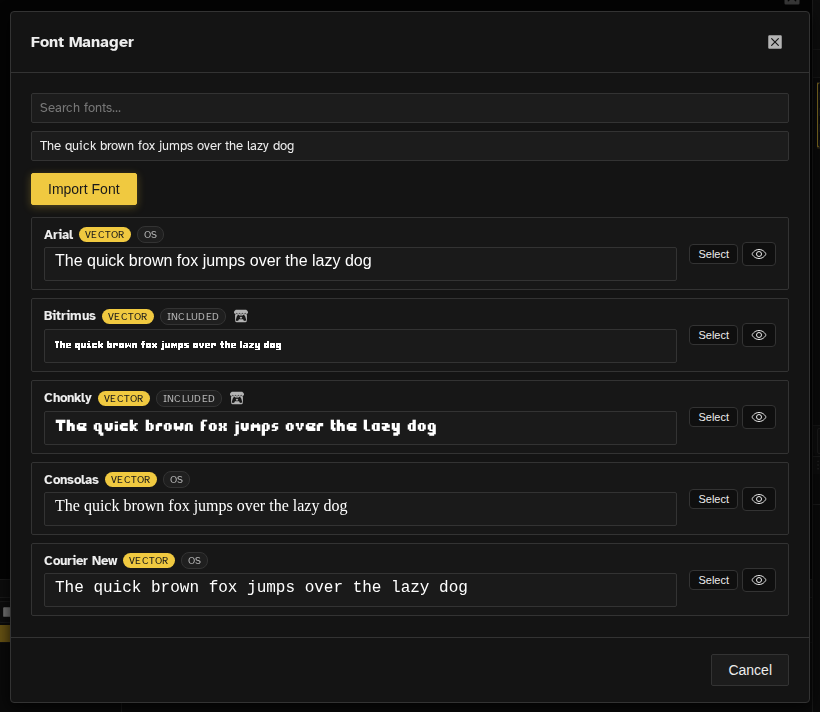
last-used size). The Font Manager filters the list by pixel, vector, included, system, and
imported. Full attribution for every bundled font is listed on the credits page.
The default font is m5x7, a bundled vector font. The font dropdown is alphabetized and enforces a 12px minimum for previews so you can compare faces at a glance.
Text Properties
| Property | Description |
|---|---|
| Text | The text content (supports multi-line with Enter) |
| Font | Choose from the 15 bundled vector fonts or your imported fonts (with live font preview) |
| Size | Scale multiplier (pixel) or font size in pixels (vector) |
| Color | Text color with alpha transparency |
| Style | Bold and italic (both pixel and vector fonts), plus underline on vector fonts. For pixel fonts the styles are synthesized — bold thickens each glyph and italic applies a slant. |
| Alignment | Left, Center, Right, or Justify |
| Orientation | Horizontal or vertical text layout |
| Rotation | Rotate text at 90, 180, or 270 degrees |
| Bounding Box | Text wraps within a configurable bounding box |
| Letter Spacing | Extra pixels between characters (default 0) |
| Line Spacing | Extra pixels between lines (default 0) |
| Position | X/Y coordinates on the canvas |
Importing Custom Fonts
You can import your own fonts for use in text layers. Imported fonts are stored in your browser's IndexedDB and persist across sessions. Supported formats:
.ttf,.otf,.woff— vector fonts.bdf— pixel fonts
- Open the Font Manager from the text tool options
- Click Import Font
- Select your font file from your computer
- The font becomes available in the font list for all files
An imported font is packed into the file when you save it, so a .nova with custom text
stays editable on another machine, even one that never imported that font. If a font is missing,
the text layer's row names it instead of silently substituting another face.
Rasterizing Text
Text layers remain editable by default. To convert a text layer into a regular pixel layer:
- Right-click the text layer in the Layers panel
- Select Rasterize Text from the context menu
After rasterizing:
- The text becomes pixel data that you can paint and edit directly
- The text content is no longer editable as text
- All layer effects and blend modes continue to work
A transform can rasterize a text layer for you. Moving it is safe, but rotating, scaling or skewing it commits the pixels and drops the text, since no font, size and position would re-render that image.
Editing Text
When the Text tool is active, click on a text layer to start editing. While editing:
- Click anywhere in the text to place the cursor at that position
- Double-click a word to select it
- Enter inserts a newline
- Ctrl+Enter commits the text
- Escape commits the text (it is no longer discarded); an empty box is cancelled instead
- Press the Confirm button on the text box, or click away from it, to commit
- Switching to another tool automatically commits the text
Text Layers and Animation
Text layers support per-keyframe content, meaning each keyframe can have different text, styling, and position. This is useful for dialogue systems, animated labels, or text that changes across frames.
When a frame has no text data of its own, it inherits from the previous keyframe. Editing text on an inherited frame edits its source keyframe, so the change shows across the whole span. To give a frame its own text, insert a keyframe at that frame first, then edit.
Tips
- Use pixel fonts at 1x scale for crisp in-game text that matches your pixel art resolution.
- Adjust letter and line spacing to fine-tune readability at small sizes.
- Combine text layers with layer effects like outline or drop shadow for styled headings.
- Use vertical orientation for CJK text or decorative column layouts. Wide Unicode characters (CJK and other extended/astral-plane glyphs) render correctly.
- Vector fonts with Pixel Snap on shape Arabic, Hebrew, and Indic, Thai, Lao, Myanmar, and Tibetan scripts correctly, joining and ordering letters instead of placing them one at a time. A pixel (bitmap) font can't shape those scripts and says so rather than drawing them wrong.
- Enable bounding box wrapping when you need text to flow within a specific width.
- Use draft mode on text layers to add annotations that won't appear in exports.