
This version brings objects you can transform as often as you like without losing a pixel, turns any canvas into a brush, changes how empty pixels work, and opens the shortcut system up to other keymaps and gamepads.
- Objects: turn pixels or layers into an object, place linked copies, rotate and scale them losslessly, and edit or paint on them in place
- Any canvas or slice can be a brush, with a Recent row, a Frames menu and multi-frame Ctrl+B captures
- The transparent color is a real palette entry you can see, move and change, with its own base layer
- Aseprite and Photoshop keymaps, gamepad support, and keys that draw
- The file grid works like a file manager, and deleted files are kept for 30 days in Recently deleted
- The desktop app waits for your files to be saved before it closes
- Console presets in New File use the hardware’s real color depth and palettes
- A general round of bug fixes and improvements
As always, all feedback is welcome!
marcel0ll
Full changelog
What’s new:
Objects · Brush Library · Across Frames · Base Color · Keymaps and Gamepads · File Grid · Keeping Files Safe · Console Presets · Smaller Touches · Bug Fixes
Objects
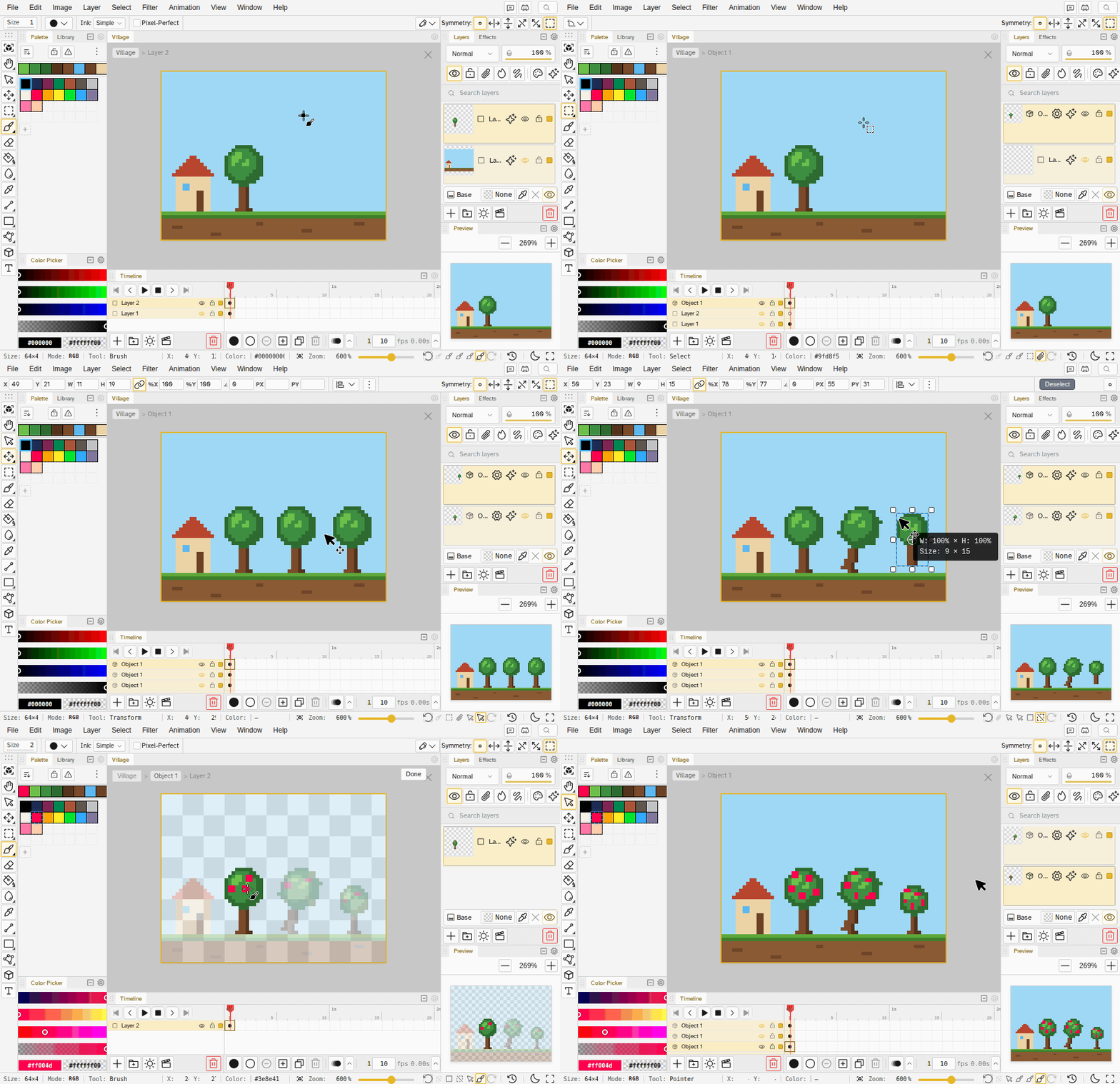
- Turn pixels or layers into an object. Select some pixels or some layers and choose Convert to Object from the Layer menu or the right-click menu. The scene looks the same, but you can now move, rotate, scale, skew and flip the object as often as you like: every render starts from the original pixels, so nothing wears down.
- Copies stay linked. Alt-drag with the Pointer, copy and paste, or place one from Internal Objects in the Library. Each copy keeps its own transform and playback, and a fix to the object shows in every copy.
- Edit in place. Double-click a copy’s layer row, or double-click the copy with the Pointer, to open its object right there in the scene. The Layers panel lists the object’s layers, it has its own frames and tags, and the breadcrumb or Done takes you back. Every edit lands in the file’s own history.
- Paint straight on a copy. Brushes, lines, shapes, gradients and the bucket paint through a copy into the object, where you drew it even on a rotated or scaled copy, and drawing past the edge grows the object.
- The Pointer tool (A) has its own toolbar button: click to select objects, drag to move them, drag on empty canvas to select several, arrows to nudge, Delete to remove, right-click for the object menu.
- Make Unique, Unpack, Swap. Give one copy an object of its own, turn a copy back into plain layers that look the same, or show something else from the Library in the copy’s place.
- Canvas Size, Crop to Selection and Image Size move and scale object copies along with the rest of the canvas.
- Quarter turns and flips of a copy move its pixels exactly, with no resampling.
- Internal or external. Clip layers are now called External Objects. Make External moves an object into its own file, and Make Internal brings a file back in to edit in place. Objects can hold copies of other objects.
Brush Library
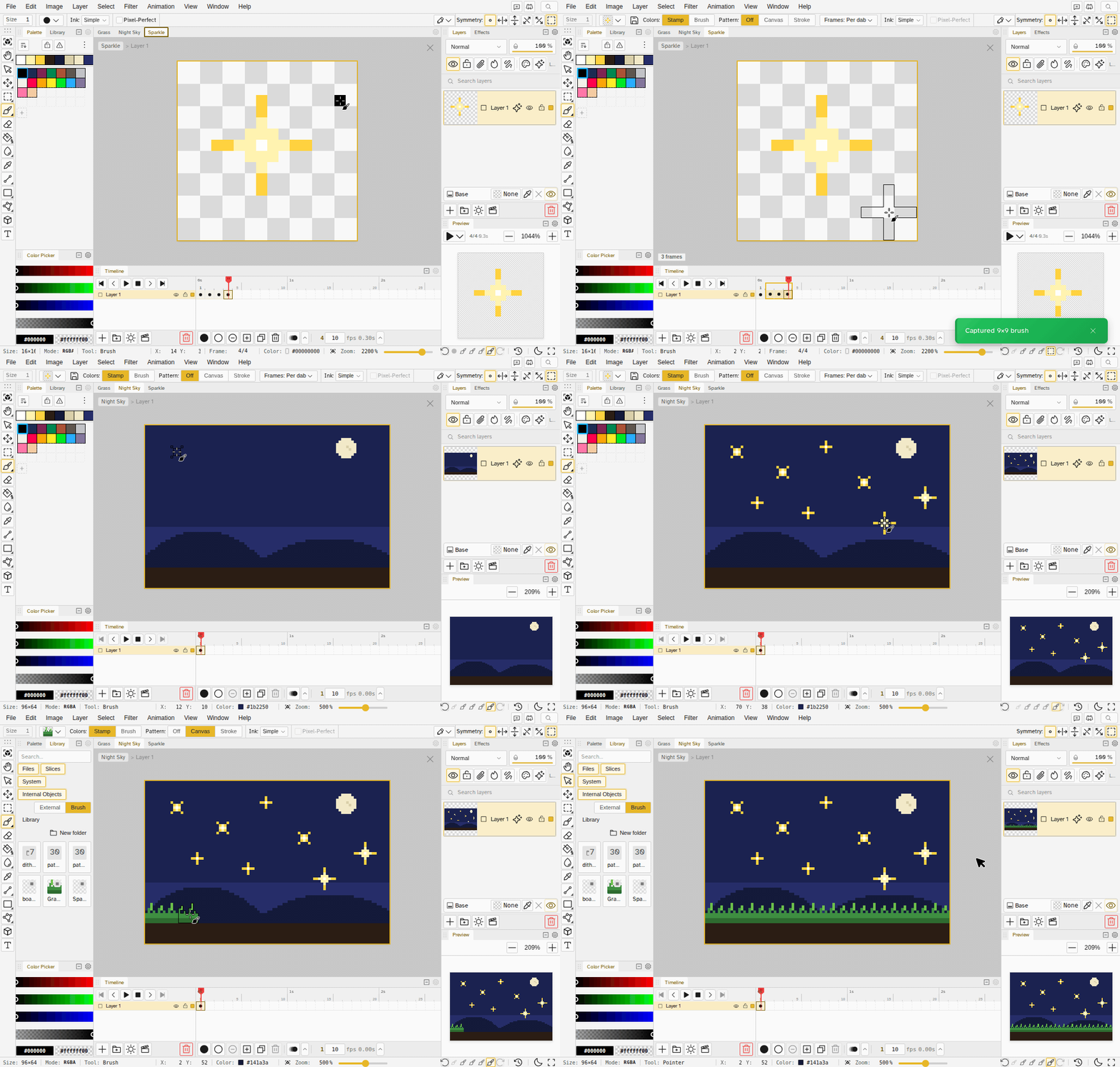
- Any canvas is a brush. There are no separate brush files anymore: any file or slice up to 128x128 can be a brush. Pick Use as brush on it in the file grid or the Library, and older brush files open as ordinary files.
- A Recent row in the brush menu holds the four brushes you used last, shared by every tool, and Select from library opens the Library ready to pick one. The Bucket’s pattern menu has the same row.
- Ctrl+B keeps every selected frame and layer, so one press makes an animated brush. A captured brush lasts until you reload; the save button next to the brush menu keeps it as a file.
- A Frames menu for animated brushes on the Brush, Scatter, Spray and Eraser: one frame per dab or across frames, start on the first frame or a random one, and play once or loop.
- Per dab starts over on every stroke. With Start on the first frame, each new stroke begins on brush frame 1 instead of continuing where the last stroke stopped.
- A brush can’t paint on itself. Strokes on the file that is armed as the brush are refused with a message, so the brush never captures its own dabs.
Across Frames
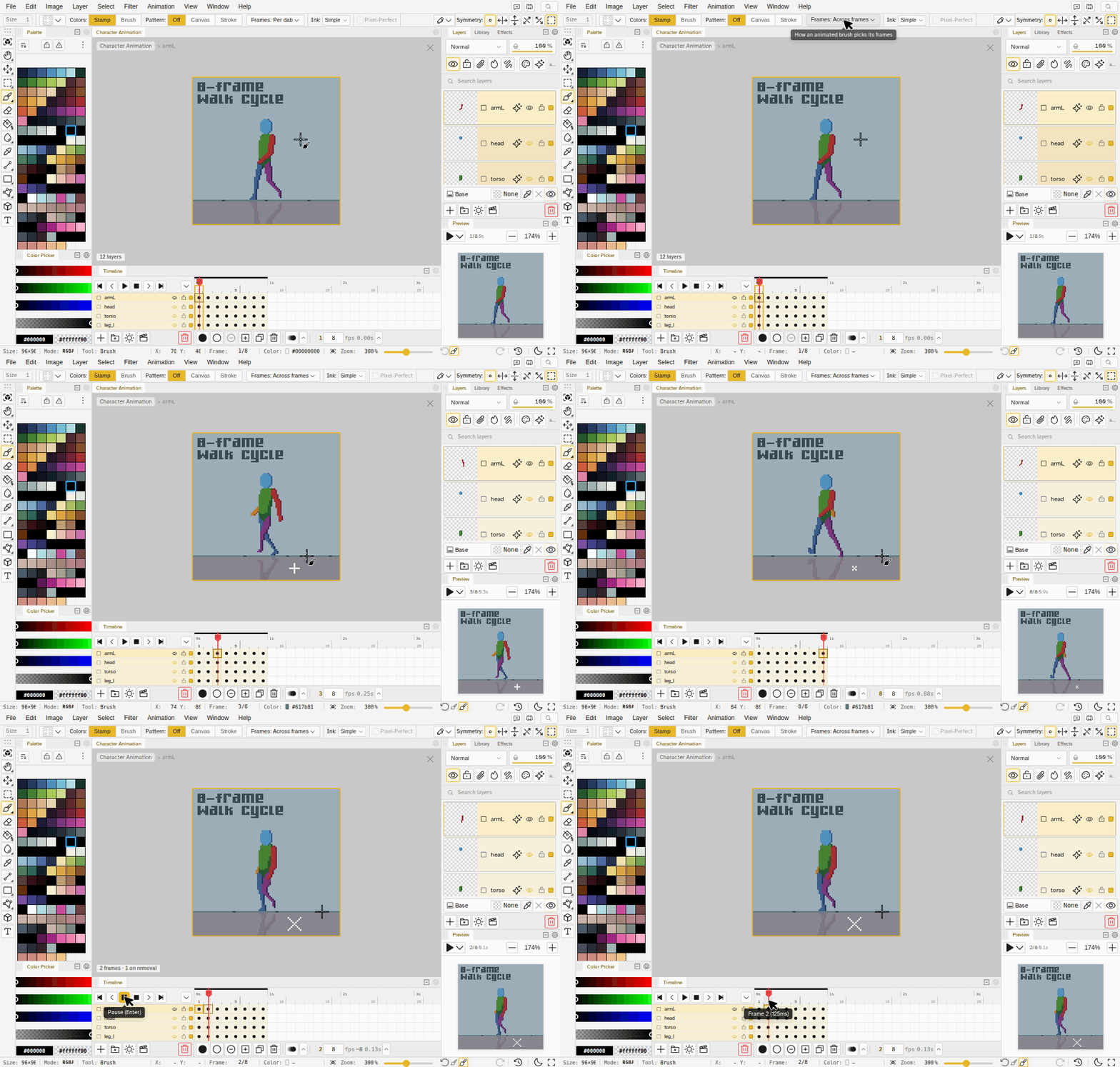
- A multi-frame brush can paint across frames. Pick Across frames in the Frames menu and each dab stamps the brush’s first frame on the current frame, its second frame on the next, and so on, so a three-frame splash brush lays down a whole splash animation in one click.
- It works the way a brush should. Drag strokes, Shift-lines, Scatter, Spray and the Eraser all paint across frames, you see the result live, and the whole stroke is one undo step.
- It follows your timeline selection. With Paint across selection on, the frames you selected take the brush frames in order, on every selected layer.
- Frames are made for you. The frames a dab reaches become keyframes holding their old picture, so the stamp never leaks into frames past the run.
- Shift-lines with a custom brush now preview the brush itself along the line.
Base Color
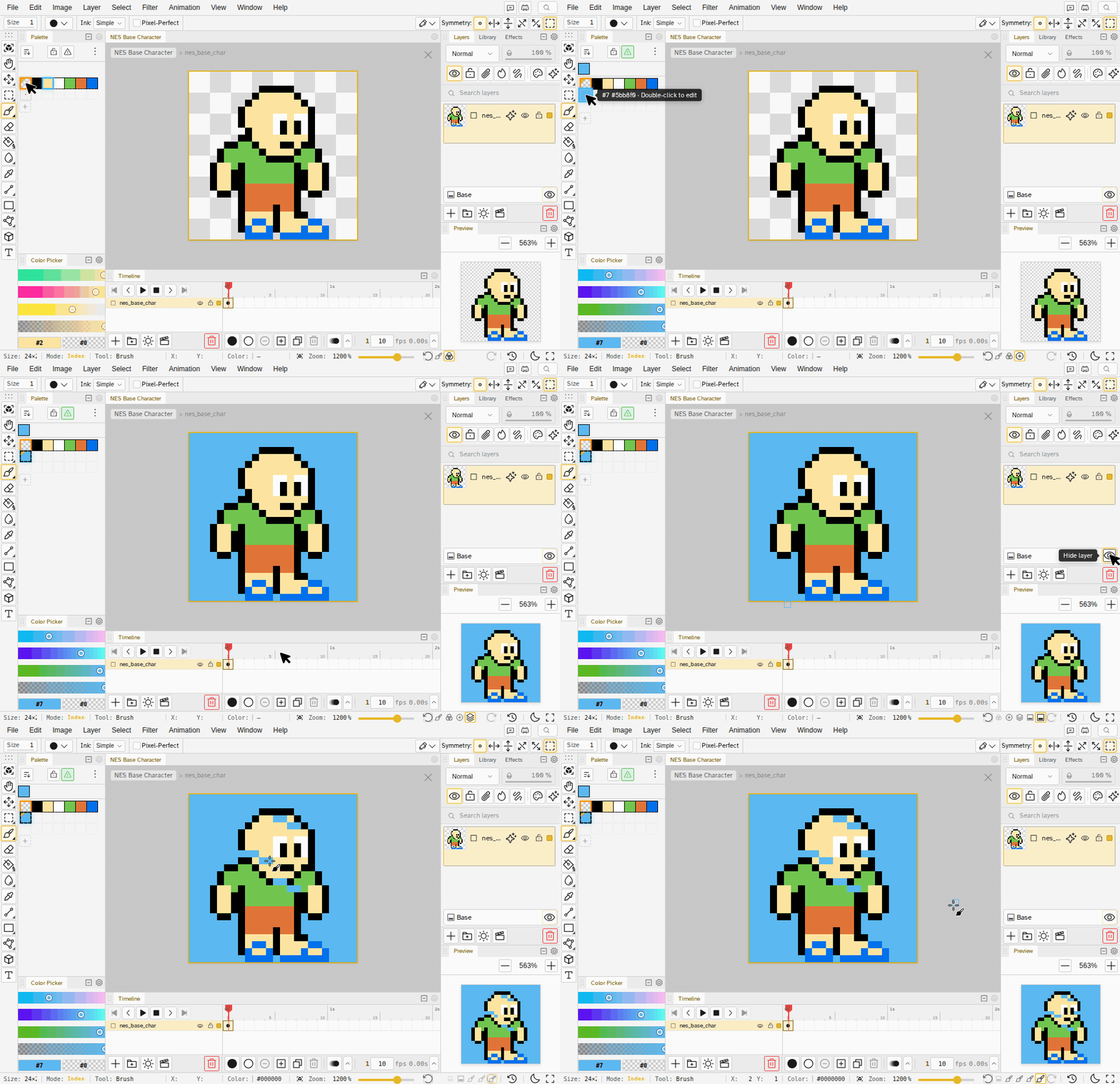
- The transparent color is out in the open. Indexed files used to keep a hidden transparent slot. Now one palette entry can be marked as the base, shown in place with a small corner notch, and the numbers you see are the numbers saved in the file.
- Set it, move it or clear it. Right-click a swatch to make it the base or to clear the base. Reorder the palette and the mark moves with its color. Delete the base and Novaboard asks which color takes over.
- A file can have no base at all, so every pixel is opaque, the way most retro palettes work.
- Painting with the base color erases. When an erase can’t happen, a message tells you why instead of doing nothing.
- A base layer at the bottom of the stack. It paints the base color under your art, in the canvas, the preview and the file thumbnails. Its eye switches between the color and the checkerboard, and on RGBA files you can pick its color right in the Layers panel.
- Exports follow it. Flattened exports include the base color, transparent exports leave it out, and an opaque export with no background chosen fills with the base color. PNG exports carry the base color as the image’s background color.
- RGBA and grayscale palettes drop their hidden transparent entry, so every swatch sits one place earlier than before.
- Your files keep their transparent color. GIF, PNG, Aseprite and palette files open with their transparent entry where it was and save it back in the same place, so nothing shifts by one on the way in or out.
Keymaps and Gamepads
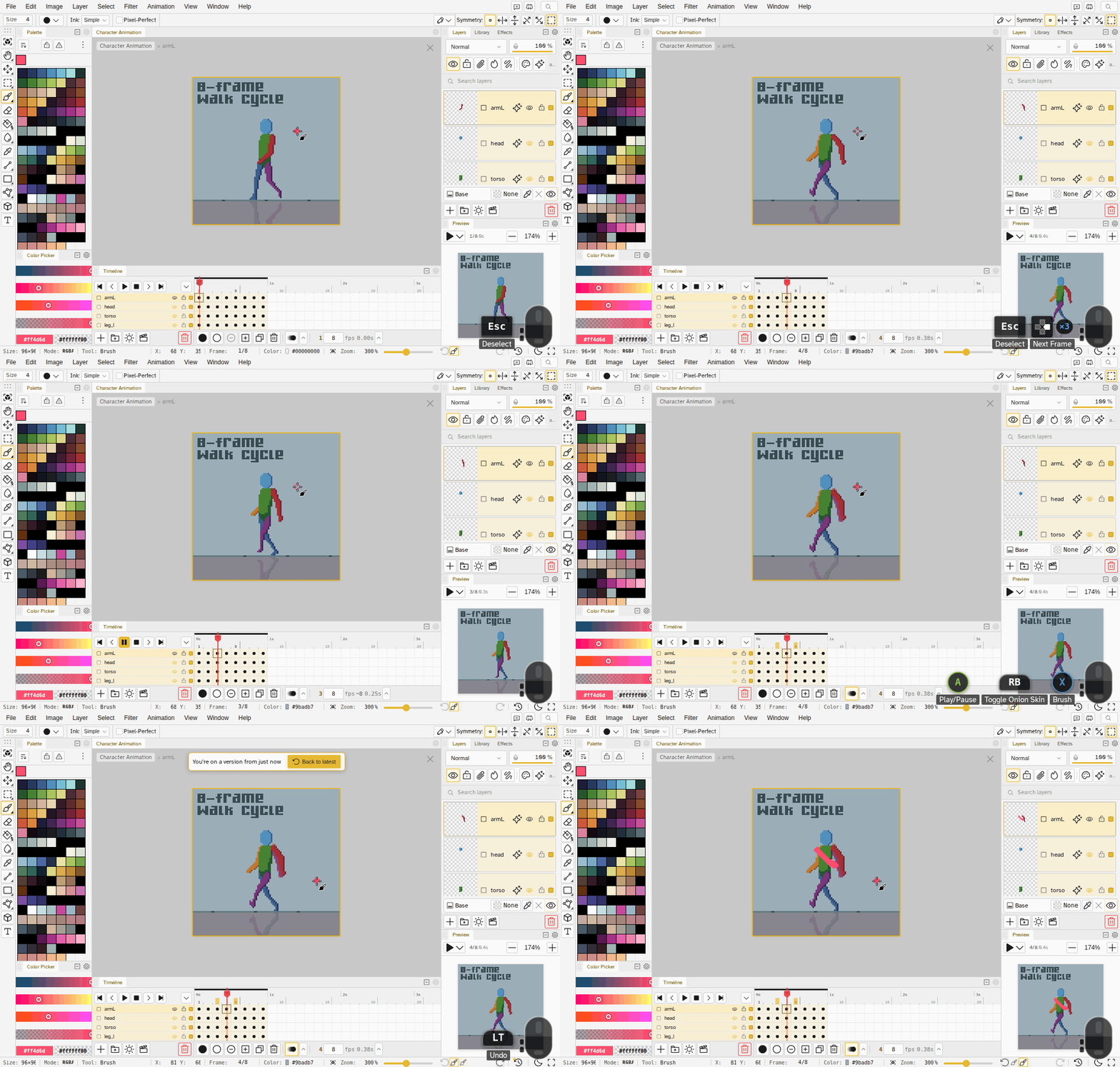
- Aseprite and Photoshop keymaps. Pick one in Keyboard Shortcuts and every action the two apps share takes that app’s key. Each preset says what it changes before you confirm, and Novaboard’s own keymap is one click away.
- Any key or button can run any command. Bind keyboard keys, mouse buttons, the wheel or gamepad buttons in the shortcut editor.
- Gamepad support. A connected gamepad comes with animator defaults: triggers undo and redo, the D-pad steps frames and layers, A plays, B swaps colors, X and Y pick brush and eraser. Tool buttons tap to switch and hold to peek, and the shoulder buttons can work as modifiers for combos.
- Keys that draw. Bind Primary or Secondary Action to a key or button and it draws at the cursor while held. Move Cursor commands nudge the cursor one pixel at a time, so you can draw from the keyboard alone; the editor asks before you take away the last mouse button that draws.
- A command bound to a mouse button no longer runs when you click a button, field, menu or dialog.
- Binding Tab on its own asks first, and Tab still moves between buttons and fields in dialogs and menus.
- Sticky modifier keys latch or lock Shift, Ctrl and Alt for anyone who can’t hold two keys at once.
- Xbox, PlayStation and Nintendo buttons. Novaboard shows the connected pad’s own button names and colors, and maps many pads the browser doesn’t know through a community controller database.
- The Key/Mouse Preview shows your gamepad. Pad presses appear as button glyphs next to your keys, in the familiar A, B, X and Y colors. Repeated presses count up instead of piling up, and typing in a text field stays hidden. Key/Mouse Preview Options in the View menu can show the name of the command each press ran, and move or enlarge the overlay for recordings and streams.
File Grid
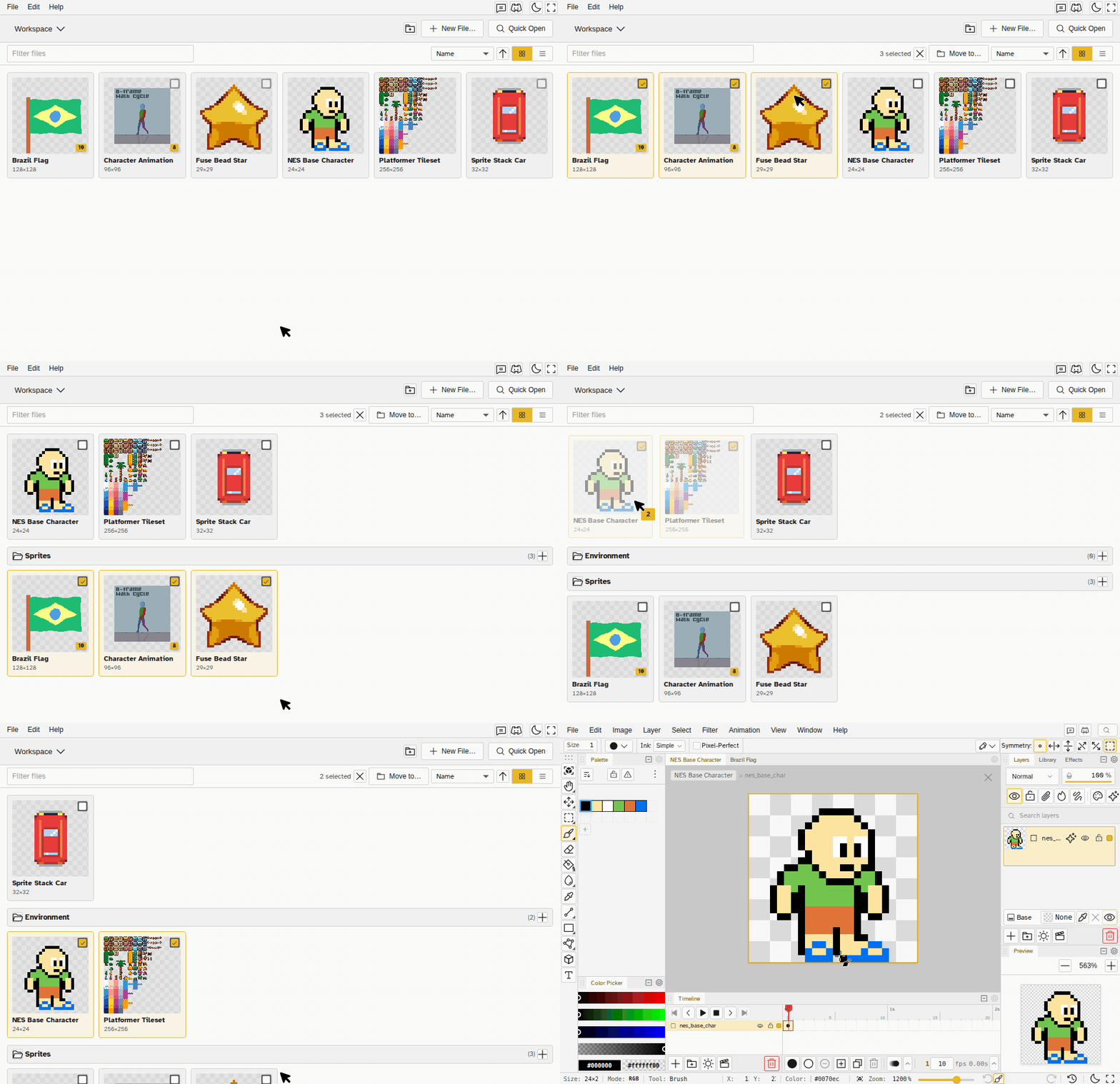
- Click selects, double-click opens. The file grid behaves like a file manager: Shift, Ctrl, a marquee or Ctrl+A select several files, and Enter or a double-click opens them all as tabs.
- An Open button in the selection bar opens the selected files, and New group is a labelled button next to New from template.
- Tabs close from the tab. Every editor tab has its own X, a middle-click closes it, and its right-click menu offers Close Others, Close to the Left, Close to the Right and Close All. Close Tab and Close All Tabs are in the File menu too, on Ctrl+Alt+W and Ctrl+Alt+Shift+W, and also on Cmd+W and Cmd+Shift+W in the desktop app on macOS.
- Close Window moves to Cmd+Alt+Shift+W in the desktop app on macOS, so Cmd+W closes the tab instead of the window.
- A Workspace button at the top right of the canvas takes you back to the file grid and keeps your tabs; open one of those files again and they all come back.
- Pressing Escape twice takes you back to the file grid and keeps your tabs, like the Workspace button, instead of closing the file you are on.
- Groups. Move a selection into a group, or make a new group from it, from the right-click menu or by dragging the cards. Delete or duplicate many files at once, from the menu or with the Delete key.
- Export Workspace is now Save Workspace. It still writes the .novaspace archive, and the new Export Workspace writes every file’s export into one zip. Both keep your groups as folders. Rebind it if you had a shortcut on it.
- Importing a workspace archive lands on the file grid and puts its files into your groups of the same name instead of making duplicates.
- Save to Disk is its own small dialog. It holds the .nova options, like keeping history, and Export is now the one place for exporting images.
Keeping Files Safe
- Recently deleted. Deleting a file moves it to Recently deleted, a button at the top of the file grid, where it stays for at least 30 days with its history. Restore it from there, or press Undo on the toast right away.
- The desktop app waits for your saves when you close, quit, restart or install an update. With Autosave to Disk on, files of the open workspace that were never saved to disk go to a Novaboard folder in your Documents; with it off, it asks before closing. A file that can’t be written is listed with Retry and Save elsewhere.
- One tab edits a file at a time. In a second tab the file stays read-only, the file grid’s rename, move and delete included. Browsers that can’t guard against this keep the file editable and warn that the last save wins.
- A file is read-only for a moment as it opens, with a Checking write access notice, until Novaboard confirms no other tab is editing it.
- Files saved by this version use .nova format 4. Novaboard 0.32 and older refuse to open them, so update every copy of the app you share files with.
Console Presets
- Presets use the console’s real color depth. A Mega Drive file snaps its colors to what the Mega Drive can show, an SNES file to its 15-bit colors, and so on.
- Hardware palettes lead their presets: Game Boy, NES, Master System and Atari 2600, including the PAL and SECAM versions of the 2600.
- Neo Geo Pocket and WonderSwan create grayscale files with 8 and 16 shades.
- Start Now opens a blank file when your workspace already has files, and blank sizes go up to 4096.
Smaller Touches
- The mouse wheel scrolls the timeline sideways, so you can reach frames past the right edge without a trackpad.
- Paste Keyframe (formerly Paste Cel) works on an empty slot past the last frame, adding the frames it needs in the same undo step.
- Clicking an empty palette slot adds the next color in that spot of the grid.
- Right-click opens the swatch menu on the primary and secondary colors too.
- Reference viewers follow the file you are working on, Window > References brings them back, and .nova exports can leave the reference images out.
- Paste asks which image you mean when the system clipboard holds a different image from your last copy.
- Replace Colors remembers its rows when you leave the editor and come back.
- Add Export stays in the Export dialog’s header once you have more than one export, next to the one at the end of the list.
- The docs are up to date with the app, with new pages on objects, the file grid, the desktop app, touch and tablets, saving and recovery, and mouse, keyboard and gamepad controls, and the docs search says when nothing matches.
Bug Fixes
- Novaboard starts in browsers that block site storage instead of failing to load.
- Curve and Polygon show their preview on the canvas again while you place points, held frames included, and finish their shape when you change frames instead of dropping it.
- A file taken over from another tab opens as saved, not as a draft.
- Flipping or shearing a large selection no longer fails.
- Holding Shift with a held-key drag, like Shift+X to resize the brush, works again.
- Paste right after copy pastes what you just copied, even if the system clipboard was still catching up.
- Copy Keyframe on an empty keyframe copies it, so Paste Keyframe is offered.
- GIFs keep their transparent color through import and export, and pixels painted with that color stay visible.
- Aseprite files with a background layer keep their base pixels visible, and a file that only claims to be an Aseprite file says so instead of failing.
- Loading a palette file keeps the base color in place.
- Primary and secondary colors follow the file you switch to, so a grayscale file or a locked palette never paints a color it can’t hold.
- The X/Y readout in the status bar clears when the pointer leaves the image, and updates after a zoom or rotate under a still pointer.
- Opening a very large PNG takes seconds instead of a minute.
- Safari shows the canvas with onion skin on instead of a blank canvas.
- Many smaller fixes to translations, the Dracula theme, file imports and the tools search.