


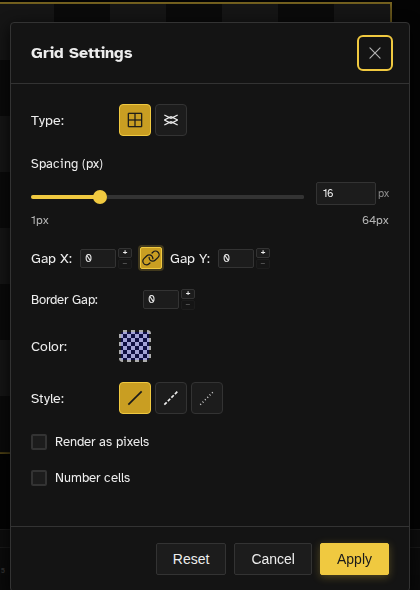
Grid Settings
Novaboard offers flexible grid options including rectangular and isometric grids. Customize spacing, colors, and styles to match your workflow.
Grid Types
Rectangular Grid
The standard grid with horizontal and vertical lines. Perfect for tile-based work, UI design, and general pixel art.
Isometric Grid
A 2:1 isometric grid with diagonal lines at pixel-perfect angles. Ideal for isometric RPGs, strategy games, and 3D-style pixel art.
Configuring the Grid
The grid options live in one place: View → Grid → Grid Settings…. The same submenu holds the on/off toggles.
Available Options
| Setting | Description |
|---|---|
| Grid Type | Rectangular or Isometric |
| Spacing | Distance between grid lines (in pixels). Default 16. |
| Color | Grid line color. Default blue (#0000FF). |
| Style | Solid, dashed, or dotted lines |
| Opacity | Grid line transparency (0-100%). Default 20%. |
| Gap X / Gap Y | Extra spacing between cells on each axis. Lock Gap keeps them in sync. |
| Gap Color | Color used to fill the gap between cells |
| Gap Opacity | Transparency of the gap fill (0-100%) |
| Border Gap | Include the gap along the outer canvas edges |
| Render as Pixels | Draw the grid lines in canvas pixels instead of hairlines on screen |
| Vertical Lines (Isometric) | Split isometric diamonds into triangles with a vertical divider |
| Cap Size (Isometric) | Width in pixels of the flat cap at each diamond vertex: 2, 3, or 4. Default 2, the classic 2:1 look. |
| Number Cells | Label each visible cell with its index, handy for reading which tile you are in on a sheet. Numbers only appear once a cell is at least 24 screen pixels wide, and add a column/row coordinate once it is 80 or wider. |
Grid Visibility
Grid display is controlled by a user preference combined with a minimum zoom threshold:
- Show Grid - Off by default. Toggle the configurable grid with Ctrl+' .
- Pixel grid - A separate preference: a 1px grid between individual pixels with its own color and opacity. Toggle it with Ctrl+" .
- Legibility floor - The grid renders wherever one cell is at least 4 screen pixels wide. A 32px grid is visible at 100%; the 1px pixel grid appears from 400% up, where it stops covering the art.
- Grid settings dialog - Open grid settings from View → Grid → Grid Settings… (no default shortcut).
- Isometric toggle - Switch between rectangular and isometric grids with Shift+I .
- Per-file settings - Each file remembers its own grid configuration
- One grid everywhere - Override per-file grid in User Preferences forces every file to draw the grid defaults set there. It changes what you see only: each file keeps its own settings, and snapping still follows the file's own spacing.

Common Grid Sizes
Match your grid to common tile sizes:
| Size | Common Use |
|---|---|
| 8x8 | NES-style sprites, small icons |
| 16x16 | SNES-style tiles, standard game tiles |
| 32x32 | Larger sprites, detailed tiles |
| 64x64 | HD pixel art, large character sprites |
Isometric Grid
The isometric grid uses a pixel-perfect 2:1 ratio, the standard for pixel art isometric projection. Lines run at angles where every 2 horizontal pixels equals 1 vertical pixel.
Cell Layout
Isometric mode uses the same rectangular cell and gap structure as normal mode, with isometric diagonal lines drawn as guidelines inside each cell. Enable the "Vertical lines" checkbox to split isometric diamonds into triangles.
Isometric Snapping
When snap is enabled with an isometric grid, points snap to diagonal intersection points using a sub-grid at half-cell horizontal and quarter-cell vertical spacing with parity constraint. Isometric grids use hard snap (no magnetic threshold) to avoid jitter from the dense sub-grid.
Isometric Guidelines
- Horizontal lines stay horizontal
- Vertical edges in 3D space become true vertical lines
- Depth lines follow the 2:1 pixel ratio diagonally
Perspective Grid
Separate from the pixel grid, the perspective grid draws converging guide lines over the canvas for one, two, or three point perspective. Turn it on with View → Perspective Grid and open View → Perspective Grid Settings… to set it up. Neither has a default shortcut, but you can bind one in the shortcuts editor.
Settings
- Mode - Off, 1-Point, 2-Point, or 3-Point. The mode decides how many vanishing points you get, and switching it drops the points back to sensible starting spots. New files start at 2-Point.
- Line Density - How many guide lines fan out of each point, 2 to 48.
- Color - Line color and opacity, magenta out of the box.
- Render as pixels - Draw the guide lines in canvas pixels instead of hairlines on screen.
- Vanishing Points - One X/Y pair per point for exact placement, plus Reset vanishing points to put them back.
You can also drag the points straight on the canvas: each one has a round handle that snaps to half pixels. The perspective grid is a drawing aid you eyeball against, it does not snap strokes the way Snap-to-Grid does.
Snap-to-Grid
Snap-to-grid helps you align drawing and selection operations to the grid. Toggle it with ~ or from View → Grid → Snap to Grid, which carries a checkmark while it is on. The same submenu has a sibling Snap to Guides toggle (—) that magnets to your guides instead; see Guides & Rulers.
Magnetic Threshold
Snapping uses an 8px magnetic threshold — it only activates when you are close to a grid line, so you can still place things freely between grid lines.
Modifier Keys
- Ctrl — Temporarily disables snap (even when snap is on)
- Alt — Temporarily enables snap (even when snap is off)
- Shift — Axis constraint, independent of snap state
Relative Snap
When moving selections, snap uses grid-sized increments that preserve the original offset from the grid. This means selections don't jump to the nearest grid line — they move in steps equal to the grid spacing.
Grid Styles
Continuous lines, most visible
Segmented lines, less intrusive
Point markers, minimal visual impact
Grid Cell Selection
Double-click with any selection tool to select the grid cell under the cursor. This provides Aseprite-style tile selection for quick grid-based workflows.
- Double-click — Select the grid cell under the cursor
- Drag after double-click — Select multiple whole grid cells
- Shift + double-click — Add grid cells to the current selection
- Alt + double-click or right-button double-click — Subtract grid cells from the current selection
Grid cell selection requires a rectangular grid with spacing enabled — it is unavailable on isometric grids.
During grid-cell selection, a pixel border preview is drawn around the selected cells and the marching ants are hidden for cleaner feedback. That border follows the selection line style you picked in Preferences: solid by default, dashed if you set it to dashed.