


Guides & Rulers
Rulers display along the canvas edges, and guides are draggable lines that help you align elements precisely. Perfect for consistent spacing, centering, and layout work.
Rulers
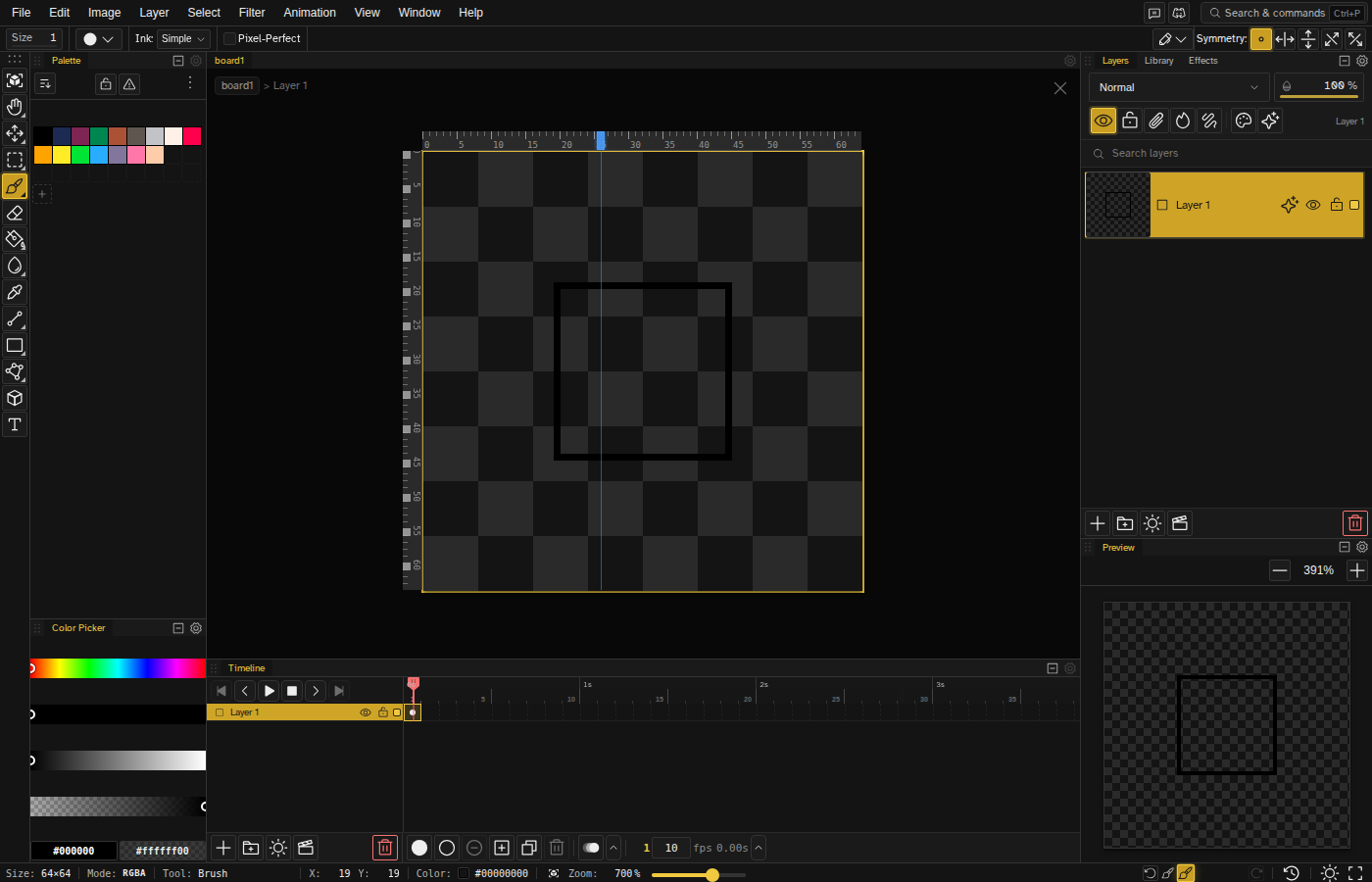
Rulers appear along the top and left edges of your canvas, showing pixel coordinates. They update as you zoom and pan.
Ruler Features
- Pixel coordinates - Shows exact position in pixels
- Zoom-aware - Tick marks adjust to zoom level
- Guide creation - Click anywhere on the ruler to add a guide at that position
Toggle Rulers
Show or hide rulers with View → Rulers. There is no default shortcut, but you can bind one in the shortcuts editor. Rulers are automatically hidden in Tile Mode, and enabling rulers disables Tile Mode.
Simple mode hides both Rulers and Guides. Switch to Advanced mode from Window → Layouts if the View menu does not list them.
Creating Guides
Guides are non-printing lines that help with alignment:
From Rulers
Click anywhere on the top ruler to add a vertical guide, or on the left ruler to add a horizontal guide, the same way Photoshop does it. A single click creates the guide at that position.
Precise Positioning
Drag the guide handle on the ruler to reposition an existing guide. The guide line follows the handle as you drag.
Managing Guides
| Action | How |
|---|---|
| Create guide | Click on the ruler at the desired position |
| Move guide | Drag the guide handle on the ruler |
| Delete guide | Double-click or right-click the guide handle, or remove it from the guide list |
| Toggle all guides | View menu → Guides ( Ctrl+; ) |
| Snap to guides | View menu → Guides → Snap to Guides |
| Clear all guides | View menu → Guides → Clear All Guides |
The View → Guides submenu also lists every guide on the file, each one named by its orientation and position (such as "Horizontal · y 40"), with a trash icon to remove that one guide on the spot. Clear All Guides sits at the bottom of the same list. Guides are saved with the file, so they come back the way you left them next time you open it.
Guide Appearance
Guides appear as thin accent-colored lines across your canvas. The guide handle on the ruler indicates its position and allows for adjustment.
Guides extend across the canvas with handles on the rulers
Common Uses
Sprite Boundaries
Mark the edges of sprites in a sheet for consistent sizing.
Safe Areas
Define margins for icons or images that need padding.
Centering
Place guides at canvas center for symmetrical compositions.
Character Proportions
Mark head height, body sections, or feature alignment.
Limitations
- Tile Mode - Rulers and guides are hidden when tile mode is active. Enabling rulers or guides also disables tile mode.
- Export - Guides are never included in exported images
- Per-file - Each file has its own set of guides, though the show/hide toggles for rulers and guides are shared across the app