Preview Modes
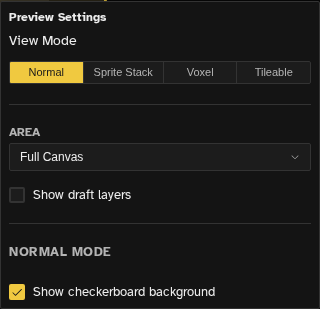
The Preview panel supports multiple view modes beyond the default Normal 2D preview. Use these modes to visualize your pixel art as 3D objects or sprite stacks.
Normal Preview
The default preview mode shows your artwork at 1:1 pixel ratio with optional zoom. This is useful for checking how your sprite will look in-game at actual size.
- Zoom - Scroll to zoom in/out (0.25x to 20x)
- Pan - Drag to pan around the preview
- Fit to panel - Auto-scale to fit the preview area. Click the zoom percentage to flip between fit and 100%, or double-click it to type an exact zoom.
- Animation playback - The preview has a playhead of its own. Press play and the preview loops while the editor stays on the frame you are drawing, so every stroke shows up in the loop on its next pass. Stop returns the preview to the editor's frame, and while it is stopped it keeps showing that frame. It plays by the timeline's rules, including loop, ping-pong, reversed tags and the focused tag or range, unless one of the playback options below says otherwise.
- Playback options - The caret beside the play button, or a right-click on it, opens the preview's own options: Play once stops on the last frame of the range and holds it there so you can look at it, Play all frames ignores the focused tag and range, and a Speed multiplier from 0.25x to 2x sits on top of the file's own speed. None of these change the file.
- Frame and time readout - Beside the play button, the current frame out of the total, and how far into the playback range that frame sits, in seconds at the file's frame rate. Both only show once the file has more than one frame. Drag the readout sideways to scrub the preview without moving the editor; a thin underline marks a preview that has left the editor's frame. Double-click the readout, press Stop, or click any frame in the timeline, to have it follow the editor again.
- Live-draw indicator - Start drawing while the editor's playback is running and the frame counter lights up, with a tooltip naming the frame your stroke is landing on. It tells the frame under the brush apart from the frame the preview is showing.
Area
The Area selector controls which part of the file the preview renders. It applies to every preview mode, including Tileable and Voxel.
- Full Canvas - Preview the whole file
- Current Selection - Preview only the active selection. The preview cascades from the live marquee to the last cleared marquee to a frozen bound, and falls back to the whole canvas if there has been no selection at all, so the preview stays stable as the selection changes
- Slice - Preview a specific named slice from the slice tool
Tileable Mode
Tileable mode fills the preview viewport with a repeating tile drawn from the current Area, so you can judge seamlessness on tilesets, patterns, and backgrounds without leaving the editor.
- Tile Layout - A setting in Preview Settings with three options: Square (straight grid covering the whole viewport), Isometric (diamond grid using
tileW/2horizontal andtileW/4vertical steps in painter's order, so sprites composed from iso tiles preview the way they will render in-game), and Hexagon - Hex Orientation - When the layout is Hexagon, choose between Pointy-top and Flat-top hexes
- Show tile outline - Optional overlay outlining each repeated tile so you can see where seams fall
- Pan shifts the tile origin - Dragging in tileable mode moves where the tile seam falls instead of scrolling the preview, so you can audit any region of the repeat
- Combine with Area - Tile a slice or selection to preview repeating sub-regions without resizing the file
- Select Tile Shape - A wand button that only appears in the preview toolbar in tileable mode. It turns the current tile into a canvas selection shaped like the tile layout, a rectangle for Square, a diamond for Isometric, a hex for Hexagon in the chosen orientation, so you can draw inside one tile without spilling over the seam. The same command sits in Select → Select Tile Shape
Tileable mode is independent from the editor's Tile Mode, which makes drawing strokes wrap across the canvas itself. Tileable preview never changes the file content.
Sprite Stack Mode
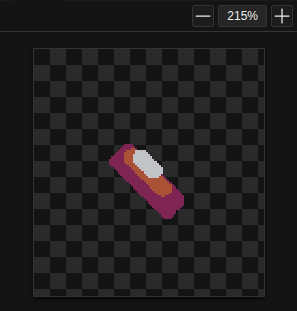
Sprite Stack mode renders your layers as a 3D stack, giving a pseudo-3D look to your pixel art. Each layer becomes a "slice" in the stack.
How It Works
- Each layer is rendered as a separate plane in 3D space
- Layers are stacked vertically with configurable spacing
- The result mimics a 3D voxel model rendered from pixel art layers
Controls
- Layer Spacing - Vertical distance between stacked layers, 0-20 px in half-pixel steps. At 0 every slice draws in the same spot, which is a deliberate plan view: it matches the flat 2D layer composite pixel for pixel
- Rotation - Turntable rotation of the stack (0-360°)
- Auto Rotate - A toggle in the preview toolbar that spins the stack on its own, so you can check it from every angle without dragging
- Reset View - Puts spacing and rotation back to their defaults
You can also spin the stack by dragging around it in the preview viewport, the way you would turn a dial: the pointer's angle around the model sets the rotation, so one circle around it is one full turn and the pixel you grabbed stays under the cursor. Dragging farther from the centre gives finer control.
Each slice bakes in its layer's own opacity, blend mode and effects before it joins the stack, and a group's slice bakes in the group's opacity, blend and effects the same way, so the rendered stack matches what those layers actually look like composited.
Importing Sprite Stack Strips
Sprite stack assets usually come as a strip of slices, often one strip per animation frame. File → Import Spritesheet with Layers turns a strip into one layer per slice. Pick all the strips at once and each one becomes a frame on the same layers, or add them one by one with Add as new frame. If the strips are already frames of one file, Image → Split Image into layers cuts every frame the same way. See Import & Export for the details.
Use Cases
- Creating character sprites with depth layers (front leg, body, back leg)
- Visualizing multi-layer buildings or structures
- Creating turntable animations from 2D layers
Voxel Mode
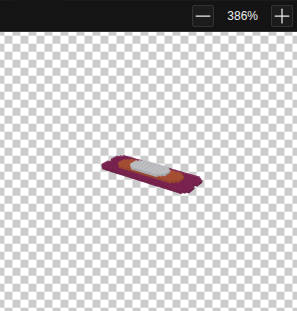
Voxel mode renders your pixel art as 3D voxels (cubes), treating each colored pixel as a 3D block. This mode offers two rendering styles:
Cubes (3D Rendering)
Cube voxels rendered with a custom Canvas 2D pipeline (no WebGL, no Three.js). Each non-transparent pixel becomes a cube in 3D space with configurable lighting.
Pixel Art Projection
2D isometric-style rendering. Converts your pixel art to an isometric view while maintaining the pixel art aesthetic. No WebGL required.
Settings
- Render Style - Toggle between Cubes and Pixel Art rendering.
- Camera - Toggle between orthographic and perspective projection. Pixel-art-only: this control appears only when the render style is Pixel Art.
- Show grid floor - Optional grid plane beneath the model
- Enable lighting - Enable or disable directional lighting on the voxel cubes.
- Output size - Target render size for the voxel image (up to 256 per side). Set both to 0 to use the canvas size. Pixel-art-only: appears only when the render style is Pixel Art.
- Show Checkerboard Background - Show the standard checkerboard behind the voxel render, or replace it with a solid background color.
- Reset View - A single button that restores yaw, pitch, zoom, and pan to defaults. The output size has its own inline reset link.
Voxel Mouse Controls
The camera is driven directly in the viewport with the mouse. Yaw, pitch, zoom, and pan are not dialog sliders.
- Left mouse drag - Rotate (yaw + pitch combined). Pitch stops just short of straight up or down, yaw wraps around 360°.
- Right or middle mouse drag - Pan, in the Pixel Art render style. The Cubes renderer only takes left drags, so it rotates and zooms but does not pan.
- Scroll wheel - Display zoom, separate from the Normal preview zoom. The range depends on the render style: Pixel Art zooms 0.5x to 16x, Cubes 0.2x to 5x. Each notch is a 10% step
Availability
Voxel mode is disabled for files larger than 256x256 pixels. Preview Settings greys out the Voxel option on oversized files; shrink the canvas or work on a smaller file to re-enable it.
Voxel mode builds its slices the same way Sprite Stack does: each layer's opacity, blend mode and effects are baked in first, and group opacity, blend and effects are baked in for a group's slice. Looking straight down at the model reproduces the file's flat 2D composite pixel for pixel.
Turntable Export
Export your artwork as a rotating animation using the turntable feature. This is useful for showcasing 3D-looking pixel art on social media or in games.
- Open File → Export…
- Pick the card for the look you want: Model renders your art as voxels, Sprite stack renders it as the stacked-layers look. Inside Model you also choose between Rendered views and a .vox file
- Set the number of Views (1, 4, 8, 16, 24, or your own number up to 72) and the start angle. The dialog tells you the resulting step, such as one view every 15°
- Choose how to package it: New File (generated frames on a new file), GIF, Spritesheet (horizontal or vertical strip with padding), or PNG Sequence (zipped frames)
Once you have exported once, File → Repeat Last Export ( Ctrl+Alt+E ) runs the same setup again.
Accessing Preview Modes
To switch between preview modes:
- Open the Preview panel ( Shift+F4 )
- Click the settings cog in the panel header to open Preview Settings
- Select your desired preview mode, then Apply