


Tile Mode
Tile mode displays your canvas in a 3x3 tiled grid, letting you see how your artwork repeats seamlessly. Essential for creating game textures, patterns, and tilesets.
Enabling Tile Mode
Toggle tile mode from View → Tile Mode. There is no default shortcut, but you can bind one in the shortcuts editor. Simple mode hides the item; switch to Advanced mode from Window → Layouts if it is not there.
When enabled:
- Your canvas displays as a 3x3 tiled preview (in the active view only)
- Drawing wraps seamlessly across tile boundaries
- Rulers and guides are automatically hidden
- All tools work with coordinate wrapping
No Configuration
Tile mode is a simple on/off toggle. The preview is always a 3x3 grid: there are no repeat-axes, tile-offset, or tile-count settings.
Per View
Tile mode belongs to the view, not the file. Split the editor and each view remembers its own setting, alongside its own zoom, pan, rotation and current frame.
How It Works
In tile mode, Novaboard displays your canvas repeated in all directions. When you draw near an edge, strokes wrap to the opposite side, ensuring seamless tiling.
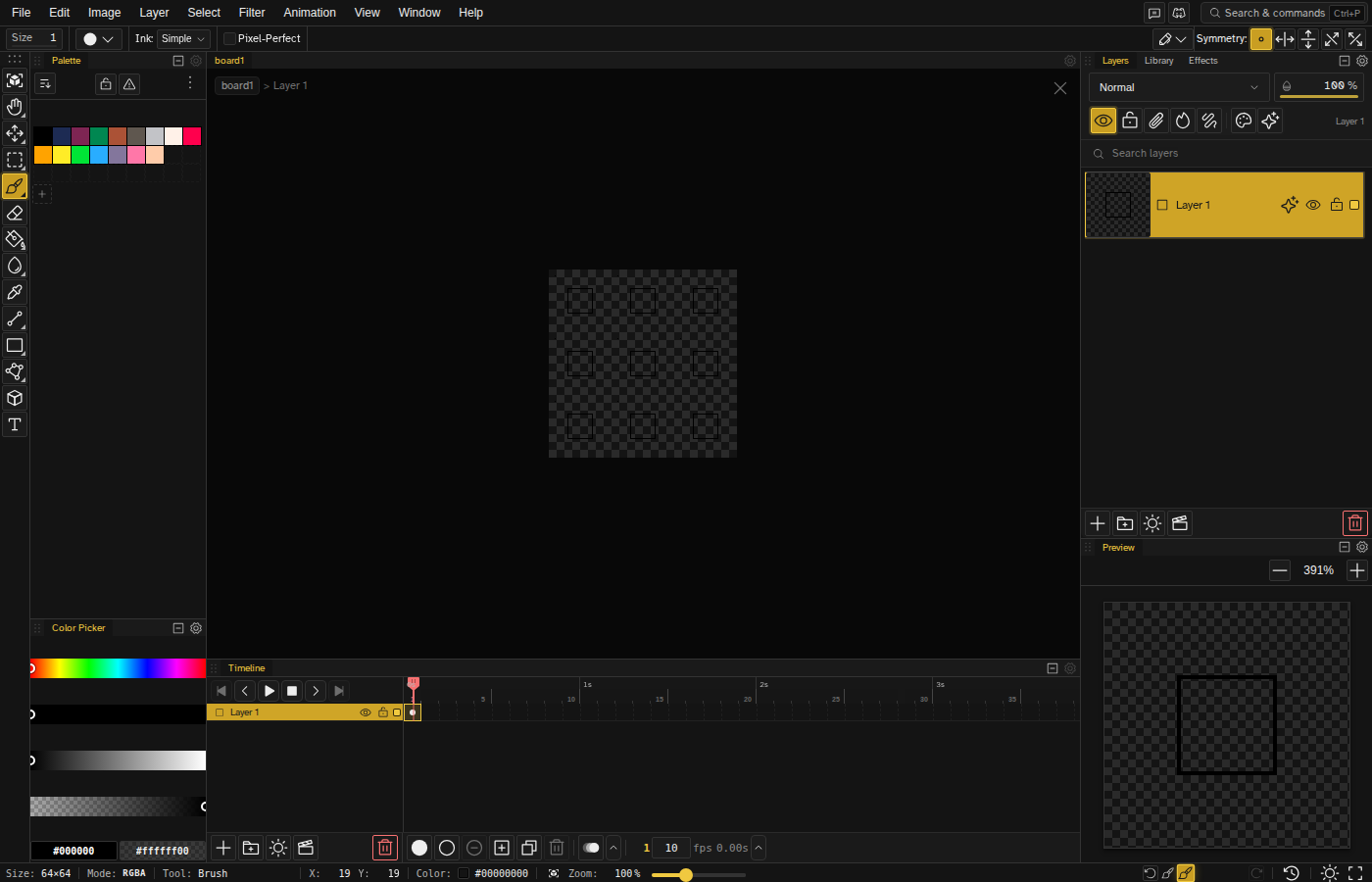
The center tile is your actual canvas. Surrounding tiles show how it repeats.
Coordinate Wrapping
When you draw a stroke that goes beyond the canvas edge, it automatically appears on the opposite side. This ensures any pattern you create will tile perfectly.
Creating Seamless Textures
Basic Workflow
- Enable tile mode before starting
- Draw your main elements in the center area
- Work on edges carefully - strokes wrap automatically
- Check all four corners - these are often problem areas
- Disable tile mode to see the single tile clearly
Tips for Seamless Patterns
- Start from the center - Place main features away from edges first
- Use symmetry tools - Horizontal or vertical symmetry can help create balanced patterns
- Avoid obvious repeating elements - Vary details to reduce visible tiling
- Check at different zoom levels - Tiling issues are more visible zoomed out
Tool Behavior in Tile Mode
All drawing tools support tile mode with proper coordinate wrapping:
| Tool | Tile Mode Behavior |
|---|---|
| Brush/Eraser | Strokes wrap at canvas boundaries |
| Line Tool | Lines can span across tile edges |
| Rectangle/Circle | Shapes wrap if they extend past edges |
| Bucket Fill | Fills wrap across boundaries (contiguous mode) |
| Selection Tools | Selection overlay adjusts to tiled canvas size |
Common Use Cases
Game Terrain
Create grass, stone, water, or other terrain textures that tile seamlessly across large game worlds.
Background Patterns
Design repeating backgrounds for games, websites, or UI elements.
Tilesets
Build modular tiles that connect properly when placed next to each other.
Fabric/Material Textures
Create cloth, wood grain, brick, or other material patterns for 3D texturing or 2D art.
Limitations
- Rulers and guides are hidden in tile mode to avoid visual clutter
- Grid, pixel grid and symmetry lay out from your actual canvas tile (the centre one), so they stay lined up with what you are drawing instead of the repeat's corner
- Export exports just your single tile by default. To write out a repeated image instead, raise the Repeat columns/rows setting in the export dialog's Output section. It tiles the art before anything else in the export runs