


Eraser Tool
Shortcut: E
The Eraser removes pixels from the canvas, setting them to transparent. Like the Brush, it supports variable sizes and respects symmetry settings.
Basic Usage
Select the Eraser tool by pressing E or clicking the eraser icon in the toolbar. Click and drag on the canvas to erase pixels to transparency.
Adjusting Size
The eraser size can be adjusted the same way as the brush:
- -or [ — Decrease eraser size
- =or ] — Increase eraser size
- D + drag — Visual size adjustment (drag left/right)
- Ctrl + scroll wheel — Quick size adjustment
Eraser Shapes
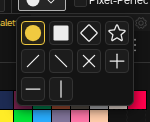
The eraser supports the same 10 shapes as the brush:
- Circle — Round eraser tip
- Square — Rectangular eraser tip
- Diamond — Rhombus tip
- Star — Five-pointed star tip
- Slash — Diagonal line (/) tip
- Backslash — Diagonal line (\) tip
- X — Crossed diagonals tip
- Cross — Plus-shaped tip
- Horizontal Line — 1px-tall horizontal tip
- Vertical Line — 1px-wide vertical tip
Select the shape from the eraser dropdown in the tool options row. The same dropdown lists your custom brushes, so any captured stamp can be used as an eraser tip.
Brush Dynamics
The Brush Dynamics panel applies to the eraser as well, so pressure and velocity can drive eraser size:
- Pressure → Size — Heavier press erases a wider area
- Velocity → Size — Faster motion scales the eraser size
- Stabilizer — Smooths jittery erase strokes
The opacity axes do not apply here: the eraser always erases to full transparency, so only the size axes change the result. A custom eraser brush is a fixed bitmap stamp, so it ignores the size axes too.
Pixel-Perfect Erasing
The eraser has its own Pixel-Perfect checkbox in the tool options row, separate from the Brush's. With it on, an erase stroke drops the L-shaped corner pixels that diagonal strokes leave behind, the same cleanup the Brush does. Press P to toggle it for whichever of the two you are holding. A custom eraser brush opts out, so the checkbox is disabled while one is active.
Symmetry Support
The eraser respects symmetry settings just like the brush. When symmetry is enabled, erasing is mirrored across the symmetry axis. This is useful for:
- Cleaning up symmetrical sprites
- Creating symmetrical cutouts
- Maintaining balance while editing
Tips
- Use Ctrl+Z to undo accidental erasing.
- For erasing specific areas precisely, first make a selection, then press Delor Backspace to clear only the selected region.
- The eraser always erases to full transparency. To erase to a specific color, use the Brush tool with that color instead.