


Curve Tool
Shortcut: Shift+L
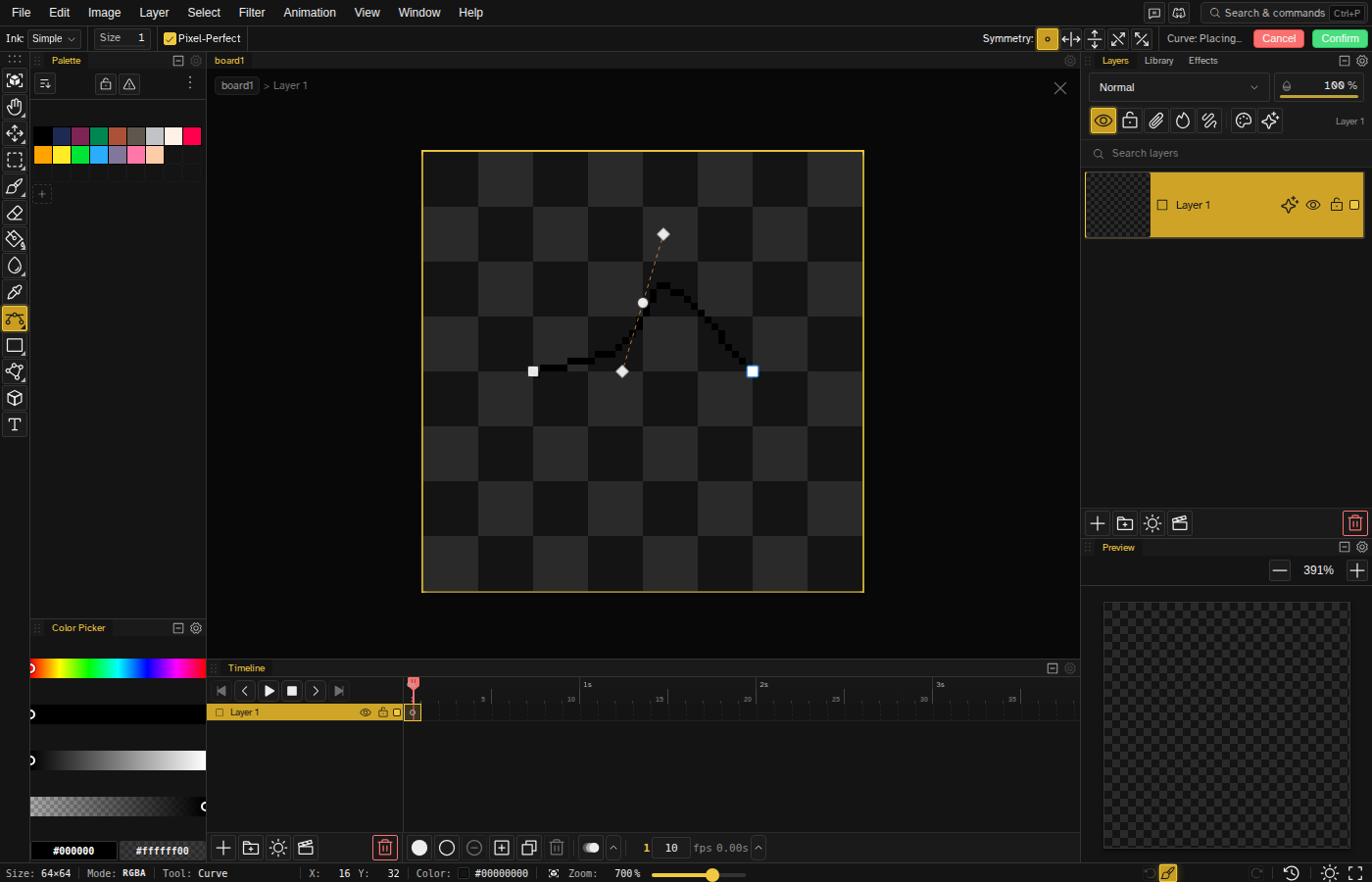
The Curve tool is a pen-style multi-point bezier path editor. Place corner and smooth anchors, adjust handles interactively, close the path, and commit the result as pixels. Useful for clean arcs, lettering, and freeform curves that would be tedious to draw by hand.
Basic Usage
Select the Curve tool from the toolbar. It shares a button with the Line tool, and it is hidden in Simple mode, so switch to Window → Layouts → Advanced Mode if you cannot find it. The tool works in three phases:
- Place anchors — Click or drag to add points along your path
- Adjust — Drag anchors or handles to refine the shape
- Commit — Press Enter to rasterize the curve, or Escape to cancel
Corner vs Smooth Anchors
The Curve tool supports two anchor types:
- Corner anchor — Placed with a single click. No handles; the path makes a sharp turn through it.
- Smooth anchor — Placed with click-and-drag. The drag direction and distance set symmetric bezier handles that pull the curve through the anchor with a smooth tangent.
Mix and match as you go - a single path can contain any combination of corner and smooth anchors.
Editing the Path
- Move an anchor — Drag it to a new position. Connected curve segments update in real time.
- Adjust handles — Drag a smooth anchor's handle to reshape the curve tangent. Hold Ctrl while dragging to move one handle without its twin.
- Toggle anchor type — Double-click any anchor to switch it between corner and smooth. Smooth anchors gain default handles; corner anchors lose theirs.
- Delete an anchor — Hold Alt and click the anchor, or click it to select it and press Delete. The path reconnects through the remaining anchors.
- Insert an anchor — Hold Shift and click directly on a curve segment to insert a new smooth anchor at that point. The curve shape is preserved using de Casteljau subdivision.
Closed Paths
To close a path, bring the cursor back to the first anchor. When it is within snapping range, a close indicator appears - click to join the last segment back to the start. Closed paths can be used as outlines for a filled region.
Confirm and Cancel
- Enter — Rasterize the current path into pixels using the foreground color and current stroke thickness
- Escape — Cancel the path without drawing
- Right-click — Also cancels the in-progress path
Ink Modes
The Curve tool supports three ink modes, set in the tool options row:
- Simple — Standard color application. The curve replaces the pixels beneath it.
- Lock Alpha — Only applies color where paint already exists. Useful for drawing outlines within a shape without spilling outside.
- Shading — Steps through the active color ramp with each pixel along the curve, creating gradient or shading effects.
Tool Options
- Stroke thickness — Controls the width of the rasterized curve, matching the shared shape-size control used by other shape tools.
- Pixel perfect — When enabled, the rasterized curve runs through a pixel-perfect cleanup pass that removes L-shaped clusters along the line, producing cleaner diagonals at 1px thickness. Enabled by default.
Tips
- Start with corner anchors and convert to smooth by double-clicking when needed.
- Work at higher zoom levels so handle drags translate to finer control.
- For organic outlines you intend to fill, close the path and then use the Bucket Fill tool on the enclosed region.
- For sharper pixel-art line work at 1px, enable the Brush's Pixel-Perfect option or use the Line tool instead.