
This version brings new ways to use your own brushes, a shortcut for every tool, and an Iso Draw that builds stairs, dithers its shading and sizes a volume in one drag.
- Custom brushes can paint as a pattern, tiled across the canvas or along the stroke
- The eraser can take any stamp as its shape
- Every tool has a keyboard shortcut, and Alt+, / Alt+. switch between open tabs
- Indexed files show their free palette slots and keep their palette size through import and export
- Iso Draw gets stairs, dithered shading and a cube you size with one drag
- New free tools: a GIF maker, a sprite sheet splitter and an image to pixel art converter
- A general round of bug fixes and improvements
As always, all feedback is welcome!
marcel0ll
Full changelog
What’s new:
Pattern Brushes · Custom Erasers · Shortcuts and Tabs · Palette · Iso Draw · Free Tools · Smaller Touches · Bug Fixes
Pattern Brushes
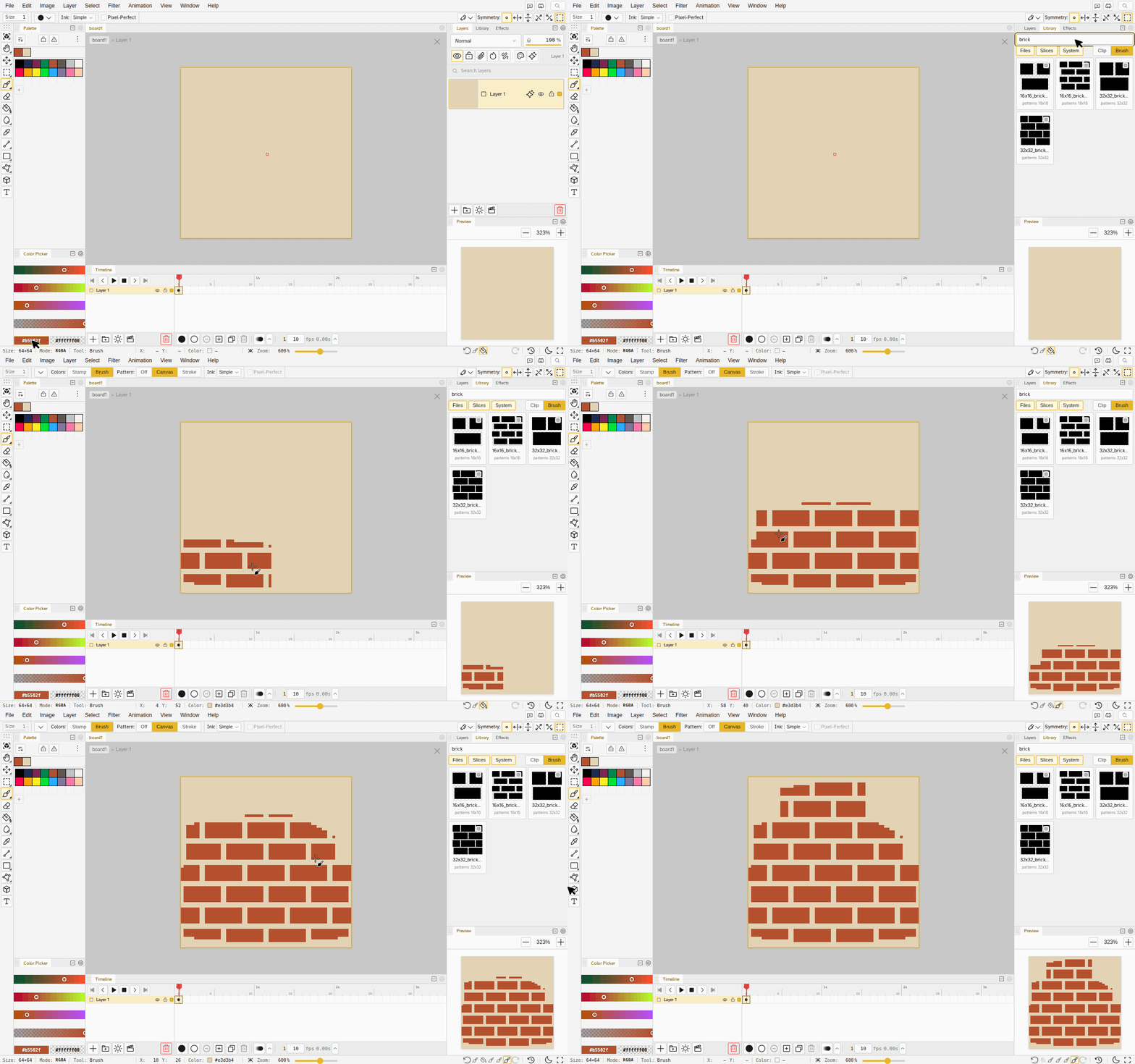
- A custom brush can paint a pattern. Next to Stamp and Brush, the Pattern option tiles your brush image like wallpaper, and each dab reveals the part of it under the brush. The Library’s built-in patterns, like bricks, work as brushes too.
- Canvas or Stroke. On Canvas the pattern is pinned to the canvas, so strokes that overlap line up perfectly. On Stroke it starts where you press, so each stroke begins at the same corner of the tile.
- Animated brushes mix their frames. Each tile of the pattern picks one of the brush’s frames, so a brush with a few sparkles paints a field that doesn’t repeat.
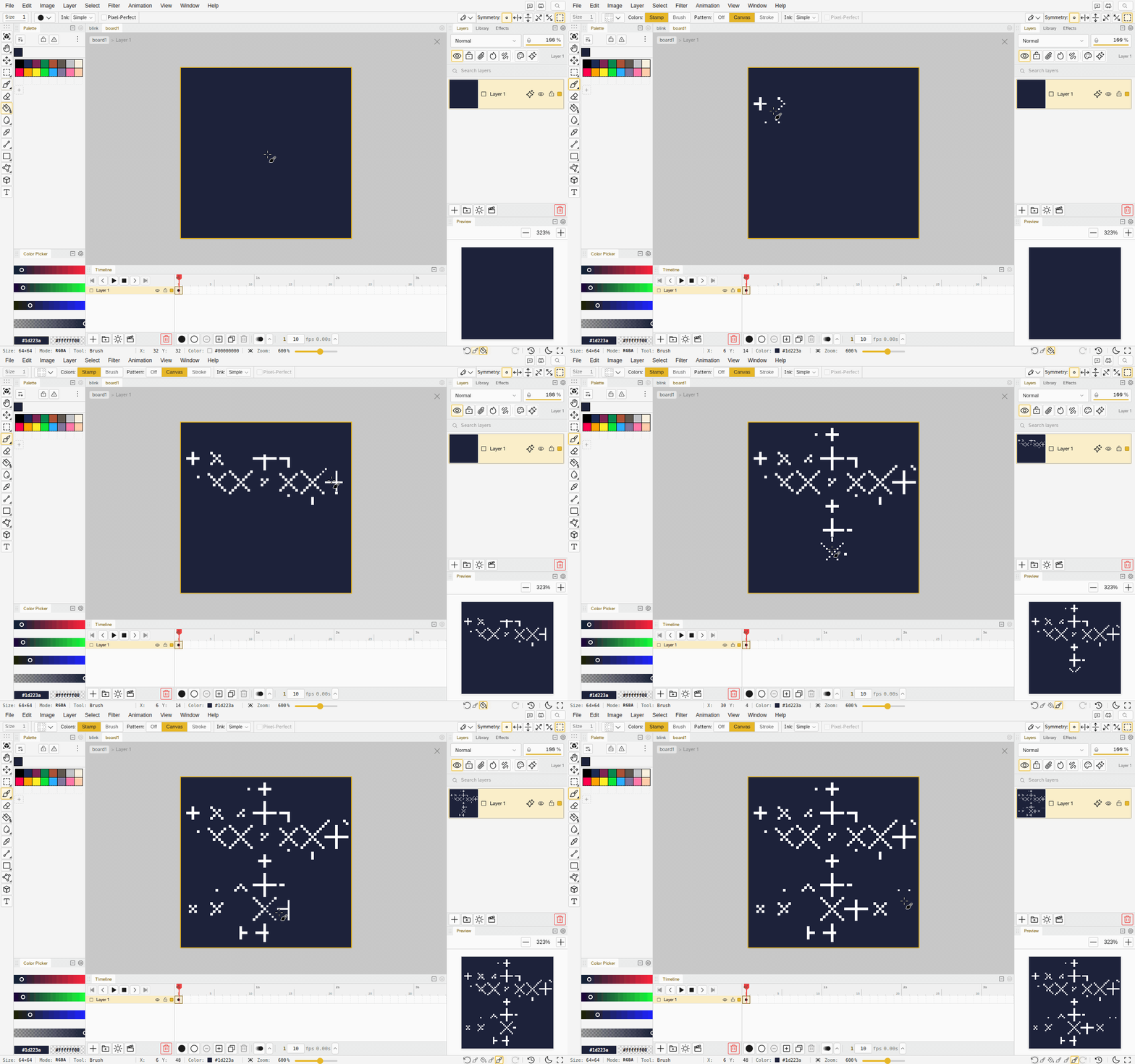
- It works everywhere a brush does: scatter, spray, Shift-lines, symmetry, tile mode and indexed files. The bucket’s pattern fill uses the same tiling.
Custom Erasers
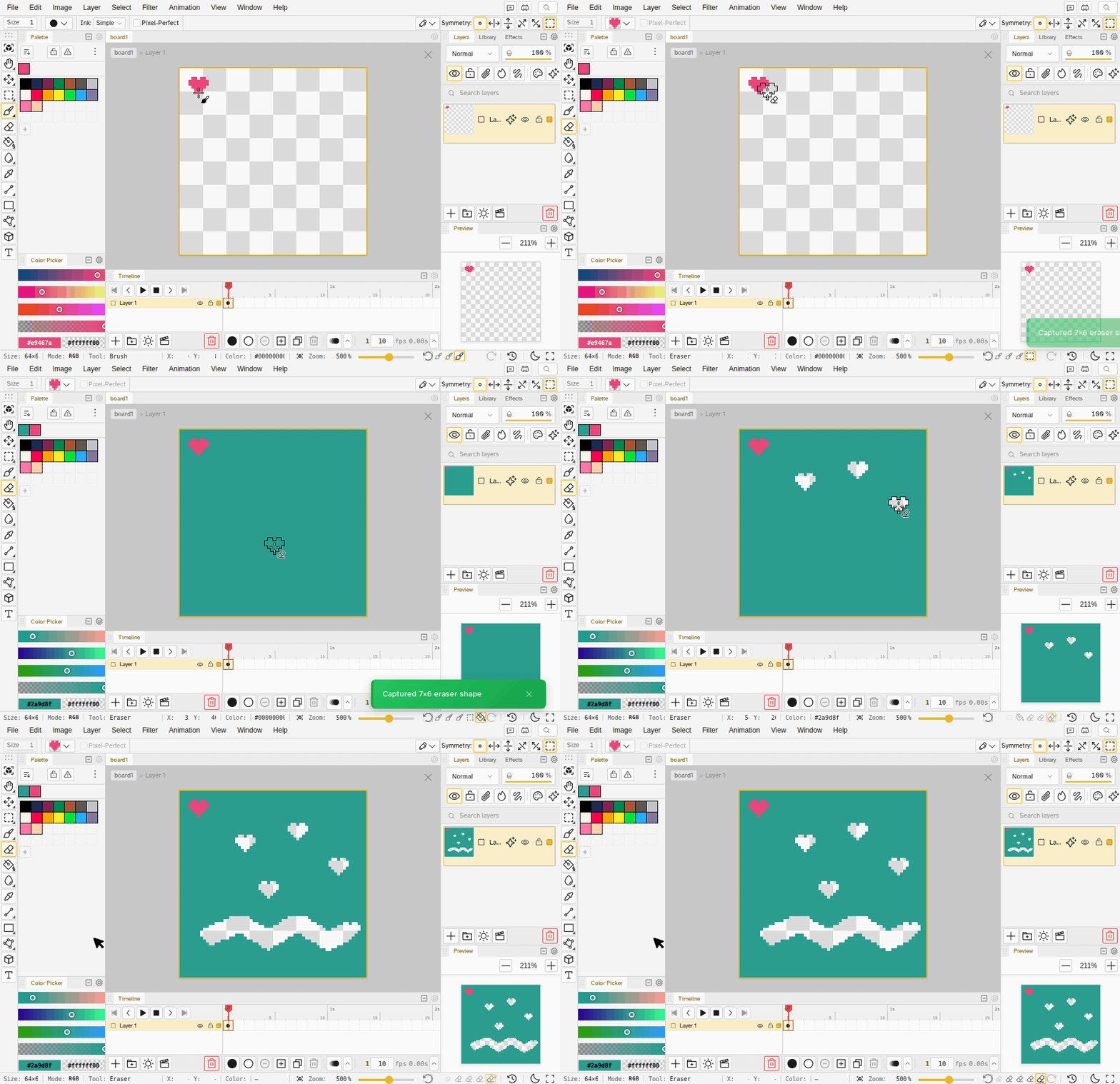
- The eraser can use any stamp. With the Eraser active, Ctrl+B turns the selection into the eraser’s shape, and you stay on the Eraser.
- Brush and eraser keep their own shapes, so setting one doesn’t replace the other.
- Use as eraser joins the Library menu. Use as brush, there and on the file grid’s brush cards, now switches you to the Brush.
Shortcuts and Tabs
- Every tool has a shortcut. The ones that had none now do: Y for Triangle, K for Ruler, N for Shading, Shift+M for Ellipse Select, Alt+I for Iso Draw, Alt+Q for Quick Mask, and Shift+A for the Unified Transform tool that moves, scales and rotates layers or selections. The full list is in Keyboard Shortcuts, and a key you already bound to something else stays yours.
- Alt+, and Alt+. switch tabs. They cycle the tabs of the editor group you are in, wrapping at the ends.
Palette
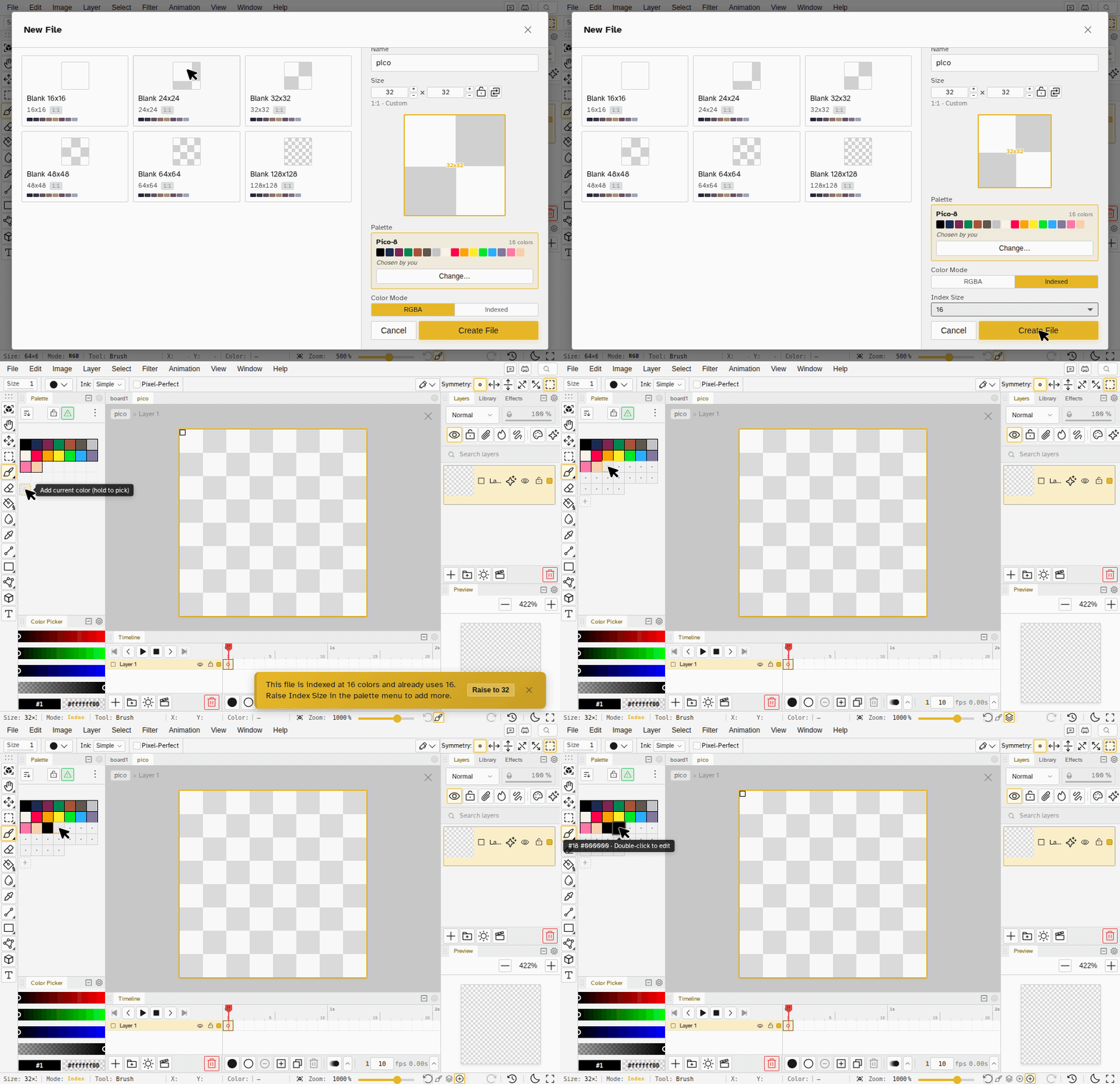
- Free slots show in the palette. An indexed file with room for 32 colors and 10 in use shows 22 empty slots after its colors. Click one to add the current color there.
- Room runs out? Raise it. When a new color doesn’t fit, the message offers to raise the palette size in one click, and it can be undone.
- Pick the size when you create the file. New File in Indexed mode has an Index Size option that suggests the smallest size that fits your palette.
- Import and export keep the size. An indexed GIF, PNG or Aseprite file opens at the size it was saved with, and GIF and PNG exports write it back, so a 16-color sprite stays a 16-color file.
- The transparent slot has a red slash, so it no longer looks like a white or empty swatch.
- Palette cleanup tells you how many pixels it repainted.
- Undoing a palette load puts your primary and secondary colors back.
Iso Draw
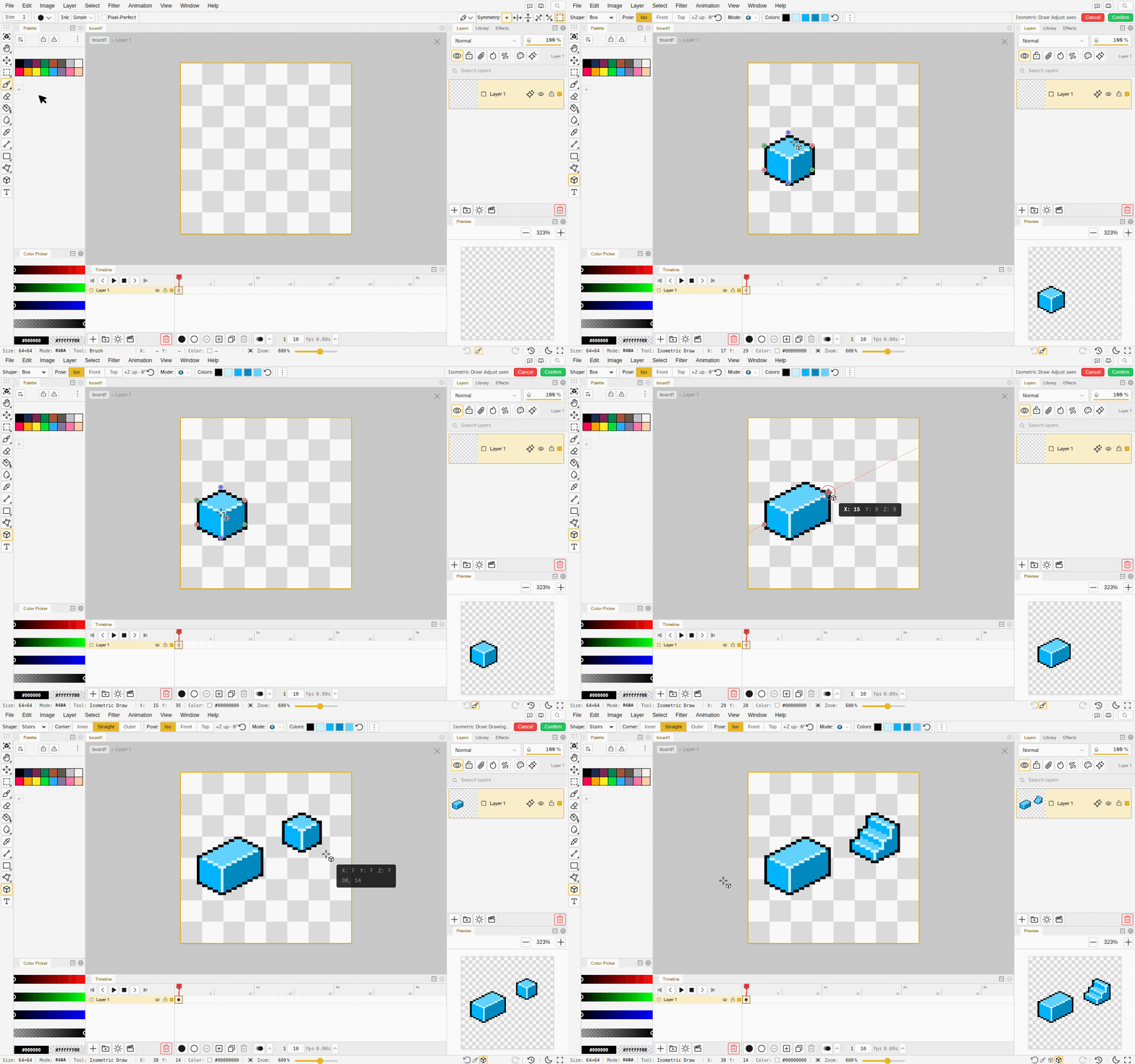
- Drag to make a volume. Drag in any direction and a cube fits the rectangle you drew. The face handles stay under the pointer, and the arrow keys nudge it.
- Quieter handles. The handles rest as small colored dots that grow as the pointer nears the volume. Rotation rings appear only when you hover them, and the turn dial marks every 90°.
- Stairs and stair corners build with two to five steps, with clean edges where steps meet, at every Cap setting.
- Shading follows the light. Ramps, corner ramps and prisms color a slope by the side it faces, so a steep slope reads as a wall instead of a top. Domes, cones and lying cylinders turned away from the light get darker.
- Dithered shading. Cylinders, cones, spheres and domes can blend their shading bands with a checker dither while the outline stays clean.
- Better shapes all round. Spheres are symmetric, cones lying on their side shade correctly, ellipses step evenly, corner ramps no longer draw a crease across a flat face, and boxes are lit from the upper left by default, like the curved volumes.
- Switching layers applies the volume you are working on instead of losing it.
Free Tools
Novaboard’s free tools are small pages that do one job without opening the editor. This version adds:
- Four converters: GIF Maker turns a set of images into an animated GIF, Sprite Sheet Splitter cuts a sheet into PNG frames with the grid detected for you, Image to Pixel Art turns a photo into pixel art at the size and palette you choose, and GIF Frame Exporter saves the frames of a GIF or APNG.
- Viewers for Aseprite, Photoshop, Piskel, Pixelorama and six other formats open a file, play its animation and toggle its layers without converting it.
- Open in Novaboard brings any viewed file into the editor with its layers, frames and tags intact.
The existing tools got sturdier too: the color reducer gives exactly the number of colors you ask for, the Sprite Sheet Generator can write a JSON atlas, the Cursor Maker opens .cur, .ico and .ani files, Color Replacer takes a list of pairs, and every tool page works from the keyboard.
Smaller Touches
- The brush outline follows the pointer anywhere in the view, even past the edge of the image, so you can see the brush size before you reach the art.
- Undo and redo jump to the frame they changed, so undoing a stroke on another frame no longer looks like nothing happened.
- Copy Layer and Copy Frame go to the system clipboard, ready to paste in other apps.
- Rulers, selection previews and handles follow your theme.
- Imported images name their layer after the file instead of “Imported”.
- New Workspace lives in the File menu.
- A new starter: an NES-style base character, 24×24, in the New File dialog.
- Number fields take the arrow keys.
- Each view keeps its own playhead, zoom and pan when you reload it, split it or move it next to another view, and a view that comes back off screen offers to focus the canvas instead of refitting it.
- Mirror selections work in tile mode. A selection that crosses the tile seams is one piece, and a transform moves its mirrored pieces with it.
- Export opens on the Download button, so pressing Enter downloads.
- Replace Colors keeps Apply and Close in view, however long the list gets.
- Sprite sheet JSON includes your slices, like the JSON atlas.
Bug Fixes
- The polygon lasso keeps its corner pixels, matching the freehand lasso.
- Fill Selection and Stroke Selection respect Paint across selection.
- Polygon and Contour copies under symmetry are exact mirrors of the shape you drew.
- A filled triangle stays inside its outline.
- Text moved back in from past the canvas edge shows all its letters again.
- Shadow and glow bake exactly as they look on the canvas, and Aseprite and ORA exports match the canvas on every frame.
- APNG exports respect the Repeat setting.
- A timelapse stops at the current point in history.
- An undone stroke stays undone after a reload.
- A new indexed file stays indexed on its first undo.
- Mirrored selections follow a shear and keep their slots in indexed files.
- Layer commands confirm a pending transform first, so adding, deleting or moving a layer never drops a move you hadn’t applied yet. Group from selection, decals and color mode conversion apply a pending edit first too.
- Export uses the filename you type, scales SVG like the other formats, and writes a GIF exactly when its colors already fit.
- Many open views no longer go blank when the browser runs out of graphics contexts, and effect exports recover from a lost one.
- Update Now installs the new version instead of asking again after the reload.
- Many smaller fixes to translations, keyboard focus, the toolbar, view fitting, panel settings popovers and files open in two tabs.