


Gradient Tool
Shortcut: Shift+G
The Gradient tool creates smooth transitions between colors. It supports linear and radial gradients with optional dithering for pixel art-friendly results.
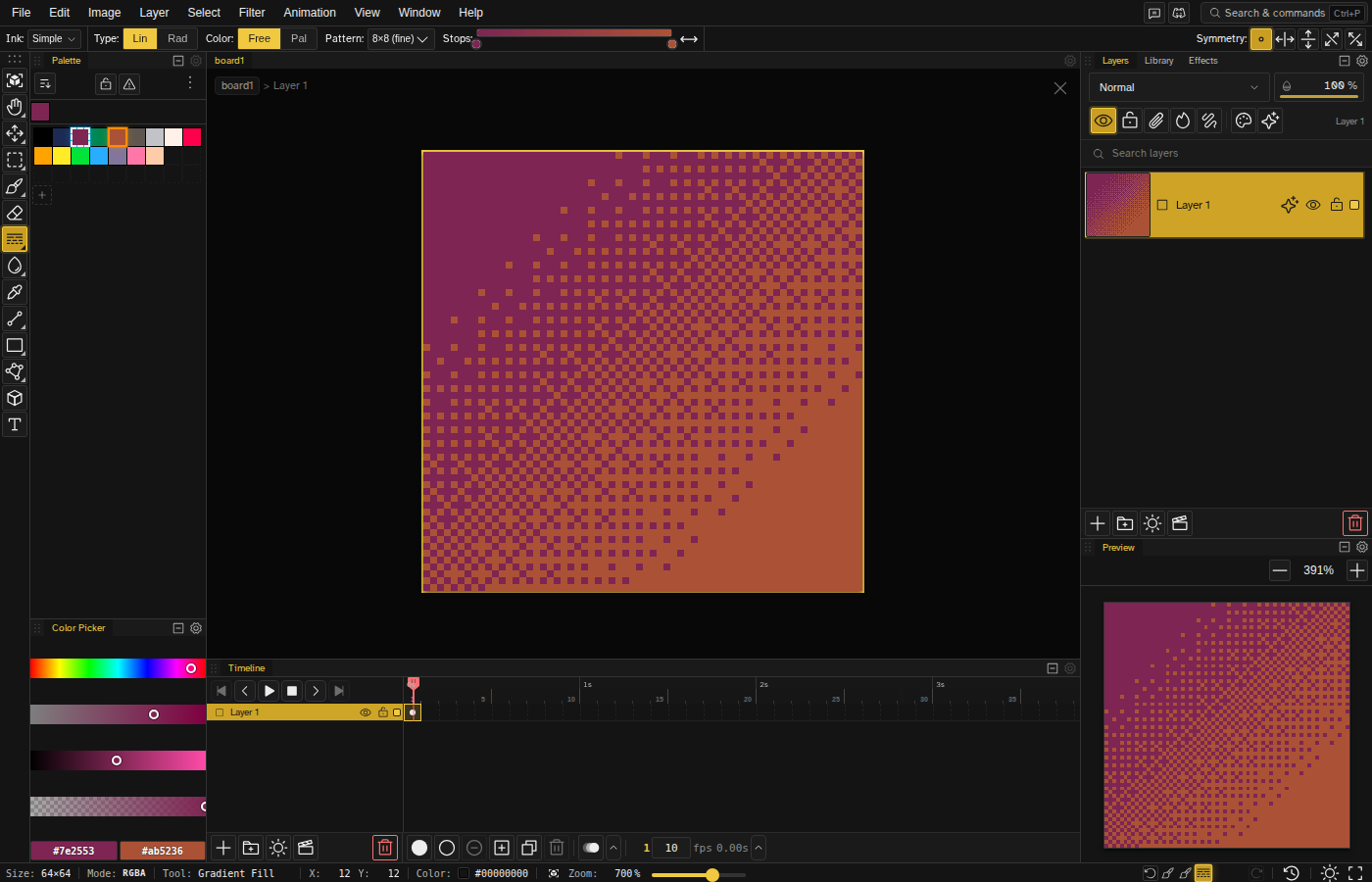
Basic Usage
Select the Gradient tool by pressing Shift+G . Click and drag on the canvas to define the gradient direction and length. The tool is an advanced one, so it is hidden in Simple mode.
- Start point — Where you click (first color)
- End point — Where you release (second color)
- Distance — Controls how gradual the transition is
- Right-mouse drag — Inverts the gradient direction, so the stops run from secondary to primary instead of primary to secondary. The preview arrow reflects the flipped direction during the drag
With several cels picked in the timeline, or several layers in the Layers panel, the gradient lands on all of them as one undo step, and a badge on the canvas names the reach before you commit.
Gradient Types
Pick the type with the Type buttons in the tool options row: Lin for linear, Rad for radial.
Linear Gradient
Creates a straight-line transition from the start color to the end color. The direction of the gradient matches your drag direction. Good for:
- Sky backgrounds
- Flat surface shading
- Color bands
Radial Gradient
Creates a circular transition from the center outward. The start point is the center, and the distance to the end point determines the radius. Good for:
- Circular highlights or shadows
- Vignette effects
- Spherical shading
Color Stops
The gradient tool builds transitions from a list of color stops. The first and last stops are edge stops — they're always your current primary (left) and secondary (right) colors, live. Changing primary or secondary updates the gradient instantly; there's no stale snapshot.
Edge Stops
- Always primary/secondary — First stop mirrors the primary color, last stop mirrors the secondary. Swap them with X
- Non-draggable, non-removable — Rendered as round handles to signal the distinction from middle stops
- Double-click to edit — Opens the color picker routed to primary or secondary, so the change propagates to the rest of the app
Middle Stops
- Click the bar — Click between existing stops to add a new middle stop, seeded with the interpolated color at that position
- Drag to reposition — Middle stops carry a stable identity, so dragging one past another won't misaddress the sort-swapped neighbour mid-drag
- Double-click to edit — Opens the color picker for that stop's color
- Right-click to remove — Only middle stops can be removed
Live Multi-Stop Preview
While you drag the gradient on the canvas, the dashed preview line paints the full stop list, so middle stops are visible during drag instead of silently interpolating primary → secondary behind the scenes.
Color Mode
The Color buttons decide what colors the gradient is allowed to use:
- Free — Any RGB value, so the blend is fully smooth
- Pal — Every pixel snaps to the nearest color in the current palette
Patterns
The Pattern dropdown replaces a smooth blend with a pixel art-friendly pattern. Nine choices:
- Smooth — No pattern, a plain blend
- Checker — Simple alternating pattern
- 2×2, 4×4, 8×8 — Ordered (Bayer) dithering at three pattern sizes
- Noise — Random dithering for organic transitions
- H-Lines, V-Lines, Diagonal — Banded transitions in one direction
Patterned gradients work better with limited palettes and maintain the pixel art aesthetic.
Tips
- Shorter drag distances create more abrupt transitions; longer distances create smoother gradients.
- Use a dither pattern with Pal color mode for retro-style gradients that work well in indexed color images.
- Gradients work with selections — if you have a selection active, the gradient only fills the selected area.