


Adjustment Layers
An adjustment layer is a special layer type that has no pixel data of its own. Instead, it carries a stack of layer effects that are applied to the combined output of every layer below it — non-destructively.
Creating an Adjustment Layer
Click the sun icon in the Layers panel footer, or pick Layer > Add Adjustment Layer. The footer button is hidden in Simple mode.
A new layer named "Adjustment 1" (or the next free number) is inserted above the current selection. Adjustment layers have their own type icon (a sun) so they're easy to distinguish from normal layers in the panel.
How Adjustment Layers Work
| Property | Description |
|---|---|
| No pixel data | Adjustment layers never hold an ImageData of their own. You can't paint on them
with drawing tools. |
| Apply to layers below | The effect stack is applied to the composite of every layer below the adjustment layer, all the way to the bottom of the stack. Groups are pass-through for this, so an adjustment layer inside a group still reaches everything underneath the group, not just what's inside it. |
| Non-destructive | Original pixels of underlying layers are not modified. |
| Standard layer controls | Visibility, opacity, lock, blend mode, and position in the stack work the same as any other layer. |
| Export | Adjustment layers do not appear as pixels in exports; their effects are baked into the layers they affect during compositing. |
Editing the Effects
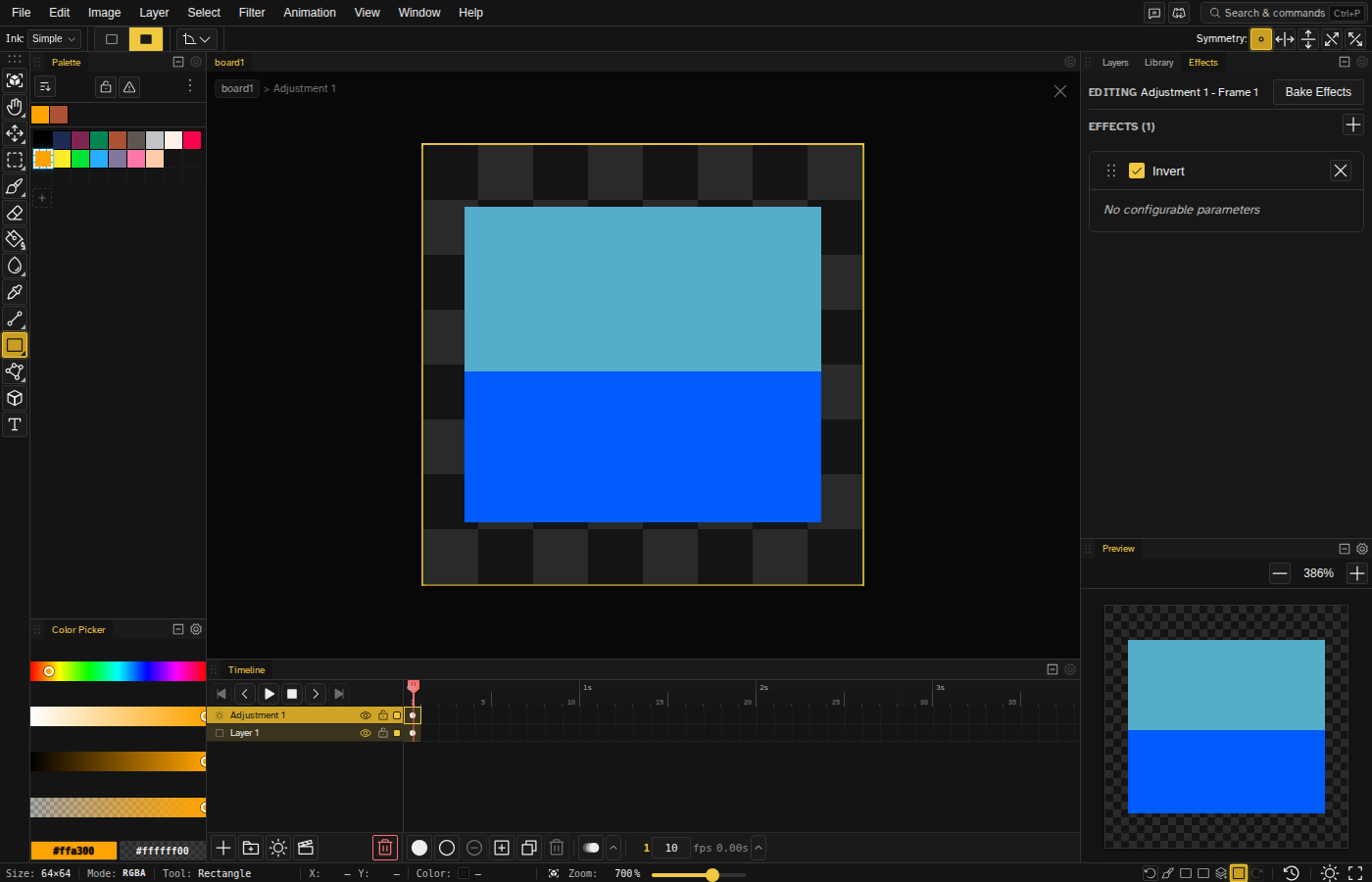
With the adjustment layer selected, open the Effects panel (the sparkle button in the Layers panel header, the sparkle on the layer's own row, or Layer > Layer Effects…) to add, reorder, toggle, or remove effects. Any effect available to a normal layer works on an adjustment layer too: color correction, brightness/contrast, levels, Curves, gradient map, CRT scanline, vignette, bend, and so on. Curves has a real curve editor: click the plot to add a point, drag to shape the tone curve, double-click a point to remove it.
Every color parameter has an eyedropper next to it: click it, then click a pixel on the canvas to sample that color into the field. On an animated file, a diamond next to an effect's parameter keys that value on the current frame, so a Wave's phase or a Modulate's color can change over the timeline without any drawing at all.
Limit an Adjustment to a Layer or Group
An adjustment layer grades everything below it, so placing one inside a group doesn't confine it to that group. It keeps going past the group boundary to everything further down the file.
To limit the reach of an adjustment layer, clip it instead. Select the adjustment layer and press Alt+G , or pick Layer > Create Clipping Mask. Clipped this way, the adjustment layer only grades the single layer directly below it. Clip it to a group instead of a layer and the grade covers that group's contents and nothing outside it.
Tips
- Place an adjustment layer at the top of a stack to tint or grade everything beneath it without baking.
- To scope an adjustment layer to one layer or group instead of the whole file, clip it. See Limit an Adjustment to a Layer or Group above.
- Toggle the adjustment layer's visibility to preview "before/after" without removing the effects.
- Combine multiple adjustment layers for staged color work — for example, a levels layer underneath a color-correction layer.