


Ruler Tool
No default shortcut
The Ruler tool measures distances and angles between two points on your canvas. Use it to ensure precise proportions, check sprite dimensions, or verify alignment.
Basic Usage
Select the Ruler tool by clicking the ruler icon in the toolbar. Click on a starting point, then drag to an ending point to measure. It is an advanced tool, so it is hidden in Simple mode.
- Click to set the start point
- Drag to the end point
- Read the measurement in the readout that follows your cursor
- Release to clear the measurement
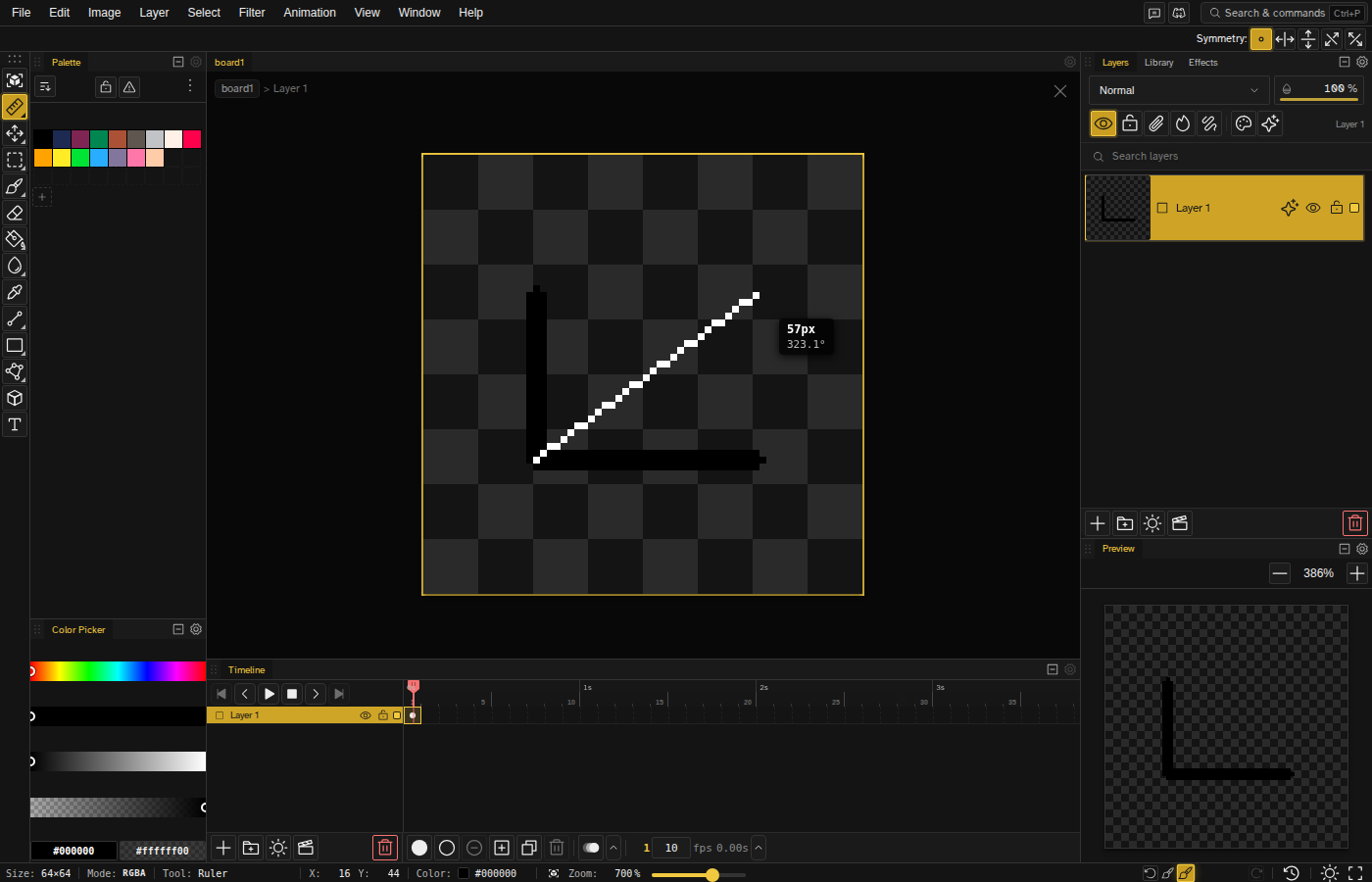
Measurements Displayed
While you drag, a small readout sits next to the cursor. It carries two numbers:
| Measurement | Description |
|---|---|
| Distance | Manhattan distance in pixels (|dX| + |dY| + 1), counting orthogonal pixel steps and both end pixels |
| Angle | Angle in degrees (0-360) from horizontal, to one decimal |
Angle Snapping
Hold Shift while dragging to snap the ruler to pixel-perfect angles (horizontal, vertical, 45 degrees, and common isometric ratios). Useful when verifying diagonals or isometric alignment.
Common Uses
- Checking dimensions — Measure sprite width and height
- Verifying proportions — Ensure consistent sizing across elements
- Angle verification — Check if lines are at specific angles
- Spacing measurement — Measure gaps between objects
- Reference checking — Compare measurements to reference images
Tips
- The ruler doesn't modify any pixels—it's purely for measurement.
- Use with Grid Settings for precise alignment work.
- For creating straight lines, use the Line tool instead.
- Zoom in for more precise start and end point placement.