


File Grid
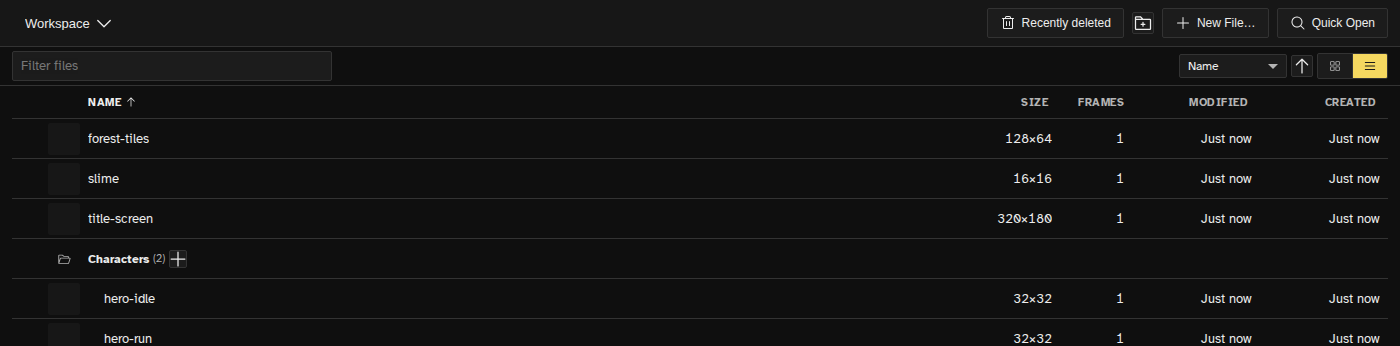
The file grid is the first thing you see when no file is open. It lists every file in the current workspace as a card or a table row, and it works like a file manager: click to select, double-click to open, drag into groups, sort and filter.
The Header
- Workspace selector (top left): switch workspaces, create, rename or delete them. See Workspaces below.
- Recently deleted: shows the files you deleted. See Recently Deleted below.
- New Group (the folder icon): adds an empty group.
- New File…: opens the New File dialog with size presets, a name and a palette.
- Quick Open ( Ctrl+P ): type part of a file's name and jump straight to it.
You can also drop image files onto the grid, or paste an image, to import them as new files. With no files yet, the grid shows a button to create your first one.
Cards and Rows
Each card shows a thumbnail, the file name and its size in pixels. Animated files carry a frame count badge, and hovering a card plays the animation at the file's own speed. Hovering never changes the file. Any file up to 128×128 pixels can also be a custom brush: right-click it and choose Use as brush.
Opening and Selecting Files
- Click a card or row to select it.
- Double-click it, or press Enter, to open it as a tab in the editor. A file that is already open switches to its tab.
- Ctrl+click (Cmd+click on macOS) adds a file to the selection or removes it.
- Shift+click selects every file between the last one you clicked and this one.
- Drag on empty space to draw a selection rectangle; every card it touches is selected. Hold Shift or Ctrl to add to what was already selected.
- Ctrl+A selects every visible file, and Escape clears the selection. Delete deletes the selection after a confirmation.
- The checkbox that appears on a hovered card or row toggles that file without touching the rest of the selection.
Double-clicking or pressing Enter on a file that is part of a selection opens every selected file, each in its own tab, with the one you pressed active. The selection's right-click menu has the same command as Open N files.
While files are selected, the toolbar shows how many, a button to clear the selection, and Move to… for moving them all into a group.
Sorting, Filtering and Views
The order of files is always automatic: it follows the sort you pick, and you cannot drag files into a custom order. The toolbar above the grid holds:
- Filter files: shows only files whose name contains what you type, ignoring case and accents. A group whose name matches keeps all its files. Escape clears it. The filter lasts while the tab is open and is never saved, so if files seem to be missing, check this box first.
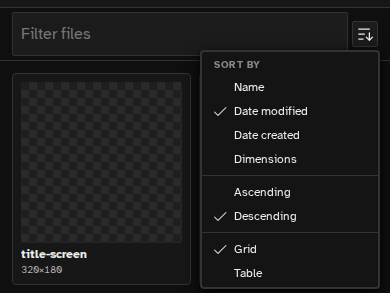
- Sort by: Name, Date modified, Date created or Dimensions. Name sorts A to Z by default; the other keys put the newest or largest first. The arrow button next to it flips the direction.
- Grid or Table: cards with thumbnails, or a table with columns for Name, Size, Frames, Modified and Created. Click a column header in the table to sort by it; click it again to flip the direction.
Groups follow the same sort: a group ranks by its first file under the current sort, and by its own name when sorting by name. The sort key, direction and view are saved per workspace, so each workspace keeps its own.
On phones the toolbar keeps the filter field and folds the sort and view choices into one View options button.
Groups
Groups are folders for your files. They can be nested, collapsed and renamed, and they belong to the workspace they were made in.
- Create one with the New Group button in the header, New Group in the background's right-click menu, or Move to group → New group from selection… to create it with the selected files already inside.
- Rename a group by double-clicking its name.
- Collapse or expand it by clicking its header. The group's right-click menu also has Collapse all groups and Expand all groups.
- Add a file straight into a group with the + button on its header. It creates a file at your default new-file size inside the group and opens it.
- Move files by dragging a card or row onto a group, or onto empty space to take it out of every group. Dragging a selected file carries the whole selection. Move to… in the toolbar or the right-click menu does the same without dragging; Root means outside every group.
- Nest a group by dragging it onto another group.
- Delete a group from its right-click menu. If it still holds files you are asked first, and the files stay in the workspace, ungrouped.
Right-Click Menus
Right-click (or long-press on touch) shows a different menu depending on what is under it.
- A file: Focus File, Rename, Duplicate File, Move to group, Use as brush and Delete File.
- A selection of several files: Open N files, Move to group, Duplicate N files and Delete N files. Deleting asks once for the whole selection.
- A group: Move to group, Select all in group, Collapse all groups, Expand all groups and Delete Group.
- Empty space: New File and New Group.
Deleting always asks for confirmation and moves the files to Recently deleted. If the file is used as an external object in other files, the confirmation names them, because those layers will show empty. Rename also works by double-clicking a file's name on its card.
Recently Deleted
A deleted file is not gone yet. It moves to Recently deleted with its history and stays there for at least 30 days, after which Novaboard removes it for good. Right after a delete, the toast's Undo button brings the file straight back.
Click Recently deleted at the top of the grid to see those files, each with the date it was deleted, and Back to files to return. Select files there the same way as in the grid, then:
- Restore (or double-click a file): after a confirmation it goes back to its group, or to the top of the workspace if that group was deleted.
- Delete permanently: removes it for good, after a confirmation. This cannot be undone.
Each workspace has its own Recently deleted list.
Workspaces
A workspace is a separate set of files with its own groups and its own grid view settings. Use the workspace selector at the top of the grid to switch between workspaces, create a new one, rename or delete one. The workspace you are in cannot be deleted, and neither can the last one.
The File menu on the grid handles workspaces as files:
- Save Workspace… writes every file in the workspace, with its groups, into
one
.novaspacefile. A small dialog shows how many files go in and lets you leave out the edit history. - Export Workspace… exports every file with its own export settings into a zip, with each group as a folder.
- Import Workspace loads a
.novaspacefile into the current workspace when it is empty, or asks whether to merge it in or make a new workspace. Groups with the same name are merged, and you land on the file grid.
See Menus for the full File menu on the grid.