Mouse, Keyboard & Gamepad
Every way you press, click, scroll or hold in Novaboard is an entry in the keymap, so the mouse, the keyboard and a gamepad can all be set up the way you like. The common choices have their own settings in Edit → User Preferences…; everything else lives in Edit → Keyboard Shortcuts ( Shift+? ).
Mouse
By default the left button draws with the primary color, the right button draws with the secondary color, the middle button pans ( Spaceor Middle Click ), and the wheel zooms. The back and forward side buttons open the wheel menu ( For Mouse Backor Mouse Forward ).
Mouse settings
These are in Edit → User Preferences… under Editor Behavior.
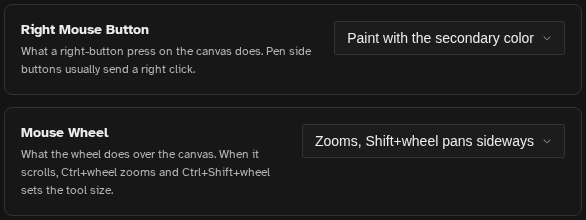
- Right Mouse Button: what a right-button press on the canvas does. Paint with the secondary color (the default), Pan the view, Erase, or Pick a color. Erase and Pick a color work while the button is held and return to your tool when you let go. Pen side buttons usually send a right click, so this setting applies to them too.
- Mouse Wheel: either Zooms, Shift+wheel pans sideways (the default) or Scrolls, Ctrl+wheel zooms. When the wheel scrolls, Ctrl+Shift+wheel sets the tool size.
- Zoom Anchor: the point a wheel zoom keeps still. Under the pointer (the default) or Middle of the view. Pinch and keyboard zoom are not affected.
- Invert Brush Size Scroll Direction: with Ctrl held, scrolling changes the brush size. By default scrolling up makes it bigger; this setting flips it.
Both role settings are views over the keymap. If you bind the right button or the wheel to something else in Keyboard Shortcuts, the setting shows Custom (set in Keyboard Shortcuts).
Cursor size
Cursor Size, in the Cursor section of User Preferences, draws the tool cursors at 100%, 150% or 200%. It helps on high-resolution screens where the default cursor looks small.
Holding Modifiers
The modifiers you hold during a stroke or a selection are keymap entries too, listed with "(hold)" in their names in Keyboard Shortcuts. For example:
- Add to Selection: Shift
- Subtract from Selection: Altor Right Click
- Intersect with Selection: Shift+Altor Shift+Right Click
- Constrain a shape or line: Shift
- Draw a shape from its center: Ctrl
- Line from the last point with the brush: Shift
To change one, click its binding in Keyboard Shortcuts, then hold the modifier keys and click with the left or right button. The same dialog has the Keymap presets (Novaboard, Aseprite and Photoshop). See Keyboard Shortcuts.
Drawing from the Keyboard
Novaboard can be driven without a mouse. Two pieces make it work, and neither has a key by default, so you set them up in Keyboard Shortcuts:
- Bind a key to Primary Action (Draw) (and, if you like, Secondary Action). Find it in the Canvas category, click + Add, press the key and then Enter. Holding that key over the canvas presses at the cursor, moving the pointer drags the stroke, and releasing the key lifts it.
- Bind keys to Move Cursor Up, Down, Left and Right. Each press moves the canvas cursor by one canvas pixel. While a draw key is held, moving the cursor extends the stroke, so you can draw pixel by pixel. Novaboard draws this cursor itself until you move the real mouse again.
Related settings in User Preferences, under Keyboard Shortcuts:
- Toggle drawing keys: press a draw key once to start drawing and again to stop, instead of holding it down.
- Tap or hold: how long a tool or view key must be held before releasing it switches back (150 to 1000 ms, 250 by default). A shorter press counts as a tap and the tool stays.
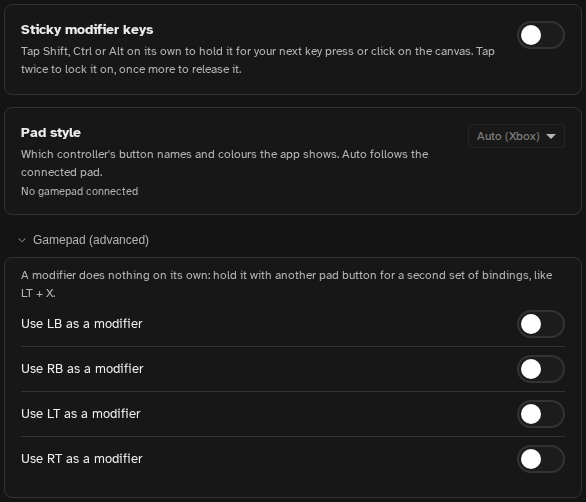
- Sticky modifier keys: tap Shift, Ctrl or Alt on its own to hold it for your next key press or canvas click. Tap it twice to lock it on, and once more to release it. A small label on screen says which modifier is latched or locked.
Gamepad
Any gamepad your browser reports with the standard layout works: Xbox-style pads and most others that the operating system recognizes. Button names follow the Xbox layout (A, B, X, Y, LB, RB, LT, RT, View, Menu, the D-pad and the stick buttons). The browser connects a pad after you press one of its buttons on the page. Only buttons are read; the sticks do not move anything.
Pads the browser doesn't map on its own are looked up in a community controller database, so many of them work too. Button glyphs in the shortcut editor and the Key/Mouse Preview follow the connected pad: Xbox, PlayStation or Nintendo names and colors, or a generic style. To pick one yourself, change Pad style under Keyboard Shortcuts in User Preferences.
Default buttons
The defaults suit animating with a small pad in your other hand:
- LT: Undo. RT: Redo
- D-pad Left / Right: previous and next frame
- D-pad Up / Down: select the layer above or below
- A: play and pause
- B: swap the primary and secondary colors
- X: Brush. Y: Eraser
- RB: onion skin on or off
- View / Menu: decrease and increase the brush size
LB is left free so you can turn it into a modifier. Holding the D-pad or another button repeats its command, like a held key. Tool buttons behave like tool keys: a tap switches tool, and a hold switches back when you let go, using the same Tap or hold time.
Rebinding buttons
Gamepad buttons bind to any command in Keyboard Shortcuts. Click a binding or + Add, then press the pad button. Bind a pad button to Primary Action (Draw) and it draws at the cursor while held; bind the D-pad to the Move Cursor commands to steer that cursor pixel by pixel.
Shoulder buttons as modifiers
Under Gamepad (advanced) in the Keyboard Shortcuts section of User Preferences, each of LB, RB, LT and RT can become a modifier. A modifier does nothing on its own: hold it with another pad button for a second set of bindings, such as LT + X. Switching a button between the two roles asks first and lists the bindings that would be removed.