


Rectangle Tool
Shortcut: U
The Rectangle tool draws rectangular shapes, either as outlines or filled shapes.
Basic Usage
Select the Rectangle tool by pressing U . Click and drag to define the rectangle's corners, then release to draw.
Drag Modifiers
- Shift — Constrain the rectangle to a perfect square
- Ctrl — Draw from the center: the point you started on becomes the middle of the rectangle. Holding Ctrl suspends grid snapping for the drag.
- Alt — Rotate. Holding it mid-drag freezes the current size and turns the pointer into a rotation handle; release it to carry on sizing in the rotated frame.
Fill Modes
The Rectangle tool supports two modes, selectable from tool options:
- Outline — Draws only the border of the rectangle
- Filled — Draws a solid filled rectangle
The stroke width for outlines comes from the shared shape-size control used by other shape tools, not the brush size. Toggle between modes using the fill mode button in the tool options row, or press U or click the tool icon again while it is active.
Rounded Corners
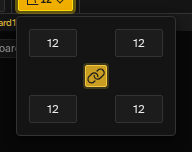
Draw rectangles with rounded corners using the corner radius controls:
- Per-corner radius — Each corner (top-left, top-right, bottom-right, bottom-left) has its own radius value, so you can build asymmetric shapes like tabs, pills, or speech bubbles
- Linked toggle — When linked, changing one corner updates all four at once. Unlink to edit corners independently
- Pixel-perfect — Clean rounded corners at any radius
- Works with both modes — Applies to outline and filled rectangles
Set the radius to 0 for sharp corners (default behavior).
Ink Modes
The Rectangle tool supports two ink modes, set in the tool options row:
- Simple — Standard color application. The rectangle replaces the pixels beneath it.
- Lock Alpha — Only applies color where paint already exists. Useful for coloring or shading inside an existing outline.
Tips
- Rectangles are drawn with the current foreground color.
- For filled rectangles with a different outline color, draw a filled rectangle first, then draw an outline rectangle on top.
- Rectangles respect symmetry settings.