
This week’s version is a simpler color picker, animation tags that overlap, copying with the Transform tool, and a long round of fixes found by drawing whole pieces in the app.
- The color picker shows one mode, picked in its settings, and starts on a new Sliders mode
- Tags are independent ranges that can overlap, drawn in lanes above the frame ruler or as one row per tag
- Ctrl+drag with the Transform tool leaves a copy behind
- The Text tool has a color swatch that recolors the open text live
- Tile mode wraps selections, gradients and text across the seam
- Preview settings apply as you change them
- Drag an editor tab out of the window and it opens in a window of its own
- A general round of bug fixes and improvements, many of them to undo and history
As always, all feedback is welcome!
marcel0ll
Full changelog
What’s new:
Color Picker · Animation Tags · Transform · Text · Palette · Preview · Tile Mode · Tools and Input · Import and Export · Windows and Panels · Timeline and Layers · History · Faster and Sturdier · Smaller Touches · Bug Fixes
Color Picker
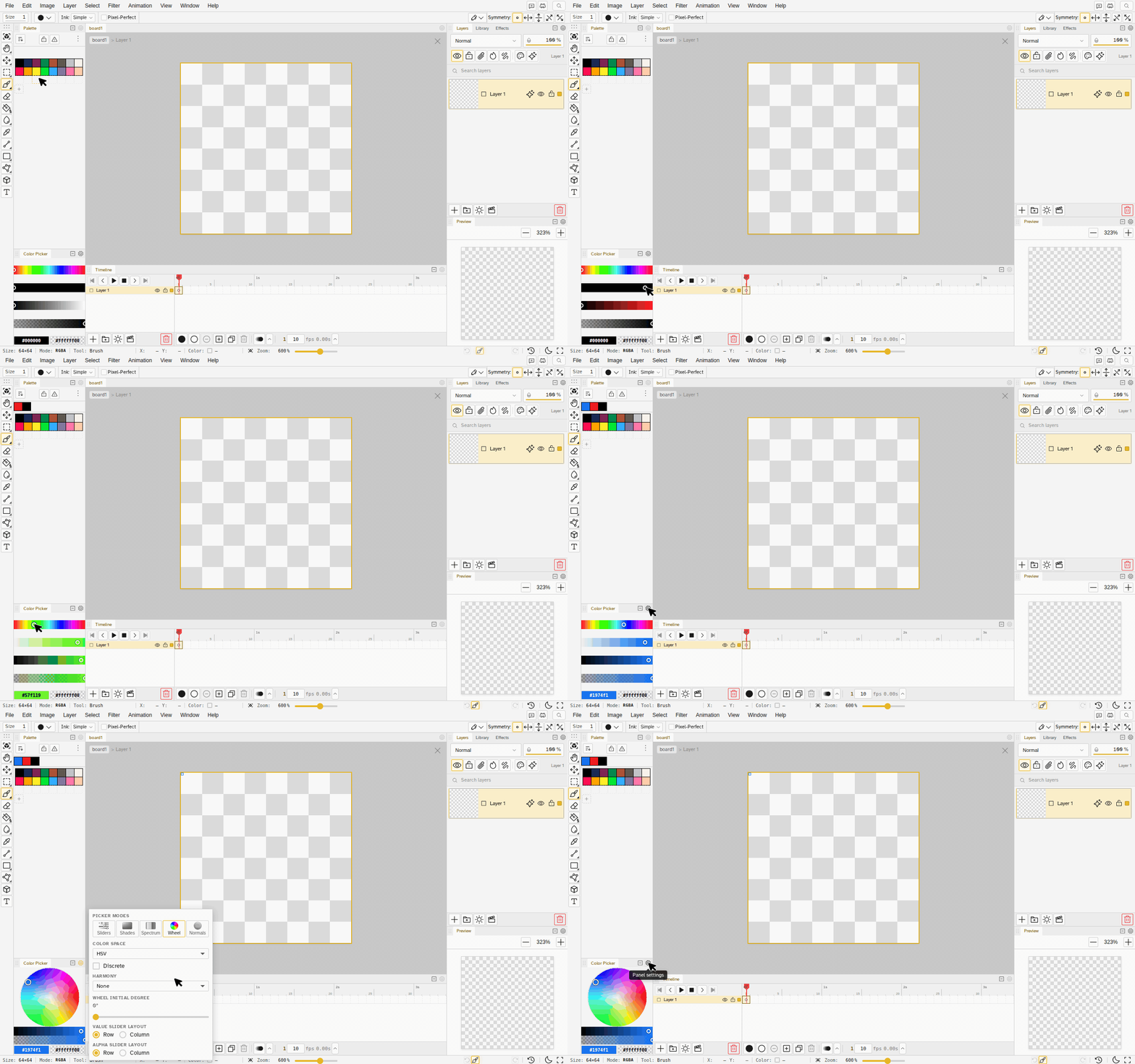
- One picker, picked in settings. The tab strip is gone. Choose Sliders, Shades, Spectrum, Wheel or Normals from the cog on the panel or in Preferences and the panel shows that one, using its whole height. Each mode lists only the settings it uses.
- Sliders is the new default. Hue, saturation, value and alpha as four rows, with no color field to aim at. Under OKLCH the rows follow that color space, and with Discrete on each row is a strip of bands that snaps to one color per band.
- Discrete reaches the paired slider and the normal map too.
- Settings open beside the panel, on the side facing the middle of the window, so the picker stays in view while you change it. Every panel’s cog does this now.
- Fields change only what you typed. A hex that is not a color changes nothing, both hex fields read 3, 4, 6 or 8 digits, Recent colors keep their alpha, and editing a transparent color makes it opaque.
- The wheel’s rim handle is gone. The starting angle lives in the settings.
Animation Tags
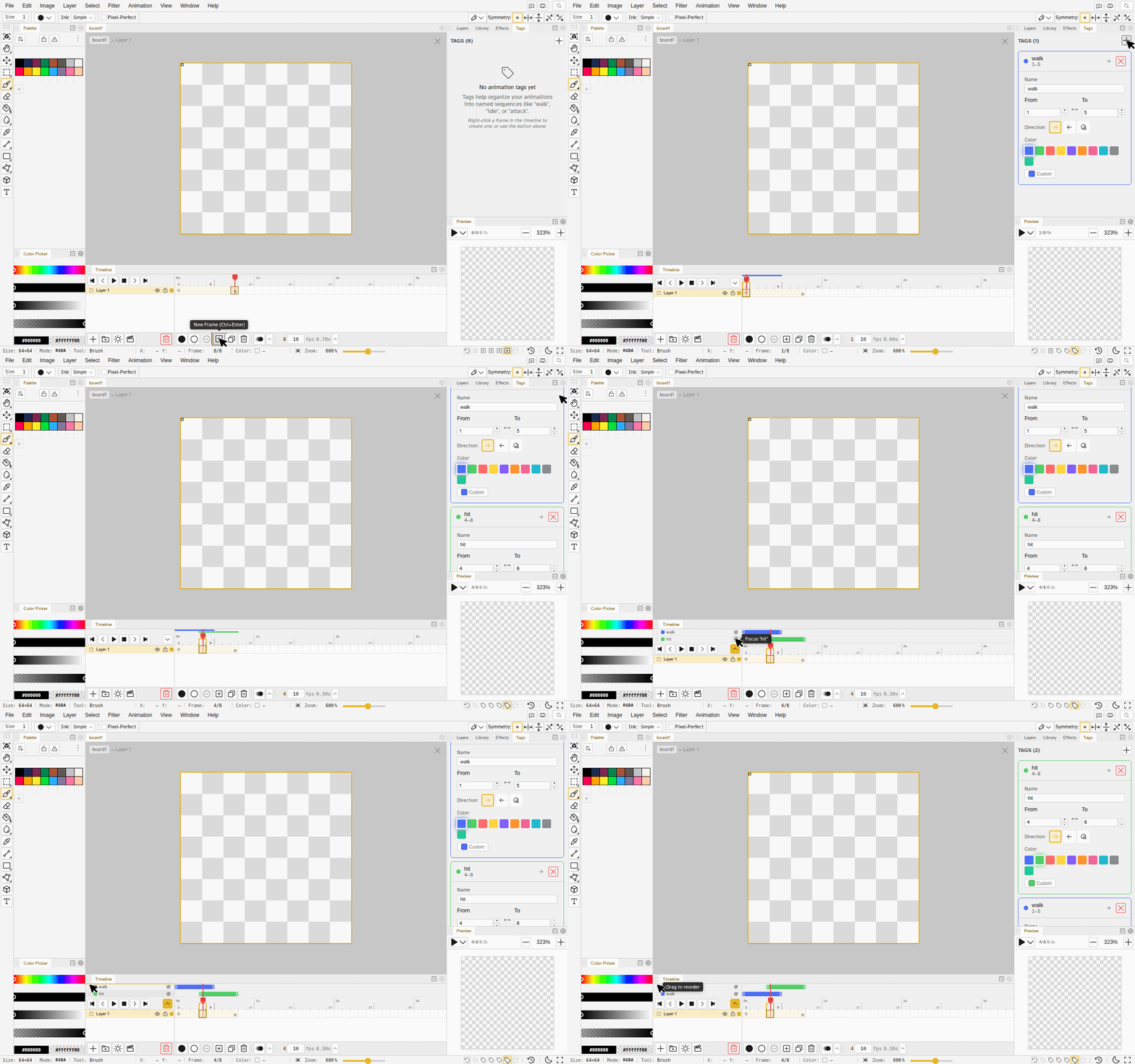
- Tags can overlap. A tag is its own range of frames, and it no longer stops where the next tag starts. A “walk” can sit inside a longer “all” and a hit frame can belong to two attacks.
- Tags sit above the frame ruler. Collapsed, every tag is a colored stripe, packed into lanes so overlapping tags stack instead of hiding each other. Frame headers are no longer tinted by their tag.
- Expand them into rows. The corner toggle turns the stripes into one row per tag that moves by its bar, resizes by its ends and reorders by its grip. The choice is remembered per file.
- Tag order is yours. The order you set is the order everywhere: the Tags panel, the rows, and a split export per tag, whose files are named after the file and the tag.
- Focus any tag covering a frame from the frame menu. Moving a frame out of one tag and into another moves it between the two instead of stretching both.
Transform
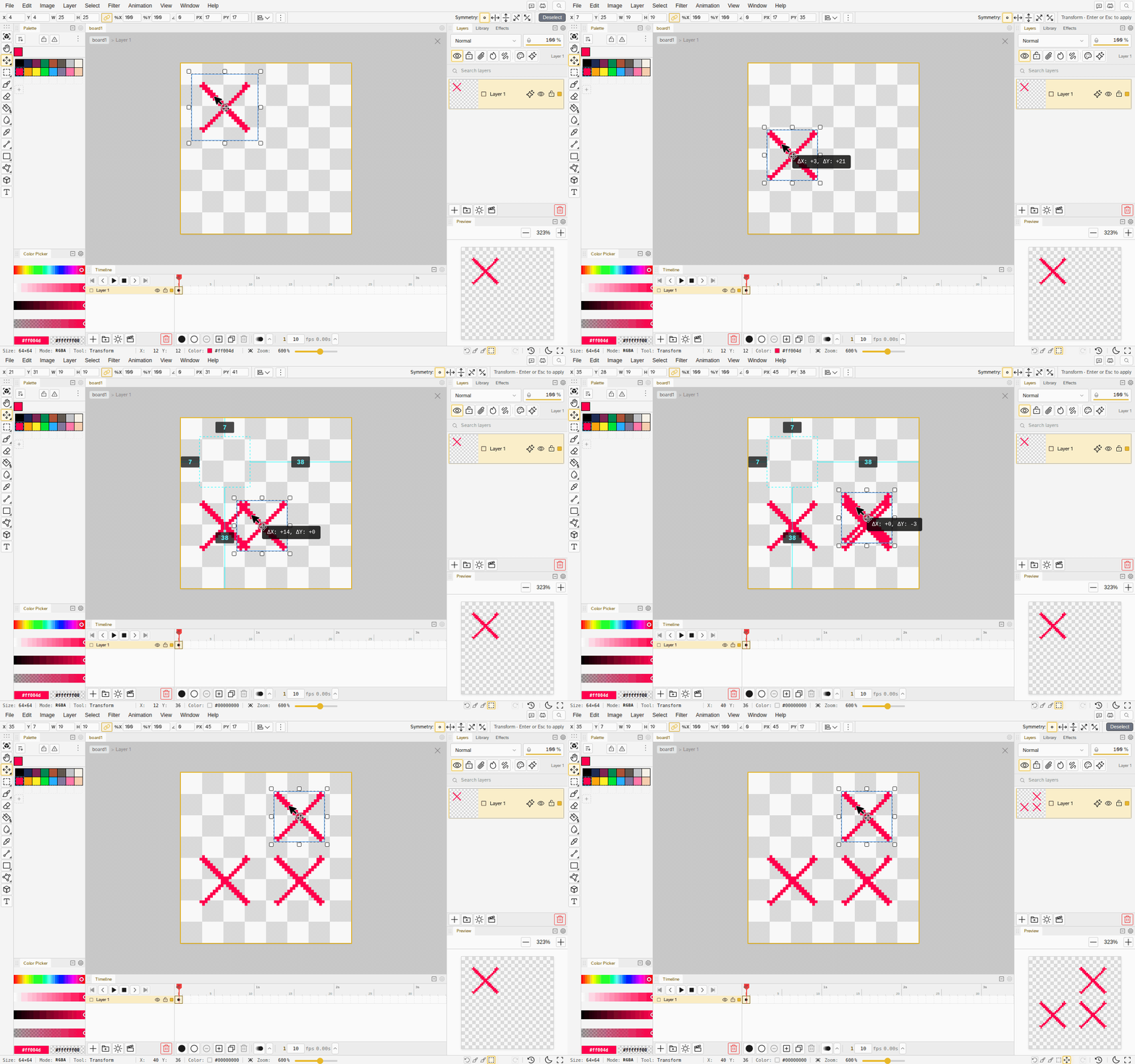
- Ctrl+drag leaves a copy. Hold Ctrl while dragging inside the transform box and the content stays where it was while a copy moves with you. On a clip or reference layer the layer itself is duplicated. Ctrl no longer switches snapping off during a move.
- The first press moves. With nothing selected, the Transform tool’s first press on a layer moves its content in that same drag. Arrow keys nudge it, and with the Transform tool or a selection tool in hand they never step the playhead or pick another layer.
- Cancelling puts the selection back. Cancelling a transform restores the selection it started from, and redo puts it back on the moved pixels.
Text
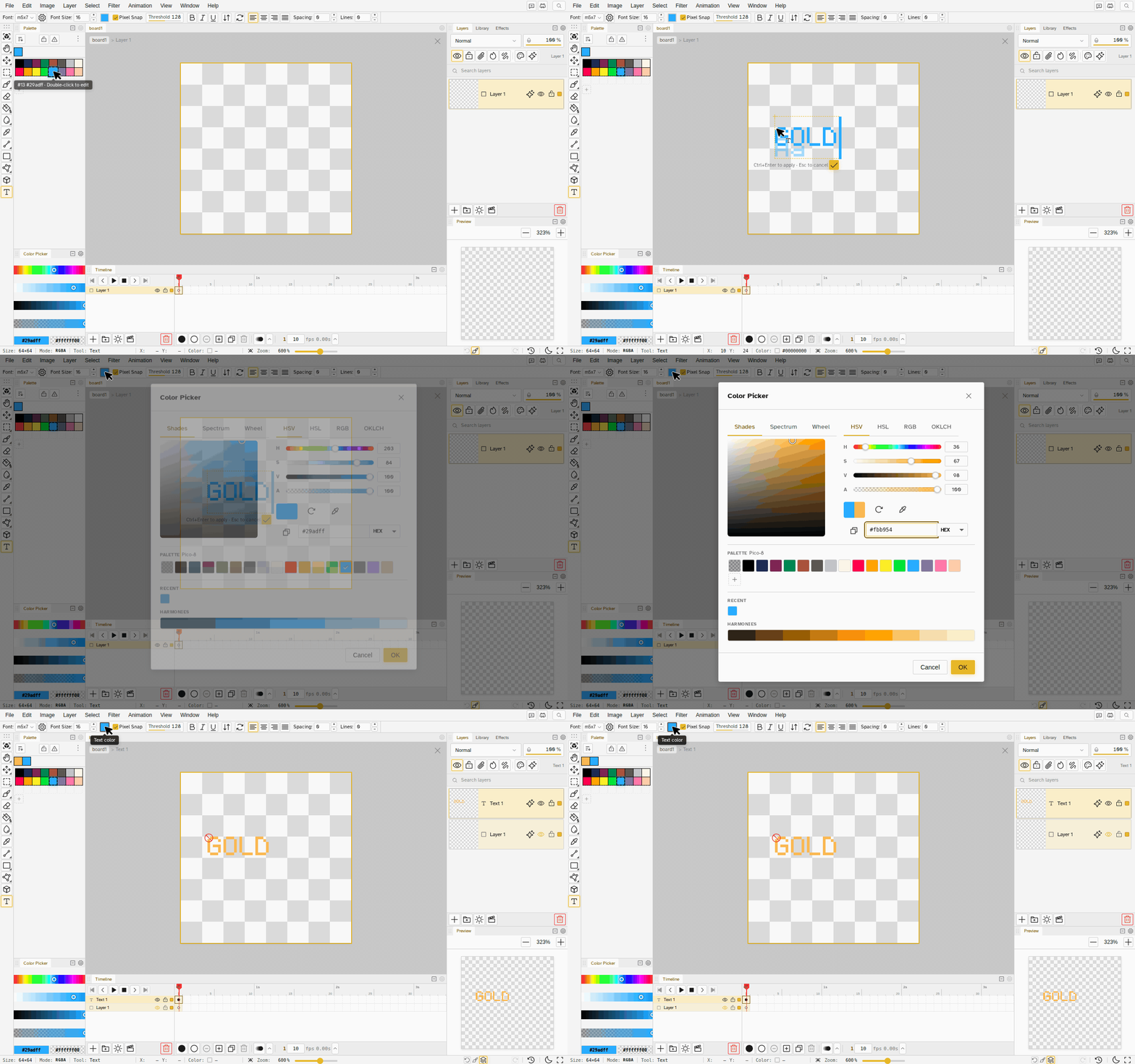
- A color swatch on the text row. It recolors the text you are editing live and sets the color of the next text. Clicking a palette swatch during an edit only sets your drawing colors, and no longer closes the editor.
- Rasterize Text does what it says. The text layer becomes a pixel layer with the same pixels, as one undo step, and undo brings back the editable text.
- Scaling or rotating text tells you once that it became pixels and that undo keeps it editable.
- Text lands where you click. The top of the capitals sits on the clicked row for every font and size, and picking a menu command keeps the text you were typing.
Palette
- Groups never move a slot. Grouping, ungrouping and reordering groups are labels on top of your palette, so every color of an indexed file stays in its slot and palette exports come out in the same order. When the layout and the slot order differ, the palette menu offers “Reorder slots to match layout” as one undoable step.
- Palette exports keep your order, GPL and ASE included, and the app exports Krita palettes.
- An image that looks like a palette offers to become one. Import a one pixel color strip or a row of color blocks and a message offers to load it as the file’s palette or add it to your library.
- Convert to Indexed keeps your palette, slots and groups included, and adds only the colors it misses at the end.
- Recoloring a slot carries your drawing color with it, so the next stroke still paints that slot.
- Replace Colors changes a palette color only when it covers the whole file, and its Selected cels scope reaches every cel you picked in the timeline.
- Delete removes swatches only while you are working in the palette, so it no longer takes a swatch when you meant the canvas.
Preview
- Settings apply live. Every control in the Preview’s settings changes the panel as you touch it. Apply and Cancel are gone.
- One Area dropdown. Full canvas, Current selection, Grid cell or Slice, with a line under it for the bounds, the column and row steppers, or a searchable slice picker. A choice you can’t use says why.
- The chosen area is marked on the canvas while the settings are open, and clicking a slice picks it.
Tile Mode
- Selections cross the seam. Ellipse, lasso and polygon selections keep their drawn shape and wrap like the rectangle marquee, and the Magic Wand follows a region across the edge like the bucket does.
- Both halves move together. Moving, rotating, scaling or flipping a selection that crosses the seam transforms both halves, and Fill and Stroke Selection paint both.
- Gradients, text and shapes wrap. A linear gradient runs its full length past the seam, text placed across the edge continues on the other side, and Contour and Iso Draw wrap like the brush.
- A .nova file remembers tile mode.
Tools and Input
- A selection clips your paint wherever the stroke starts. A brush, eraser or effect brush pressed outside the selection used to drop it and paint there. The selection stays now, and only the part of the stroke inside it is drawn.
- Click a tool again to flip it. Dodge/Burn swaps its mode and the Bucket flips Contiguous. The bracket keys and Ctrl+wheel size Jumble, Dodge/Burn and Blur.
- Pasted images float for placement. An image pasted or dropped from outside lands centred in the view or under the drop point, ready to move, and the app’s own copies paste in place.
- Alt pressed during a stroke no longer switches to the eyedropper, and Space with a drag in it is a temporary pan however short.
- Snap to Grid covers whole cells, and the cursor lands on the pixel you see under it at every zoom.
- Pen pressure on opacity paints over what is there instead of replacing it.
- Shortcuts behave. Overwrite in the conflict dialog moves the key to the new command, a mouse Back or Forward button bound to a command no longer sends the browser back, and a focused slider keeps its arrow keys.
- Fingers paint and pinch cleanly. A finger that starts on the artwork paints even at the edge of the canvas area, and a second finger always turns the stroke into a pinch without leaving a mark.
Import and Export
- Indexed PNGs and GIFs open as indexed files on their own palette, with the colors in the file’s own order. Any other image opened as a file gets a palette from its pixels.
- GIFs come back at the rate they were written at, and an animated PNG opens as an animation whatever its name says.
- Import Layer takes a .nova file, linked into the open file as a clip layer.
- Files that are too big say so. An image past the size limit keeps its picture at the scaled-down size, and a file that could never fit in browser storage is refused with a message naming the limit.
- A held pose is one GIF frame that lasts as long as the hold, and the timelapse’s end hold works in every format.
- Closing the export dialog cancels a running export. GIF and APNG show progress frame by frame, and the app stays usable during a timelapse export.
- Export Palette, Export Timelapse and Save As run once and leave your saved export list alone.
Windows and Panels
- Drag an editor tab out of the window to open it in its own window. A second monitor can hold the canvas while the panels stay on the first. Popouts work in the desktop app too.
- Every file keeps its own Layers selection and scroll position, and the list keeps the active row in view.
- Adjustments follow the focused file. Replace Colors, Brightness/Contrast, Anti-Alias, Auto-Shade and Outline preview and apply on the file in focus.
- Split panes behave. Each pane names its own file’s active layer, a new pane centres its view, and opening a file from the grid adds a tab instead of throwing the split away.
- Two tabs share a workspace. A file or folder made in another tab appears without a reload, and folders made in both survive.
- The status bar has a focus button and a zoom slider. The button fits the file back in view and lights up while the view is rotated, flipped or panned away. In a narrow window the readouts shrink first, so undo and redo stay on screen.
Timeline and Layers
- Playback keeps the playhead in view, jumping half a view at a time, and onion skin hides while the animation plays.
- Frame commands keep every other frame’s picture. Pasting frames, moving a held frame and Reverse Frames over a tween no longer disturb frames outside the range.
- Remove Keyframe on a held frame removes the keyframe it holds, and Insert Keyframe on a frame header steps past an existing key instead of overwriting it.
- Dropping a row into a folder puts it at the top of that folder, so clipped layers inside stay together, and Paste Layer lands right above the row you clicked.
- Paint across selection shows the whole edit as you draw, and an eraser over an empty part of the active layer still erases the layers below.
- Layer shortcuts act on the active layer whichever panel tab is in front.
History
- A damaged history repairs itself. A file with a broken history refused undo, redo and version clicks. It is repaired now, silently when nothing is lost and with one notice when undo steps have to go. The drawing itself is never changed.
- Undo and redo put back the whole picture across color mode changes, merges, layer deletes, transforms and conversions to indexed, including which layer was active.
- Thumbnails show the right picture at the right size, also around an Image Size or Rotate Canvas, and the newest row shows its picture right after a stroke.
- Every entry is named after what you did instead of Batch, Add Layer or Image Size.
- Nothing is recorded when nothing changed. A stroke that leaves every pixel as it was, an Image Size at the current size and a transform that went nowhere add no entry.
Faster and Sturdier
- Effects no longer slow down the rest of the file. A layer’s effect is redrawn only when that layer changes, so drawing and undo on other layers are as fast as they were without effects.
- No pause at startup, and none when picking the Transform tool on machines without a graphics card.
- Large images and GIFs open without freezing the page, and Back to workspace is instant.
- A full disk says so. Every failed save tells you storage is full and how to make room, and the unsaved work is retried until it lands.
- The canvas survives a graphics crash. The editor rebuilds it in place, on tablets too, where it used to need a reload.
- Offline, a part of the app that can’t load says it needs a connection instead of dropping you on the browser’s error page.
Smaller Touches
- Arabic layouts read correctly: submenus open beside their parent, the timeline keeps its frames left to right, and shortcuts and readouts stay in order.
- Phones: a file made or opened inside the phone editor is ready to draw on, and landscape keeps the phone layout.
- Undo and redo are finger sized on tablets, and holding either repeats the step.
- The Tab key passes the History list in one press, and the wheel menu drops its floating labels.
- The art no longer shifts under a selection in Chrome at 125% and 175% display scaling.
Bug Fixes
- Merging keeps a clipped layer looking the way it did when its base sits outside the merge.
- Copy Keyframe copies the right keyframe.
- A Shift+click line with the Shading tool shades one step, like a drag.
- Undo brings back a reference layer with its picture, and Move to canvas from the Reference Viewer can be undone.
- Opening an export, or Fill and Stroke Selection, confirms a pending transform first.
- A reload no longer adds a transparent slot to an RGBA file’s palette.
- Many smaller fixes to undo and redo, indexed color, the Text tool, the timeline and exports, found by drawing whole pieces in the app.