
This week’s version is the Spray tool, a new Scatter tool, and a round of polish and fixes.
- Spray has dots, speed, hardness and pen pressure, and every control sits in the options bar
- Scatter is its own tool now, scattering stamps of your brush or a custom brush along the stroke
- Sprite stack strips can be imported as a new frame, several sheets at once
- Palette swatches have a size setting, bigger on tablets
- Opening the same file in two tabs no longer loses work
- A general round of bug fixes and improvements
As always, all feedback is welcome!
marcel0ll
Full changelog
What’s new:
Spray · Scatter · Sprite Sheets Into a Stack · Palette · Tools · Animation · Two Tabs, One File · Preview and Sprite Stack · History · Panels · Text · Smaller Touches · Bug Fixes
Spray
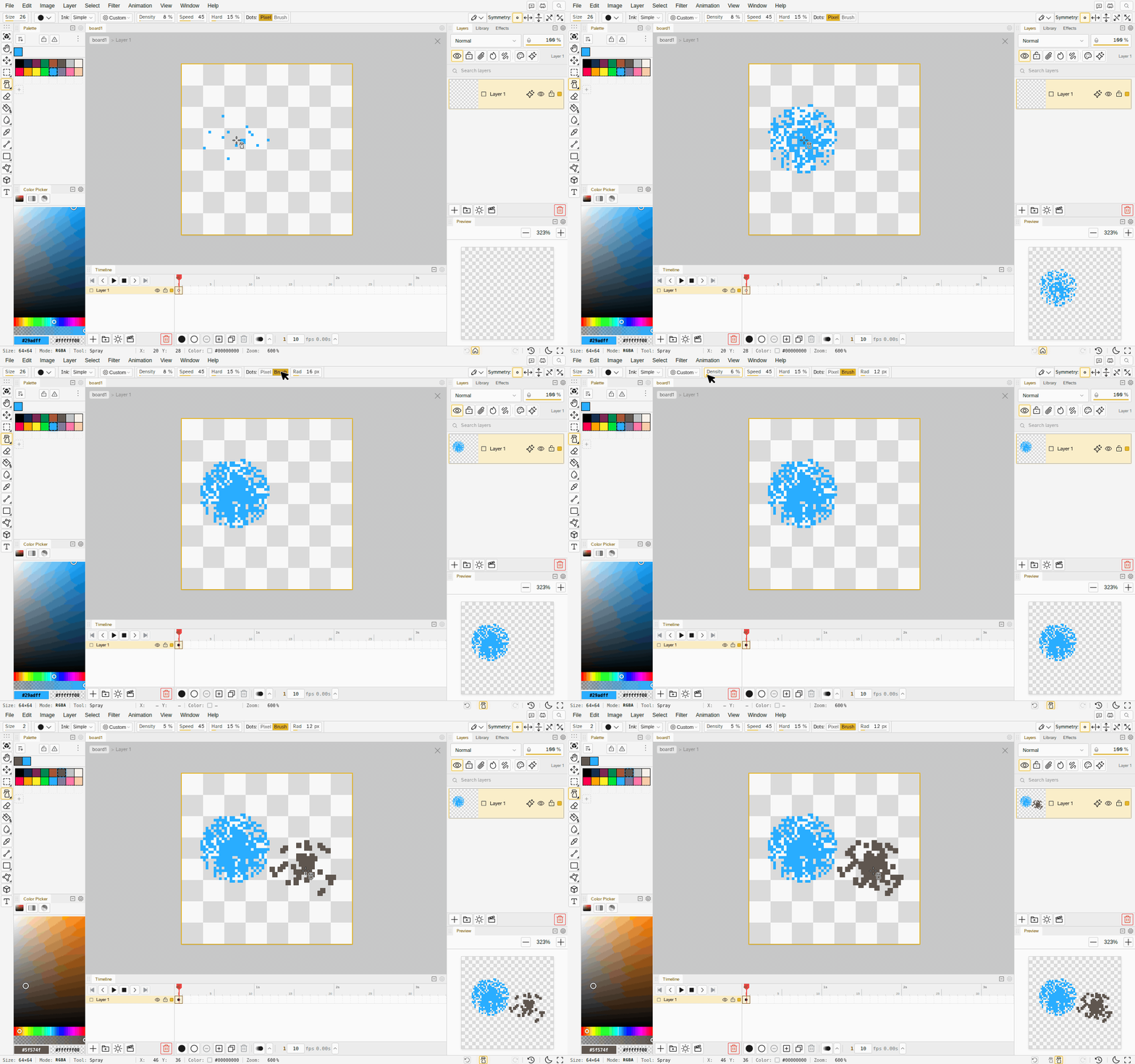
- Spray has settings now, and they are all in the options bar. Density, Speed, Hardness, Dots, Radius and Pressure sit inline next to the presets as compact number fields you can drag, and the whole row fits a 1280 pixel wide window. Phones get every one of them in the tool strip too.
- Hardness shapes the cloud. At 100 a spray fills its disc evenly. Lower it and the dots gather toward the centre and thin out at the edge, so a held spray builds a soft puff instead of a hard-edged blob. Airbrush starts soft.
- Dots can be pixels or brushes. Brush dots stamp a small disc at each hit, with a Radius of their own, so a spray can lay down grain instead of single pixels.
- Speed replaces the old rate, one to a hundred, and it changes live while you hold the button.
- Pressure drives the density with a pen. The toggle appears once a pen has touched the canvas.
- Spray takes ink modes, shading included.
Scatter
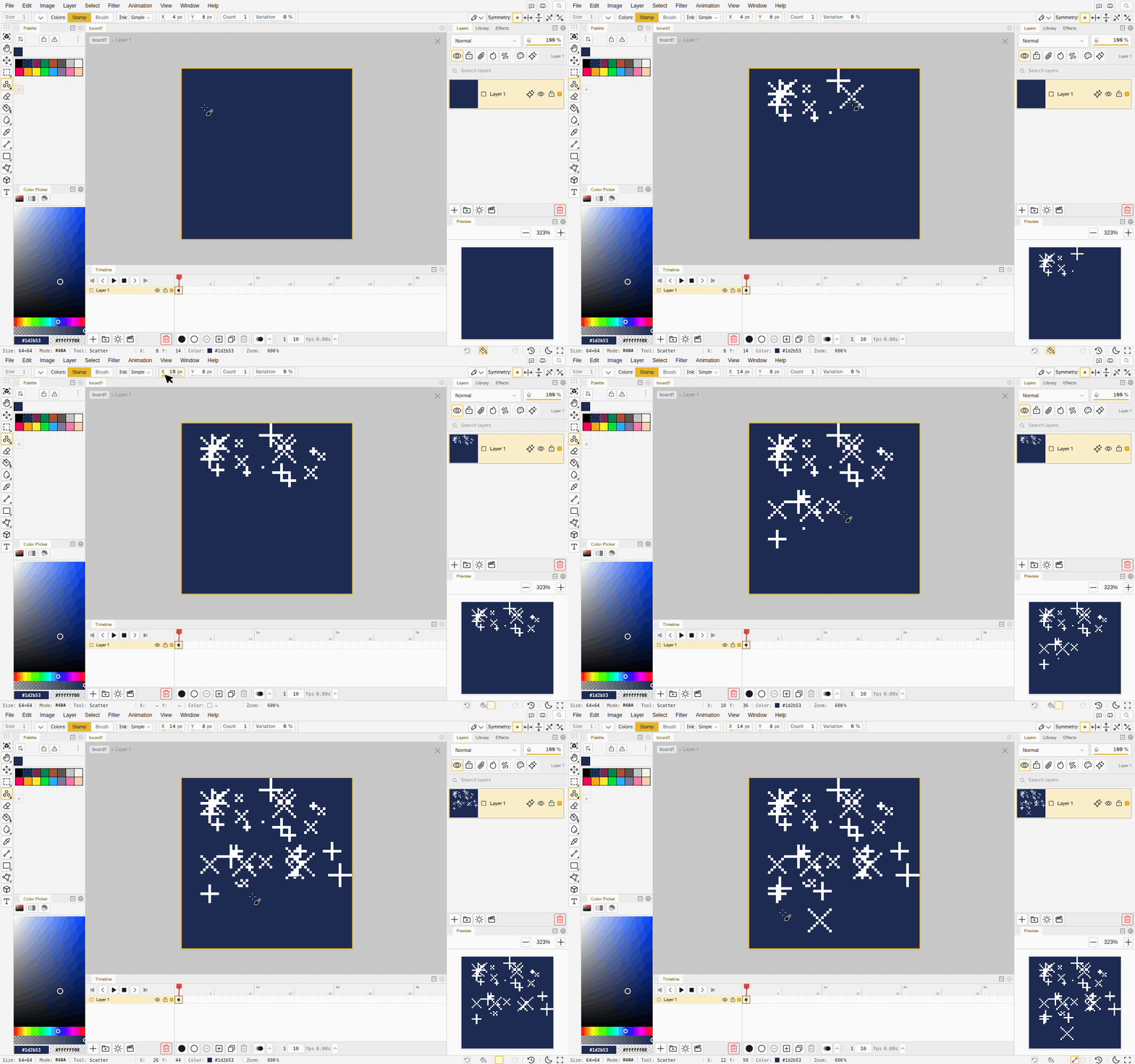
- Scatter is a tool. It lives in the brush group, Shift+Alt+B, and drops stamps of your brush along the stroke, thrown off the line by up to 64 pixels sideways and up to 64 pixels up or down, with a Count per step and a Variation control.
- A custom brush scatters copies of itself, and an animated custom brush advances a frame per stamp, so one stroke leaves every size of it.
- Pen pressure tapers a scattered stroke, smoothly changing size and opacity along it.
- A Shift+click line shows what will land. The preview used to draw a solid line for every tool while spray and dither committed a sprayed or dithered one. It draws the same dots as the commit now, custom brush stamps included, and going back and forth over the same line no longer repeats the same pattern.
Sprite Sheets Into a Stack
- Add a sheet as a new frame. Import Spritesheet on Layers has an “Add as new frame” toggle. Each cell of the sheet goes onto one of your existing layers, bottom up, as a frame after the current one, in one undo step. The toggle is remembered, so a sprite stack animation imports one strip per click.
- Import several sheets at once. Pick more than one file and the same grid cuts all of them. Frames puts every file’s cells on the timeline in order, Layers makes one layer per cell with a frame per file, and Add as new frame inserts one frame per file. A file of another size is named and blocks the import.
- Split Image to Layers covers every frame. It used to cut only the current frame and park the result on frame 1. Every keyframe of every layer is sliced with the same grid now, and Ignore empty drops a cell only when it is empty on every frame.
- An imported image is exactly its own size. Every importer padded the board by 50 pixels, which showed up in thumbnails and workspace files. New File also records the size you chose.
Palette
- Swatches have a size. Small, medium and large, set once and used for every palette. Tablets start on large, since a 20 pixel swatch is hard to hit with a finger. The recent colors row follows the same size.
- Borders can go. A toggle beside the size drops the line between swatches so they tile flush.
- Right-click a swatch for the secondary color. The right button picks the secondary, and the menu opens on the swatch it landed on or on your selection.
Tools
- Tool groups work like Photoshop’s. A click picks the tool, a hold or a right-click opens the group, and you can hold, slide to a tool and release. Alt+click cycles through the group, and the tool you picked last stays on top after a reload. The flyout opens on the correct side in a right-to-left language.
- A transform commits when you leave it. The Confirm and Cancel buttons are gone for a plain move or transform. Enter, Escape, switching tools, switching files and clicking away all keep what you did, and Ctrl+Z is the one way back, in a single step. Placing a 9-slice still asks, since nothing exists until you confirm it.
- Shear is in Edit > Transform, with isometric presets and a Custom dialog for any angle.
- Fit to Artwork joins Trim Transparent in Canvas Size. Trim only ever crops to your pixels, while Fit to Artwork also grows the canvas to take back anything pushed past an edge.
- Shapes preview what they draw. A filled polygon previews filled, and a double-click finishes a polygon.
- Escape finishes a typed transform. Typing into the X, Y, W, H or rotation field and pressing Escape lands the transform as one undo step. There was no key that reached it before.
- The options bar is more compact. Size, Scatter, Dither’s ratio, the Bucket’s tolerance and close gap and the Magic Wand’s tolerance are small drag fields, and every tool’s options fit a 1024 pixel wide window without scrolling.
- The eyedropper’s loupe shows the color you will pick. With Sample set to Layer it used to preview the whole picture while the click took the layer’s own pixel. Sample now starts on Composite, so you pick what you see, and a saved Layer choice is kept.
- Jumble has a Strength. It caps how far a pixel can travel, so you can dial the effect down instead of shrinking the brush.
- Blur, Jumble and Dodge/Burn remember their strength and size across a reload.
- Layer thumbnails fill their box and stay sharp, so a strip stays a strip, and they redraw after a canvas resize instead of keeping the old framing.
- The footer trash deletes a targeted group, in the Layers panel and in the timeline, the way the Layer menu does.
- The reference viewer’s eyedropper stays armed until you switch it off, so a second click samples instead of panning the photo.
Animation
- Edits reach every selected cel. Clear, Cut, Flip, Rotate, Shear, Replace Colors and the adjustments act on every cel you selected in the timeline, as one undo step.
- Duplicate Frame is in the frame header’s right-click menu.
- Reverse Frames reverses what each frame shows and only touches the frames you selected, and moving frames trims a tag instead of running into the next one.
Two Tabs, One File
- A second tab on the same file is read-only. Two tabs used to overwrite each other’s saves. The first tab to open a file owns it, the second gets a banner and cannot draw or edit, and it takes over the moment the owner closes the file, with no reload.
- A reload right after a stroke keeps the stroke. The save that runs when a page closes could lose the last edit if you reloaded straight away.
- A slider you were still dragging never reaches disk. Backgrounding a tab in the middle of an effect preview could save the preview pixels as if they were yours. Reopening the file then showed an adjustment you never applied.
- Every PNG the app writes is exact under fingerprint protection. Last version fixed saved files in Brave and Firefox. Cursor, icon and ORA exports, the tool pages and a pasted image went through the same tinting path, and now they do not.
Preview and Sprite Stack
The Preview can show one grid cell. Its Area setting has a Grid Cell option with column and row steppers, and Select Tile Shape now sets that same cell, so the Tileable view and the tile outline on the canvas show the tile you selected.
Draft layers stay out of the preview unless you tick Show draft layers, since an export drops them too. Tracing layers are never drawn in it.
The sprite stack seen from above is your 2D picture. Every slice takes the color the flat composite holds there, so group opacity, group blend modes, layer blend modes and group effects such as an outline all reach the stack, the turntable export, the voxel viewer and the .vox file. The model keeps the same height on every frame.
Layer Spacing can go to 0 for a flat plan view of a sprite stack.
History
- The thread is one continuous rail with a square node per version that shows the tool that made it, the same icon the status bar and the graph use. The rail crosses time headers, changes color at a fork, and draws dashed where versions are hidden by Named only or lie ahead of where you are.
- History opens as the tab right after Layers.
- Clicking a version you share with another branch keeps you on your branch, so Back to latest returns to where you were working.
- Going back to an older version brings all of it back: its canvas size, color mode, palette, frames and layers, not only the pixels.
Panels
- Tabs reorder in any bar. Drag a tool panel’s tab along its own bar and a marker shows the slot. Releasing a tab over its own place snaps back instead of tearing it out into a window.
- Drops land exactly where the preview draws them. A panel or group dropped on the side of the canvas becomes a new pane against the canvas, and a drop on the workspace edge wraps the whole layout as an outermost column or row, instead of carving a sliver out of an existing column.
Text
- Arabic, Hebrew, Indic, Thai, Lao, Myanmar, Khmer and Tibetan text joins and orders correctly with pixel snap on. Lines in those scripts were placed one letter at a time, which broke cursive joining and right-to-left order.
- A bitmap font says it cannot shape those scripts instead of drawing them wrong.
- The text caret behaves. It follows bold, italic and kerned letters, moves the way you read in right-to-left text, and a double-click selects a word.
Smaller Touches
- The command palette lists every action, not only the ones with a shortcut, and typing a full instruction such as
rectFill 3 12 28 27in the search box offers to run it instead of saying No results. - New File and Quick New start from your Default template when you set one in Preferences.
- The desktop app asks before opening a file that is already open, and Open Recent lists the files you save.
- Each release asks one short question you can answer or skip, so we know what to work on next.
- Ctrl+Z works while an effect’s number field has focus. The field kept undo and redo to itself.
- A drop on a group header keeps a member in its group instead of shuffling it out.
- Dragging straight down a list of rows finds the row under the cursor, where it used to keep the one the drag started on.
- Importing a workspace with a name you already use gets a unique name, and New Group waits until the file grid has a file to group.
- Folders belong to one workspace. Every workspace listed the same folders, and deleting one in a workspace deleted it everywhere.
- The footer links to Bluesky.
- A screen reader no longer hears the canvas as a button that does nothing on Enter.
- Twenty-four more strings are translated in all fourteen languages, and the font preview shows a pangram in your own script.
Bug Fixes
- A clipping adjustment above another adjustment no longer recolors everything. It clipped onto whatever painted layer came before the adjustment in between.
- Spray strokes vary. The seed advances after every stroke and Shift+click line, so painting over the same spot no longer repeats the same dots.
- Scatter sits last in the brush group, so Alt+click still cycles Brush, Spray, Dither, Shading in the order you know.
- A workspace switch never files a folder under the wrong workspace.
- Merging gives you exactly what you saw. Clipping masks, folder opacity and effects are baked in, instead of a merge changing how the art looks.
- Exports to .pixil, .piskel and .gal cut clipped layers by their base, and GIFs with few colors come out exact.
- A long press with the pen opens the wheel menu without leaving a stray mark.
- Many smaller fixes to undo and redo, indexed color, the Text tool, the timeline and exports, found by drawing whole pieces in the app.