
I am working towards a v1 to be released on Steam. I think the app still needs polish before a full release, so that’s what I am doing in this version.
- The preview panel now plays independently of the canvas
- I’ve reworked the history viewer, so now there’s a panel to compare multiple versions
- A more organized context menu for layers
- Quality of life for selecting multiple cels in the timeline with your keyboard
- A general round of bug fixes and improvements
As always, all feedback is welcome!
marcel0ll
Full changelog
What’s new:
History, Rebuilt · Layer Rows · The Timeline Takes Arrow Keys · The Preview Plays on Its Own · Panels Land Where You Drop Them · Export · Files and Offline · Smaller Touches · Bug Fixes
History, Rebuilt
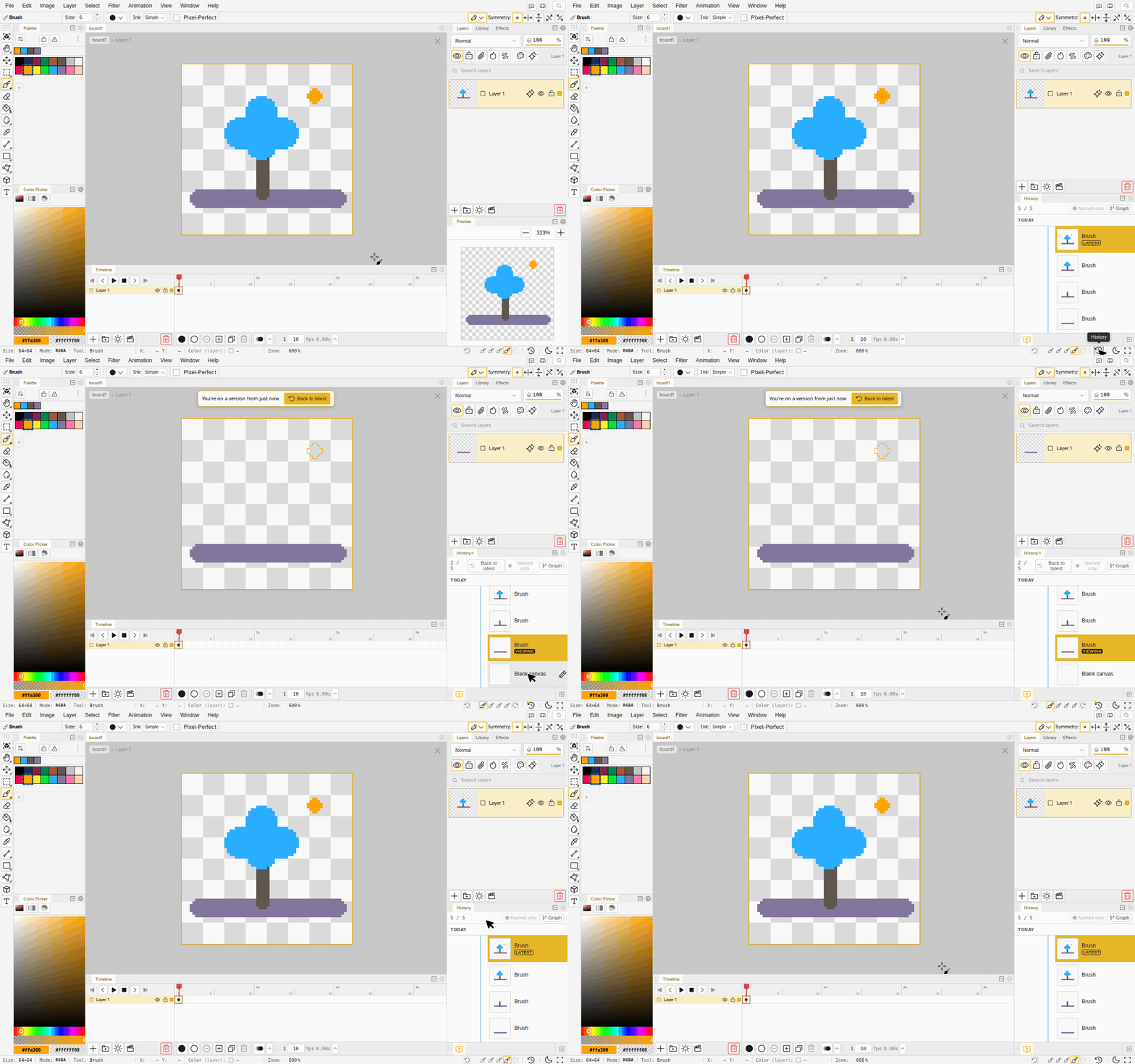
- History is a panel, not a window over your work. It docks under Layers and lists your versions newest first, each with a picture of the art at that moment and the name of the edit that made it. Your layers stay on screen next to it.
- Clicking a version takes you there. The board goes back at full size, arrow keys step through, and “Back to latest” brings you home.
- Versions are grouped by when you drew them, under Today and Yesterday and a fresh header whenever you took a break.
- Branches sit in a gutter as cards, each showing the newest art on that line, so you can tell your second silhouette from your third by looking at it. Stack up more than three and one card opens the list.
- Name a version. Type a name on the row and it sticks, through a save and through a reopen. A named version is kept when older ones are cleared away, there is a Named only filter to cut the list down to them, and the command palette can jump straight to one by name.
- Compare a version beside the file it belongs to. Open it in its own tab, read-only, either against your current work or against the version before it. Link views keeps both panes on the same zoom and the same frame.
- The version strip in the status bar sits between undo and redo, and clicking a slot now takes you to that version.
- Phones get the same list, pictures and names included, with a long press for a row’s options.
Layer Rows
- The row menu is reorganized, with the merge options gathered into one submenu and rename, copy, paste, duplicate and delete together at the bottom.
- Merge Up joins the row above and keeps its name, Merge Selected merges everything you picked, and Stamp Visible lands above your top selected row.
- Merging a group keeps it a group. The layers move and nothing is flattened behind your back. Flatten Group is the one item that flattens.
- Copy and paste a layer between open files, as one undo step each.
- Groups take an opacity and a blend mode, with Pass Through at the top of the list as the default. It is in the mobile drawer too.
- Use as Reference goes both ways. Converting a reference back into a layer bakes it exactly where it sits on the canvas.
- New Group wraps whatever you have selected, and the clipping toggle now sits on the panel header.
The Timeline Takes Arrow Keys
- Shift and the arrow keys extend a selection, up and down through layers, left and right through frames, growing a live rectangle of cels as you go.
- Alt and the arrow keys move what you picked, a layer row, a cel, a run of cels, or a whole frame column.
- Moves swap instead of overwriting. A keyframe in the way trades places with what you are moving rather than being painted over, and dragging a frame header follows the same rule, so reordering frames no longer copies pictures into keyframes you never made.
The Preview Plays on Its Own
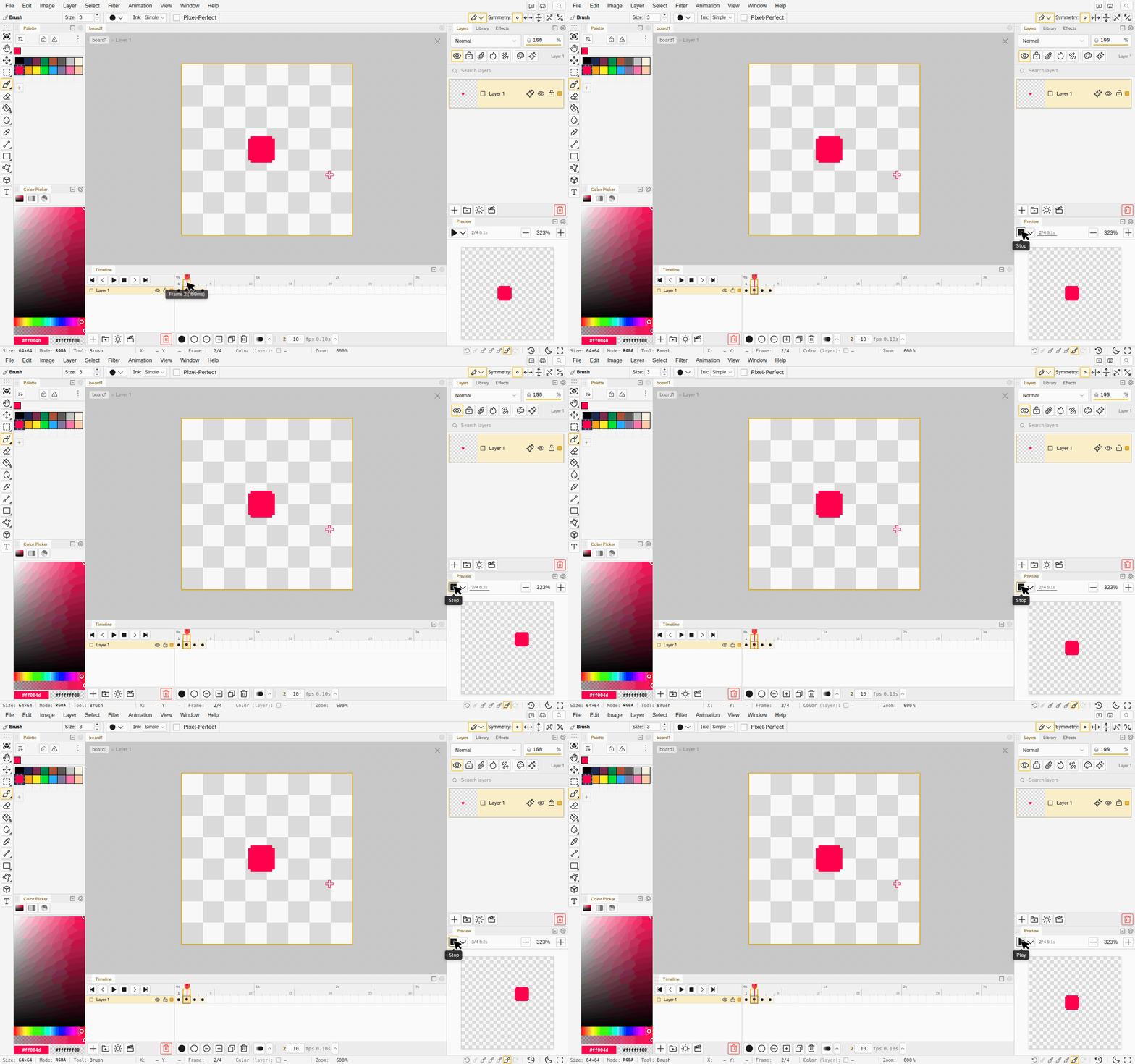
- Playing the preview no longer moves the frame under your brush. The panel has its own playhead: it follows you while stopped, runs on its own while you keep drawing, and holds whatever frame it lands on. Shift+Space drives only the preview.
- Stop puts it back on the frame you are drawing, and the transport is a plain Play and Stop.
- Options of its own: play once, all frames, and a speed from a quarter to double, without touching the file’s own timeline.
- Drag the frame readout to scrub the preview back and forth.
- Sprite Stack can spin by itself. A button in the preview toolbar turns the model at a steady rate, and grabbing it mid-spin takes over, then hands it back.
Panels Land Where You Drop Them
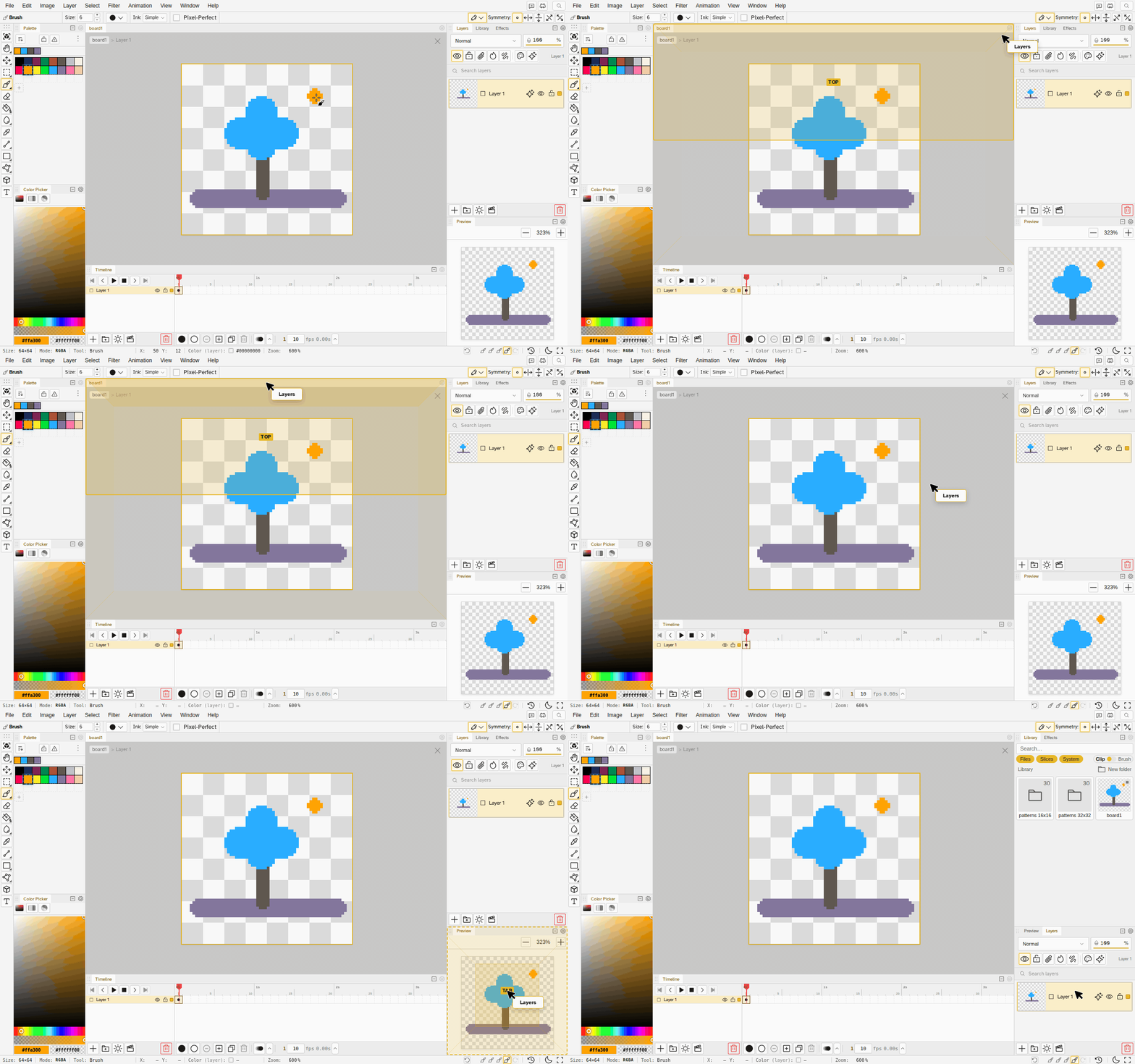
- A dragged panel shows the pane it is about to create, drawn in place, instead of lighting up the strip your cursor happens to be in.
- Every corner is a target now, so dropping near the corner of a group no longer does nothing.
- Dropping an editor tab shows a caret where it will be inserted.
Export
- Pick several exports and run them together. Ctrl-click to add a row, Shift-click to extend, or use the row’s checkbox, which is always there on touch. The footer button runs your selection as one batch, and Repeat Last Export replays exactly that group.
- PSD carries your effects. Adjustment layers and layer styles come through, folders keep their opacity and blend mode, and a clipping mask stays a clipping mask.
- .pxo, .pixil, .piskel and .gal keep clip and text layers instead of writing them out empty or dropping them.
- Cancelling an export really stops it instead of writing the file anyway.
- Per-frame and per-layer PNG files keep an indexed file’s palette, the Area crop reaches the sprite sheet preview and the engine sheets, and a sprite slice that straddles the crop is trimmed to it.
Files and Offline
- A first visit opens on Starters rather than a blank 64 by 64, and New File then remembers whichever tab you last chose.
- The editor really works offline. It opens and reloads with no connection.
- The editor opens the moment you create a file instead of waiting for the first save to finish.
- Brave and Firefox stop tinting your saves. With fingerprint protection on, every color in a saved file could come back off by one, and a color hidden under a transparent pixel was lost. Files are written and read exactly now, and they come out about 45% smaller.
- An Aseprite import says when it had to approximate. A file whose frames hold for different lengths gets one notice with the before and after counts, since a Novaboard timeline runs at one rate.
- Moving a whole cel on an indexed file keeps its palette slots. Two slots holding the same color used to quietly collapse into one, so a later palette edit missed those pixels.
Smaller Touches
- Shift springs the bucket’s Contiguous option. Tap it to flip, hold it to borrow it for one fill.
- Rotating and scaling a selection stays smooth on a big canvas, on both the CleanEdge and RotSprite settings.
- A trackpad flick zooms one step, not all the way to the floor, and a sideways scroll no longer zooms at all.
- Align to Selection means the marquee, distribute leaves the outermost layers where they are, and pressing it twice does nothing the second time.
- Pixel-perfect works with the pen and curve tools.
- The palette fills the drawer on a phone instead of scrolling one long row.
- Switching tools no longer shifts the toolbar, so the dynamics and symmetry controls stay put.
- The visit count is only reported once you have accepted analytics.
Bug Fixes
- Some tablets and browsers showed a blank canvas. The app falls back to another way of drawing instead of leaving you with nothing.
- Outline and Drop Shadow show on screen what Bake Effects produces. The two together could draw an empty shadow and wipe the shape a later Glow needed.
- An effect from an older file opens with all its settings, instead of quietly losing one.
- Escape is for the popup you have open, not for redoing everything you just undid.
- Undoing a freshly created layer no longer raises an error after a large import.
- Back to Workspace keeps its close button on a narrow window with desktop chrome pinned.
- An image your browser cannot save now tells you, instead of failing in silence.