
Last week the app started opening files from a grid. This week the thing that opens them stopped being special. The drawing surface used to be the one part of the layout that wasn’t a panel: fixed in place, untabbable, exactly one of it. Now it’s a panel like the layers or the timeline, and everything that panels can do, the editor can do too. Open two files as tabs. Put them side by side. Look at one sprite zoomed in and zoomed out at the same time. Drag a view out to your second monitor.
Around that: the tool options moved onto a row of their own so nothing gets cut off, the menus were rearranged to match where every other editor keeps things, each panel header got a settings cog and a fold button, the timeline gained loop tweens, JPEG XL joined the formats, and a first look at what actually crashes in the wild produced a long list of fixes.
What’s new:
Files as Tabs, Views Side by Side · A Row for the Tool in Your Hand · Menus, Rearranged · Panels · Timeline · JPEG XL · Pixelorama and Aseprite · Tablets · Free Tool Pages · Smaller Touches · Bug Fixes
Files as Tabs, Views Side by Side
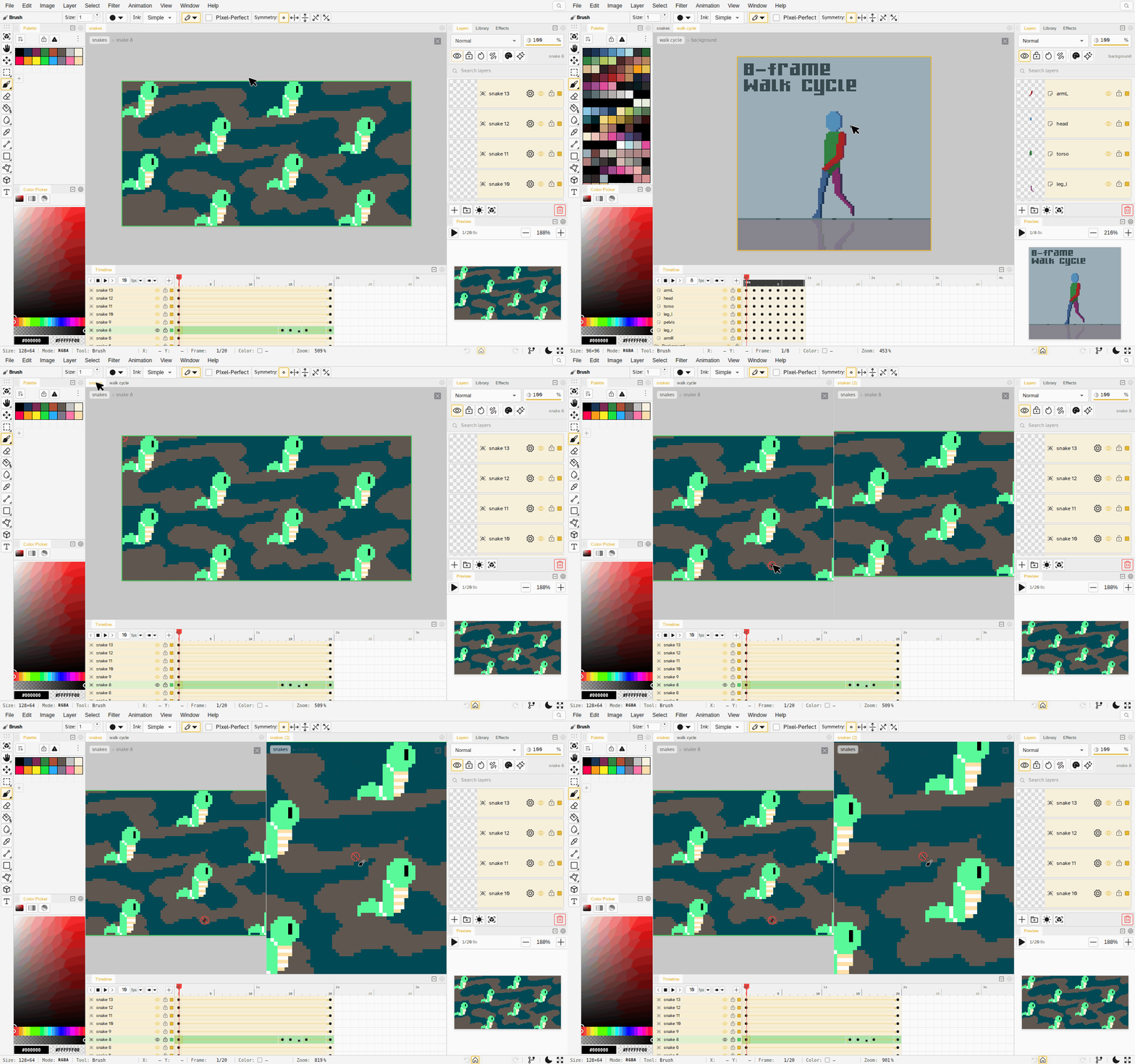
The editor is a dock panel now, and that one change turns into several things you can see.
- Open several files at once. Each open file is a tab in the editor’s tab bar, named after the file. Open another from the command palette (
Ctrl+P, then the file’s name) and it lands as a new tab; switch by clicking, reorder by dragging, close from the tab’s right-click menu or the usual close button. Closing the last tab takes you back to the grid. Panels, zen mode and undo all follow whichever tab is active, and the set of open tabs is remembered per workspace. - Split the window. View ▸ Split View, or Split View on a tab’s right-click menu, puts a second view beside the first. Drag a tab into another group to merge them, or onto a group’s edge to split there. Up to four groups on desktop, two on iPad. A group with no tabs left folds away on its own.
- One file, two views. Splitting the file you’re in gives you a second view of the same sprite, labelled “(2)“. Each view keeps its own zoom, pan, rotation, tile mode and current frame, so you can work at 1600% in one pane while the other shows the whole sprite at 100%, or scrub two frames of the same animation next to each other. It’s one document underneath: draw in either and the other updates, and undo is shared.
- Side panes stay live. A pane you’re not drawing in keeps rendering, so the zoomed-out view really does show every stroke as it lands instead of freezing on its last frame.
- Pop a view out into its own window. On desktop, a tab’s right-click menu has Pop Out to New Window. The view moves into a separate window with everything intact and comes back to the dock when you close it.
Two things are deliberate. Splitting is always an explicit act: opening a file that’s already open just switches to it, it never quietly makes a second view. And an editor tab stays inside the editor area; it can’t be docked where the layers panel lives, because the editor is the region every other panel’s size is measured against.
A Row for the Tool in Your Hand

The menu bar and the tool options used to share one line and fight for it. The options always lost: on a common laptop width, the text tool’s spacing and line controls were simply cut off, with no scroll and no way to reach them. So they were split.
- The tool options have their own row under the menus, starting with the name of the tool they belong to (which used to sit in the opposite corner, in the status bar). The transform, quick mask, shape and selection controls that used to inject themselves into the middle of the row while you were working now take a fixed slot at the end, so nothing shoves sideways under your cursor when an operation starts.
- Nothing is unreachable any more. If a tool’s options are wider than the window, the row scrolls; a mouse wheel over it gets you to the end.
- Ink mode is a dropdown. It’s remembered per tool and rarely switched, so it stopped being the widest thing in the row.
- Escape closes the options dropdowns. An open dynamics or brush panel used to cover the canvas and swallow your next stroke.
On a tablet the two rows stay: a portrait iPad has room for the menu labels, and it was the options row that overflowed when the two shared a line. Menu buttons and rows are taller under a finger.
Menus, Rearranged
Every menu was compared against Aseprite, Photoshop, GIMP and Krita, and items moved to where all of them keep them.
- Edit holds Fill and Stroke Selection, Free Transform and the wheel menu editor. Image holds the whole-file operations: Crop to Selection, Rotate Canvas, Flip Canvas. Layer gains Flatten Image, Move Up and Down, Create and Release Clipping Mask, and opens the Layer Effects panel. Select is only about making selections, plus Quick Mask with a checkmark.
- View puts zoom first, with a presets submenu, folds the grid options (including the isometric toggle) into one submenu, and gains Full Screen. Window lists every panel flat, with a checkmark on the ones that are open. Help has What’s New, the legal pages under one submenu, and the version.
- Animation was rebuilt: first and last frame, previous and next keyframe, duplicate, delete, lock, insert keyframe, and real checkmarks on onion skin and ping-pong.
- File ▸ Open accepts every format the app can import, in both the workspace and the editor, behind
Ctrl+O. Importing into the current file is Import Layer and Import Tracing Layer. Repeat Last Export is greyed out until the file has actually been exported once, and Exit is in both menus. The separate workspace menu is folded into File. - Two toggles are gone because they no longer meant anything: File Background (a leftover from the infinite canvas; the backdrop is always there now) and the slices overlay switch (slices show while the slice tool is active or the Slices panel is open).
- Windows and Linux desktop builds get the File menu back. It was hidden as if every desktop had a native menu bar, which only macOS does.
Panels
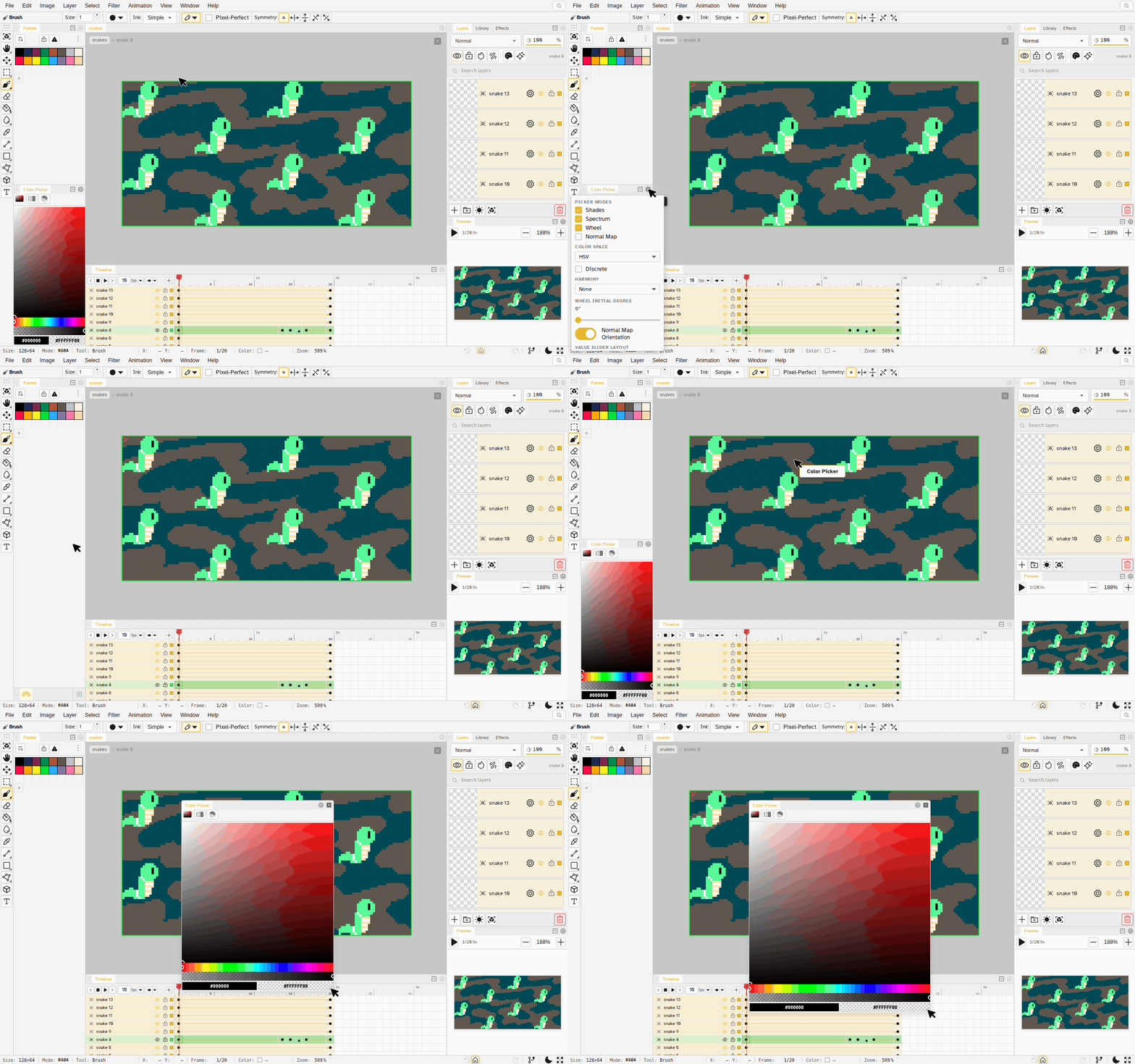
- Every panel header ends in a settings cog and a fold button. The cog opens the active panel’s settings; it stays put but greys out on panels that have none, so the buttons never jump around as you click between tabs. The fold button minimizes the group to an icon strip, the same thing double-clicking a tab does, with its chevron pointing at the edge the group folds toward. The Color Picker’s in-panel gear and the Preview panel’s settings dialog both moved behind the cog, and the cog works in icon-strip flyouts and popped-out windows too.
- Floating windows resize from every edge and corner, not just one. Tear a panel out onto the canvas and stretch it whichever way you need.
- Icon-strip flyouts resize too, and remember the size you gave them for the session, so a panel you keep peeking at can be as tall as you like.
- Headers are lighter. A 20px bar with smaller buttons and icons, the collapse buttons redrawn as square minus and plus, the expand button aligned to the end of the strip, and double-clicking a strip icon restores the group.
- Floating windows can’t get lost. Shrinking the window used to let a floating panel’s title bar park in a strip you could neither see nor reach.
Timeline
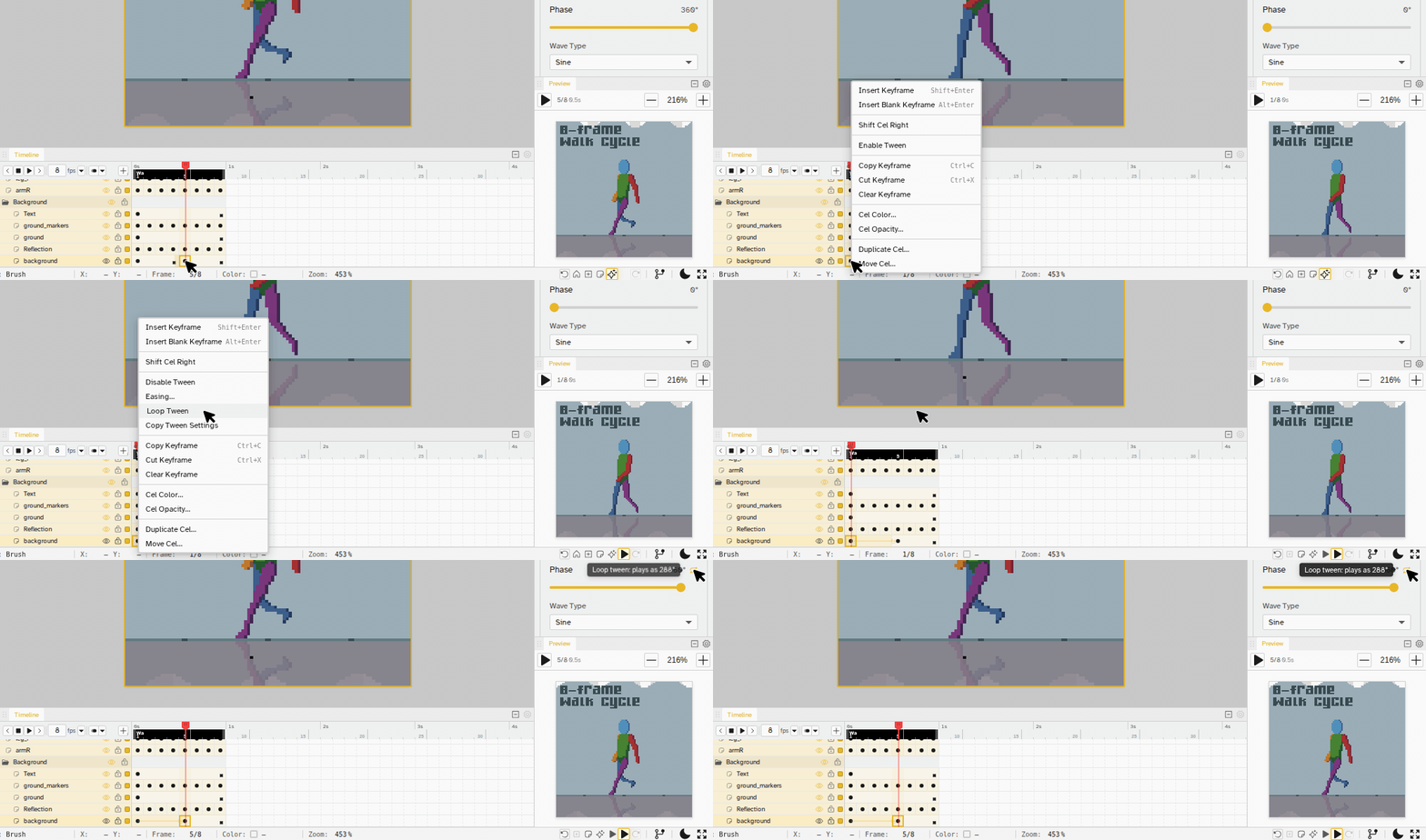
- Loop tweens. A tweened keyframe’s right-click menu gains Loop Tween. With it on, the tween reaches its end value one frame after the next keyframe instead of on it, so a looping range can keyframe the endpoints you’d naturally write (phase 0 to 360, rotation 0 to 360) without the last frame being a copy of the first and the loop hitching where it wraps. The span’s arrowhead becomes a loop glyph, and on the end keyframe any effect value that plays differently from what you typed shows a small hint that names the value you’ll actually see. The setting survives easing changes, copy and paste of tween settings, and saving.
- The runway past the last frame looks like a place. Dashed column separators and continued row lines run across the whole empty area, a standing hint that cels can be dropped out there.
- Group rows are one calm band instead of a grid of bordered cells, with per-frame tints still drawn on top.
- Dragging a span’s end shows the keyframe moving. The preview is now the keyframe itself, ghosted at the landing spot with its origin receding, rather than a lane fill that could suggest a result the drop wouldn’t produce. Handles hint faintly when the pointer is on their row.
JPEG XL
.jxl files open and export. Drop one onto the grid to make a file, drop it onto an open file to add it as a layer, and pick JPEG XL in the export dialog to write one: lossless when you want it, and smaller than PNG. It works in every browser, including the ones that don’t display JPEG XL themselves.
Pixelorama and Aseprite
- Pixelorama files round-trip properly. A
.pxoexported from Novaboard used to open blank in Pixelorama, and importing one could crash. Both directions now write and read the real palette and color mode, linked cels come in as held keyframes (and a held span goes out as a linked set), and per-cel opacity travels both ways. - Aseprite blend modes you’ll be told about. Aseprite’s divide and subtract blend modes have no equivalent here, so those layers convert to screen and difference and the picture can change. The editor already said so; the free converter pages on the site now do too.
Tablets
- The page stops scrolling. A finger drag on the editor could scroll the whole document and walk the navbar or the status bar off the screen, especially on devices with a notch. The editor is pinned now; docs, blog and tool pages scroll as before.
- Taps land where you aim. The wider touch band on panel dividers was borrowed from the panels on either side, so anything within a few pixels of a pane edge (palette cells, color picker corners) tapped the divider instead. The band is a real gutter now. And re-tapping the tool you’re already holding no longer pops the group flyout over the canvas and eats your next stroke; tap the corner arrow when you want the siblings.
- Both navbar rows on tablets, with taller rows and menu buttons under a coarse pointer.
- Layer names stay visible in a narrow column. The thumbnail gives way before the name does.
- Touch gesture settings show finger icons for one, two and three finger taps.
Free Tool Pages
- Phone photos that won’t decode get a real explanation. The single most common error on the tool pages was a bare “Failed to load image”, almost always a large photo on an Android phone. The message now names the likely cause (a big camera photo running out of memory, or a camera format the browser can’t decode) and the formats that always work. HEIC is refused up front with the same explanation instead of failing later in silence, and a pick the phone reports with no type is no longer dropped without a word.
- Saving on Android browsers stops complaining about a save that worked. Some Android browsers offer a save dialog and then refuse to write through it; the file was downloaded anyway, but you got an error toast. It’s a normal download now, with the normal success message.
- A stale tab asks you to reload after an update instead of showing a blank workspace forever.
Smaller Touches
- Color adjustments respect a marquee. Hue/saturation, OKLCH, brightness and contrast, curves and posterize with a selection up used to look right in the panel and then do nothing on Apply, and could leave the selection in a floating state that made the next transform stamp a copy. They apply inside the marquee now, and one undo puts it back.
- The adjustment preview shows what Apply will do. With several cels selected, or on a held frame, or on a locked layer, the panel previewed one thing and committed another. Preview and commit read the same set of cels now, and a slider drag on a held frame no longer mints a keyframe.
- The interface holds still when you switch tools. The tool name in the status bar and the context row has a fixed-width slot, so changing tools (or tapping Alt for the color picker) no longer shifts the layout.
- Type a zoom in the status bar and the file stays put. A large typed zoom used to anchor on the window centre and could fling the sprite off screen.
- Command palette verbs are findable.
>Fill Selectionand>Move Celwere being read as instructions with arguments and never matched. Several palette entries that quietly did nothing now do their job: Image Size, Invert, Grayscale, Export Timelapse, Grow/Shrink Selection, Import Image, and the palette sort, export, load and extract-from-image actions. - Duplicate Cel refuses a locked layer, like Move Cel already did. Delete on an adjustment cel with nothing on it steps up to removing the cel instead of churning.
- Align reads the timeline selection the same way Merge Selected does, so rows picked in the timeline count.
- Turntable exports are size-guarded in the default new-file mode, with a message instead of an oversized file.
- The Alt+H, Alt+S and Alt+L hue, saturation and lightness scrubs are listed in the shortcut editor and the docs now, and brush and effect sizes share one ceiling between their inputs and the size drag.
- Icons. The text tool’s alignment, rotate, vertical, underline, italic and justify icons are the proper Phosphor set (alignment used to borrow the object-alignment boxes). The shading cursor and icon line up their gradient arrows, the clipping mask actions use a paperclip, and the Novaboard icon is the star from the favicon.
- Escape in a nested dialog closes only the top one. A confirm dialog opened from inside another dialog used to take its parent down with it.
- The landing page shows the grid. Every screenshot and blurb that still showed files scattered on a plane now shows the workspace you actually get.
Bug Fixes
Ctrl+Vpasted twice. Two handlers both answered the paste while a file was focused, so every paste landed a duplicate.- Pasting a tweened cel works. Copy a cel with a tween, paste it, and the paste failed outright.
- A failed stroke no longer locks the cel for the rest of the session. One bad stroke on a cel could leave it refusing every stroke after it until you reloaded; the error reports showed the same cel being hit over and over.
- Opening something that isn’t a
.novasays so instead of “invalid zip data”. - Duplicate File keeps everything. The copy lost per-keyframe effect overrides, decal anchors, palette layout and layer group membership, because the new ids the copy got weren’t carried into the places that referred to the old ones.
- The eyedropper samples the right pixel on indexed files with a cel smaller than the canvas, and an empty area of an indexed layer no longer reads back as a real color on palettes whose transparent slot isn’t the first one.
- Your colors come back on load. On some loads the remembered primary and secondary colors fell back to black and transparent.
- Arrow keys in a panel’s tab bar stayed in the tab bar. They also nudged the selection on the canvas.
- Unmerge, unflatten and delete-layers entries show their own names in the history instead of the forward operation’s, and changing the playback speed no longer leaves a nameless entry.
- An eraser drag could throw a burst of errors from a badly-formed redraw region, dozens of times a second, until the drag ended.
- Switching workspaces or deleting the open file no longer crashes the timeline.
- iOS keyboard crash. An autocomplete or IME key release on iOS could crash the canvas keyboard handling.
- Clipped color adjustments are faster. A multi-cel adjustment with a marquee scanned the whole canvas twice per cel whatever the selection’s size; it scans the selection now.