
This is the biggest release since Novaboard started versioning. The theme this cycle was color: the palette panel was rebuilt from the ground up, the color picker learned new ways to think about hue, and indexed boards got stricter about staying on palette. Around that, selections, guides, the timeline, and the desktop app all picked up real features. And underneath it all, several rounds of deep QA testing fixed well over a hundred bugs, including every crash we’ve seen in production. The road to 1.0 continues, and this is the longest stride yet.
What’s new:
Palette, Rebuilt · Color Picker · Quick Mask · Perspective & Isometric Guides · Timeline & Animation · Layers · Indexed Boards · Desktop · Game Engine Export · Smaller Touches · Bug Fixes
Palette, Rebuilt
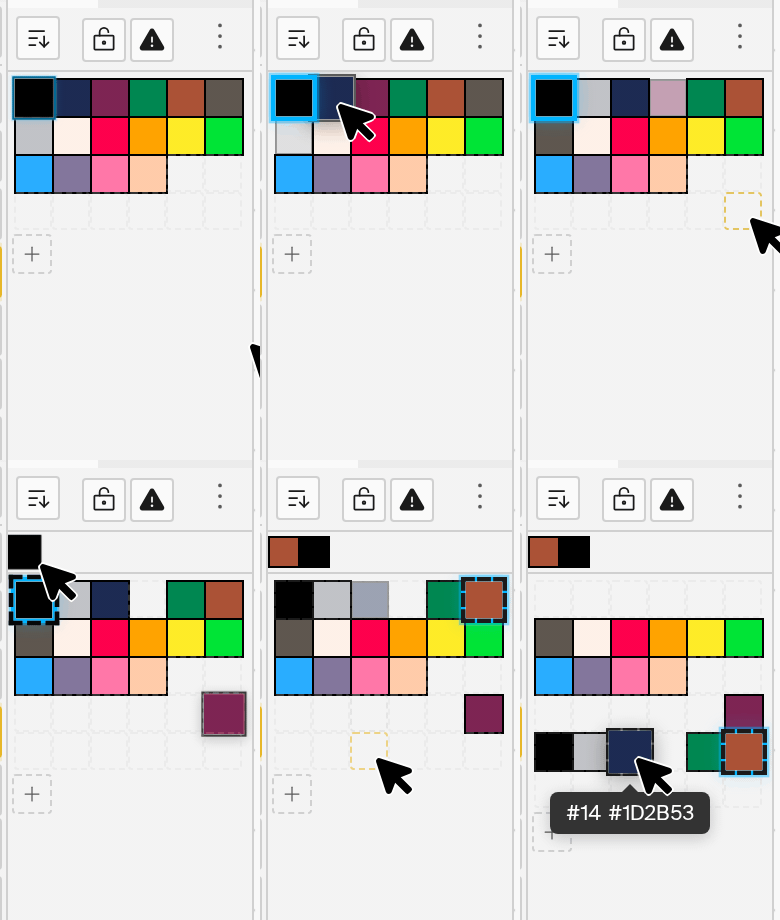
The palette panel is now a live grid you can shape however you think about your colors:
- Arrange swatches freely. Drag a swatch onto another color to reorder, or drop it on an empty cell to place it anywhere, so you can build ramp rows, hue islands, and deliberate gaps. Drag a swatch out of the panel to remove it. On indexed boards your artwork follows every rearrangement safely.
- Select many at once. Click, Shift-click for a rectangular range, Ctrl-click to toggle, or drag a marquee across the background. Drag a selected swatch and the whole block moves together. Right-click a selection for bulk actions: delete, move to a group, build a gradient between the endpoints, or merge them into one color.
- Cleanup tools. One-click Remove Duplicates and Remove Unused, plus a Merge Similar dialog with a threshold slider and a live before-and-after summary for collapsing near-identical colors.
- A real transparent slot. Every palette now starts with a pinned transparent swatch, so erasing is always one click away. You can hide it, and palettes can now be emptied down to nothing.
- Craft palettes. Twelve manufacturer color lines are now built-in presets: Perler, Hama, Artkal, and PhotoPearls beads, plus DMC, Anchor, Cosmo, and Madeira embroidery floss. Every swatch carries its real product code and name, shows it on hover, and keeps it through
.nova, GPL, and ASE round trips, so a design maps straight to the beads or thread you’ll actually buy. - Replace Colors, plural. The old single-pair panel is now a multi-row Replace Colors panel that works on every board type, with a tolerance for close matches and a scope selector (selection, layer, frame, or all frames). An eyedropper in the panel samples straight from the canvas: click any pixel and its color drops into a replacement row. Multiple replacements commit as one undo step.
- The full menu, everywhere. Right-clicking the palette background now offers every toolbar action: sort, columns, groups, cleanup, and more. Adding a color that already exists is also allowed now, since Remove Duplicates can always collapse them later.
Color Picker
The color picker learned some new tricks:
- Three color spaces. Pick in classic HSV, the RYB artist’s wheel where complements sit the way painters expect, or OKLCH where equal distances look equally different. Your choice now drives every picker view, not just the wheel, and you can switch from Image > Color Space.
- Color harmonies. Choose complementary, analogous, split, triadic, tetradic, square, or a monochromatic ramp, and companion swatches appear next to your pick, with ghost markers on the wheel showing where each color sits. Click a companion to paint with it, or right-click to make it your secondary color.
- Shades and Spectrum views. The picker’s mode switcher is now a strip of small live previews, and alongside the classic Shades square there’s a new Spectrum view that lays hue against lightness. The sliders gained an OKLCH set too.
- Discrete steps. Quantize the wheel into 6 to 36 hue segments, and the Shades and Spectrum squares into a swatch grid, when you want to snap between a fixed set of colors instead of scrubbing a continuum. A small handle on the wheel’s rim lets you drag where the hues start.
- Normal-map mode. A shaded hemisphere picker for painting normal maps: the center is flat, drags toward the rim tilt the surface, and there’s a toggle for the two Y conventions game engines use.
- Hardware color depth. Constrain a board to a retro bit depth from Image > Color Depth: RGB444, RGB565, and RGB332 presets, grayscale, or a custom 1 to 8 bits per channel. Applying a profile folds your existing artwork and palette into it as one undo step, every color you pick afterwards snaps to it as you pick it, and the wheel, squares, and sliders render as a patchwork of exactly the colors the profile allows. Off-profile palette swatches get a marker, and Snap Palette to Profile fixes the whole palette in one click.
Quick Mask
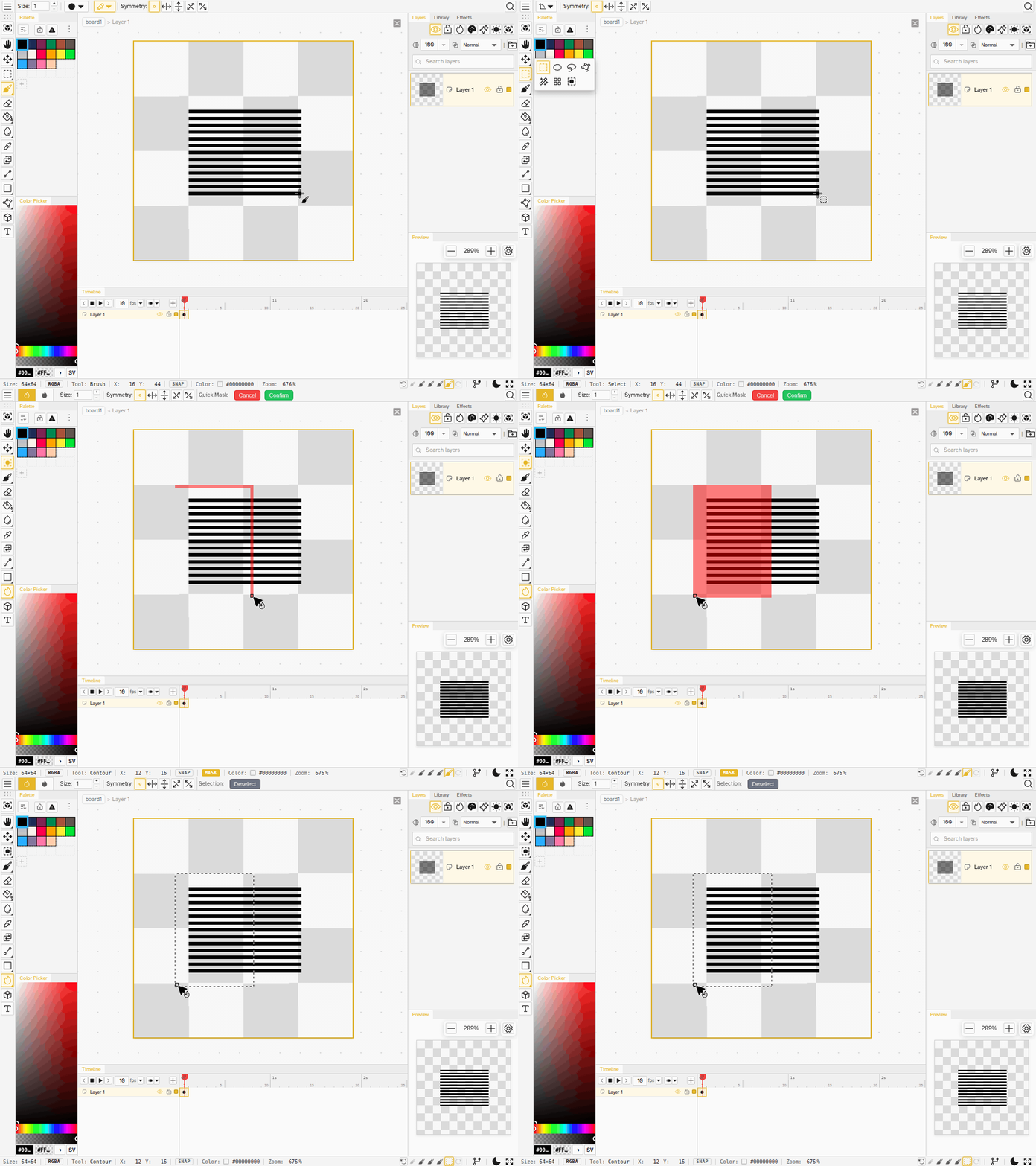
You can now paint a selection instead of tracing one. Quick Mask lives in the selection tools group: enter it and your brush, eraser, and contour strokes paint a translucent red mask over the artwork instead of touching pixels. Press Enter (or the confirm button) and the painted area becomes your selection; Escape cancels. It seeds from your current selection, so it’s also a natural way to touch up a wand or lasso result by hand.
Perspective & Isometric Guides
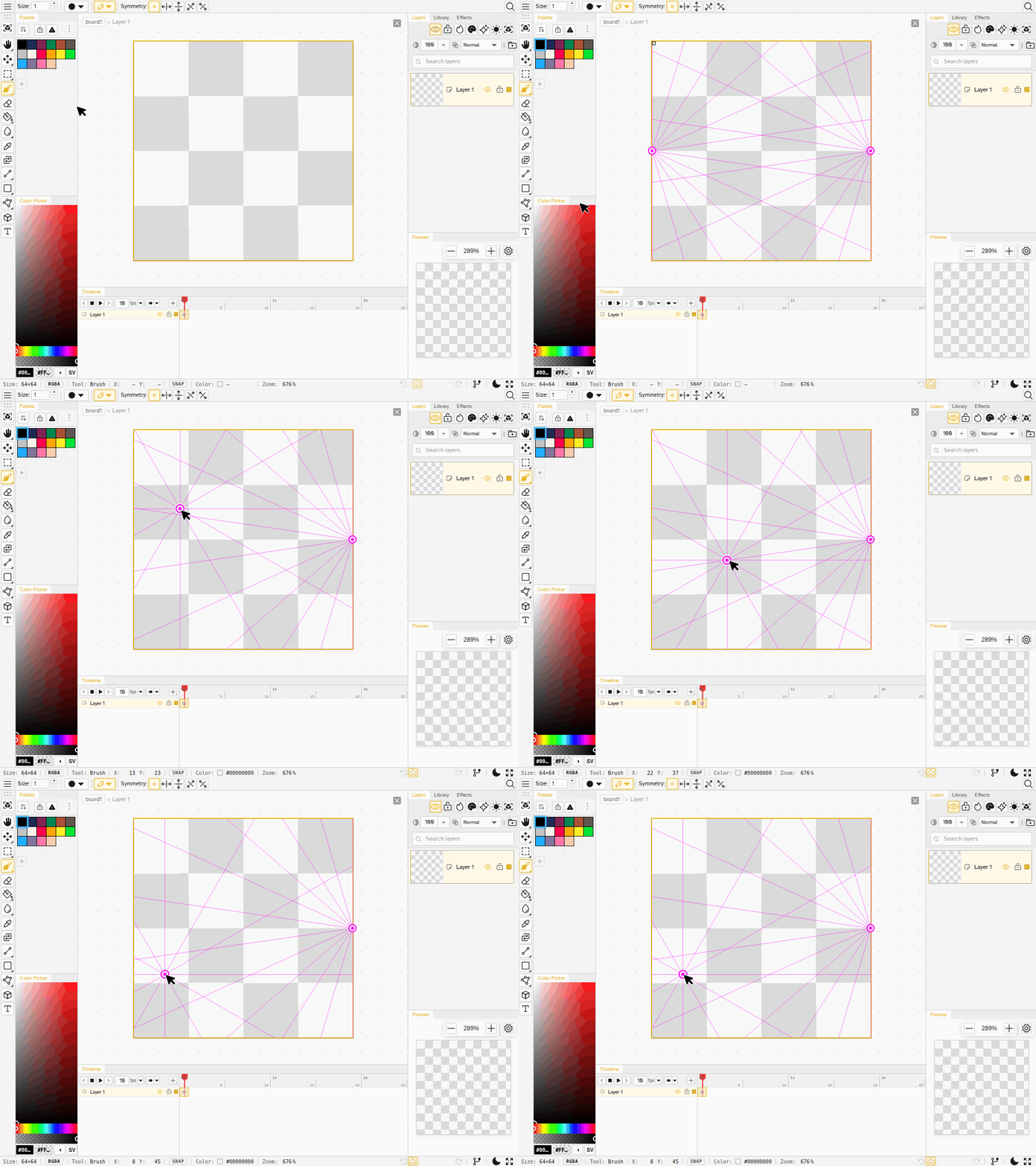
- Perspective grid. A new non-destructive overlay with one, two, or three vanishing points you drag right on the canvas. Configure density and color in the settings dialog, and the grid remembers your setup when you toggle it off and on. Each board keeps its own.
- Guides can render as pixels. Both the perspective grid and the regular grid have a new option to draw their lines as crisp 1-pixel staircases, exactly the pixels your pencil would put down along that line, instead of smooth vector lines.
- The isometric grid matches IsoDraw. Iso grid cells are now built from the exact same edges as IsoDraw’s cube tops, with a Cap Size setting (2, 3, or 4) matching the cube style, so cubes drawn on the grid line up perfectly. Vertical guide lines now appear at every diamond junction too.
Timeline & Animation
- Organization colors. Layers, frames, and cels can each carry a color tag now. A layer color tints its whole row, a frame color tints the column, and a cel color tints that keyframe’s span, so big timelines stay readable. Set them from the context menus; they’re undoable and saved with the board.
- Spreadsheet-style cel selection. With cels selected, Shift+Arrow grows or shrinks the selection one row or column at a time, just like extending a range in a spreadsheet.
- Clip layers got smarter. Clip layers now respect a tag’s play direction (reverse and ping-pong actually play that way), each keyframe can point at its own tag, and clip cels can be cleared to show nothing. You can also select several clip layers and edit their properties together in one dialog, as a single undo step.
- Everything is labeled now. Layer, cel, and frame context menus show their keyboard shortcuts (including your remaps), renaming is in the menus with F2 as the shortcut, and Duplicate Layer (Ctrl+J) and Delete Layer (Alt+Delete) have default bindings. Shift-clicking a lock icon now solos the lock the way it already soloed visibility, and both gestures work from the timeline rows too.
Layers
- Stamp Visible. Flatten everything you can see onto a new layer, leaving the originals untouched. It follows your selection: limit it to certain layers, frames, cels, or a canvas selection.
- Find layers by name. The layer panel has a search box now. Groups stay visible while anything inside them matches.
- Merge and flatten match the screen. Merging and flattening now produce exactly what you saw before merging: blend modes, opacity, clipping masks, layer and group effects, and adjustment layers are all baked in correctly, and flattening cleans up the emptied groups.
Indexed Boards
Indexed boards now keep their promise: nothing off-palette reaches the screen. Layer effects and blend modes used to be able to produce in-between colors; their output now snaps to your palette as a visible pipeline stage, shown as a pinned “Indexed palette” row in the Effects panel so it’s never a mystery why an effect looks quantized. The blur, jumble, and dodge/burn tools also work on indexed boards now instead of doing nothing.
Desktop
The desktop app now takes care of your work in the background:
- Autosave to disk. Boards with a file on disk save themselves after you stop editing, on a delay you control in Preferences.
- Crash recovery. If the app closes with unsaved changes, the next launch offers to save the boards that were newer than what’s on disk.
- A save-state indicator. A small dot in the board breadcrumb shows unsaved changes at a glance, and on macOS the window’s close button shows the standard modified dot.
- A cleaner window on Windows and Linux. The extra File/Edit/Help bar at the top of the window is gone; everything it offered already lives in the app’s own menus. macOS keeps its system menu bar.
Game Engine Export
Getting animations into a game engine got a real upgrade:
- Two new engine formats. JSON atlas exports a sprite sheet with the standard JSON metadata that Phaser, Pixi, and most atlas-based engines read, including tags and slices. GameMaker export writes strip images that GameMaker splits into frames automatically, one per file or one per tag.
- Godot export overhaul. Reverse and ping-pong tags now actually play that way in Godot, output scale and effects are respected, and the generated files import without console warnings and match how Godot itself would write them.
- Trim, padding, and a preview. Engine exports can trim empty space around frames and pad between them, the config step summarizes which tags become which animations, and the output step shows the real sheet with frame numbers before you commit.
- Cleaner edges in-engine. When you add padding, engine exports can extrude each frame’s border pixels into the gap, so bilinear filtering at runtime never bleeds transparent seams around your sprites.
Novaboard’s own .nova format is also complete and frozen now: files carry everything about a board, down to the playhead position, palette arrangement, reference images, and full undo history, and old files stay openable. Saving your work in .nova is now a true snapshot of your session.
Smaller Touches
- Hold a tool key to borrow it. Holding a tool shortcut switches while held and returns to your previous tool on release, like Photoshop’s spring-loaded tools. A quick tap still switches permanently.
- Two Escapes to leave the board. One stray Escape no longer ejects you to the workspace; the first press shows a hint, a second within a moment actually leaves.
- Delete escalates sensibly. Del clears what’s selected; pressed again on something already empty, it deletes the empty keyframes, then the frames, then an empty layer. Shift+Del still deletes frames outright.
- Close-gap bucket fill. The bucket tool has an option to treat small gaps in line art as closed, so fills stop leaking through one-pixel holes.
- Preview zoom toggle. Clicking the zoom percentage in the preview panel jumps between fit and 100%.
- Cels keep their off-canvas content. Pixels moved past the canvas edge now stay with the cel instead of being thrown away: an outline shows where the cel’s content actually sits, and the new Reset Cel Position command brings it back to the origin.
- Rename boards properly. File > Rename Board, plus inline renaming right in the board list.
- Transform reference layers together. Select two or more tracing layers and the transform tool moves, scales, and rotates them as one rigid group about a shared pivot, all in a single undo step.
- Frame rate up to 120. The timeline’s frame-rate field now accepts the full range.
- MP4 export uses the browser’s own encoder now. Novaboard no longer bundles its own H.264 encoder; MP4 export runs on the encoder your browser or the desktop app already ships. In a browser that can’t encode H.264, Novaboard points you to the WebM export instead.
- Analytics are opt-in. Novaboard now runs cookieless, and nothing beyond an anonymous page view is collected unless you say yes to the new consent banner.
Bug Fixes
This release closes out several full QA passes over the app, plus every crash reported from production. The highlights:
- The crashes are gone. Duplicating a board no longer produces a blank copy that crashed the view, filling a huge area no longer aborts partway, a stray pointer event no longer takes down the cursor, and older browsers missing newer built-ins get a fallback instead of a blank page.
- Undo history survives saving. Undo and redo now work correctly in reopened
.novafiles instead of silently corrupting, a color adjustment that changed nothing can no longer wipe a layer when undone, cut from the context menu is undoable, and deleted boards free their history instead of holding memory all session. - Held frames follow the rules again. Drawing on a held frame edits its source keyframe, so the change shows across the whole span; new keyframes are only created when you ask for one.
- Frame operations keep everything. Duplicating, reordering, and deleting frames now preserve tags, tween flags, transforms, colors, and the custom playback range, and undoing a frame delete puts cels back exactly where they were.
- Selections behave. Inverting a full selection deselects instead of silently blocking all drawing, grow and shrink report tight bounds, flipping with a selection flips in place, Send to New Layer actually moves the pixels, subtracting away the whole selection deselects, and the transform box on a rectangular selection hugs the opaque pixels instead of the empty space around them.
- Strokes finish what they started. Fast strokes no longer drop their final pixels, redoing a pattern or dither fill restores the pattern instead of a solid, custom brushes work with brush dynamics on, and the eraser uses its own size in dynamic strokes instead of the brush’s.
- Even-size brushes are exact. A size-6 square brush paints 6 pixels wide, anchored the same as every other shape, instead of 7.
- Groups composite correctly. Nested groups no longer wipe each other while rendering, hidden groups stay hidden everywhere, adjustment layers next to a clipping chain apply instead of being skipped, and the preview panel stays in sync after undo.
- Resize and crop keep your art. Canvas Size, Image Size, crop, and transforms no longer erase indexed layers or misplace layers with offsets, and undo restores them correctly.
- Imported GIFs look and play right. GIFs with inter-frame optimization composite correctly instead of showing garbage, and GIF and APNG imports honor the file’s real frame timing instead of playing at a fixed speed.
- Exports match the preview. Export All Boards uses each board’s saved settings, pad-to-aspect-ratio pads instead of cropping, frame and area selections apply to every format, APNG files open in strict viewers again, and timelapse exports show the drawing actually progressing instead of every frame finished.
- Color-mode conversions are trustworthy. Converting between indexed, grayscale, and full color no longer blanks boards or produces wrong grays, Extract Palette works on indexed boards, and palette edits during a failed save no longer roll back newer work.
- Cycling palette colors skips transparent. The next/previous color keys no longer land you on an invisible color that paints nothing.
- Panels stay where you put them. Dragging a panel within a floating window no longer duplicates it, closing a floating window keeps the panel menu in sync, and a shrunken window can’t strand a panel off screen.
- Recording a shortcut is safe. The Shortcut Editor no longer triggers app shortcuts (like undo) while you’re recording a new binding.
- Rulers follow the view. Rulers and guide dragging now account for a flipped or rotated view.
- The first board opens centered instead of off in a corner, and Escape closes the board list’s context menu.
- Fewer junk error toasts. Harmless browser noise and flaky-connection errors no longer pop “Something went wrong”.